---
title: Take and Review Customer Calls
description: Use the Call Log to take live customer calls, then review resolved calls with recordings, download links, transcripts and call analysis scores.
---
[Skip to content](https://support.metafleet.ai/take-and-log-customer-calls#main-content)
English
Show submenu for translations

Open main navigation
Close main navigation
- English
Show submenu for translations
- [Contact us](mailto:support@metafleet.ai)
[Contact us](mailto:support@metafleet.ai)
How can we help you?
- There are no suggestions because the search field is empty.
1. [MetaFleet Answer Hub](https://support.metafleet.ai/?hsLang=en)
2. [Integrations](https://support.metafleet.ai/integrations?hsLang=en)
3. [Phone Setup](https://support.metafleet.ai/integrations?hsLang=en#phone-setup)
# Take and Review Customer Calls
## Find live and finished calls in the Call Log, step into a live call as a dispatcher, and review recordings and call scores afterward.
**For:** Dispatchers and managers · **Permission:** Read All Calls to browse and hear calls, Dispatch Calls to join and take them · **Time:** ~5 minutes
### Quick summary
1. Open **Service › Call Log**.
2. Use the **Active** tab for calls in progress and the **Resolved** tab for finished calls.
3. Click a call's date to open it.
4. On a live call, click **Join Call**. Once you're on it, use **Resolve Call** when the call is done.
5. On a resolved call, review the recordings, transcription and call analysis.
### Before you start
- You need the **Read All Calls** permission to list calls, open them and hear recordings.
- You need the **Dispatch Calls** permission to join a call, add people to it or take it.
- **Dispatch Calls** alone shows the **Call Log** menu item but not the list of calls. Dispatchers who take calls usually need both.
- Your phone menu and call groups decide which calls reach dispatchers. To set them up, see [Set Up Your Phone Menu and Call Groups](https://support.metafleet.ai/editing-your-phone-settings?hsLang=en).
### Open the Call Log
In the left menu, open **Service** and click **Call Log**. The page is titled **Customer Calls**. Click **Refresh** to update the list. The time of the last update is shown next to it.
The list has two tabs:
- **Active:** calls in progress right now.
- **Resolved:** calls that have ended. The newest are first, 10 per page.
Each row shows the call's date and time, the customer and the dispatcher. The customer and dispatcher read **NA** when the call wasn't matched to a customer or never reached a dispatcher.
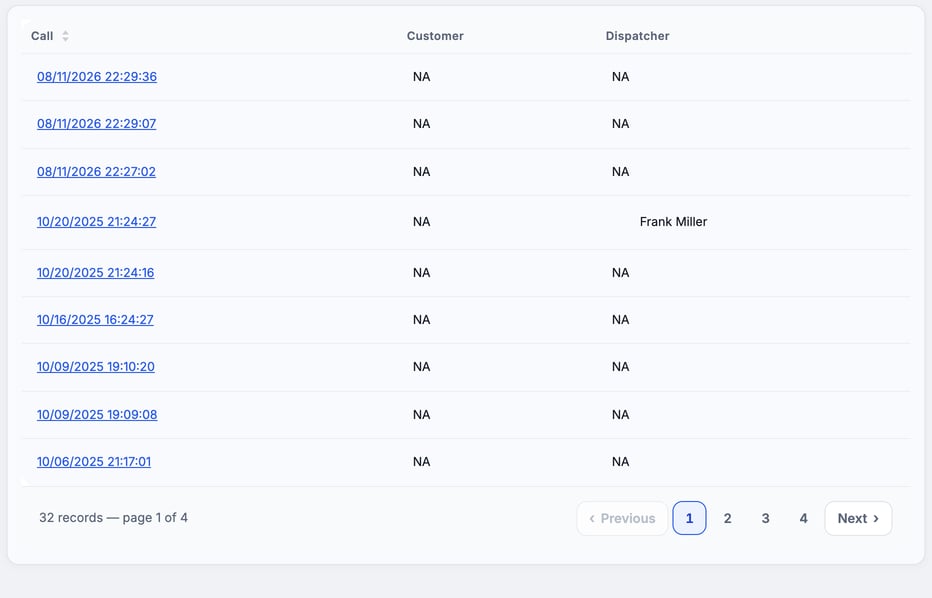
> The list has no filters. To find a call, use its date and time, or the dispatcher's name.
### Open a call
Click the date and time in the **Call** column. A live call opens the **Phone Call** page. A call that has ended opens its resolved page instead.
### Take a live call
The **Phone Call** page shows the caller's number, the call ID and a log of what the call has done so far. Two cards let you act on it. You need **Dispatch Calls** for all of these.
**Users** lists the dispatchers on the call. A green dot means the person is connected. If they aren't, an **Alert** button shows next to them.
**Call Options** holds the call controls. Before you join, only **Join Call** shows. After you join, the other controls appear:
1. **Join Call:** connects you to the call.
2. **Hold:** puts the caller on hold. While the caller is on hold, the button reads **Admit to Call**. Click it to bring the caller back.
3. **View Dialpad:** opens a dialpad you can use during the call.
4. **Resolve Call:** ends the call.
5. **Leave Call:** disconnects you. The call stays open for the others.
To bring a colleague in, click **Add** on the **Users** card, pick the person in **Select User** and click **Add User To Call**.
> **Resolve Call hangs up on the caller.** It doesn't ask you to confirm. Leave the call instead if you only want to step away.
Hold, **View Dialpad** and **Resolve Call** show only after you join, and only on calls from outside. Calls between your own team don't have them.
### Review a resolved call
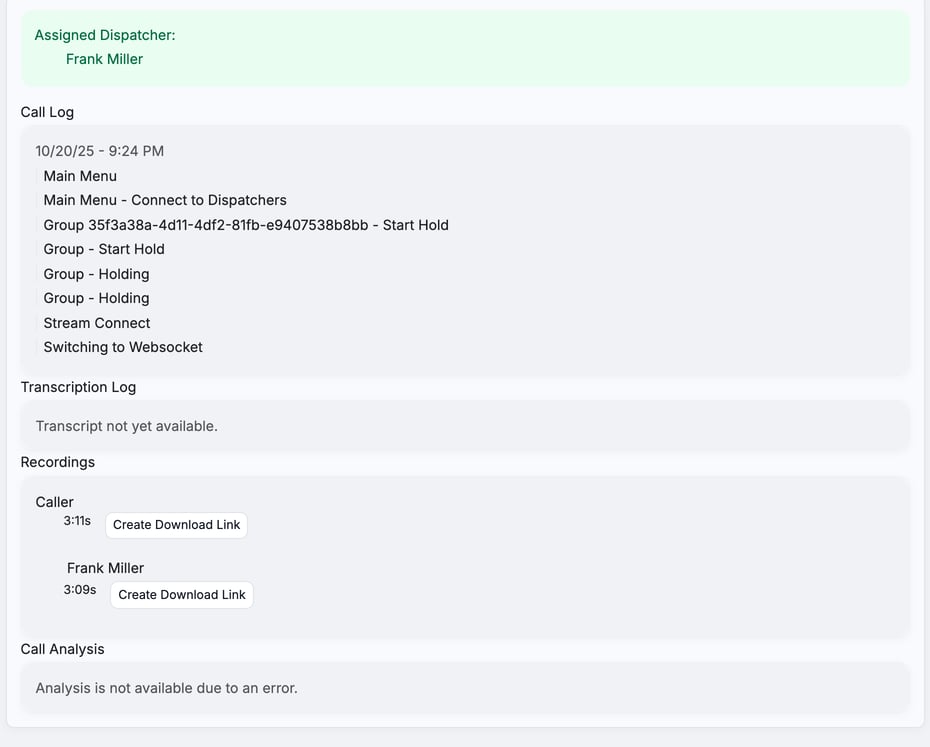
Open any call on the **Resolved** tab. The page shows these parts, top to bottom:
- **Assigned Dispatcher:** who handled the call. A **Flagged for Review** badge appears if the call was marked for review.
- **Call Log:** each step the call took, such as the main menu, hold and connecting to a dispatcher.
- **Transcription Log:** the written record of the call. It reads **Transcript not yet available.** until one exists.
- **Recordings:** one recording for the caller and one for each dispatcher who was on the call.
- **Call Analysis:** scores for the call. It's shown for group calls only.
### Get a recording
Each recording shows its length and one of these:
- **Create Download Link:** click it to make a link, then use **Download** to save the file. Links expire, so create a new one if the old one stops working.
- **Download:** the link is ready.
- **Recording in progress...:** the call is still being recorded. Check back later.
- **Recording Failed :(** means the recording wasn't saved.
- **No Recordings:** nothing was recorded for this call.
### Read the call analysis
For group calls, **Call Analysis** scores how the call went. The scores are Clarity, Closing Interaction, Customer Satisfaction, Empathy, Issue Resolution, Helpfulness, Politeness and Response Time. You also get Suggestions, a rating of the customer's clarity and behavior, and a Summary.
Until the scores exist, the section shows a message instead:
- **Analysis not yet available.** or **Analysis is still being processed.** Check back later.
- **Analysis is not available due to an error.** or **Analysis is not available.** No scores will appear for this call.
### Troubleshooting
| Symptom | Likely cause | Fix |
| --- | --- | --- |
| **Call Log** is in the menu but the list is empty or won't load | You have **Dispatch Calls** but not **Read All Calls** | Ask an admin to add **Read All Calls** to your role. |
| You don't see **Call Log** in the menu | You have neither permission | Ask an admin for **Read All Calls**, **Dispatch Calls** or both. |
| The **Active** tab is empty | No call is in progress | Nothing to fix. Click **Refresh** when a call comes in. |
| A recording's download link stopped working | Download links expire | Click **Create Download Link** again. |
| No **Call Analysis** on a call | It's shown for group calls only, and it can fail | Check the message under **Call Analysis** for which case you have. |
### FAQs
**Does Resolve Call just close the record?**
No. It hangs up the call. Use **Leave Call** to step away without ending it.
**Can I turn a call into a service order from the Call Log?**
No. Create the service order separately and enter what the caller told you. See [Create a Service Order](https://support.metafleet.ai/create-a-service-order?hsLang=en).
**Who can hear recordings?**
People with **Read All Calls**.
**Where do I change which dispatchers get calls?**
In your phone settings. See [Set Up Your Phone Menu and Call Groups](https://support.metafleet.ai/editing-your-phone-settings?hsLang=en).
### Related articles
- [Set Up Your Phone Menu and Call Groups](https://support.metafleet.ai/editing-your-phone-settings?hsLang=en)
- [Create a Service Order](https://support.metafleet.ai/create-a-service-order?hsLang=en)
- [Start Here](https://support.metafleet.ai/start-here?hsLang=en)
- [Companies & Contacts](https://support.metafleet.ai/companies-contacts?hsLang=en#main-content)
- [Create/Edit Companies](https://support.metafleet.ai/companies-contacts?hsLang=en#create-edit-companies)
- [Contacts](https://support.metafleet.ai/companies-contacts?hsLang=en#contacts)
- [Vehicles](https://support.metafleet.ai/companies-contacts?hsLang=en#vehicles)
- [Work Intake (Requests & Service Orders)](https://support.metafleet.ai/work-intake-requests-service-orders?hsLang=en#main-content)
- [Creating Service Orders](https://support.metafleet.ai/work-intake-requests-service-orders?hsLang=en#creating-service-orders)
- [Customer & Partner Requests](https://support.metafleet.ai/work-intake-requests-service-orders?hsLang=en#customer-partner-requests)
- [Reference](https://support.metafleet.ai/work-intake-requests-service-orders?hsLang=en#reference)
- [Customer Portal](https://support.metafleet.ai/work-intake-requests-service-orders?hsLang=en#customer-portal)
- [Estimates & Approvals](https://support.metafleet.ai/estimates-approvals?hsLang=en#main-content)
- [Approval Gates](https://support.metafleet.ai/estimates-approvals?hsLang=en#approval-gates)
- [Estimates](https://support.metafleet.ai/estimates-approvals?hsLang=en#estimates)
- [Invoices](https://support.metafleet.ai/estimates-approvals?hsLang=en#invoices)
- [Billing](https://support.metafleet.ai/estimates-approvals?hsLang=en#billing)
- [Parts, Inventory & Vendors](https://support.metafleet.ai/parts-inventory-vendors?hsLang=en#main-content)
- [Add Parts & Kits](https://support.metafleet.ai/parts-inventory-vendors?hsLang=en#add-parts-kits)
- [Stock & Counts](https://support.metafleet.ai/parts-inventory-vendors?hsLang=en#stock-counts)
- [Locations & Bins](https://support.metafleet.ai/parts-inventory-vendors?hsLang=en#locations-bins)
- [Purchase Orders](https://support.metafleet.ai/parts-inventory-vendors?hsLang=en#purchase-orders)
- [Parts Catalog](https://support.metafleet.ai/parts-inventory-vendors?hsLang=en#parts-catalog)
- [Vendors & Manufacturers](https://support.metafleet.ai/parts-inventory-vendors?hsLang=en#vendors-manufacturers)
- [Pricing](https://support.metafleet.ai/parts-inventory-vendors?hsLang=en#pricing)
- [Service Vehicles](https://support.metafleet.ai/parts-inventory-vendors?hsLang=en#service-vehicles)
- [Sourcing & Hand-Off](https://support.metafleet.ai/parts-inventory-vendors?hsLang=en#sourcing-hand-off)
- [Part Numbers](https://support.metafleet.ai/parts-inventory-vendors?hsLang=en#part-numbers)
- [Notifications](https://support.metafleet.ai/parts-inventory-vendors?hsLang=en#notifications)
- [Reports](https://support.metafleet.ai/parts-inventory-vendors?hsLang=en#reports)
- [Invoicing & Payments](https://support.metafleet.ai/invoicing-payments?hsLang=en)
- [Dispatch & Scheduling](https://support.metafleet.ai/dispatch-scheduling?hsLang=en#main-content)
- [Preventative Maintenance](https://support.metafleet.ai/dispatch-scheduling?hsLang=en#preventative-maintenance)
- [Technician Assignment](https://support.metafleet.ai/dispatch-scheduling?hsLang=en#technician-assignment)
- [Scheduling & Calendar](https://support.metafleet.ai/dispatch-scheduling?hsLang=en#scheduling-calendar)
- [Technician Schedule](https://support.metafleet.ai/dispatch-scheduling?hsLang=en#technician-schedule)
- [Technicians & Mobile App](https://support.metafleet.ai/technicians-mobile-app?hsLang=en#main-content)
- [Time Tracking](https://support.metafleet.ai/technicians-mobile-app?hsLang=en#time-tracking)
- [Tech Workflow](https://support.metafleet.ai/technicians-mobile-app?hsLang=en#tech-workflow)
- [Evidence & Photos](https://support.metafleet.ai/technicians-mobile-app?hsLang=en#evidence-photos)
- [AI Assistant](https://support.metafleet.ai/technicians-mobile-app?hsLang=en#ai-assistant)
- [Alerts, Alarms & Notifications](https://support.metafleet.ai/alerts-alarms-notifications?hsLang=en#main-content)
- [Email/SMS/App Settings](https://support.metafleet.ai/alerts-alarms-notifications?hsLang=en#email-sms-app-settings)
- [Reporting & Dashboards](https://support.metafleet.ai/reporting-dashboards?hsLang=en)
- [Admin & Settings](https://support.metafleet.ai/admin-settings?hsLang=en#main-content)
- [Rates & Fees](https://support.metafleet.ai/admin-settings?hsLang=en#rates-fees)
- [Branding](https://support.metafleet.ai/admin-settings?hsLang=en#branding)
- [Roles, Permissions & Users](https://support.metafleet.ai/admin-settings?hsLang=en#roles-permissions-users)
- [Service Areas](https://support.metafleet.ai/admin-settings?hsLang=en#service-areas)
- [Workflows](https://support.metafleet.ai/admin-settings?hsLang=en#workflows)
- [Taxes](https://support.metafleet.ai/admin-settings?hsLang=en#taxes)
- [Integrations](https://support.metafleet.ai/admin-settings?hsLang=en#integrations)
- [Integrations](https://support.metafleet.ai/integrations?hsLang=en#main-content)
- [Phone Setup](https://support.metafleet.ai/integrations?hsLang=en#phone-setup)
- [AI Assistant Access](https://support.metafleet.ai/integrations?hsLang=en#ai-assistant-access)
- [QuickBooks](https://support.metafleet.ai/integrations?hsLang=en#quickbooks)
- [Getting Around](https://support.metafleet.ai/getting-around?hsLang=en#main-content)
- [Search & Command Bar](https://support.metafleet.ai/getting-around?hsLang=en#search-command-bar)
[](http://www.metafleet.ai)
[mailto:support@metafleet.ai](mailto:support@metafleet.ai)
Copyright © 2025, MetaFleet, Inc