
For: Owners and admins · Permission: Manage account settings · Time: ~5 minutes to connect, then setup
Quick summary
- Open Settings › Integrations, then the QuickBooks tab.
- Click Connect to QuickBooks and sign in to QuickBooks Online.
- Choose your company and allow the connection.
- Back in MetaFleet, finish the setup steps until Setup not finished is gone.
Before you start
- You need the Manage account settings permission. Without it you can read the QuickBooks tab, but Connect to QuickBooks is grayed out and a line under the header says View only.
- Have your QuickBooks Online sign-in ready for the company you want to use.
- Pick one QuickBooks company. A company can be connected to one MetaFleet account only. After you disconnect, you can reconnect to that same company only. The card names that company after you disconnect.
- You don't need to turn off Automated Sales Tax in QuickBooks. MetaFleet reads that setting when you connect, again every night and when the card opens, and follows it. See How Sales Tax and Exemptions Work with QuickBooks.
- No QuickBooks tab? Contact MetaFleet support to turn QuickBooks on for your account.
Open the QuickBooks tab
Go to Settings › Integrations and click the QuickBooks tab. Until you connect, the card is titled Connect QuickBooks Online.

Connect to QuickBooks
- Click Connect to QuickBooks. MetaFleet takes you to the QuickBooks sign-in page.
- Sign in and choose the company to connect.
- Allow the connection. QuickBooks sends you back to the QuickBooks tab in MetaFleet.
If you cancel on the QuickBooks page, no connection is made. You come back to the QuickBooks tab, still not connected, with an amber Something went wrong message. Click Connect to QuickBooks to start again. If you land on a plain page that says Missing code or realmId or Invalid or expired state parameter, the sign-in had expired. Go back to Settings › Integrations and start again.
If you connected this account before and sign in to a different QuickBooks company, the connection is not made. An amber message, QuickBooks wasn’t connected, names the company you can reconnect to. Sign in to that company instead.
Check the connection
When the connection works, the card title reads QuickBooks Online with a green Connected badge. A line under it reads Company with the company you picked. Until setup is done, an amber Setup not finished badge sits next to it.

After setup, the card also shows a status strip under the header. It lists Needs your review, Needs a home, Failed pushes, Out by, Last synced and Next sync.

MetaFleet reads your company's sales-tax setting when you connect, then again every night and when the card opens. That setting decides whether QuickBooks or MetaFleet works out the tax on your invoices.
If you see "MetaFleet couldn't read this company's sales-tax setting"
QuickBooks did not answer when MetaFleet asked how this company handles sales tax. The card shows this message in place of the tabs, and nothing syncs until the setting is read. Invoices you send in the meantime wait in the queue and go to QuickBooks once it is.
- Click Try again. MetaFleet asks QuickBooks one more time.
- If QuickBooks answers, the message goes away and setup continues.
- If it keeps failing, click Disconnect at the top of the card, then connect again. If that fails too, contact MetaFleet support.
MetaFleet also retries on its own. It reads the setting again before each invoice, every night and when the card opens, so a change you make in QuickBooks shows up without disconnecting.
Finish setup
Connecting does not start any syncing. The card walks you through three steps first:
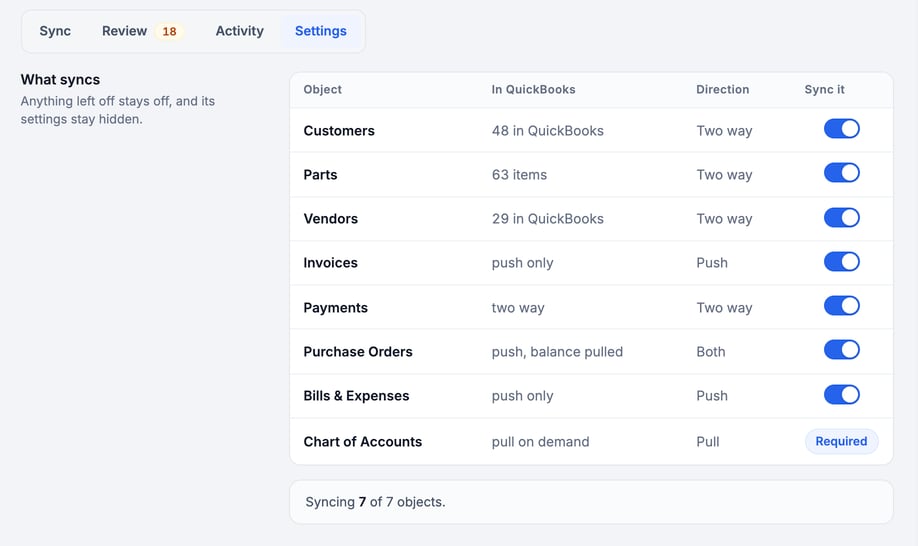
- What should sync? Turn each kind of record on or off. See Choose What Syncs with QuickBooks.
- Choose what syncs. Pick the records for each kind you left on, such as customers, parts and vendors.
- Check where your money posts, then click Start syncing and confirm. See Choose Where Your Money Posts in QuickBooks.
Once setup is done, the Settings tab has a Customer payments section. Turn on Customers pay through QuickBooks if you want invoice emails to carry a QuickBooks pay link. It stays off until QuickBooks Payments is on in your QuickBooks company.
Once connected, the Settings tab also has a Sales tax rates section that shows how each of your tax groups stands in QuickBooks. See How Sales Tax and Exemptions Work with QuickBooks.
The Setup not finished badge stays until this is done. Don't click Cancel on a setup step. It opens Cancel setup and disconnect?, and confirming removes the connection.
What connecting does not do
- It does not create or change anything in QuickBooks.
- It does not send any invoice, payment or customer yet.
- It does not delete anything in either system.
Disconnecting later. Disconnect stops all automatic syncing. Your data in both systems stays. See Disconnect, Reconnect and Use Brands with QuickBooks.
Troubleshooting
| Symptom | Likely cause | Fix |
|---|---|---|
| No QuickBooks tab under Settings › Integrations | QuickBooks is not turned on for your account | Contact MetaFleet support to turn QuickBooks on. |
| Connect to QuickBooks is grayed out | You don't have the Manage account settings permission | Ask an admin who has it, or ask for the permission. |
| On the Brands tab, a message that the company is already connected to your shop, another brand or another MetaFleet account | That QuickBooks company is already in use | Connect a different QuickBooks company. If it says another MetaFleet account, contact support. |
| You come back to the QuickBooks tab and it still shows Connect QuickBooks Online | The connect was canceled at QuickBooks, the sign-in could not be saved, or the QuickBooks company is already connected to another MetaFleet account or brand. An amber message at the top of the card says which. | Click Connect to QuickBooks again. If the message says the company is already connected, connect a different company. If it repeats, contact MetaFleet support. For other messages, see QuickBooks Error Messages and How to Fix Them. |
| MetaFleet couldn't read this company's sales-tax setting | QuickBooks did not answer the sales-tax question | Click Try again. See the section above. |
| An amber QuickBooks wasn’t connected message after you sign in | You signed in to a different QuickBooks company than the one this account was connected to before | Click Connect to QuickBooks again and sign in to the company the message names. |
| Setup not finished badge stays | Setup steps are not done, or the sales-tax setting is not read | Finish the setup steps, then click Start syncing and confirm. If the sales-tax setting is the cause, click Try again. |
FAQs
Will connecting change my QuickBooks data?
No. Connecting only links the two. Nothing is created in QuickBooks until you finish setup and click Start syncing.
Can I look at the QuickBooks tab without connecting?
Yes, if you have view access to account settings. Changing anything needs Manage account settings.
Can a bookkeeper connect it?
Yes, if they have a MetaFleet login with Manage account settings and a QuickBooks login for the company.
How often does it sync?
After setup, MetaFleet syncs by itself and runs a nightly sync at 11:00 PM in your shop's time zone. You can turn the nightly sync off with Nightly sync on the Settings tab. See How MetaFleet and QuickBooks Work Together.