
For: Owners and admins · Permission: Manage account settings · Time: ~1 minute
Quick summary
- Go to Settings › Connections › Integrations and stay on the FleetNet tab.
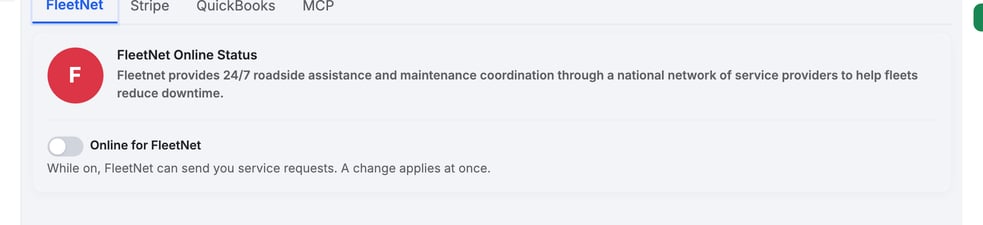
- Flip the Online for FleetNet switch. It applies at once, and there is nothing to save.
- Wait for Sending to FleetNet… to clear, then check the badge: green is online, red is offline.
Before you start
- FleetNet is a partner network that sends roadside and repair requests to shops like yours. Incoming requests land on the Partner Requests page (see Respond to a Partner Request).
- MetaFleet turns FleetNet on for your account and sets up your provider ID. You can't do this part yourself. No FleetNet tab? Contact MetaFleet support.
- You need permission to manage account settings to change the status. Without it, the card shows the status in words and has no switch.
Open the FleetNet card
Go to Settings › Connections › Integrations. The FleetNet tab opens first. The FleetNet Online Status card shows a round F badge. Red means your shop is offline for FleetNet. Green means online.
Switch the status
- Flip the switch. Turn Online for FleetNet on to take work, or off to stop it.
- Wait for FleetNet. The switch greys out and shows Sending to FleetNet… while FleetNet answers.
- Check the badge. Green means online and red means offline.

The switch acts as soon as you flip it. It signs your shop in or out with FleetNet right away. Flip it only when you mean it.
If FleetNet doesn't take the change, an error pops up and the switch goes back to where it was. Your status stays the same.
What online and offline mean
- Online: partners are told your shop is open for work.
- Offline: partners are told not to send you work. New shops start offline. A request a partner already sent can still arrive, so check the Partner Requests page.
To work a request, see Respond to a Partner Request. Once you win a job, see Work a FleetNet Job After You Win It.
Troubleshooting
| Symptom | Likely cause | Fix |
|---|---|---|
| No FleetNet tab | FleetNet isn't turned on for your account | Contact MetaFleet support. |
| The card shows the status but no switch | Your role can't manage account settings | Ask an admin to change the status. |
| An error pops up and the switch flips back | FleetNet didn't take the change | Try again. If it keeps failing, contact MetaFleet support. |
| A request arrived while you were offline | The partner sent it before they saw the change | Open it on the Partner Requests page and decline it, or work it. |
FAQs
Can I go offline for the weekend?
Yes. Turn the Online for FleetNet switch off. Turn it back on when you're ready for work.
Does offline cancel requests I already have?
No. Requests already in your list stay there until you respond.
What does the red F badge mean?
Your shop is offline for FleetNet. The badge turns green when your shop is online.