---
title: Respond to a Partner Request
description: "Accept or decline a FleetNet partner request: send your ETA and job type before the countdown ends."
---
[Skip to content](https://support.metafleet.ai/respond-to-a-partner-request#main-content)
English
Show submenu for translations

Open main navigation
Close main navigation
- English
Show submenu for translations
- [Contact us](mailto:support@metafleet.ai)
[Contact us](mailto:support@metafleet.ai)
How can we help you?
- There are no suggestions because the search field is empty.
1. [MetaFleet Answer Hub](https://support.metafleet.ai/?hsLang=en)
2. [Work Intake (Requests & Service Orders)](https://support.metafleet.ai/work-intake-requests-service-orders?hsLang=en)
3. [Customer & Partner Requests](https://support.metafleet.ai/work-intake-requests-service-orders?hsLang=en#customer-partner-requests)
# Respond to a Partner Request
## Accept a FleetNet partner request with an ETA and job type, or decline it with a reason, before the countdown ends.
**For:** Dispatchers · **Time:** ~2 minutes per request
### Quick summary
1. Open **Partner Request** in the Service menu and pick a request.
2. Read the partner's instructions and the job details, then check the countdown.
3. Click **Accept Job**, enter your ETA and the job type, and click **Send ETA to FleetNet**. Or click **Decline**, pick a reason, and click **Send Decline**.
4. When FleetNet dispatches the job to you, open it from the request with **View Service Order** or **View Appointment**.
### Before you start
- The FleetNet (partner) integration must be enabled for your shop. MetaFleet sets this up. Requests then arrive on their own.
- Requests are time-sensitive. Respond fast, because FleetNet can give the job to another provider.
### Find your requests
Under **Service**, click **Partner Request**. Each row shows the request ID, urgency, partner name, complaint, service type, vehicle, **Service Needed By** time and status.
Use the tabs to filter by status, or the search box to find a request by its details, including the unit number. A search needs every word you type to match.
- **New:** waiting for your answer.
- **ETA Sent:** you sent an ETA. FleetNet hasn't picked a provider yet.
- **Dispatched:** FleetNet dispatched the job to you.
- **Declined:** you declined it, or the partner cancelled it before dispatching it. A request the partner cancelled reads **Partner Cancelled**, not **Declined**. A job the partner cancels after dispatching stays on **Dispatched** and reads **Cancelled**. A request that closed because nobody answered in time isn't listed on any tab.
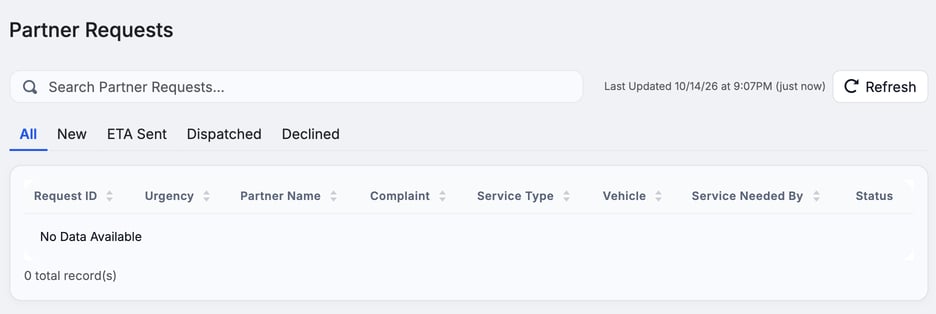
*The Partner Requests list with its status tabs. It's empty here because the demo shop has no partner requests.*
### Open the request and check the clock
Click a request ID to open it. A bar at the top of the page holds the countdown, the service type, the urgency, and the **Decline** and **Accept Job** buttons. The bar stays in view as you scroll.
The countdown is the time left in the **Response Window**. FleetNet sets the window for each request, and the page shows it under **Response Window** in **The Job**. When it reaches zero, the request closes on its own and leaves every tab. Until it closes, you can still answer.
Below the bar, read the record before you answer:
- **Partner instructions** appear first, above the fault. They can limit what you may spend or fit, so read them before you accept.
- **The Job** has the complaint, service type, urgency, **Service Needed By** and work order number.
- **Where** shows the location on a map, with an **Open in Google Maps** link, so you can judge whether you can get there in time.
- **Unit** has the vehicle make, model and year. **People** lists the contacts.
- **Load & Estimate** shows the partner's **Estimate Threshold** (the most you can bill without approval), estimate notes, and whether the unit is loaded and how heavy.
- Tow, tire and mechanical jobs add their own sections, such as **Tow Stops**, **Tire** and **Mechanical**. A section with nothing in it doesn't appear.
### Accept the job
Accepting sends a bid. It doesn't create a job yet.
1. **Click Accept Job.** A short form opens under the bar.
2. **Enter Estimated Arrival.** Type your ETA in minutes.
3. **Pick Tire Brand Available.** This field appears only for tire jobs. Choose **Yes** or **No**.
4. **Choose a Job Type.** Pick **Repair**, **Towing**, **PM**, **Inspection** or **PM + Inspection**. Nothing is pre-selected. This is for your shop only and isn't sent to FleetNet.
5. **Click Send ETA to FleetNet.**
The request moves to **ETA Sent**. FleetNet may still give the job to another provider, so don't plan the work yet.
### Decline the job
1. **Click Decline.**
2. **Pick a Decline Reason** from the list, such as **Out of Area**, **ETA Too Long**, **Tech / Driver Not Available** or **No Equipment Available**.
3. **Click Send Decline.**
The partner is told right away so it can reroute the job. The request moves to **Declined**.
> **If an update fails.** The page shows "The request update failed. Please try again!" Click the button again. If instead a note says another dispatcher accepted or declined the request first, it's already answered. Your answer wasn't sent, so don't retry. If FleetNet refused your answer, its own words appear on a **Reason** line under that message.
### When FleetNet dispatches the job
If FleetNet picks you, the request shows **Dispatched to us** and moves to the **Dispatched** tab. Beside that, you see the job's own status and its job number. On the list, the row shows the job's status and its number as a link, or **Dispatched** if the job can't be read. The page updates on its own if you have it open.
- For most jobs, click **View Service Order**. Assign a technician and work it like any other job.
- For a PM, an inspection or a planned repair, you see **View Appointment** instead. The job is booked as an appointment. When service starts, the service order is created and the button changes to **View Service Order**.
**Who owns the job.** The first dispatcher to accept owns the job. Follow-ups for it, such as a confirmation or missing details, go to that dispatcher's Active Orders row. If a follow-up isn't handled in 15 minutes, or the owner is off shift, the follow-up moves to one Overdue card that every dispatcher sees.
The booked job keeps FleetNet's instructions, dispatch notes and estimate approval threshold. The driver's name and phone from FleetNet are added to the job. A contact without a name shows as **On-site contact** with its phone, and you can begin the job with that contact alone. Manual Collection is the default for a partner job.
If FleetNet dispatches a request that already closed, it comes back on the Dispatched tab. If FleetNet or Cox sends the dispatch again after your shop cancelled the order before any work, you get a new live order. If the partner cancels the request, the bar shows **Partner Cancelled**. The **Partner reason** and **Reason** lines appear only when the partner sent one. A cancel with no reason shows the sentence alone.
If FleetNet or Cox cancels after it dispatched the job to you, MetaFleet cancels the job too, with no message back to FleetNet. A service order is canceled as if a dispatcher had canceled it: the pay link closes, empty draft purchase orders are cancelled and technicians are clocked off. A booked appointment is cancelled, confirmed or not. The request stays on **Dispatched**, the row reads **Cancelled**, and the page names the partner and says it cancelled the job after dispatching it. The reason lines show only when the partner sent one.
To work the order after that, see [Manage a Service Order](https://support.metafleet.ai/manage-a-service-order?hsLang=en).
### Troubleshooting
| Symptom | Likely cause | Fix |
| --- | --- | --- |
| The page says "You do not have permission to view partner requests." | Your role can't manage partner requests | Ask an admin to give your role access to partner requests. |
| No requests ever appear | The partner integration isn't enabled for your shop | Ask MetaFleet to enable the FleetNet integration. |
| A request left the New tab before I answered | The response window ran out, or the partner cancelled | If the window ran out, the request closed and no longer appears on any tab. If the partner cancelled it before dispatching, check the Declined tab, where it reads **Partner Cancelled**. If it cancelled after dispatching, look on the Dispatched tab, where the row reads Cancelled. |
| I sent an ETA but there's no service order | FleetNet hasn't dispatched the job to you yet | Wait for the status to change to Dispatched. Accepting only sends a bid. |
| Dispatched, but there's no View Service Order button | The job is an appointment (PM, inspection or planned repair) | Click View Appointment. Once service starts, the button changes to View Service Order. |
| A note says someone "accepted this request first" or "declined this request first" | Another dispatcher already answered | Nothing to fix. Your answer wasn't sent, and the request already has a response. |
| I can't send my ETA | Estimated Arrival, Job Type or, on tire jobs, Tire Brand Available is empty | Fill in every field marked required. |
### FAQs
**How long do I have to respond?**
The countdown in the top bar shows it. The full window is listed as **Response Window** under **The Job**. FleetNet sets it for each request.
**Does accepting create a service order?**
Not right away. Accepting sends your ETA as a bid. The job is created when FleetNet dispatches it to you.
**Do I have to give a reason to decline?**
Yes. Pick one of the listed reasons so the partner can reroute the job.
**Is the job type sent to FleetNet?**
No. It's marked **Not sent to FleetNet** and only decides how your shop sets up the job.
### Related articles
- [Manage a Service Order](https://support.metafleet.ai/manage-a-service-order?hsLang=en)
- [Understanding the Approval Gates](https://support.metafleet.ai/understanding-the-approval-gates?hsLang=en)
- [Configure Approval Options](https://support.metafleet.ai/configure-approval-options?hsLang=en)
- [Turn FleetNet Online or Offline](https://support.metafleet.ai/connect-fleetnet-online?hsLang=en)
- [Start Here](https://support.metafleet.ai/start-here?hsLang=en)
- [Companies & Contacts](https://support.metafleet.ai/companies-contacts?hsLang=en#main-content)
- [Create/Edit Companies](https://support.metafleet.ai/companies-contacts?hsLang=en#create-edit-companies)
- [Contacts](https://support.metafleet.ai/companies-contacts?hsLang=en#contacts)
- [Vehicles](https://support.metafleet.ai/companies-contacts?hsLang=en#vehicles)
- [Work Intake (Requests & Service Orders)](https://support.metafleet.ai/work-intake-requests-service-orders?hsLang=en#main-content)
- [Creating Service Orders](https://support.metafleet.ai/work-intake-requests-service-orders?hsLang=en#creating-service-orders)
- [Customer & Partner Requests](https://support.metafleet.ai/work-intake-requests-service-orders?hsLang=en#customer-partner-requests)
- [Reference](https://support.metafleet.ai/work-intake-requests-service-orders?hsLang=en#reference)
- [Customer Portal](https://support.metafleet.ai/work-intake-requests-service-orders?hsLang=en#customer-portal)
- [Estimates & Approvals](https://support.metafleet.ai/estimates-approvals?hsLang=en#main-content)
- [Approval Gates](https://support.metafleet.ai/estimates-approvals?hsLang=en#approval-gates)
- [Estimates](https://support.metafleet.ai/estimates-approvals?hsLang=en#estimates)
- [Invoices](https://support.metafleet.ai/estimates-approvals?hsLang=en#invoices)
- [Billing](https://support.metafleet.ai/estimates-approvals?hsLang=en#billing)
- [Parts, Inventory & Vendors](https://support.metafleet.ai/parts-inventory-vendors?hsLang=en#main-content)
- [Add Parts & Kits](https://support.metafleet.ai/parts-inventory-vendors?hsLang=en#add-parts-kits)
- [Stock & Counts](https://support.metafleet.ai/parts-inventory-vendors?hsLang=en#stock-counts)
- [Locations & Bins](https://support.metafleet.ai/parts-inventory-vendors?hsLang=en#locations-bins)
- [Purchase Orders](https://support.metafleet.ai/parts-inventory-vendors?hsLang=en#purchase-orders)
- [Parts Catalog](https://support.metafleet.ai/parts-inventory-vendors?hsLang=en#parts-catalog)
- [Vendors & Manufacturers](https://support.metafleet.ai/parts-inventory-vendors?hsLang=en#vendors-manufacturers)
- [Pricing](https://support.metafleet.ai/parts-inventory-vendors?hsLang=en#pricing)
- [Service Vehicles](https://support.metafleet.ai/parts-inventory-vendors?hsLang=en#service-vehicles)
- [Sourcing & Hand-Off](https://support.metafleet.ai/parts-inventory-vendors?hsLang=en#sourcing-hand-off)
- [Part Numbers](https://support.metafleet.ai/parts-inventory-vendors?hsLang=en#part-numbers)
- [Notifications](https://support.metafleet.ai/parts-inventory-vendors?hsLang=en#notifications)
- [Reports](https://support.metafleet.ai/parts-inventory-vendors?hsLang=en#reports)
- [Invoicing & Payments](https://support.metafleet.ai/invoicing-payments?hsLang=en)
- [Dispatch & Scheduling](https://support.metafleet.ai/dispatch-scheduling?hsLang=en#main-content)
- [Preventative Maintenance](https://support.metafleet.ai/dispatch-scheduling?hsLang=en#preventative-maintenance)
- [Technician Assignment](https://support.metafleet.ai/dispatch-scheduling?hsLang=en#technician-assignment)
- [Scheduling & Calendar](https://support.metafleet.ai/dispatch-scheduling?hsLang=en#scheduling-calendar)
- [Technician Schedule](https://support.metafleet.ai/dispatch-scheduling?hsLang=en#technician-schedule)
- [Technicians & Mobile App](https://support.metafleet.ai/technicians-mobile-app?hsLang=en#main-content)
- [Time Tracking](https://support.metafleet.ai/technicians-mobile-app?hsLang=en#time-tracking)
- [Tech Workflow](https://support.metafleet.ai/technicians-mobile-app?hsLang=en#tech-workflow)
- [Evidence & Photos](https://support.metafleet.ai/technicians-mobile-app?hsLang=en#evidence-photos)
- [AI Assistant](https://support.metafleet.ai/technicians-mobile-app?hsLang=en#ai-assistant)
- [Alerts, Alarms & Notifications](https://support.metafleet.ai/alerts-alarms-notifications?hsLang=en#main-content)
- [Email/SMS/App Settings](https://support.metafleet.ai/alerts-alarms-notifications?hsLang=en#email-sms-app-settings)
- [Reporting & Dashboards](https://support.metafleet.ai/reporting-dashboards?hsLang=en)
- [Admin & Settings](https://support.metafleet.ai/admin-settings?hsLang=en#main-content)
- [Rates & Fees](https://support.metafleet.ai/admin-settings?hsLang=en#rates-fees)
- [Branding](https://support.metafleet.ai/admin-settings?hsLang=en#branding)
- [Roles, Permissions & Users](https://support.metafleet.ai/admin-settings?hsLang=en#roles-permissions-users)
- [Service Areas](https://support.metafleet.ai/admin-settings?hsLang=en#service-areas)
- [Workflows](https://support.metafleet.ai/admin-settings?hsLang=en#workflows)
- [Taxes](https://support.metafleet.ai/admin-settings?hsLang=en#taxes)
- [Integrations](https://support.metafleet.ai/admin-settings?hsLang=en#integrations)
- [Integrations](https://support.metafleet.ai/integrations?hsLang=en#main-content)
- [Phone Setup](https://support.metafleet.ai/integrations?hsLang=en#phone-setup)
- [AI Assistant Access](https://support.metafleet.ai/integrations?hsLang=en#ai-assistant-access)
- [QuickBooks](https://support.metafleet.ai/integrations?hsLang=en#quickbooks)
- [Getting Around](https://support.metafleet.ai/getting-around?hsLang=en#main-content)
- [Search & Command Bar](https://support.metafleet.ai/getting-around?hsLang=en#search-command-bar)
[](http://www.metafleet.ai)
[mailto:support@metafleet.ai](mailto:support@metafleet.ai)
Copyright © 2025, MetaFleet, Inc