
For: Admins · Permission: Manage Account Settings · Time: ~5 minutes
Quick summary
- Open Settings › Integrations and select the MCP tab.
- Turn on Enable AI assistant access.
- Tell your team to add a custom connector in their assistant that points at your MetaFleet address followed by
/mcp, then sign in with their email. - Check the Connected assistants list. Click Manage tools to limit what a connection can do, or Revoke to remove one you don't want.
Before you start
- You need the Manage Account Settings permission. Without it, the card only tells you that you need it.
- Each person signs in to the assistant as themselves. The assistant can do only what that person's own MetaFleet permissions allow. A connection never gets more access than the person has.
- Your team may need your MetaFleet Company ID to sign in. The sign-in page asks for it only when the address doesn't already identify your shop.
Open the AI Assistant Access card
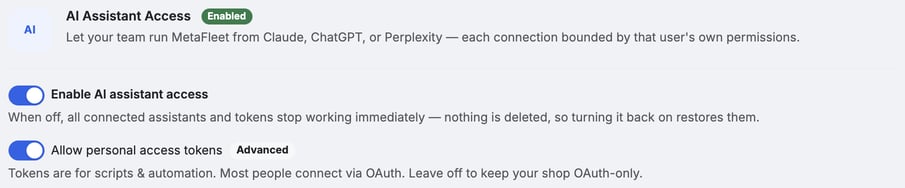
Go to Settings › Integrations and select the MCP tab. The AI Assistant Access card shows an Enabled or Off badge next to its title.
Turn on AI assistant access
Switch on Enable AI assistant access. It saves as soon as you flip it.
Turning it off stops everything at once. All connected assistants and tokens stop working immediately. Nothing is deleted, so turning the switch back on restores them.
Decide whether to allow personal access tokens
Allow personal access tokens is marked Advanced. Tokens are for scripts and automation. Most people connect through the sign-in flow described below. The card calls this sign-in flow OAuth. Leave this switch off to keep your shop to that sign-in flow only.
The switch is greyed out while Enable AI assistant access is off.
Have your team connect an assistant
Each person connects from their own Claude, ChatGPT, or Perplexity account. Give them these two things:
- The connector address. In the assistant, they add a custom connector that points at the address you use to open MetaFleet, followed by
/mcp. For example:https://app.metafleet.ai/mcp. - Your MetaFleet Company ID, if asked. The MetaFleet sign-in page asks for their email and emails them a code. It also asks for your Company ID when the address doesn't already identify your shop.
After they sign in, MetaFleet shows an approval page that lists the permissions the assistant is asking for. They click Approve to connect or Deny to stop.
The menu steps for adding a custom connector are different in each assistant. Follow the assistant's own help for those. The contact support link at the bottom of the card opens an email to MetaFleet support, who can walk you through the MetaFleet side.
Review who is connected
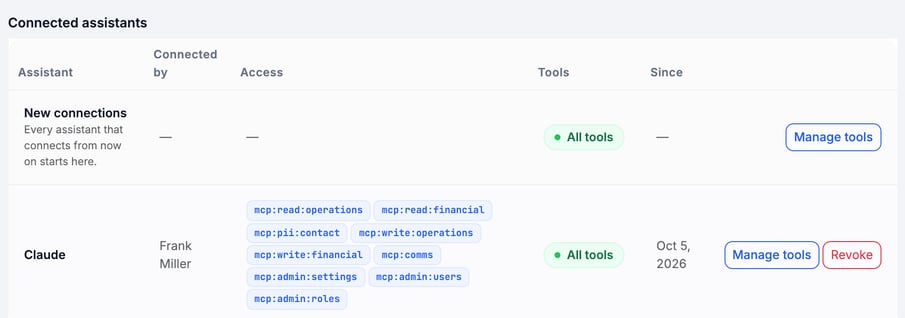
Every approved connection shows in the Connected assistants table:
- Assistant: the app that connected, such as Claude.
- Connected by: the MetaFleet user who signed in.
- Access: the permission scopes the connection holds (see the table below).
- Tools: how many of the assistant's tools are switched on. It reads All tools, Read only, Writes only, No tools or Custom with the number switched off.
- Since: the date it connected.
The first row, New connections, sets the tools every assistant starts with. Until someone connects, a note under the table reads "No assistants connected yet."
Choose which tools an assistant can use
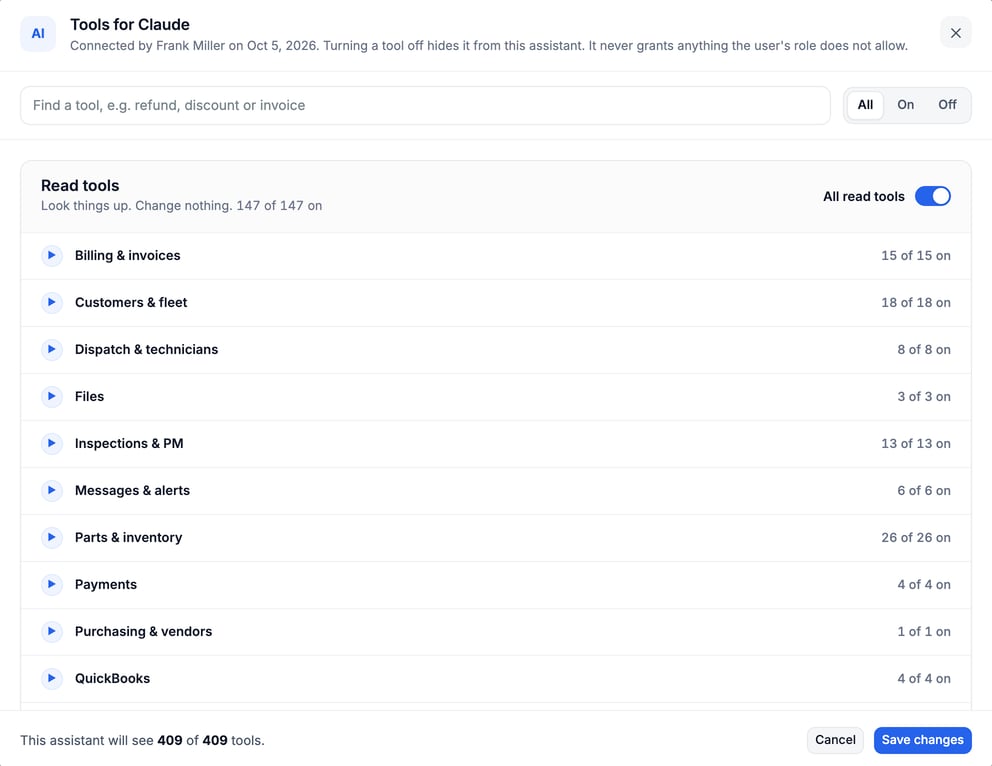
An assistant can reach hundreds of MetaFleet tools, split into Read tools (look things up, change nothing) and Write tools (create, change, send or charge on live records). Turn off the ones you don't want an assistant to see.
- Click Manage tools. Use the button on the New connections row to set the starting tools for every assistant that connects from then on. Use the button on a connection's row (or a personal access token's row) to change just that one. Connections you have already customized keep their own settings.
- Switch tools on or off. Use All read tools or All write tools to switch a whole group. Open an area, such as Billing & invoices, to switch single tools or click Turn all on or Turn all off. Search by name, or filter by All, On or Off.
- Click Save changes. The footer shows how many tools the assistant will see. Cancel closes the window without changes.
Changes apply to the connection's next call. An assistant's own tool list updates when it reconnects or refreshes its tools.
What the access scopes mean
These are the scopes you can see in the Access column:
| Scope | Type | What it covers |
|---|---|---|
mcp:read:operations | Read | Jobs, vehicles, parts, schedule |
mcp:read:financial | Read | Invoices, totals, costs |
mcp:pii:contact | Read | Contact details: phone, email, location |
mcp:write:operations | Write | Create and update jobs, notes, inventory |
mcp:write:financial | Write | Estimates, invoices, charges |
mcp:comms | Write | Messages and calls |
mcp:admin:settings | Admin | Settings and integrations |
mcp:admin:users | Admin | Users and access |
mcp:admin:roles | Admin | Roles |
Revoke a connection
Click Revoke at the end of the connection's row. A revoked connection leaves the list. Use this when someone leaves or no longer needs the assistant.
Create a personal access token (optional)
Use a token only for a script or automation. Allow personal access tokens must be on first.
- Click + Create token. The button is greyed out until both switches are on.
- Enter a Label. Name the script, for example "Nightly report bot".
- Pick the Access. Choose Read-only (operations), Read-only + financial, Operations (read + safe writes + chat), Full access or Custom…. Custom lets you tick individual scopes under Read, Write and Admin. Pick at least one.
- Click Create token and copy the token.
You see the token once. MetaFleet warns "Copy this now — you won't see it again." Anyone with the token can act as you within the access you granted. A token can never exceed your own permissions.
The Personal access tokens table lists each token's label, scopes, tools, created date and last used date ("Never" until it is used). Click Manage tools to limit a token's tools, or Revoke to remove it.
Troubleshooting
| Symptom | Likely cause | Fix |
|---|---|---|
| The card says you need the Manage Account Settings permission | Your role doesn't include it | Ask an admin to add the permission, or to turn the switch on for you. |
| Every assistant and token stopped working | Enable AI assistant access was switched off | Switch it back on. Nothing was deleted. |
| The sign-in page won't let someone start | The email (or Company ID, if asked) is wrong | Check both and try again. |
| The sign-in page says AI assistant access isn't enabled | Enable AI assistant access is off | Turn it on and confirm the card shows Enabled. |
| An assistant can't see or change something | The person who connected doesn't have that permission in MetaFleet | Change their role in Add a User and Set Their Role, Service Area and Skills. |
| + Create token is greyed out | AI assistant access or personal access tokens is off | Turn on both switches. |
FAQs
Can an assistant do more than the person who connected it?
No. It acts as that person and is limited by their MetaFleet permissions. Scopes only narrow it further.
Does turning the switch off delete connections?
No. They stop working until you turn it back on.
Which assistants can connect?
The card names Claude, ChatGPT and Perplexity.
Is this the same as the AI Assistant inside MetaFleet?
No. That assistant lives in the app. This card is for Claude, ChatGPT, or Perplexity connecting from outside.
Do I need personal access tokens?
Most shops don't. They are for scripts and automation. Leave the switch off to keep your shop to the sign-in flow.