
For: Owners, office managers and accountants · Permission: Manage account settings · Time: ~10 minutes
Quick summary
- Open Check where your money posts, the last step of connecting QuickBooks.
- Check the accounts MetaFleet filled in and choose an account for each empty row.
- Set Start sending from and decide what happens to older unpaid invoices.
- Click Start syncing, then confirm.
Before you start
- Connect QuickBooks Online and choose what syncs. See Connect QuickBooks Online to MetaFleet and Choose What Syncs with QuickBooks.
- Make sure the accounts you want already exist in QuickBooks. You pick from your chart of accounts. You never type an account name.
- Ask your accountant which account to use for each row. MetaFleet shows what posts where. It does not tell you which account is right for your books.
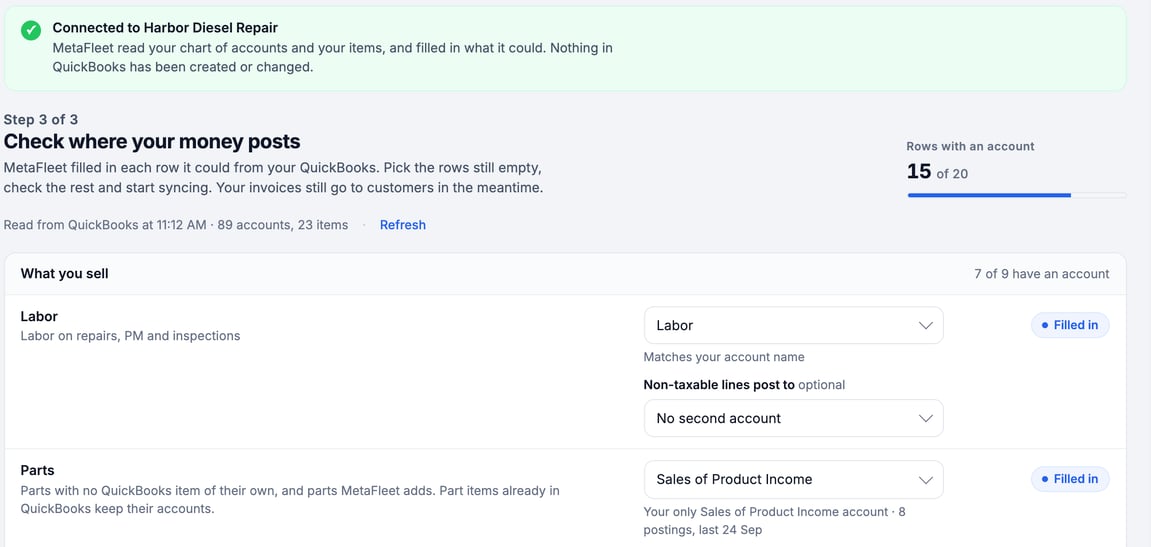
Nothing in QuickBooks is created or changed while you are on this step. The Connected to <company> banner at the top says: "MetaFleet read your chart of accounts and your items, and filled in what it could. Nothing in QuickBooks has been created or changed."
Open the posting accounts step
During setup, this is the screen titled Check where your money posts, marked Step 3 of 3. A brand that posts to its own QuickBooks company sees Check where <brand name>'s money posts.
After setup, the same list is under Settings › Integrations, on the QuickBooks tab, then Settings, in the Posting accounts block.
Only someone who manages account settings can change these accounts. Everyone else sees the list read-only.
Read the four groups
Each row has a name, a line saying what posts there, and the account you picked.
| Group | What it covers |
|---|---|
| What you sell | Labor, parts, travel time, each fee and surcharge, other charges, late fees, interest, discounts and sales tax. Sales tax is used only while QuickBooks' own sales tax is off. Each surcharge posts to its own row. A one-off surcharge with no rule behind it posts to Other charges. |
| Money in | Unpaid invoices, payments received, each payment method and refunds paid out. |
| Money out | Parts on the shelf, cost of parts, freight, vendor tax, parts paid at the counter or on a company card, stock adjustments and parts used in the shop. |
| Write-offs | Written-off balances. |
Each group heading shows how many of its rows have an account. Rows with an account at the top shows the total. For what each row means, see How Posting Accounts Map to Your Chart of Accounts.
Check the rows MetaFleet filled in
A filled-in row has a short note saying where its account came from:
- From your QuickBooks item “<name>”: an item you already have in QuickBooks uses this account.
- Matches your account name: an account has the same name as the row.
- From your current <setting> setting: the account comes from a setting you already had in MetaFleet.
- Same as <row>: the row follows another row. For example, travel time reads "Same as Labor: travel is billed as labor time."
- Your only <type> account: QuickBooks has just one account of that type.
- Your QuickBooks default discount account: the Discounts row uses it.
Open each row and read it. A default is a starting point. Change any row you do not want.
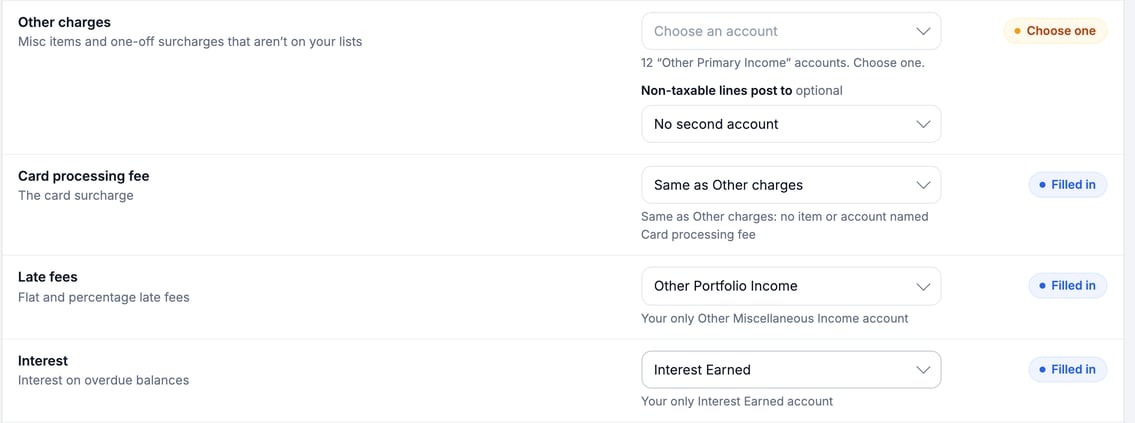
Part items that already exist in QuickBooks keep their own accounts. The Parts, Parts on the shelf and Cost of parts rows apply to parts with no QuickBooks item and to parts MetaFleet adds.
Choose an account for each empty row
- Click the row's account button. Empty rows show Choose an account and a Choose one badge. A row with a badge Not used now does not need an account yet.
- Search or scroll. Type a name or number in Search accounts. Click Show N accounts with no recent activity to see the rest.
- Click the account. The list only holds the account types QuickBooks accepts for that row.
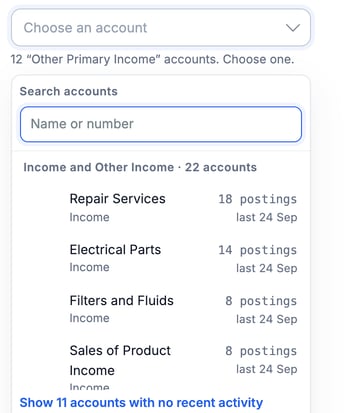
If the account you want is not listed, add it in QuickBooks, then click Refresh on this screen.
When a row has no default because QuickBooks has several matching accounts, the row says how many and asks you to choose one.
Set the non-taxable account (optional)
Under Labor and Other charges, Non-taxable lines post to can send untaxed lines to a second account. Leave it on No second account to post everything to the row's own account. For how it works, see How Posting Accounts Map to Your Chart of Accounts.
Check the payment methods
Under Payments received, the By payment method table has one row per method, with Payment method, Deposit to and QuickBooks payment method columns. A method deposits to the Payments received account until you give it its own. If the step shows Choose how payments are labelled in QuickBooks, click Review payment methods and confirm the list. To see what each method sends, see How Payments, Refunds, Credits and Late Fees Map to QuickBooks.
Set the start date
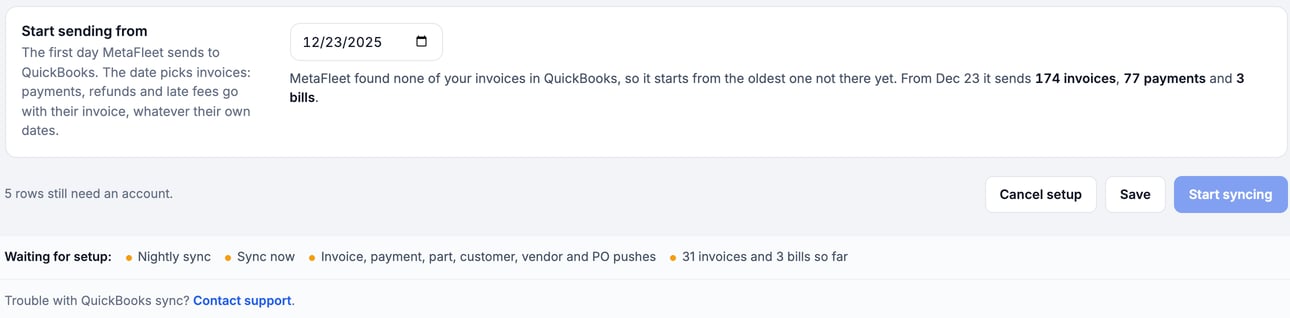
Under Start sending from, pick the first day MetaFleet sends to QuickBooks. The date picks invoices. Payments, refunds and late fees go with their invoice, whatever their own dates.
If unpaid invoices are older than that date, a table lists them with Invoice, Customer, Owing, In QuickBooks and What happens. Their payments need the invoices in QuickBooks, so choose one for each:
- Link to QuickBooks copy: MetaFleet found the invoice in QuickBooks. Payments land on that copy. This option is off when no copy was found.
- Send to QuickBooks: MetaFleet sends the invoice.
- Leave out: MetaFleet does not send it.
If your QuickBooks company uses Automated Sales Tax, Send to QuickBooks is not offered. A row with no QuickBooks copy is set to Leave out. The line above the table reads: "This company uses Automated Sales Tax, so invoices from before then stay out of QuickBooks unless they're linked to their copy there."
Start syncing
- Fill every required row. The footer says how many rows still need an account, for example "5 rows still need an account." Start syncing turns on when none are left.
- Click Start syncing. The Start syncing with QuickBooks? window lists the QuickBooks accounts your sales will post to and what posts to each. It also names any items or payment methods MetaFleet will add to QuickBooks.
- Confirm. Syncing starts.
Click Save to keep your choices and finish later. Until you start syncing, everything bound for QuickBooks waits: the nightly sync, Sync now, and every send of invoices, payments, parts, customers, vendors and POs to QuickBooks. The footer lists them under Waiting for setup. Your invoices still go to your customers in the meantime.
Cancel setup ends setup and disconnects QuickBooks. MetaFleet opens Cancel setup and disconnect? first. Click Keep setting up to stay, or Cancel setup and disconnect to confirm.
Change an account later
- Go to Settings › Integrations, open the QuickBooks tab, then Settings.
- In Posting accounts, change any row.
- Click Save changes. If a change needs a new item or payment method in QuickBooks, MetaFleet asks Save these changes? first.
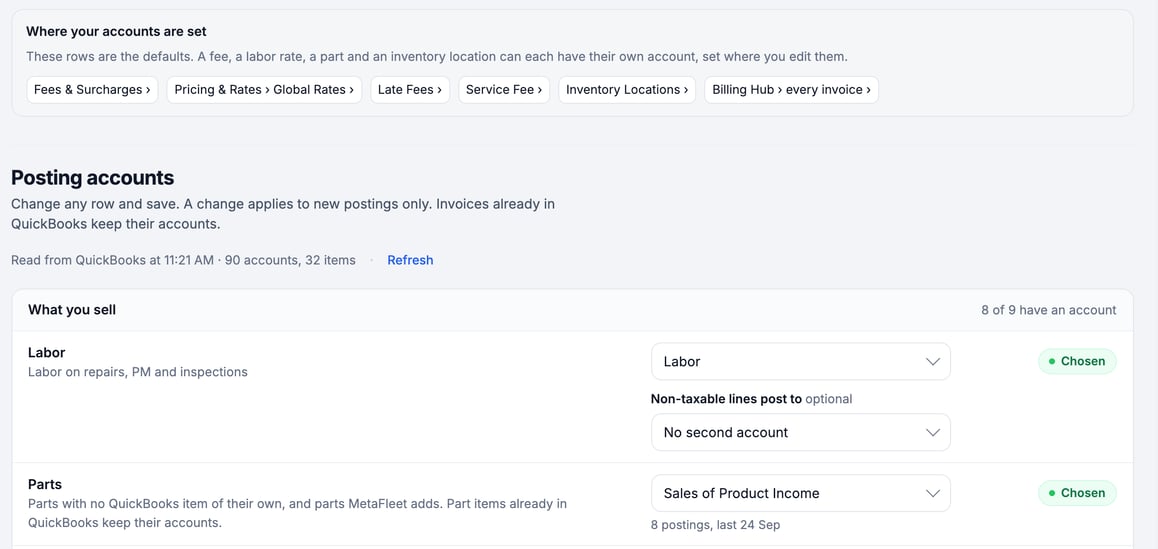
A change applies to new postings only. Invoices already in QuickBooks keep their accounts. An invoice sent again with Sync now takes the accounts set at that time.
The block Where your accounts are set above the list says a fee, a labor rate, a part and an inventory location can each have their own account, set where you edit them. It links to Fees & Surcharges, Pricing & Rates › Global Rates, Late Fees, Service Fee, Inventory Locations and Billing Hub › every invoice.
Fix an account QuickBooks no longer accepts
If someone makes an account inactive or deletes it in QuickBooks, a banner on the Posting accounts block names the rows that post to it. It says how many invoices, payments or bills are waiting. The row shows Inactive in QuickBooks. Everything else keeps syncing.
- Click Choose another account on the banner.
- Pick an account and click Save changes.
Waiting items go on their own once the row has a working account. The same items appear under Needs a home on the QuickBooks Review tab, where each has a Choose an account link.
Troubleshooting
| Symptom | Likely cause | Fix |
|---|---|---|
| Start syncing can't be clicked | A required row has no account. | The footer says how many rows still need an account. Choose an account for each row marked Choose one. |
| An account is missing from the list | It is not in QuickBooks yet, or its type does not fit the row. | Add the account in QuickBooks, then click Refresh. Check whether it is under Show N accounts with no recent activity. |
| You cannot change a row | Your user cannot manage account settings. | Ask someone who can. |
| An invoice already in QuickBooks kept its old account | Changes apply to new postings only. | This is expected. Ask your accountant how to handle the old entries. |
| Items wait under Needs a home | An account was made inactive or deleted in QuickBooks, or a row has no account yet. | Click Choose another account and save a working one, or choose one for the empty row. |
FAQs
Does this step change anything in QuickBooks?
No. It only reads your chart of accounts and items. Anything MetaFleet adds, such as a payment method or an item, is added when you confirm Start syncing. MetaFleet does not change your QuickBooks accounts.
Which account should I pick?
Ask your accountant. MetaFleet shows what posts to each row.
Can I change an account after syncing starts?
Yes. New postings use the new account. Invoices already in QuickBooks keep theirs.
Do I have to send my old invoices?
No. Only invoices on or after Start sending from are sent. For older unpaid ones, you choose per invoice.