
For: Owners, managers and dispatchers · Permission: None to ask; Manage Account Settings to limit tools · Time: ~6 minutes
Quick summary
- Pick the area you need below.
- Ask your assistant in plain words.
- Check the record in MetaFleet afterwards.
How requests work
You type a request in plain words. The assistant picks a MetaFleet tool, runs it, and tells you what came back. Every tool is either a read tool or a write tool:
- Read tools look things up and change nothing.
- Write tools create, change, send or charge. They act on live records and real customers.
The lists below show example requests for each area. You don't need exact wording. Names, dates and order numbers are enough. To connect an assistant first, see Connect Claude, ChatGPT, or Perplexity to MetaFleet.
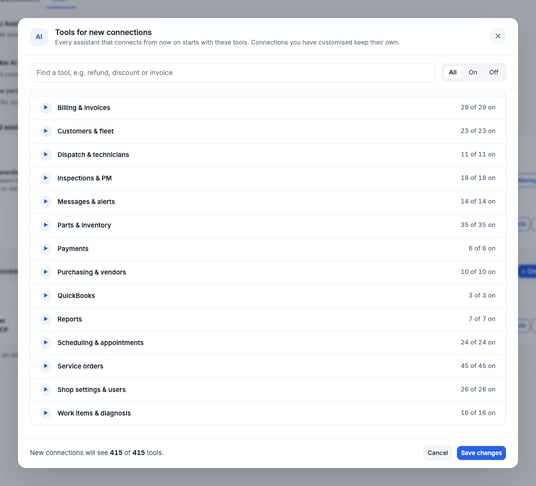
The Tools for new connections window groups tools by area. The area names below match it.
What you can ask, by area
The picker shows how many tools each area has and how many are on. Two basic tools, one that tells the assistant who is signed in and one that checks its context, are always on.
Billing & invoices
Invoices, statements, payments on visits and discounts.
Looks things up:
- Which invoices are still unpaid for Pacific Crest Logistics?
- How much do customers owe us right now?
- Show me the lines on this invoice.
Changes live records:
- Send the invoice for this visit.
- Record a $200 payment on this visit.
- Take $50 off this order.
- Void this statement.
A request to charge a saved card moves real money. Check it before you let the assistant run it.
Customers & fleet
Customers, their contacts, addresses and vehicles.
Looks things up:
- Find the vehicle with this VIN.
- How many vehicles does Pacific Crest Logistics have?
- Show me the addresses on file for Harbor Line Freight.
Changes live records:
- Add a vehicle to Pacific Crest Logistics.
- Rename this customer.
- Archive this vehicle.
- Set this customer's auto-approve limit.
Dispatch & technicians
Technician status, hours, service trucks and dispatch alarms.
Looks things up:
- Which dispatch alarms are open?
- How many hours did Marcus Reyes work this week?
- How much technician capacity do we have this week?
Changes live records:
- Clock Carlos Mendez in.
- Handle this dispatch alarm.
- Update a technician's location.
Files
Files on an order and the photos and report from an inspection.
Looks things up:
- Show me the files on this order.
- Open the photos from this inspection.
This area has read tools only. The assistant can open files but can't upload or change them.
Inspections & PM
Inspections, PM programs, maintenance tasks and which vehicles are due.
Looks things up:
- Which vehicles are behind on PM?
- Which vehicles have no PM setup yet?
Changes live records:
- Enroll this vehicle in a PM program.
- Book an inspection for this vehicle.
- Create a maintenance task.
Messages & alerts
Customer, technician, dispatch and staff chats, plus your alerts.
Looks things up:
- Read the customer chat on this order.
- Which dispatch chats are open?
Changes live records:
- Mark all my alerts read.
- Snooze this chat.
- Post a staff note on this order.
- Message the customer.
Messages to the customer go to a real person. Read the text before you approve it.
Parts & inventory
The parts catalog, stock by location and bin, vendors and stock counts.
Looks things up:
- Do we have any fuel filters in stock?
- Where is this part stocked?
- What do we charge for this part?
Changes live records:
- Correct the stock on hand for this part.
- Transfer 4 units to the second location.
- Add a new part.
- Delete a part.
Deleting a part is permanent. Prefer correcting stock.
Payments
Card charges, saved cards and money coming in.
Looks things up:
- Show me the card charges on this order.
- How much cash did we receive this week?
Changes live records:
- Refund this charge.
- Record a batch of payments.
- Capture this card hold.
Refunds and captures move real money.
Purchasing & vendors
Purchase orders and vendor bills.
Looks things up:
- Show me the unpaid vendor bills.
Changes live records:
- Submit this purchase order.
- Receive this purchase order.
- Create a vendor bill.
- Mark this vendor bill paid.
QuickBooks
Records that are not linked to QuickBooks and sync problems.
Looks things up:
- What isn't syncing to QuickBooks?
- Which customers aren't linked to QuickBooks yet?
Changes live records:
- Link this customer to its QuickBooks match.
- Reject this QuickBooks match.
Reports
The reports you can run, and the finished results.
Looks things up:
- Which orders were billed last month?
- Show me technician time records for this week.
- What reports can you run?
Changes live records:
- Run a revenue report for September.
- Run an A/R aging report.
- Cancel this report.
Running a report counts as a change tool, because it starts a job. Reports take a moment: ask the assistant to check the result.
Scheduling & appointments
Appointments, bays, shifts and technician schedules.
Looks things up:
- What's on the calendar tomorrow?
- What days is Kevin Brooks working?
- How much time off does Dana Park have left?
Changes live records:
- Create an appointment for this vehicle.
- Reschedule this appointment.
- Assign Luis Torres to this appointment.
- Cancel this appointment.
Service orders
The jobs themselves: who, what, where and what stage.
Looks things up:
- Which orders are open?
- Show me every order for Pacific Crest Logistics, including closed ones.
- What happened on this order so far?
Changes live records:
- Create a service order for this vehicle.
- Assign a technician to this order.
- Add a note to this order.
- Cancel this order.
Some tools here move an order through your approval steps. See Understanding the Approval Gates.
Shop settings & users
Your shop profile, service areas, staff and workflow settings.
Looks things up:
- What are our approval settings right now?
- Who has the dispatcher role?
- What is our late fee policy?
Changes live records:
- Create a service area.
- Deactivate this user.
- Change a user's roles.
- Update the late fee policy.
These tools also need the settings, users or roles scope on the connection. See the rules below.
Work items & diagnosis
What the technician found and the repair lines on an order.
Looks things up:
- What did the technician find on this order?
- Show me the repair lines on this order.
Changes live records:
- Add a repair line to this order.
- Change the title of a repair line.
- Publish this repair line to the invoice.
To add a repair line, the assistant needs the complaint and the diagnosis, and asks you for both.
Rules every request follows
- Your own permissions apply. The assistant acts as the person who connected it. If that person can't do something in MetaFleet, the assistant can't either.
- Scopes can narrow access further. Each connection has scopes that cover groups of tools, such as financial, contact details, communications, settings, users and roles. A scope can take access away. It never adds access beyond the person's permissions.
- Your shop only. The assistant sees one shop's data. It can't reach another shop.
- Changes are live. A write tool changes the real record as soon as it runs. MetaFleet doesn't add its own confirmation step. Your assistant decides whether to ask you first, so read what it proposes before you approve.
Limit what an assistant can do
Admins can switch tools off. This needs the Manage Account Settings permission.
- Go to Settings › Integrations › MCP.
- On the AI Assistant Access card, find the connection. The New connections row sets the starting tools for every assistant that connects from now on.
- Click Manage tools.
- Use the All read tools or All write tools switch, expand an area and click Turn all off, or switch off single tools. The All, On and Off buttons filter the list. You can search by word, such as refund or discount.
- Click Save changes.
To cut a connection off, click Revoke on its row. To pause every assistant at once, turn off Enable AI assistant access. All connected assistants and personal access tokens stop working immediately. Nothing is deleted, and turning it back on restores the connections.
What it can't do
- It can't see or change anything outside your shop.
- It can't do what the connected person isn't allowed to do, or use a tool you switched off.
- It can't upload or change files. The Files area is read only.
- It has no delete for customers, vehicles, invoices or users. It archives, voids or deactivates them instead. A few tools do delete for good: a part, a bin, a purchase order, an invoice template, a rate override and a draft order that was never started.
Good habits
- Start with read-only requests until you trust how the assistant works with your data.
- Turn off write tools for assistants that only need to answer questions.
- Name the record in your request: the customer, the order number or the vehicle.
- After a change, open the record in MetaFleet and check it.
- Keep money tools (charges, refunds, payments) off for anyone who doesn't need them.
Troubleshooting
| Symptom | Likely cause | Fix |
|---|---|---|
| The assistant says it can't do a request | The tool is switched off, or the connected person lacks the permission | Check Manage tools for that connection, then the person's role. |
| Contact details or costs are missing from answers | The connection doesn't have the scope for them | Ask an admin to check the connection's access on the AI Assistant Access card. |
| A list looks short | The assistant read only the first page, or only open orders | Ask for the next page, or ask it to include closed orders. |
| A report isn't ready | Reports run in the background | Ask the assistant to check the report again. |
FAQs
Can I try it without risk?
Yes. Switch off All write tools for the connection. The assistant can then only look things up.
Does the assistant use my login?
It acts as the person who connected it, with that person's permissions.
Can I see what each connection can do?
Yes. The AI Assistant Access card lists each connection with its access and tools. Manage tools shows the detail.