
For: Admins · Permission: Manage account settings · Time: ~5 minutes
Quick summary
- Open Settings › Pricing & Rates › Payment Terms.
- Click Edit to set the default Net days for account customers.
- Edit the Payment terms and Disclaimer text, then click Save terms.
- Optional: write different text for a brand, or set terms for one customer on its company page.
Before you start
- Payment terms apply to Account Customers (customers you bill after the work). A CoD Customer pays on receipt, so no Net days apply.
- The text you save is copied onto an invoice when it is sent. Changing it later never alters an invoice a customer already has.
- The due date on each invoice comes from the customer's Net days. It is also the date late fees count from.
Set the default payment terms
- Go to Settings › Pricing & Rates and click Payment Terms.
- In the Company Default Terms card, click Edit.
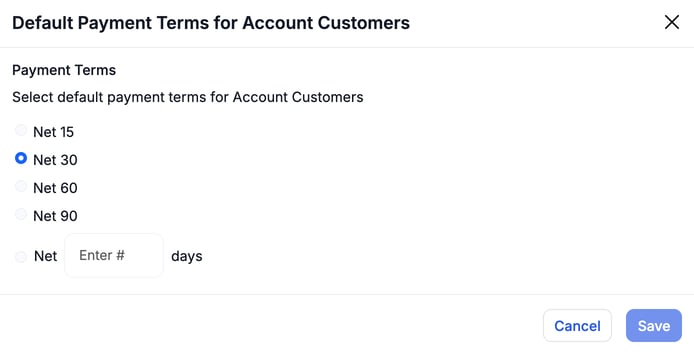
- Pick Net 15, Net 30, Net 60 or Net 90. For another length, type the number of days in the Net box.
- Click Save.
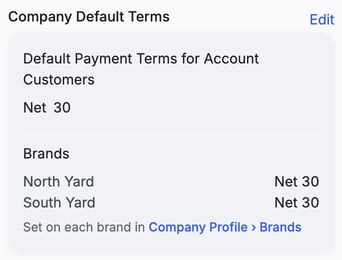
The same card lists the terms of each brand. You don't change brand terms here. Set them in Settings › Company Profile › Brands. See Add and Manage Brands.
Edit the text printed on invoices
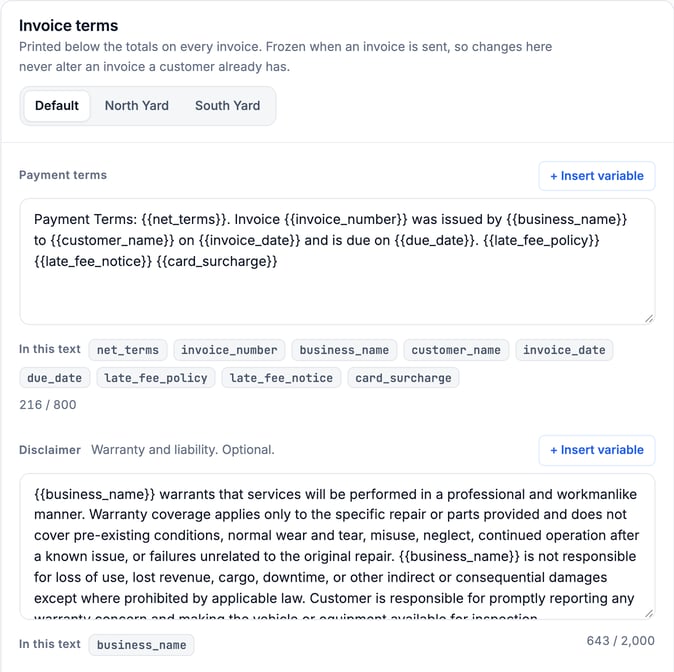
The Invoice terms card sits under the default terms. Its text prints below the totals on every invoice. It has two boxes.
- Payment terms: up to 800 characters. It states the Net days, the due date and, if you use them, your late-fee wording.
- Disclaimer: up to 2,000 characters, optional. Use it for warranty and liability wording.
- Stay on the Default tab to edit the text every brand uses.
- Click in a box and change the text. A counter under each box shows how many characters you have used.
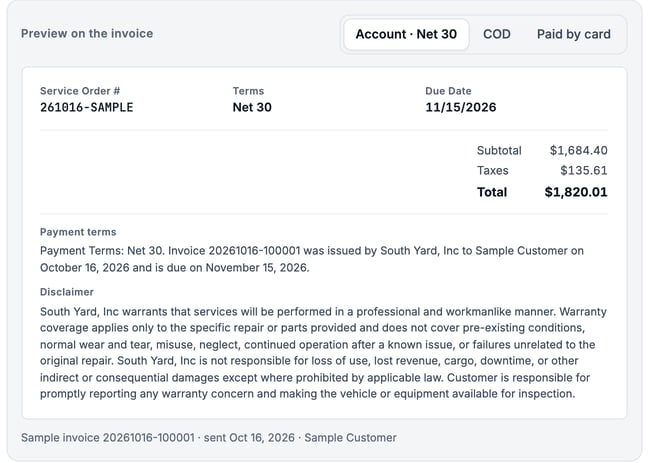
- Check the Preview on the invoice at the bottom. Switch between Account · Net 30, COD and Paid by card to see each version.
- Click Save terms.
Insert a variable so the text fills itself in
Variables are placeholders in double braces, like . MetaFleet replaces each one with the real value when the invoice is created.
- Click in the box where you want the variable.
- Click + Insert variable above that box.
- Pick a variable from the list. It lands in the text.
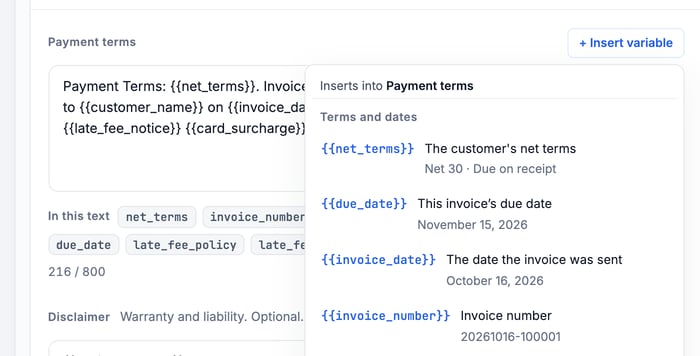
| Variable | Prints |
|---|---|
| Net 30 for an account customer, Due on receipt for COD |
| This invoice's due date |
| The date the invoice was sent |
| The invoice number |
| Your billing name, or the brand's |
| The customer company |
| Your late-fee terms written out. Empty for COD or when late fees are off. |
| Your own late-fee notice line. Empty for COD or when it is blank. |
| The card surcharge on this invoice. Empty unless the invoice is paid by card. |
The Disclaimer menu offers the same variables. The three payment sentences are tagged Usually in Payment terms. Keep payment wording in the Payment terms box.
Use different text for one brand
Click a brand tab on the Invoice terms card, such as South Yard. Each box starts on Use the default, so the brand follows the Default tab. Click Write for this brand to type text just for that brand, then click Save terms.
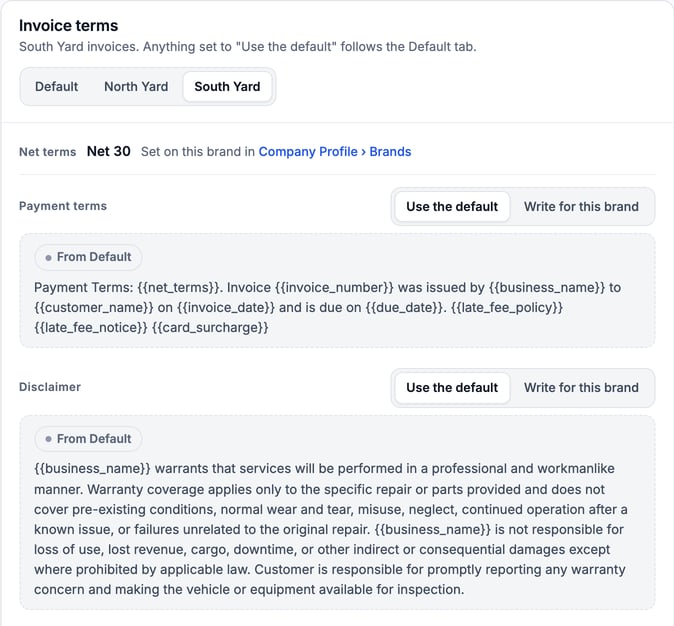
The Net terms line on a brand tab is read-only. Change it in Settings › Company Profile › Brands.
Set terms for one customer
Use this when one customer has a different deal, such as Net 15 instead of your default.
- Go to Company Details › Companies and open the company.
- On the Details tab, find the Customer Type and Terms card and click Edit.
- Choose Account Customer, then pick Net 10, Net 15, Net 30, Net 45 or Net 60. For another length, use Custom · Net and enter the days. Your default is tagged DEF.
- Click Save.
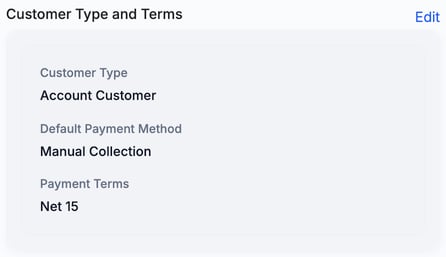
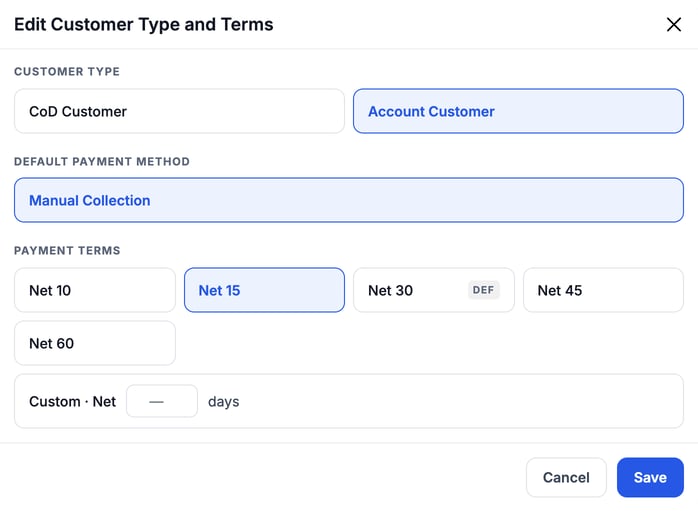
The company page also has its own Invoice terms card. For Payment terms and Disclaimer you can pick Shop default, Add a line, or Own terms / Own disclaimer. Click Edit on that card, choose, and click Save.
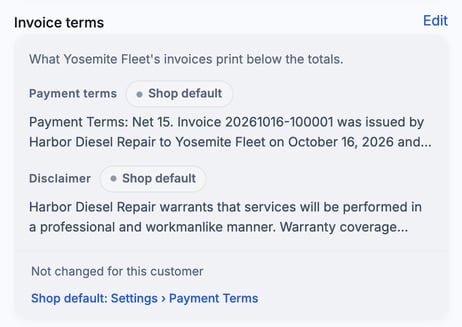
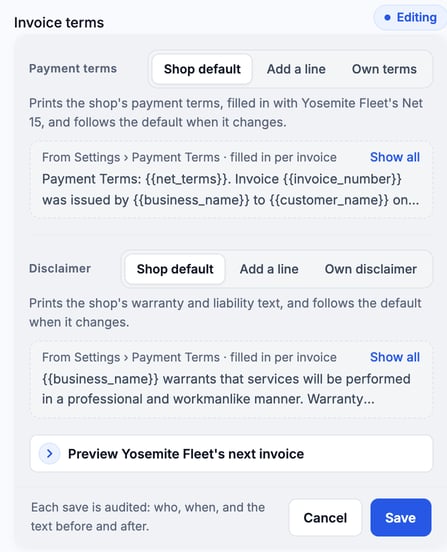
The card names where the default comes from: Settings › Payment Terms. Each save is audited with who made it, when, and the text before and after.
Troubleshooting
| Symptom | Likely cause | Fix |
|---|---|---|
| An invoice I already sent still shows the old text | Invoice text is frozen when the invoice is sent | New text applies to invoices sent from now on. |
| A customer's invoices show different Net days than the default | That company has its own terms | Check Customer Type and Terms on the company page. |
| A brand's invoices show different wording | The brand tab is on Write for this brand | Switch it back to Use the default. |
| No late-fee sentence prints | Late fees are off, or the customer is COD | Check your late-fee settings. See Late Fees and Interest on Overdue Invoices. |
| I can't change a brand's Net days here | Brand terms are set elsewhere | Use Settings › Company Profile › Brands. |
FAQs
Do payment terms apply to every customer?
Net days apply to Account Customers. A CoD Customer pays on receipt.
Will changing the default alter customers who have their own terms?
No. A company with its own terms keeps them.
Is the disclaimer required?
No. The Disclaimer box is optional. Leave it empty to print none.
Where do I see how it prints?
The Preview on the invoice on the Invoice terms card shows a sample invoice before you save.