
For: Managers, dispatchers and inventory staff · Permission: Request Reports (View Reports to download; Inventory View Cost for the cost columns) · Time: ~2 minutes
Quick summary
- Open Reports in the left menu, on the Generate tab.
- Set the Start Date and End Date.
- Choose Parts Consumption by Location, then pick locations or asset sub-types if you want to narrow the result.
- Click Generate Report, then click Download in the History tab when the status is Ready.
Before you start
- The report counts parts that were installed on a job (consumed), deducted automatically when a job closed, or issued by hand for a job. It also counts ad-hoc and special-order parts billed on jobs. It does not count parts that are only reserved for a job. For the difference, see Understanding Available, Allocated and Consumed.
- The report covers inventory locations: warehouses, service vehicles and consignment stock kept at a customer's site. See Track Inventory on Service Vehicles.
Set the date range
In the left menu, open the Reports group and click Reports. On the Generate tab, section A · Global Filters sets the dates. Change Start Date and End Date, or click Reset to last 30 days. Both days are included in full, in your time zone.
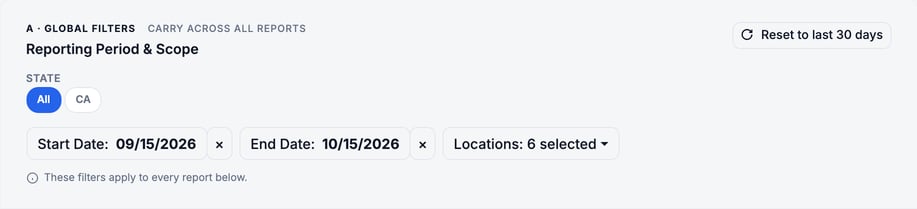
The State and Locations filters in this section don't change this report, even though the section says they apply to every report. Use the Inventory locations filter in the next step instead.
Choose the report and filters
In section B · Report, open Which report? and choose Parts Consumption by Location. Section C · Additional Filters then shows two optional filters:
- Inventory locations: pick one or more warehouses or service vehicles. Each one is labeled with its type.
- Asset sub-types (filter): pick one or more types of customer equipment, such as Dozer or Excavator. This list only appears when your shop has asset sub-types.
Leave a filter empty to include everything.
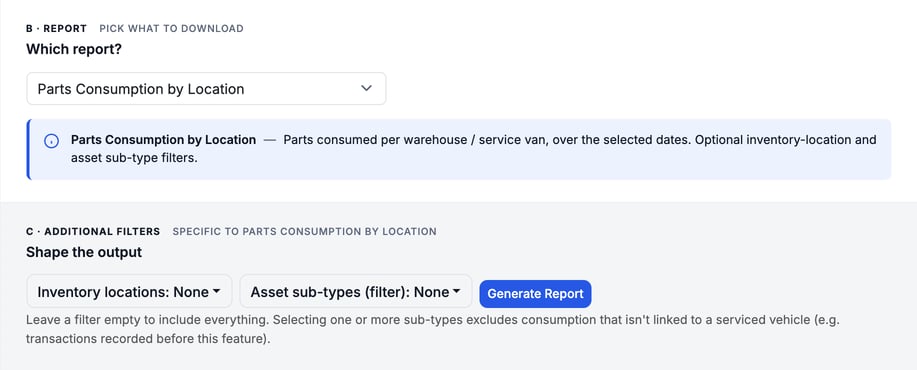
Asset sub-types drops older records. Picking a sub-type keeps only parts used on a serviced vehicle of that sub-type. Consumption with no vehicle link, such as older transactions, is left out.
Generate the report
Click Generate Report. The report runs in the background, so you can keep working. The page switches to the History tab, where the report shows its status in the first row.
Download the file
When the status shows Ready, click Download on its row. You get a CSV file named like PartsConsumption_2026-09-15_to_2026-10-15.csv. It opens in Excel or Google Sheets.

Read the results
The first line of the file is the title and date range. After it, each row is one part at one location, with the total used in the date range. Rows are sorted by location, then part number.
| Column | What it shows |
|---|---|
| Location | The warehouse or service vehicle the parts came from |
| Location Type | Warehouse, Service Van or Consignment. Blank for (Ordered for the job) rows. |
| Part # | The part number |
| Part Name | The part name |
| Qty Consumed | Total quantity used in the date range |
| Unit Cost | The cost per unit, averaged over the quantity used. It uses the cost recorded when the part was used, or the catalog cost if none was recorded. For job-ordered rows, see the cost order below the table. |
| Total Cost | The cost of all the units used. It is blank when no cost is known for a part. |
Ad-hoc and special-order parts were never in stock, so they appear under the location (Ordered for the job). They count in the date range in which the job's invoice was first sent. Parts on preventive maintenance and inspection invoices count the same way, by the date the invoice was sent. Their cost is the cost recorded on the service order line, or the purchase order cost if it has none, or the catalog cost.
The last row, TOTALS, adds up the quantity and the cost. Rows with a blank Total Cost add nothing to the cost total.
Filtering by location hides job-ordered parts. When you pick an inventory location, the (Ordered for the job) rows are left out, because those parts were never at a location. Leave Inventory locations empty to include them.
No cost columns? Unit Cost and Total Cost only appear if you have the permission to view inventory cost when you click Generate Report. Ask an admin to grant it, then generate the report again.
Troubleshooting
| Symptom | Likely cause | Fix |
|---|---|---|
| The file has only a TOTALS row with 0 | No parts were consumed at the chosen locations, or no job invoices were sent, in that date range | Widen the dates or clear the location filter, then generate again. |
| Parts I used are missing | A location filter is set (it hides ad-hoc parts), an asset sub-type is selected, or the parts were only reserved, not installed | Clear Inventory locations and Asset sub-types (filter). Check that the job's parts were installed or the job was closed. |
| No Unit Cost or Total Cost columns | You didn't have the permission to view inventory cost when you generated the report | Get the permission, then generate the report again. |
| The report row doesn't show Download yet | It's still running | Wait on the History tab until the status is Ready. |
| Generate works, but there is no History tab or Download | You have Request Reports without View Reports | Ask an admin to grant View Reports. |
| No Asset sub-types filter shows | Your shop has no asset sub-types | Use the location filter, or leave the report unfiltered. |
FAQs
Does the report include parts that are only reserved for a job?
No. It counts consumed parts: installed on a job, deducted automatically when a job closes, or issued by hand for a job. It also counts ad-hoc and special-order parts billed on jobs.
Can I report on one service van?
Yes. Pick that van in Inventory locations.
Where is the stock movement behind a number?
In the part's inventory transactions. See Inventory Transactions and Transfers.
Why is an ad-hoc part missing from the file?
Its job's invoice may not be sent yet, or you filtered by location. Send the invoice, or clear Inventory locations, then generate again.