
For: Technicians, and admins who manage them · Permission: a role that can do repairs (to get texts) · Time: ~2 minutes
If you don't use the MetaFleet app, the shop can text you about your jobs instead. You choose whether to get the texts, and you can turn them off any time.
Before you start
- Your shop has a texting number, and Job alert texts to techs is on in the shop's settings. It's on unless someone turned it off.
- You have a US cell phone that can get texts.
Quick summary
- Sign in. When Texts about your jobs opens, enter your cell number.
- Turn on Text me job alerts and tap Send code.
- Enter the 6-digit code from the text and tap Turn on.
- To change it later, go to My Account › Job alerts by text.
Turn on job alerts when you sign in
Right after you sign in on the website (on a computer or on your phone's browser), MetaFleet asks once whether you want texts. If Allow location is showing, this question waits until you've answered that one.
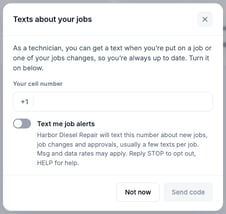
- In Your cell number, enter your 10-digit US cell number.
- Turn on Text me job alerts. The words under the switch say what the shop will text you and that you can reply STOP to opt out.
- Tap Send code. MetaFleet texts a 6-digit code to that number.
- Under Enter the code, type the code and tap Turn on.
- You'll see Job alerts are on. Tap Done.
No code after a minute? Tap Send a new code. Wrong number? Tap Change number.
If you tap Not now, the × or outside the window, MetaFleet won't ask again. You can still turn texts on from My Account.
Turn job alerts on or off in My Account
- Open My Account.
- Find the Job alerts by text card.
- Tap Turn on and follow the same steps as above, or tap Turn off to stop the texts. Turning off happens at once and shows Changes saved.
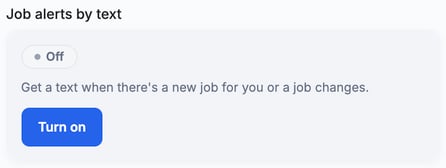
The card shows where you are:
| The card says | What it means | What you can do |
|---|---|---|
| Off | You don't get texts. | Turn on |
| Waiting for code | A code was texted to your cell, but you haven't entered it yet. | Enter code or Change number |
| On | Texts go to the cell ending in the last 4 digits shown. | Turn off or Change number |
| Blocked | You replied STOP to a text, so the shop can't text you. | Text START to the shop's number shown on the card, then tap Turn on. |
What you get a text about
Each text starts with your shop's name. Most have a link that opens the job. If you're signed out, sign in and the link takes you to the job.
- A job is offered to you, with how many minutes you have to claim it.
- You're put on a job, or added to one that's already running.
- You're taken off a job, or the job is cancelled.
- A booking you're on is cancelled, you're taken off it, or its time moves.
- An estimate or extra work is approved, or the customer declines some or all of it.
- An estimate or your repairs are sent back to you.
The reminder about a job offer you haven't answered is never texted. If the same thing happens twice on the same job within 10 minutes, you get one text.
Texts can't take replies. To talk to the shop, use Team Chat.
For admins: turn texts on or off for the shop
- Go to Settings › Workflow › Approvals & Alerts.
- On the Service Order Settings card, under Team Communication, check Job alert texts to techs.
- To change it, click Edit, switch Text techs job alerts on or off, and save.
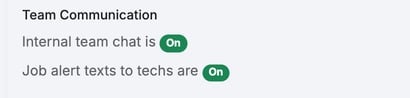
When it's off, no texts go out, the sign-in question doesn't show and the Job alerts by text card is hidden in My Account. Each tech's answer is kept, so turning it back on starts their texts again.
If the switch says your shop has no texting number yet, no texts go out. Ask MetaFleet to set one up.
For admins: see whether a tech gets texts
Open Settings › Users and click the tech. The Job alerts by text line shows On, Off, Waiting for code or Blocked, and the last 4 digits of their cell. Only the tech can turn their texts on, from their own My Account.

Troubleshooting
| Problem | Likely cause | Fix |
|---|---|---|
| "Texts aren't set up for your shop yet" | The shop doesn't have a texting number yet. | Ask the office to set them up. |
| "Enter a 10-digit US cell number." | The number is too short or has extra digits. | Enter the 10 digits with no country code. The +1 is already there. |
| "Too many codes. Try again in an hour." | Too many codes were sent to you in a short time. | Wait an hour, then tap Send a new code. |
| The card says Blocked | You replied STOP to a text. | Text START to the shop's number, then tap Turn on on the card. |
| I don't see the Job alerts by text card | Texts are off for the shop, or your role can't do repairs. | Ask your admin. |
| The sign-in question never showed | It shows once, only right after you sign in, and only to technicians. | Turn texts on from My Account. |
FAQs
Does it cost me anything?
The shop sends the texts. Your carrier's message and data rates may apply.
Can I reply to a text?
No. Use Team Chat to reach the shop.
Can an admin turn texts on for me?
No. You turn them on yourself with your own cell number and a code. An admin can only turn texts off for the whole shop.