
Who this is for
Dispatchers and managers who want the system to flag ETA problems (very long ETAs or ETAs that get worse).
What you’ll learn
• Where ETA alert toggles live inside Workflow Settings
• What ETA Is Too Long Alerts means
• What ETA Increased Alerts means
• What to do when the alert triggers
Why it matters
ETA surprises cause angry customers and blown schedules. These alerts help dispatch catch issues sooner, communicate earlier, and avoid same-day chaos.
Before you start
• You may need admin/manager permissions to edit Workflow Settings.
Quick Summary (TL;DR)
-
Go to Platform Settings.
-
Go to Account Settings.
-
Open Workflow Settings.
-
Under Service Order Settings, open Alarm/Alert Options.
-
Turn on ETA Is Too Long Alerts.
-
Turn on ETA Increased Alerts.
-
Click Save and confirm both toggles stay On after saving.
Step-by-step
-
Open Workflow Settings.
Go to Platform Settings -> Account Settings -> Workflow Settings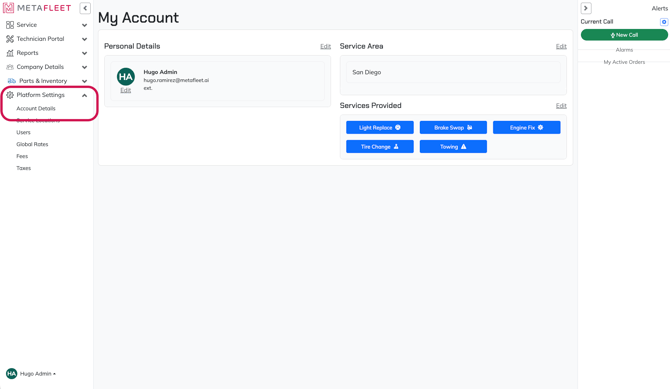
-
Find Alarm/Alert Options.
Look for the toggles:
• ETA Increased Alerts
• ETA Is Too Long Alerts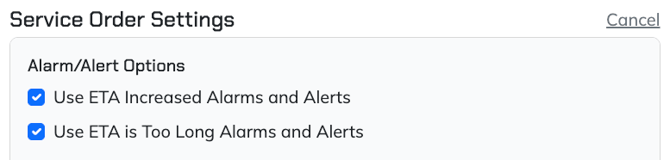
-
Turn on ETA Is Too Long Alerts.
What it does: Flags service orders where the technician arrival ETA is above a “too long” threshold (example: 90+ minutes).
Expected result: The platform creates an ETA alert/alarm so dispatch can take action. -
Turn on ETA Increased Alerts.
What it does: Flags when the technician’s ETA increases (meaning arrival time got worse due to delays).
Expected result: The platform creates an ETA alert/alarm so dispatch can follow up. -
Save changes and confirm.
Click Save or Submit.
Expected result: Both toggles remain On after saving. -
What dispatch should do when an ETA alert triggers.
• Contact the technician for the real ETA and reason
• Update the customer with a new arrival window
• Reassign or reschedule if it will break the day
Troubleshooting
| Symptom | Likely Cause | Fix | Prevent |
|---|---|---|---|
| ETA alerts never show | Both ETA toggles are off, or the shop has not hit the ETA conditions yet | Turn on ETA Is Too Long Alerts and/or ETA Increased Alerts, then save. Test with a service order that should exceed the threshold. | Add ETA toggles to your go-live checklist and verify after any settings changes. |
| ETA alerts show too often | Your operation commonly exceeds the threshold (example: rural service area) | Review whether the threshold can be adjusted or scoped. [VERIFY: “config options”] If not configurable, use internal process rules for when to ignore vs act. | Set expectations by service area and appointment type (local vs long-distance). |
| ETA Increased alerts feel “random” | ETA updates can change with traffic, job stacking, or updated location data | Open the service order activity/details to see what changed. | Train dispatch on common ETA change causes and when to contact the tech. |
FAQs
Q: Are ETA alerts sounds, popups, or just visual?
A: They appear as alerts/alarms in the platform. Sound depends on your Sound Settings.
Q: What is the “too long” threshold?
A: It’s based on the ETA MetaFleet calculates for the job, using (1) the estimated time tied to the job type and (2) the technician’s distance to the destination. When that calculated ETA crosses your “too long” rule, the ETA Is Too Long alert can fire.
Q: Should I enable both ETA alerts?
A: Yes for most dispatch teams. “Too Long” catches extreme cases, and “Increased” catches delays early.
Related Articles
Adjust Notifications Sounds in Workflow Settings