
Who this is for
Dispatchers, managers, and admins who want to control how long MetaFleet plays sounds for alerts and alarms.
What you’ll learn
• Where Sound Settings live inside Workflow Settings
• What Reduced vs Off means
• How to save changes and confirm they took effect
Why it matters
Too much noise creates alert fatigue. Sound Settings help your team stay focused while still keeping alerts and alarms visible in the platform.
Before you start
• You may need admin/manager permissions to edit Workflow Settings.
• Decide who should use Reduced vs Off. (This is a global setting for all users and roles)
Quick Summary (TL;DR)
- Go to Platform Settings
- Go to Account Settings
-
Go to Workflow Settings.
-
Open Sound Settings and click Edit.
-
Set Alarm Frequency to Full, Reduced or Off.
-
Set Alert Frequency to Full, Reduced or Off.
-
Save and confirm the new values display.
Step-by-Step
-
Open Workflow Settings.
Go to Platform Settings -> Account Settings -> Workflow Settings
Expected result: You can see sections/cards for workflow controls near the bottom. (including Sound Settings).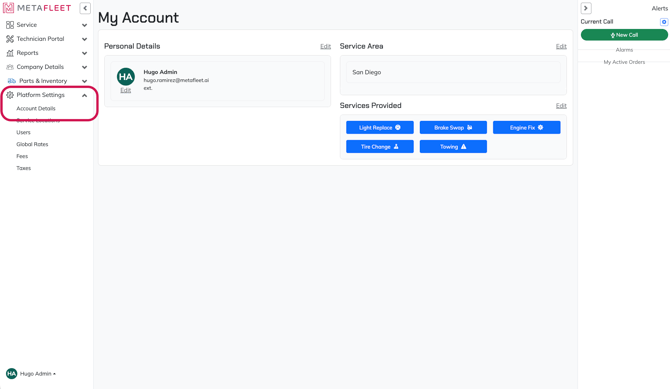
-
Open Sound Settings for editing.
In the Sound Settings card, click Edit.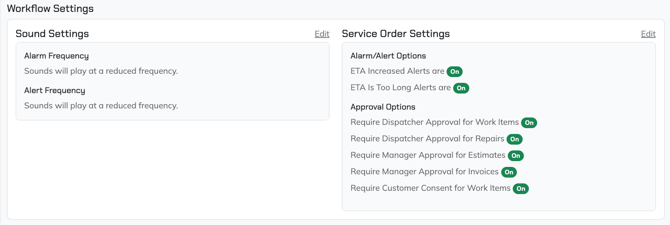
-
Set Alarm Frequency.
Choose one:
• Full: Sound is persistent (it keeps ringing until the alert/alarm is cleared or acknowledged). The alert/alarm still stays visible in the platform.
• Reduced: Sound plays briefly (about 5–10 seconds), then quiets down. The alert/alarm still stays visible in the platform.
• Off: No sound plays. The alert/alarm can still appear visually in the platform.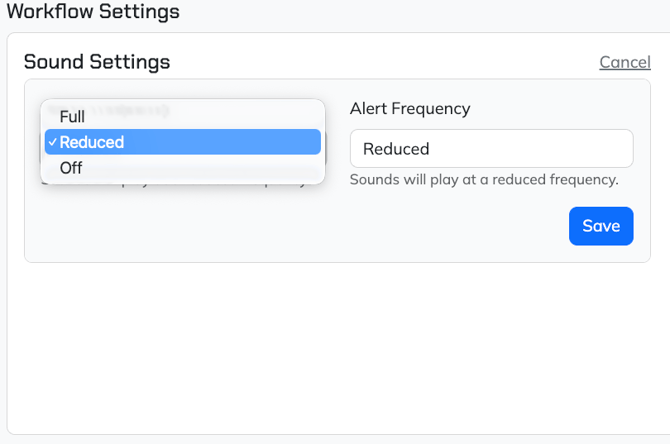
-
Set Alert Frequency.
Choose one:
• Full: Sound is persistent (it keeps ringing until the alert is cleared or acknowledged). The alert still stays visible in the platform.
• Reduced: Sound plays briefly (about 5–10 seconds), then quiets down. The alert still stays visible in the platform.
• Off: No sound plays. Alerts can still appear visually in the platform. -
Save changes and confirm the values.
Click Save or Submit (whatever the screen shows).
Expected result: You return to the Sound Settings card and see updated frequency values.
Troubleshooting
| Symptom | Likely Cause | Fix | Prevent |
|---|---|---|---|
| No sounds play for anything | Both Alarm Frequency and Alert Frequency are set to Off | Set one or both to Reduced. | Document a recommended standard by role (dispatch vs tech). |
| Alerts still show, but you only hear a short ring | Setting is Reduced | This is expected behavior; the alert remains, the sound just quiets down. | Train the team: “Reduced = brief sound, alert still visible.” |
| I can’t edit Sound Settings | Permission or role limits | Ask an admin/manager to update Sound Settings or grant access. [VERIFY: “required permission/role”] | Confirm permissions during onboarding. |
| Sounds changed on one device but not another | Settings may be user-specific vs account-wide [VERIFY] | Check if Sound Settings are per-user. If yes, update each user’s settings. | Include Sound Settings in user setup checklist. |
| Alarms/alerts are too noisy even on Reduced | Browser/device volume is too high | Lower device volume and keep MetaFleet sounds on Reduced. | Add “device volume check” to dispatcher workstation setup. |
FAQs
Q: Does Reduced remove alerts from the system?
A: No. Reduced only changes how long the sound plays. Alerts still exist in the platform.
Q: If I set sounds to Off, will I still see alerts?
A: Yes. Off stops sound only. Alerts can still show visually.
Q: What should dispatch use?
A: Usually Reduced, so they still get a quick audible cue.