---
title: Add and Manage Vendors
description: Add and manage your vendors — order contacts, payment terms, and pricing rules — so purchase orders go to the right supplier with the right terms.
---
[Skip to content](https://support.metafleet.ai/add-and-manage-vendors#main-content)
English
Show submenu for translations

Open main navigation
Close main navigation
- English
Show submenu for translations
- [Contact us](mailto:support@metafleet.ai)
[Contact us](mailto:support@metafleet.ai)
How can we help you?
- There are no suggestions because the search field is empty.
1. [MetaFleet Answer Hub](https://support.metafleet.ai/?hsLang=en)
2. [Parts, Inventory & Vendors](https://support.metafleet.ai/parts-inventory-vendors?hsLang=en)
3. [Vendors & Manufacturers](https://support.metafleet.ai/parts-inventory-vendors?hsLang=en#vendors-manufacturers)
# Add and Manage Vendors
## Add a vendor, set its contact, lead time, order method, and payment terms, then attach it to a part as the preferred supplier.
**For:** Admins and service managers who buy parts · **Permission:** Manage Parts · **Time:** About 3 minutes
### Quick summary
1. Go to **Parts & Inventory → Vendors**.
2. Click **+ New vendor**.
3. Enter the **Vendor name**, then the contact, average lead time, order method, and payment terms.
4. *(Optional)* Set a pricing rule: a flat discount or a flat markup.
5. Click **Create vendor**.
### Before you start
- **You'll need:** The **Manage Parts** permission to add or change vendors.
- **Manufacturer vs vendor:** A **manufacturer** makes the part. A **vendor** sells it to you. Each part has one manufacturer and an optional **preferred vendor**. To add manufacturers, see [Add and Update Manufacturers](https://support.metafleet.ai/add-and-update-manufacturers?hsLang=en).
### Open Vendors
Go to **Parts & Inventory → Vendors**. The page has a search box, the **Active** and **Inactive** tabs, and the vendor list. Use the search box to find a vendor by name or contact.
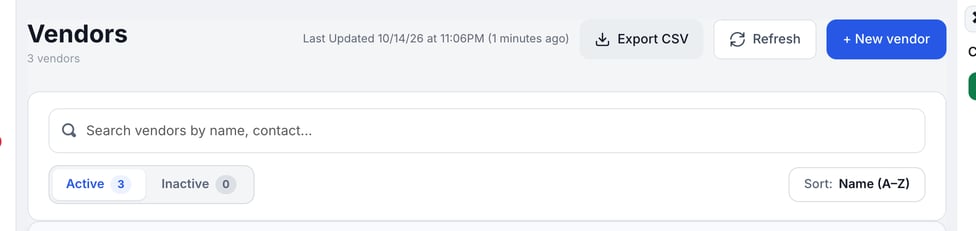
### Click **+ New vendor**
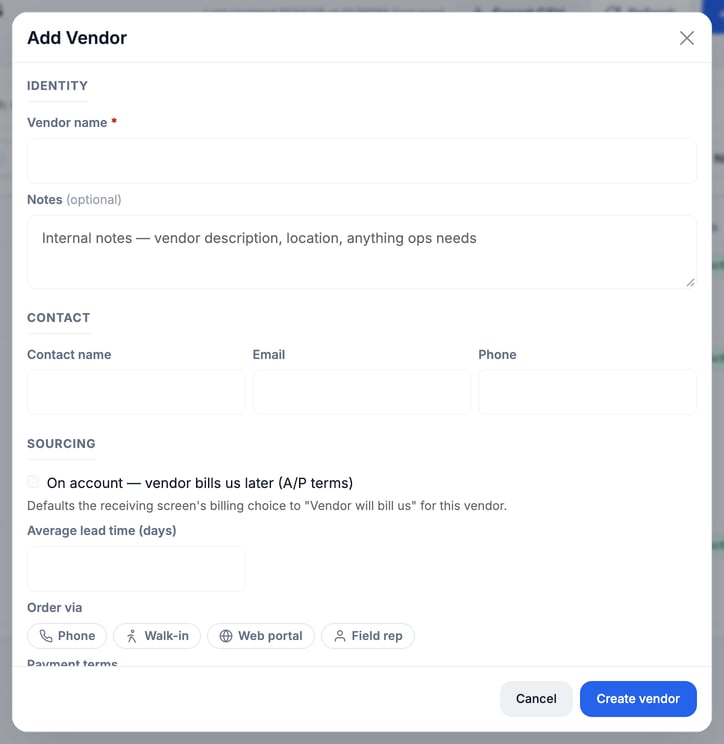
The **Add Vendor** window opens. It has three groups, **Identity**, **Contact**, and **Sourcing**, and a **Pricing rule** section at the bottom.
### Fill in the vendor details
1. **Vendor name** (required). Enter the name your team will search for. It can be up to 200 characters.
2. **Notes** (optional). Add a description, location, or anything your team needs to know.
3. **Contact name**, **Email**, and **Phone** (optional). Enter the phone number with the country code, for example `+1 6195550142`.
4. **On account** (optional). Turn on **On account — vendor bills us later (A/P terms)** if this vendor sends you a bill after delivery.
5. **Average lead time (days)**. Enter the number of days this vendor usually takes.
6. **Order via**. Select one or more of **Phone**, **Walk-in**, **Web portal**, or **Field rep**.
7. **Payment terms**. Select **None**, **COD**, **Net**, or **Pre-pay**. For **Net**, enter the number of days in the **Net days** field.
8. **Pricing rule** (optional). Choose **Flat % discount** or **Flat % markup**, then enter the **Percentage**. Leave **Type** set to **None** if you don't need a rule.
> **On account changes the receiving screen.** With this box on, the receiving screen's billing choice defaults to **Vendor will bill us** for this vendor.
### Click **Create vendor**
The vendor is saved and appears in the list on the **Active** tab. The row shows the lead time, order methods, payment terms, pricing rule, and status.

### Attach the vendor to a part
A part gets its vendor from the part record, not from the vendor record.
1. Go to **Parts & Inventory → Parts** and open the part. To add a part first, see [Add New Parts to Your Inventory](https://support.metafleet.ai/add-new-parts-to-your-inventory?hsLang=en).
2. Click **Edit**.
3. In the **Vendor & Sourcing** section, open **Preferred vendor** and choose the vendor.
4. *(Optional)* Enter the vendor's part number, or a lead time in business days for this part only.
5. Save the part.
The Parts list shows a colored lead-time chip for each part. If you enter a lead time on the part, the chip uses that number. Otherwise, it uses the vendor's average lead time.
### Edit a vendor
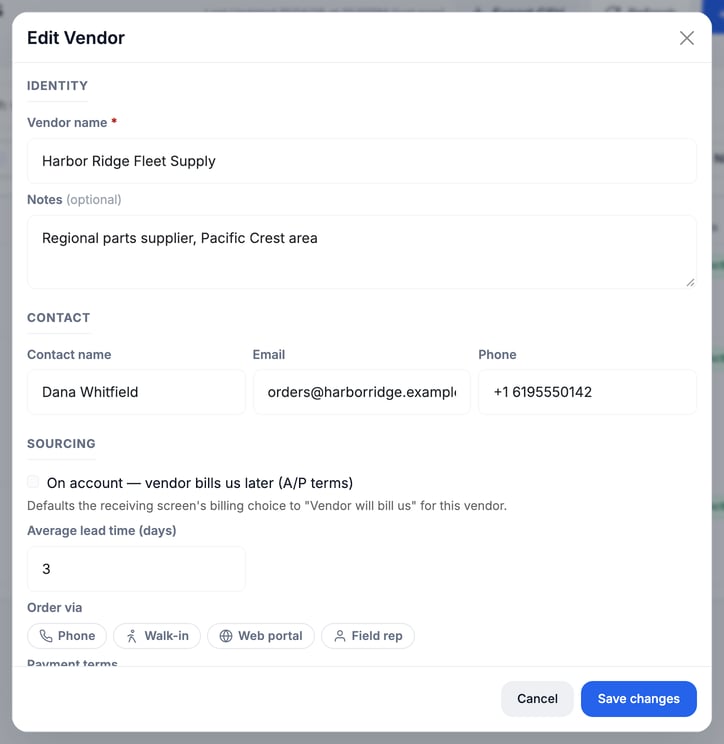
Click the **⋮** menu at the end of the vendor's row, then click **Edit**. Change the fields you need, then click **Save changes**.
> **Vendors from QuickBooks need a permission.** If your shop connected QuickBooks, vendors that came from it show a QuickBooks badge. Only users with **Manage account settings** see the **⋮** menu on them. Everyone else sees a dash (—). Hover over the dash to read the tooltip: "Came from QuickBooks. An account administrator can edit it here." To see how vendors map to QuickBooks, see [How Vendors, Bills and Purchase Orders Map to QuickBooks](https://support.metafleet.ai/quickbooks-vendors-bills-reference?hsLang=en).
### Deactivate or reactivate a vendor
Deactivate a vendor you no longer buy from. Click the **⋮** menu on its row, then click **Deactivate**. It takes effect right away. There is no confirmation step.
The vendor moves to the **Inactive** tab. It no longer appears in a part's **Preferred vendor** list, but parts that already use it keep it.
To bring it back, open the **Inactive** tab, click the **⋮** menu on the vendor's row, then click **Activate**.
> **There is no delete for vendors.** Deactivating a vendor keeps its record, so use it for any vendor you stop using.
### Troubleshooting
| Symptom | Likely cause | Fix |
| --- | --- | --- |
| The form won't save and asks for a vendor name | **Vendor name** is empty | Enter a vendor name. It's the only required field. |
| **Order via** shows a dash (—) on the list | No order method is selected | Edit the vendor and select at least one of **Phone**, **Walk-in**, **Web portal**, or **Field rep**. |
| **Net** is selected, but the save fails | **Net days** is empty | Enter the number of days in **Net days**. |
| The pricing rule shows no discount or markup | **Type** is still **None** | Choose **Flat % discount** or **Flat % markup**, then enter the **Percentage**. |
| No **⋮** menu on a vendor's row | The vendor came from QuickBooks, and you don't have **Manage account settings** | Ask an admin to make the change. |
| A vendor isn't in a part's **Preferred vendor** list | The vendor is on the **Inactive** tab | Open the **Inactive** tab, click **⋮** on the vendor's row, then click **Activate**. |
| A part's lead time doesn't match the vendor's | The part has its own lead time in **Vendor & Sourcing** | Open the part, click **Edit**, and clear the **Lead time** field in **Vendor & Sourcing** to use the vendor's average. |
### FAQs
**Can a part have more than one vendor?**
Each part has one **preferred vendor**. You can change it any time from the part's **Edit** view, in the **Vendor & Sourcing** section.
**What does the pricing rule do?**
It records the standing discount or markup you get from that vendor, so your cost comparisons stay accurate.
**Do I have to fill in everything?**
No. **Vendor name** is the only required field. Add the contact, lead time, and terms as you have them.
**Can I delete a vendor?**
Not from the app. Click **Deactivate** instead. The vendor moves to the **Inactive** tab.
### Related articles
- [Add and Update Manufacturers](https://support.metafleet.ai/add-and-update-manufacturers?hsLang=en)
- [Add New Parts to Your Inventory](https://support.metafleet.ai/add-new-parts-to-your-inventory?hsLang=en)
- [Manage Purchase Orders](https://support.metafleet.ai/manage-purchase-orders?hsLang=en)
- [Parts Pricing and Markup](https://support.metafleet.ai/parts-pricing-and-markup?hsLang=en)
- [Start Here](https://support.metafleet.ai/start-here?hsLang=en)
- [Companies & Contacts](https://support.metafleet.ai/companies-contacts?hsLang=en#main-content)
- [Create/Edit Companies](https://support.metafleet.ai/companies-contacts?hsLang=en#create-edit-companies)
- [Contacts](https://support.metafleet.ai/companies-contacts?hsLang=en#contacts)
- [Vehicles](https://support.metafleet.ai/companies-contacts?hsLang=en#vehicles)
- [Work Intake (Requests & Service Orders)](https://support.metafleet.ai/work-intake-requests-service-orders?hsLang=en#main-content)
- [Creating Service Orders](https://support.metafleet.ai/work-intake-requests-service-orders?hsLang=en#creating-service-orders)
- [Customer & Partner Requests](https://support.metafleet.ai/work-intake-requests-service-orders?hsLang=en#customer-partner-requests)
- [Reference](https://support.metafleet.ai/work-intake-requests-service-orders?hsLang=en#reference)
- [Customer Portal](https://support.metafleet.ai/work-intake-requests-service-orders?hsLang=en#customer-portal)
- [Estimates & Approvals](https://support.metafleet.ai/estimates-approvals?hsLang=en#main-content)
- [Approval Gates](https://support.metafleet.ai/estimates-approvals?hsLang=en#approval-gates)
- [Estimates](https://support.metafleet.ai/estimates-approvals?hsLang=en#estimates)
- [Invoices](https://support.metafleet.ai/estimates-approvals?hsLang=en#invoices)
- [Billing](https://support.metafleet.ai/estimates-approvals?hsLang=en#billing)
- [Parts, Inventory & Vendors](https://support.metafleet.ai/parts-inventory-vendors?hsLang=en#main-content)
- [Add Parts & Kits](https://support.metafleet.ai/parts-inventory-vendors?hsLang=en#add-parts-kits)
- [Stock & Counts](https://support.metafleet.ai/parts-inventory-vendors?hsLang=en#stock-counts)
- [Locations & Bins](https://support.metafleet.ai/parts-inventory-vendors?hsLang=en#locations-bins)
- [Purchase Orders](https://support.metafleet.ai/parts-inventory-vendors?hsLang=en#purchase-orders)
- [Parts Catalog](https://support.metafleet.ai/parts-inventory-vendors?hsLang=en#parts-catalog)
- [Vendors & Manufacturers](https://support.metafleet.ai/parts-inventory-vendors?hsLang=en#vendors-manufacturers)
- [Pricing](https://support.metafleet.ai/parts-inventory-vendors?hsLang=en#pricing)
- [Service Vehicles](https://support.metafleet.ai/parts-inventory-vendors?hsLang=en#service-vehicles)
- [Sourcing & Hand-Off](https://support.metafleet.ai/parts-inventory-vendors?hsLang=en#sourcing-hand-off)
- [Part Numbers](https://support.metafleet.ai/parts-inventory-vendors?hsLang=en#part-numbers)
- [Notifications](https://support.metafleet.ai/parts-inventory-vendors?hsLang=en#notifications)
- [Reports](https://support.metafleet.ai/parts-inventory-vendors?hsLang=en#reports)
- [Invoicing & Payments](https://support.metafleet.ai/invoicing-payments?hsLang=en)
- [Dispatch & Scheduling](https://support.metafleet.ai/dispatch-scheduling?hsLang=en#main-content)
- [Preventative Maintenance](https://support.metafleet.ai/dispatch-scheduling?hsLang=en#preventative-maintenance)
- [Technician Assignment](https://support.metafleet.ai/dispatch-scheduling?hsLang=en#technician-assignment)
- [Scheduling & Calendar](https://support.metafleet.ai/dispatch-scheduling?hsLang=en#scheduling-calendar)
- [Technician Schedule](https://support.metafleet.ai/dispatch-scheduling?hsLang=en#technician-schedule)
- [Technicians & Mobile App](https://support.metafleet.ai/technicians-mobile-app?hsLang=en#main-content)
- [Time Tracking](https://support.metafleet.ai/technicians-mobile-app?hsLang=en#time-tracking)
- [Tech Workflow](https://support.metafleet.ai/technicians-mobile-app?hsLang=en#tech-workflow)
- [Evidence & Photos](https://support.metafleet.ai/technicians-mobile-app?hsLang=en#evidence-photos)
- [AI Assistant](https://support.metafleet.ai/technicians-mobile-app?hsLang=en#ai-assistant)
- [Alerts, Alarms & Notifications](https://support.metafleet.ai/alerts-alarms-notifications?hsLang=en#main-content)
- [Email/SMS/App Settings](https://support.metafleet.ai/alerts-alarms-notifications?hsLang=en#email-sms-app-settings)
- [Reporting & Dashboards](https://support.metafleet.ai/reporting-dashboards?hsLang=en)
- [Admin & Settings](https://support.metafleet.ai/admin-settings?hsLang=en#main-content)
- [Rates & Fees](https://support.metafleet.ai/admin-settings?hsLang=en#rates-fees)
- [Branding](https://support.metafleet.ai/admin-settings?hsLang=en#branding)
- [Roles, Permissions & Users](https://support.metafleet.ai/admin-settings?hsLang=en#roles-permissions-users)
- [Service Areas](https://support.metafleet.ai/admin-settings?hsLang=en#service-areas)
- [Workflows](https://support.metafleet.ai/admin-settings?hsLang=en#workflows)
- [Taxes](https://support.metafleet.ai/admin-settings?hsLang=en#taxes)
- [Integrations](https://support.metafleet.ai/admin-settings?hsLang=en#integrations)
- [Integrations](https://support.metafleet.ai/integrations?hsLang=en#main-content)
- [Phone Setup](https://support.metafleet.ai/integrations?hsLang=en#phone-setup)
- [AI Assistant Access](https://support.metafleet.ai/integrations?hsLang=en#ai-assistant-access)
- [QuickBooks](https://support.metafleet.ai/integrations?hsLang=en#quickbooks)
- [Getting Around](https://support.metafleet.ai/getting-around?hsLang=en#main-content)
- [Search & Command Bar](https://support.metafleet.ai/getting-around?hsLang=en#search-command-bar)
[](http://www.metafleet.ai)
[mailto:support@metafleet.ai](mailto:support@metafleet.ai)
Copyright © 2025, MetaFleet, Inc