
For: Dispatchers and admins · Permission: Dispatcher or Admin role (settings changes need Admin) · Time: ~5 minutes
Quick summary
- Open the Alerts rail on the right side of the screen.
- Work the cards under ALARMS. An alarm needs a person to act.
- Click the button on the card (for example Join Appointment) to take it and open the item.
- Check the lines at the bottom of each order under ACTIVE ORDERS. Those are alerts.
- Adjust ETA alerts and sounds under Settings › Workflow.
Before you start
- You need a dispatcher or admin login.
- The rail sits on the right of the main screen. If it's hidden, click the Toggle alerts icon in the top bar. On a phone, tap Alerts in the bottom bar.
Tell an alarm from an alert
An alarm goes to the whole dispatch team and needs someone to act. Any one dispatcher can take it. An alert is for specific people and tells them something happened. An alert doesn't need to be resolved.
Technicians get their own alarms in the technician app. This article covers the dispatcher rail.
Read the Alarms section
Alarms are the cards under ALARMS. The red number beside the heading is how many are open.
Each alarm card shows:
- A reason label at the top, such as Overdue or New.
- A title that names the item and how many are waiting, such as "10 Overdue Appointments".
- An action button, such as Join Appointment.
Red cards are the most urgent. Amber cards are less urgent. Cards for several items of one kind are grouped into one card with a count.
2 summary cards sit below the alarms: techs blocked on parts and unread conversations. They show a count. Click one to open Parts Watch or Chat.
Take an alarm
- Click the action button. The button is named for the item, for example Join Appointment. On an unassigned job it reads Assign Technician.
- Work the item. Clicking the button takes the alarm for you and opens the item.
Unassigned cards, Draft cards, Not picked up (15m) cards, FleetNet missing-work cards and a tow's Needs Details card aren't taken. The button opens the item, and the card stays up for the whole team until the problem is fixed. For example, Assign Technician opens the job with the technician list, and the card clears once a technician is assigned.
Another dispatcher got there first. If a teammate takes the alarm before you click, the rail reloads and the card is gone. Pick the next one.
Read the reason label
| Label on the card | Title reads | What happened |
|---|---|---|
| New | New Appointment and similar | A new chat, call, service order, appointment request or FleetNet request arrived. A FleetNet preventive maintenance or inspection booking that is missing its work also shows New, with the title "FleetNet appointment needs its Service Program." (or "…Service Program and Inspection form."). |
| Overdue | Overdue Appointments and similar | A chat, call, service order or FleetNet request has waited too long. |
| Draft | 3 Drafts (the count of drafts in Service Orders › Unsubmitted) | A customer started a service order in the portal and left it unsent for 15 minutes. The button reads See drafts and opens Service Orders › Unsubmitted. It doesn't take the card. |
| Not picked up (15m) | Unassigned Service Order | A job was offered to technicians and nobody claimed it in 15 minutes. The button reads Assign Technician. Every dispatcher gets the card in ALARMS, including the order's own dispatcher, and it is counted. Other alarms on your own orders, such as New, stay as a badge on the order's row. Opening the order doesn't clear it. |
| Needs Details | FleetNet tow needs details | A FleetNet tow is missing its tow type or destination. On the order, a technician can't be assigned until it has both. A booked tow can be started without a destination if your account has a shop. A missing tow type still blocks it. |
| Needs Confirmation | Confirm Appointment | A preventive maintenance appointment was created for you and needs your confirmation. |
| Unassigned (24h), Unassigned (3h) | Unassigned Appointment | A scheduled job still has no technician. This includes a job whose last technician was removed before it started. The button reads Assign Technician. |
| Leave Soon | Departure Due Appointment | The assigned technician should leave in about 20 minutes. |
| Leave Now | Departure Overdue Appointment | The technician should be leaving now and hasn't gone En route. |
| Reassign | Reassign Appointment | The technician is still not En route 10 minutes later. Consider another technician. |
| Alert | Pending … | Other alarms, such as preventive maintenance due. |
Work a FleetNet follow-up card
Some FleetNet bookings arrive incomplete. Each one gets its own card, one per booking:
- Missing work on a PM or inspection booking: the card replaces New Appointment and reads "FleetNet appointment needs its Service Program." or "…Service Program and Inspection form." Click Join Appointment to open the booking with the Service work editor open. The card clears when every truck has its work.
- Tow missing a tow type or destination: the card is labeled Needs Details. Add both on the tow. Until then you can't assign a technician on the order. A booked tow can be started without a destination if your account has a shop, but a missing tow type still blocks it.
Follow-ups go to the job's owner, the first dispatcher to accept it, and show on their ACTIVE ORDERS row. If the owner doesn't open it within 15 minutes, or is off shift, it falls back to one Overdue card for the whole team.
Follow a job nobody picks up
When a job is offered to technicians and nobody claims it, two things happen:
- At 10 minutes, a Not picked up in 10 min alert shows for the order's dispatcher. The order's dispatcher gets an email, "Nobody has picked up SO #…". If the order has no lead, it goes to its dispatchers, then to everyone who can dispatch.
- At 15 minutes, a Not picked up (15m) alarm shows on the rail, and everyone who can manage users gets an email, "SO #… still has no technician".
Opening the order doesn't clear the alarm. It clears when a technician claims the job, anyone assigns one, or the order is cancelled. To turn this off, use Escalate jobs nobody picks up in Settings › Workflow › Dispatch. It's On by default, and the 10 and 15 minutes can't be changed.
Watch an alarm escalate
An alarm that sits too long escalates. On scheduled jobs it works as a ladder:
- 24 hours before the job with no technician: an Unassigned (24h) alarm.
- 3 hours before with still no technician: the label changes to Unassigned (3h).
- About 20 minutes before departure: Leave Soon (title: Departure Due).
- At the departure time with no En route status: Leave Now (title: Departure Overdue).
- 10 minutes later: Reassign.
The last 3 steps only run once a technician is assigned and has an ETA.
Opening the job doesn't clear these. Opening it only stops the escalation. The alarm clears when the condition is fixed: a technician is assigned, or the technician departs.
Read the alerts on an order
Alerts show on the order they belong to, under ACTIVE ORDERS. Each line at the bottom of the card says what changed. Open the order to act on it.
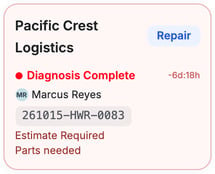
An order can carry several lines at once.
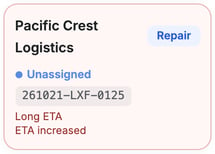
The alerts you may see include:
- Not picked up in 10 min: a job was offered to technicians and nobody claimed it.
- Estimate Required: the order needs an estimate.
- Estimate not sent: an estimate draft is still waiting to be sent.
- Approved estimate waiting: an approved estimate hasn't been converted yet.
- ETA increased: the technician's estimated arrival moved 15 minutes or more later.
- Long ETA: the technician's estimated arrival is 2 hours or more away.
Change ETA alerts and sounds
Go to Settings › Workflow › Approvals & Alerts. The Service Order Settings card lists ETA Increased Alerts and ETA Is Too Long Alerts, each On or Off. Click Edit to change them.

Go to Settings › Workflow › Sounds to set how often alarm and alert sounds play. The card has an Alarm Frequency and an Alert Frequency.
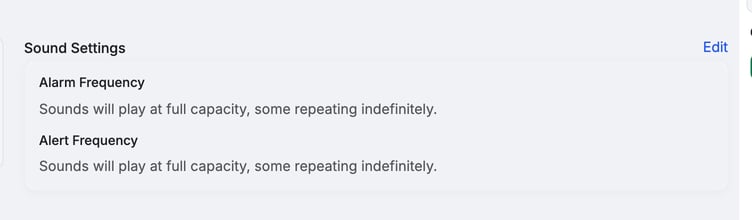
Steps for both are in Enable ETA Alerts in Workflow Settings and Adjust Notification Sounds in Workflow Settings.
Troubleshooting
| Symptom | Likely cause | Fix |
|---|---|---|
| An alarm disappeared before I clicked it | Another dispatcher took it | Look at the next card. The rail reloads when a claim is lost. |
| An Unassigned (3h) alarm is still there after I opened the job | Opening the job doesn't clear it | Assign a technician. The alarm clears once one is assigned. |
| A Not picked up (15m) card is still there after I opened the order | Opening the order doesn't clear it | Assign a technician. The card clears once one is assigned or claims the job. |
| I don't see ETA lines on orders | ETA alerts are Off | Turn them on under Settings › Workflow › Approvals & Alerts. |
| I can't see the rail | It's hidden | Click the Toggle alerts icon in the top bar. On a phone, tap Alerts in the bottom bar. |
FAQs
How do I tell an alarm from an alert?
Alarms are the cards under ALARMS with an action button. Alerts are the lines at the bottom of an order card.
Can I dismiss an alarm without acting?
No. An alarm clears when it's taken or when the condition is fixed.
Can two dispatchers work the same alarm?
Most alarms, no. The first one to click takes it. Unassigned cards, Draft cards, Not picked up (15m) cards, FleetNet missing-work cards and Needs Details cards stay up for everyone until the problem is fixed.
Where do I turn alerts or sounds down?
Settings › Workflow. ETA alerts are on Approvals & Alerts. Sound frequency is on Sounds.