
Who this is for
Admins and service managers who keep the parts catalog organized. You'll need the Manage Parts permission.
What you'll learnHow to add a new manufacturer, rename or deactivate an existing one, and safely remove (or merge) manufacturers you no longer use.
Before you start- You'll need: The Manage Parts permission. Manufacturers live under Parts & Inventory → Manufacturers — a separate list from Parts and Vendors.
- Good to know: A manufacturer that's still attached to parts can't be deleted — that protects your catalog. Deactivate or merge it instead.
Quick summary
- Go to Parts & Inventory → Manufacturers.
- Click + New manufacturer, enter a name, click Save.
- To retire one, click its Active pill to deactivate, or Delete (only when no parts reference it).
Open Manufacturers.
Go to Parts & Inventory → Manufacturers. Each row shows how many parts use it, its most-used category, and its status.
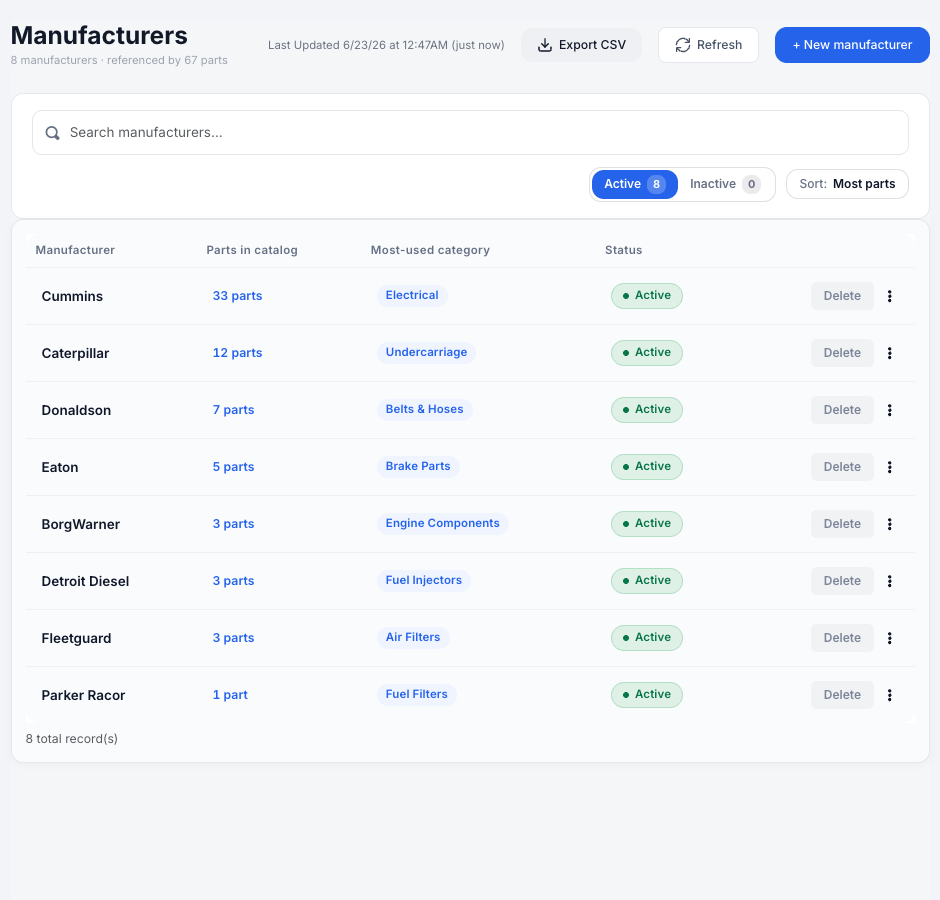
The Manufacturers list — parts count, most-used category, and an Active/Inactive status pill per row.
Add a manufacturer.
Click + New manufacturer, type the name, leave the status active, and click Save. Names must be unique.
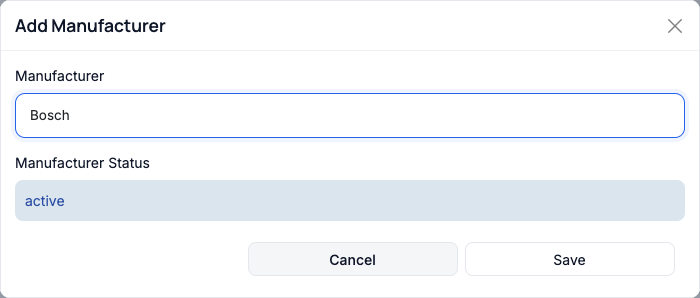
Adding a manufacturer takes just a name and a status.
Rename or deactivate an existing one.
Use the row's ⋯ menu to rename. To stop a manufacturer appearing in new-part dropdowns without removing its history, click its Active pill to flip it to Inactive — existing parts keep their manufacturer.
Delete one you no longer use.
Click Delete. If parts still reference it, Delete is blocked and tells you how many — reassign or deactivate instead. When nothing references it, Delete removes it cleanly.
Tidying up duplicates? If you have two entries for the same maker (say "Cat" and "Caterpillar"), use Merge to fold one into the other — every part moves to the surviving manufacturer in one step, no re-tagging.Troubleshooting
| Symptom | Likely cause | Fix |
|---|---|---|
| Delete is greyed out | Parts still reference this manufacturer | The button shows the count — reassign those parts, deactivate, or merge into another manufacturer. |
| A manufacturer isn't in the new-part dropdown | It's set to Inactive | Reactivate it from the Manufacturers list (click its status pill). |
| Save is blocked when adding | The name already exists | Use a unique name, or edit the existing manufacturer instead. |
What's the difference between a manufacturer and a vendor?
A manufacturer makes the part; a vendor sells it to you. They're separate lists — a part has one manufacturer and an optional preferred vendor.
If I deactivate a manufacturer, what happens to its parts?
Nothing changes on the parts — they keep the manufacturer. It just stops showing up when you add new parts.
Can I combine two manufacturers?
Yes — use Merge to move all parts onto one and remove the duplicate.