
For: Everyone on the team · Permission: permission to create channels or direct messages · Time: ~5 minutes
Quick summary
- Open Team Chat › Conversations.
- Click + to start a channel or a direct message.
- Type in the composer and click Send. Type / to reference a service order.
- Use the bell to mute a conversation and Details to manage members.
Before you start
- Team Communication has to be on. See Turn On Team Chat. The Team Chat menu does not show without it.
- Creating a channel and starting a direct message each need their own permission.
Find your conversations
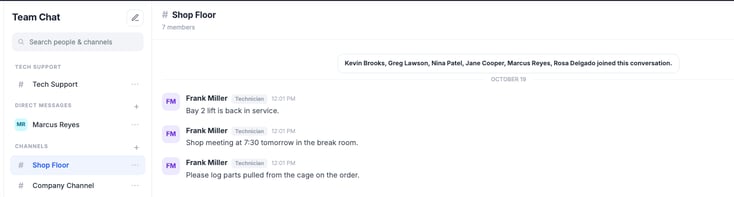
Open Team Chat › Conversations. The left rail lists your Favorites, Direct messages and Channels. Type in Search people & channels to find one fast. A conversation with unread messages shows a count.
Start a channel or a direct message
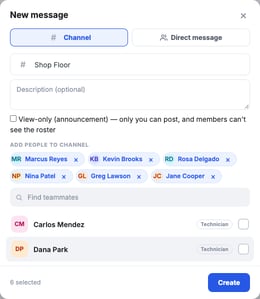
- Open the dialog. Click + next to Channels or Direct messages.
- Pick the type. Choose Channel or Direct message.
- Name a channel. Enter a Channel name (up to 80 characters). A Description (optional) can be up to 500 characters.
- Add people. Search under Find teammates and tick each person.
- Click Create.
Make a view-only announcement channel
Tick View-only (announcement) when you create the channel. Only you can post in it, and members can't see the roster. Everyone else sees: "This is a view-only announcement channel. Only its owner can post." Admins with permission to manage chats can post too.
Send messages, files and service orders
- Message: Type in the composer and click Send. A message can be up to 5000 characters.
- Times: Message times and the Today and Yesterday dividers use your own time zone.
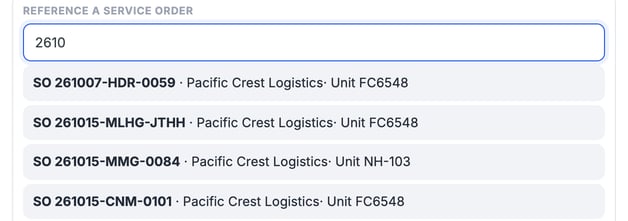
- Service order: Type / or click / Service order. Enter an order number, unit or PO number and pick the order. An order card is attached to your message.
- Files: Click Attach or drag files onto the composer. You can attach JPG, PNG, PDF, CSV, Excel and Word files. Each file can be up to 10 MB, and a message can carry up to 5 files.
Edit or delete your own message within 5 minutes. Use Edit or Delete under the message. After 5 minutes the links are gone. An edited message shows (edited).
Team Chat has no @mentions. To get someone's attention, message them directly.
Favorite and mute a conversation
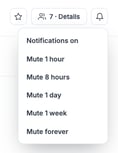
Click the star in the conversation header to add it to Favorites. Click the bell to mute it. Choose Mute 1 hour, Mute 8 hours, Mute 1 day, Mute 1 week or Mute forever. A muted conversation is tagged MUTED and shows no unread count. Choose Notifications on to turn it back on.
Manage members, archive or leave
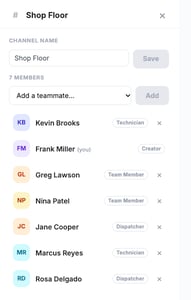
Click Details (it shows the member count) to open the drawer.
- Rename a channel under CHANNEL NAME, then click Save.
- Add a member with Add a teammate… and Add.
- Remove a member with the × next to their name. They lose access to the conversation and its history. You can add them back later.
- Archive channel makes it read-only. Use Unarchive to reopen it.
- Leave channel removes it from your rail. The creator of an active channel can't leave it. Archive it first.
Delete removes everything. Deleting from the rail menu removes the conversation and its history for everyone in it, and can't be undone. Archive it instead if you only want it read-only. The creator can archive, rename or delete a conversation. For channels, so can anyone with permission to create channels.
Use the Tech Support channel
The Tech Support section holds help requests from technicians. You can't create, rename, archive, delete or leave it. Add people who answer requests with Add members.
- Answer a request: Pick it under OPEN HELP REQUESTS. Each card shows the order number, customer, unit and the technician who asked. Replies are stamped with the request.
- Closed requests: Find them under Archived requests. They are read-only and move there when the service order is completed.
- Technicians see only their own thread.
Technicians ask for help from the job in the technician app.
Team Chat and the order's Chat tab
Team Chat is for conversations inside your shop. The Chat tab on a service order is separate. It has Customer, Internal, Technical Support and AI Assistant tabs. On Internal, click Request Tech Support to post the order summary and your note to the Tech Support channel. For customer chats, see Turn a Chat Into a Service Order.
Troubleshooting
| Symptom | Likely cause | Fix |
|---|---|---|
| No Team Chat menu | Team Communication is off | Turn it on. See Turn On Team Chat. |
| I can't create a channel or direct message | Your role lacks the permission | Ask an admin to give your role permission to create channels or direct messages. |
| I can't post in a channel | It's a view-only announcement channel or it's archived | Ask the channel owner. Archived conversations are read-only. |
| Edit and Delete are missing | The message isn't yours or it's older than 5 minutes | Send a new message with the correction. |
| A file won't attach | Wrong type, over 10 MB, or 5 files already on the message | Use a supported type under 10 MB and send extra files in another message. |
FAQs
Can I react to a message or reply in a thread?
No. Team Chat has no reactions or threads.
What's the difference between archive and delete?
Archive keeps the history and makes the conversation read-only. Delete removes it for everyone.
Can I undo muting?
Yes. Click the bell and choose Notifications on.