
Who this is for
Admins or shop owners who configure how taxes calculate on labor, parts, and miscellaneous charges.
What you’ll learn
• What a Tax Category is
• What a Tax Group is
• How taxes roll up into your Service Location
• How MetaFleet applies taxes automatically to estimates and invoices
• Why categories and groups matter when you grow into new regions
Before you start
• Know which taxes apply to your shop (state, county, city, district).
• Have your tax rates ready from your local tax authority.
• You must have Admin access to Platform Settings.
Quick Summary (TL;DR)
• Create Tax Categories for each region (state, city, county, district).
• Create a Tax Group and attach your categories.
• Add individual taxes to the group (labor tax, parts tax, etc.).
• Assign the Tax Group to your Service Location.
• Taxes will apply automatically on all new estimates and invoices.
Step-by-Step
-
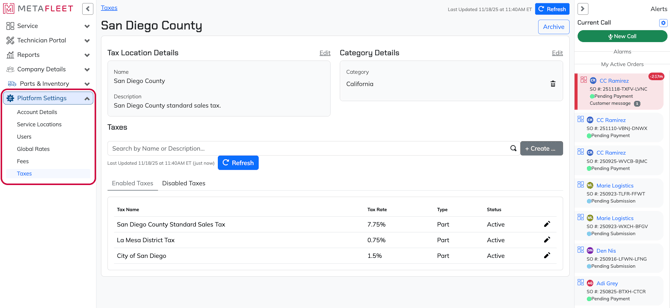
Go to Platform Settings → Taxes.
-
Understand Tax Categories:
A category represents a region (ex: State Tax, City Tax, County Tax).
Think: “Where does this tax originate?”
-
Understand Tax Groups:
A tax group is a bundle of all taxes that apply in a location.
Example: Your shop may need a group that includes state + city + county.
-
Know how MetaFleet uses these:
• Service Location → assigns a Tax Group
• Tax Group → contains all your individual tax rates
• Each tax → defines whether it applies to labor, parts, misc, or surcharges
-
When you invoice a job, MetaFleet automatically adds:
• All taxes in the Tax Group
• Only to the items that each tax applies to
• Based on the Service Location assigned to the Service Order
Troubleshooting
| Symptom | Likely Cause | Fix | Prevent |
|---|---|---|---|
| Taxes not showing on invoices | No Tax Group assigned to Service Location | Edit your Service Location and select a Tax Group | Always assign a Tax Group during setup |
| Wrong total tax amount | Tax rate entered incorrectly | Edit the tax and update the rate | Verify rates from local tax authority |
| Some items taxed, others not | Tax type not set correctly | Edit tax → set to labor, parts, misc, or surcharge | Double-check what each tax should apply to |
| Old tax still applying | Tax was disabled but not archived | Archive the tax in the Tax Group | Archive unused taxes immediately |
FAQs
Do I need both Categories and Groups?
Yes. Categories define what type of tax it is; Groups define which ones should apply together.
Can I create a single “Sales Tax” without splitting by region?
Yes—if your shop always uses one combined tax rate, create one tax and one tax group.
Do taxes update old invoices?
No, tax settings only apply to new estimates and invoices.
Can I set up multiple tax groups for different shop locations?
Yes. Create as many Tax Groups as you have regions.