
Dispatchers who field inbound customer chats and need to open a job from one without re-keying the details.
What you'll learnWhere customer chats land, how to claim one, and how to convert it into a service order that carries the customer and the transcript over automatically.
Before you start- You'll need: To know which customer you're talking to. A chat can only become a service order once it's attached to a customer on your account.
- Where it lives: Service → Chat (General Chat Sessions).
Quick summary
- Open Service → Chat and click the incoming chat.
- Assign yourself to the chat so the options appear.
- Click Create Service Order.
- Finish the new order — vehicle, location, service type — and submit.
Inbound messages from the customer portal collect under Service → Chat as General Chat Sessions, showing the customer, the contact, the assigned dispatcher, and whether the chat is still open. Filter by customer, contact, dispatcher, or status, or search by name.
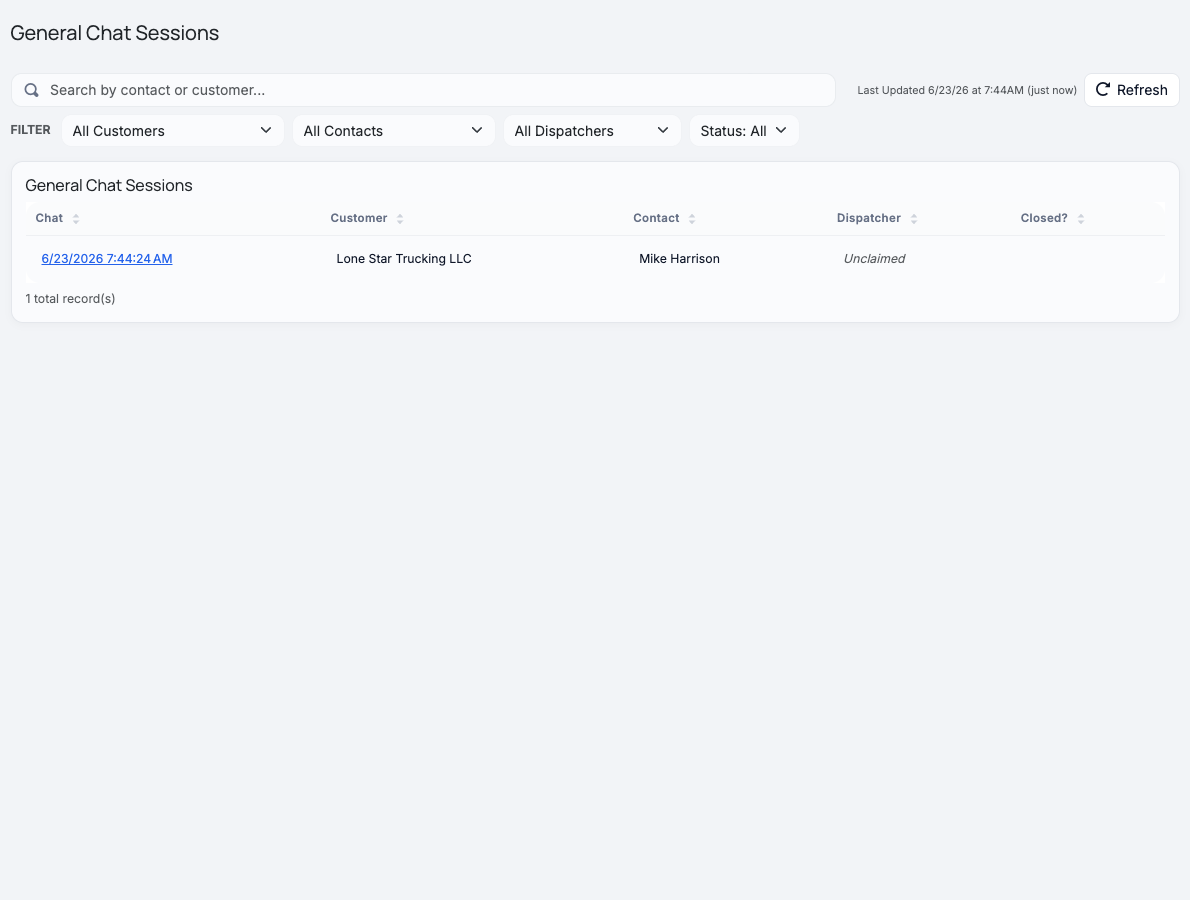
Incoming customer chats, newest first. "Unclaimed" means no dispatcher has picked it up yet.
Step-by-stepOpen the chat and assign yourself.
Click the chat to open the thread. Use Assign Users (under Service Writer) to add yourself — the chat actions only appear once you're assigned as a dispatcher on it. If the customer isn't recognized yet, you'll see Request User Sign In / Find a Customer first; attach the customer before converting.
Review the conversation.
Read what the customer reported. Below the thread you'll find the chat actions: Snooze 5 Minutes, End Chat, and Create Service Order.
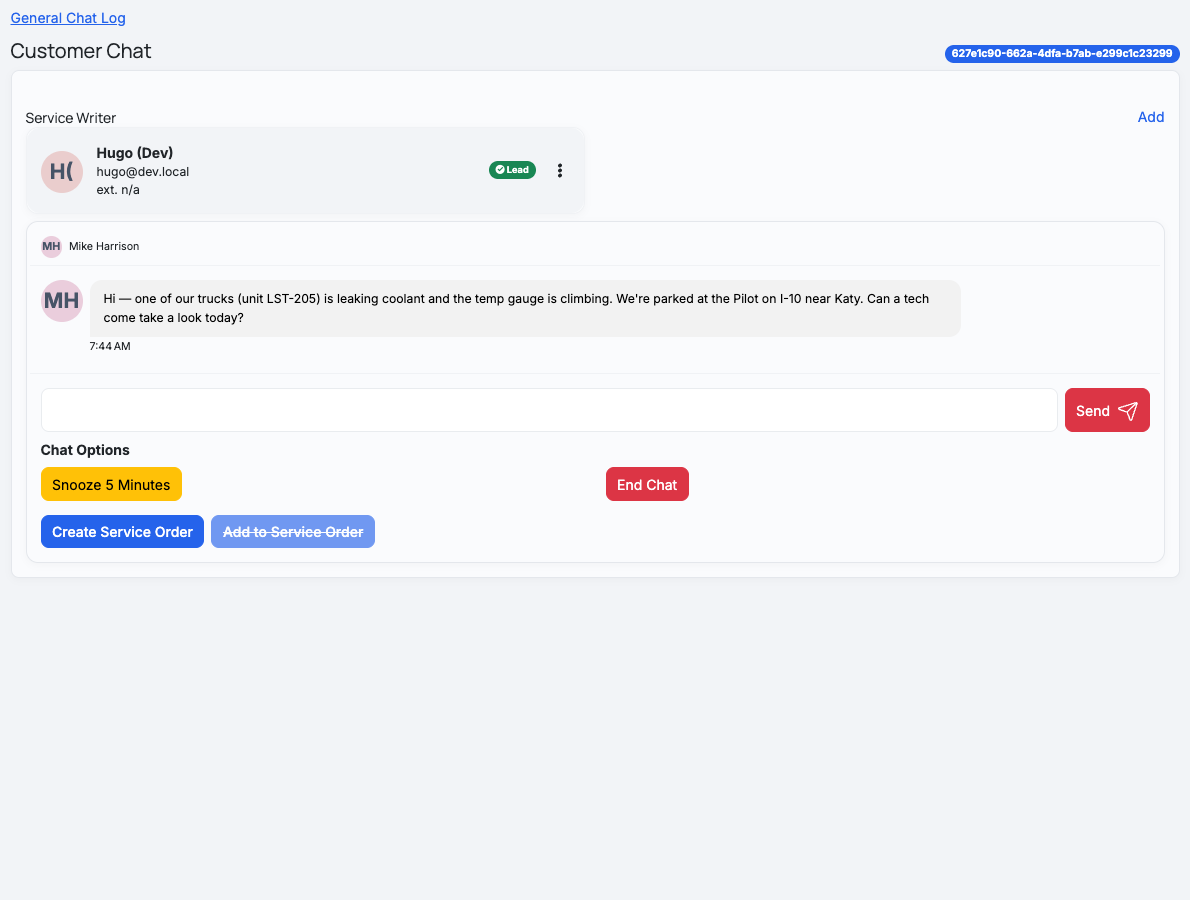
The chat thread with the conversion actions. "Add to Service Order" (attach to an existing order) is coming soon.
Click Create Service Order.
MetaFleet opens a new service order pre-filled with the company and the customer, copies the entire chat transcript onto the order, and closes the chat. You're dropped into the order so you can finish it.
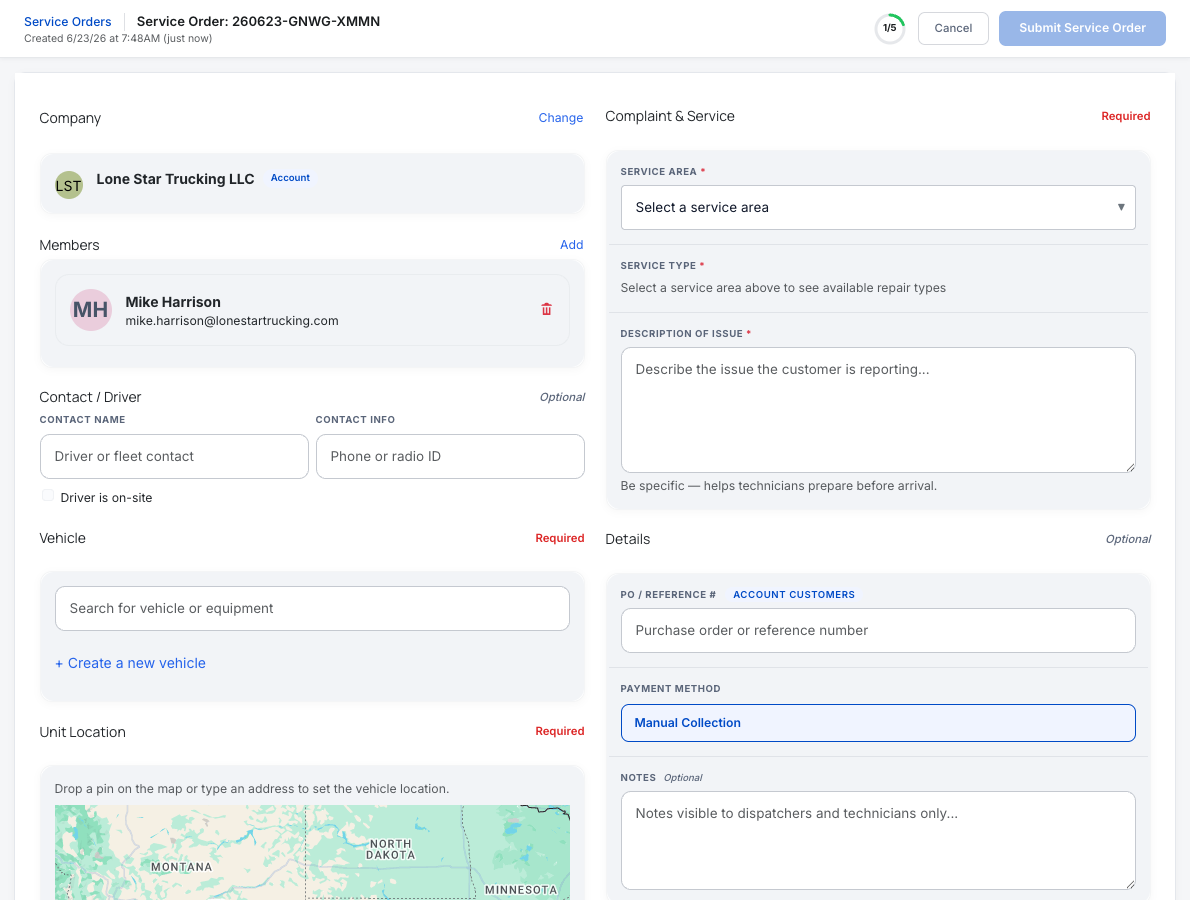
The new order arrives with the customer already filled in — you complete the rest.
Finish and submit the order.
Add the vehicle, set the unit location on the map, and choose the service area, service type, and description (use the chat for context). When the 5/5 tracker is complete, click Submit Service Order, then assign a technician as usual.
The conversation comes with it. The chat transcript is copied onto the new order's Chat tab, so the technician and anyone reviewing the job can see exactly what the customer said.Troubleshooting
| Symptom | Likely cause | Fix |
|---|---|---|
| I don't see a Create Service Order button | You're not assigned to the chat | Use Assign Users to add yourself, then the actions appear. |
| "Customer ID is not known" error | The chat isn't attached to a customer | Use Request User Sign In / Find a Customer to attach the customer first. |
| "Add to Service Order" is greyed out | That option isn't available yet | Use Create Service Order to start a new order from the chat. |
Does the chat history carry over?
Yes — the full transcript is copied onto the new order's Chat tab.
What happens to the original chat?
It's closed automatically with the reason "Converted to Service Order."
Why is the new order missing the vehicle and location?
Conversion brings the customer and the conversation; you add the vehicle, location, and service details to complete the order.
Can I attach a chat to an existing order instead?
Not yet — "Add to Service Order" is coming. For now, create a new order from the chat.