
Who this is for
Technicians wrapping up a job that's been approved and is now in repair.
What you'll learn
How to review your repair work, satisfy the photo requirement, and submit the job.
Before you start
- You'll need: A job at Repair in progress (the estimate's been approved and you've done the work).
- Required to submit: At least one repair photo.
Quick summary
- Open the job — your repairs are listed under Your work.
- Add at least one repair photo.
- Tap Submit for review.
Step-by-step
Review your work.
The job shows Repair in progress with your approved items under Your work, each with its hours. Make sure everything's done before you submit. A small status light on the job reads amber while something's still outstanding (work not finished, or the required repair photo missing) and turns green once it's ready to submit — a quick visual cue that you're good to go.
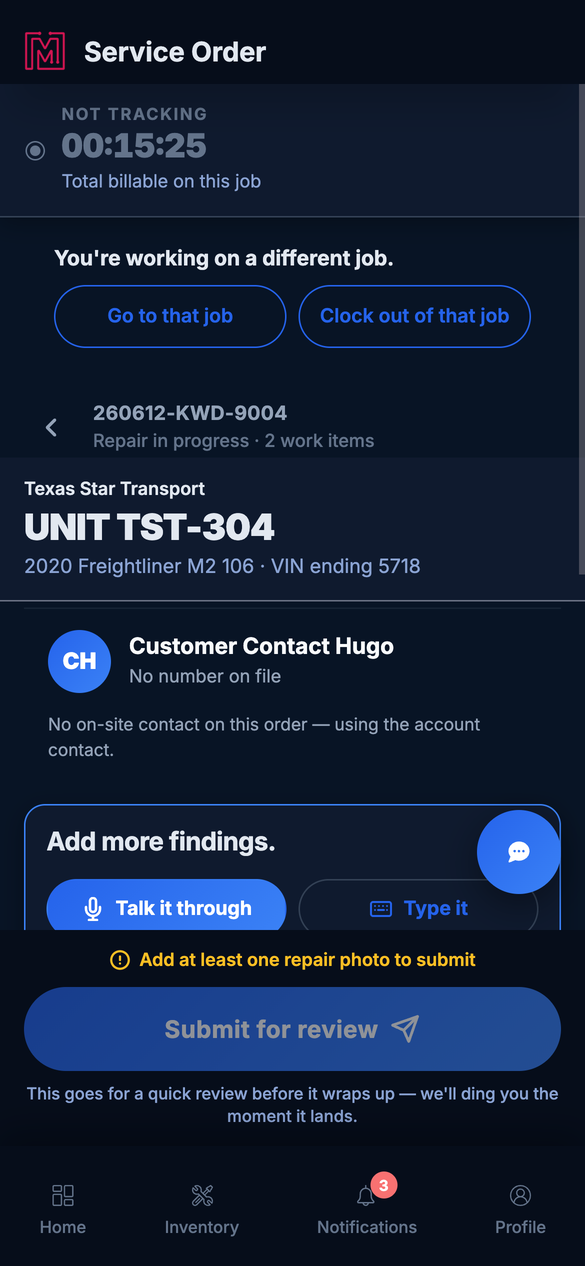
The repair screen — your work items, and the Submit button at the bottom.
Add a repair photo.
Under Photos (marked Required), add at least one shot of the completed work. Submit for review stays disabled until you do.
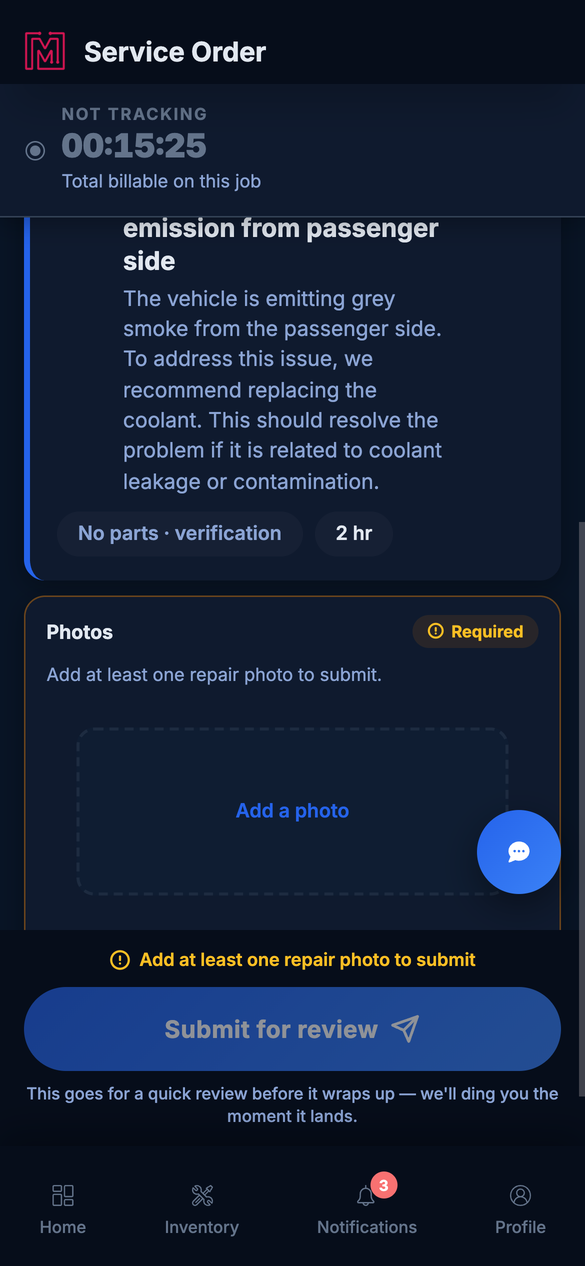
One repair photo is required before you can submit.
Submit for review.
Tap Submit for review. If you're still on the clock for this job, you'll be asked whether to also stop tracking — choose Yes, stop tracking or No, keep tracking.
You're clear.
The job goes for a quick review — you'll be pinged the moment it lands. Once it's approved, it becomes a record and the office handles the invoice.
One job's timer at a time. If you're tracking time on another job, this screen says so and offers to take you there or clock out of it. Wrap up the other job's timer so your hours land on the right order.
Troubleshooting
| Symptom | Likely cause | Fix |
|---|---|---|
| Submit for review is greyed out | No repair photo attached | Add at least one photo under Photos. |
| The job isn't in repair yet | The estimate isn't approved | Wait for the estimate to be approved — then repair opens up. |
| "You're working on a different job" | Another job's timer is running | Go to that job or clock out of it, then come back. |
| I submitted too early | Work wasn't finished | It's in review — message dispatch to send it back, or wait for the reviewer. |
FAQs
Why is a photo required?
It documents the completed repair. Submit stays disabled until at least one is attached.
Does the button always say "Submit for review"?
When your shop requires a review of completed repairs, it reads Submit for review; otherwise it submits the repair straight through.
What happens after I submit?
It goes for a quick review; once approved it becomes a record and the office invoices it.
Will I keep getting billed time after I submit?
You're prompted to stop tracking when you submit — choose to stop if you're done.