---
title: Set Up Travel Time Billing
description: "Set up travel time billing under Settings, Pricing & Rates: pick tracked time or distance, set the rate, rounding, minimum and return trip."
---
[Skip to content](https://support.metafleet.ai/set-up-travel-time-billing#main-content)
English
Show submenu for translations

Open main navigation
Close main navigation
- English
Show submenu for translations
- [Contact us](mailto:support@metafleet.ai)
[Contact us](mailto:support@metafleet.ai)
How can we help you?
- There are no suggestions because the search field is empty.
1. [MetaFleet Answer Hub](https://support.metafleet.ai/?hsLang=en)
2. [Admin & Settings](https://support.metafleet.ai/admin-settings?hsLang=en)
3. [Rates & Fees](https://support.metafleet.ai/admin-settings?hsLang=en#rates-fees)
# Set Up Travel Time Billing
## Choose whether and how MetaFleet charges customers for technician travel, and set the rate, rounding and minimum.
**For:** Owners and admins · **Time:** ~3 minutes
### Quick summary
1. Go to **Settings › Pricing & Rates** and open the **Travel Time** tab.
2. Click **Edit** on the **Travel billing** card and pick **How travel is charged**.
3. Choose the **Travel rate**, **Round to**, **Minimum billable** and **Return trip**.
4. Click **Save**.
### Before you start
- Travel is billed as an hourly charge. Decide if you want one flat hourly rate or your Time-Based Rates.
- To use the time-based rate, turn on Time-Based Rates first. See [Set Up Time-Based Labor Rates](https://support.metafleet.ai/set-up-time-based-labor-rates?hsLang=en).
### Open the Travel Time tab
Go to **Settings › Pricing & Rates**, then click **Travel Time**. The **Travel billing** card shows the current setup.
> **Looking for it under Fees & Surcharges?** Travel billing is set here, on the **Travel Time** tab. Fees, surcharges and late fees are on **Settings › Fees & Surcharges** (see [Set Up Fees and Surcharges](https://support.metafleet.ai/set-up-fees-and-surcharges?hsLang=en)).
### Choose how travel is charged
Click **Edit**, then open **How travel is charged**.

- **Tracked drive time:** bills the drive time the technician clocks on the way to the job. Dispatch can adjust it on each order.
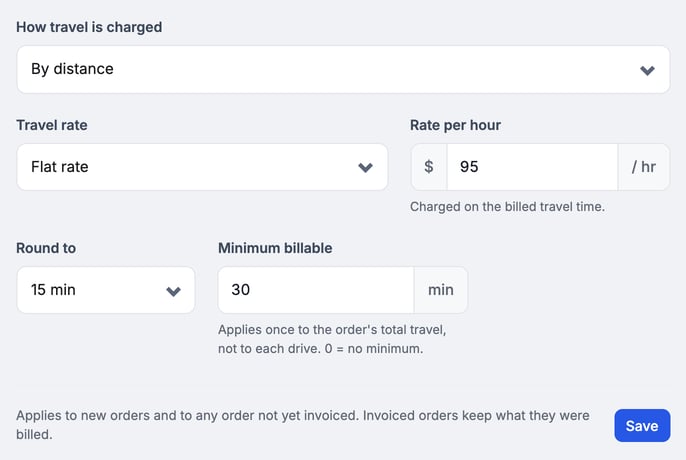
- **By distance:** bills from the map distance between your nearest Service Area and the job, out and back. MetaFleet turns the distance into an estimated drive time and bills it at the hourly rate, so this mode also asks for a rate per hour.
- **Not billed:** MetaFleet adds no travel on its own. Travel is still tracked for reporting.
Orders at one of your own Service Areas (in-shop work) never bill travel, in any mode.
### Set the travel rate
Open **Travel rate** and pick one:

- **Flat rate:** one set price per hour for travel. Type the amount in **Rate per hour**.
- **Time-based rate:** uses your Time-Based Rates (day, night, weekend and holiday), picked by the local time at the job site's address (if it has none, the service location's time zone, then your default time zone). If the customer has its own rate overrides, travel is priced at those. It is greyed out until Time-Based Rates are on.
### Set rounding, minimum and return trip
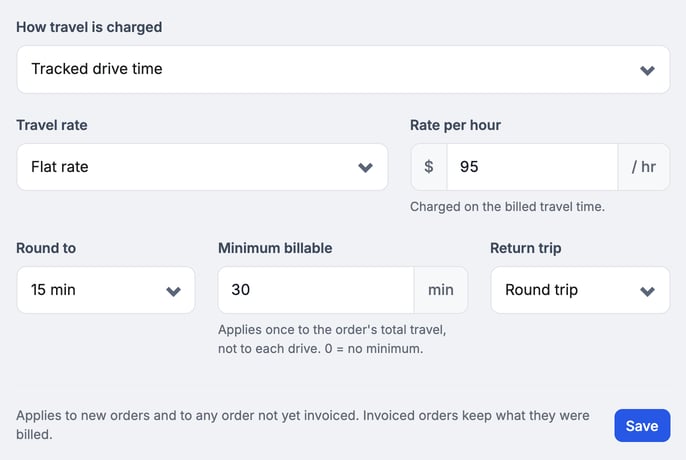
1. **Round to:** choose **5 min** or **15 min**. Billed travel rounds to this step. Drives are timed to the second. The order's total travel is rounded once to the nearest minute, then to this step.
2. **Minimum billable:** enter the fewest minutes to bill (up to 480), or **0** for no minimum.
3. **Return trip:** choose **Round trip** to bill there and back, or **One way** to bill the drive to the job only. With **Round trip**, the drive back is billed the same as the earliest drive out.
> **The minimum applies once per order.** It applies to the order's total travel, not to each drive.
> **Return trip only shows for Tracked drive time.** **By distance** always bills the round trip.
### Save and check the result
Click **Save**. The card then shows the mode, the rate, and your **Round to**, **Minimum billable** and **Return trip** values.
> **Changes apply going forward.**
>
> - They apply to new orders and to repair and tow orders not yet invoiced. Invoiced orders keep what they were billed.
> - Switching to **Not billed** removes the automatic travel line from those orders at the next billing pass. A line dispatch set by hand stays.
> - Orders that began as an estimate get no automatic travel. PM and inspection visit invoices keep an automatic travel line already on a draft.
> - A customer with its own **Travel billing** card on its company page keeps that setup instead. See [Set Company Rates and Customer Billing Overrides](https://support.metafleet.ai/set-company-rates-and-billing-overrides?hsLang=en).
Billable travel is added to the estimate and invoice total. On each order, travel appears as a **Travel time** line in the Invoice Summary, under **Subtotal (labor & parts)** and above fees and **Taxes**, marked "taxed as labor". Dispatch with the Manage All Complaints permission can click **Edit** to change the billed travel, or the **×** next to the line to remove it. On repair and tow orders, each change is added to the order history, for staff only.
### Check how travel is taxed
Below the card, **Where travel time lands** shows the tax class for travel and which tax groups tax it. To change tax groups, go to **Settings › Pricing & Rates › Taxes**.
### Troubleshooting
| Symptom | Likely cause | Fix |
| --- | --- | --- |
| Travel never appears on estimates or invoices | **How travel is charged** is set to **Not billed**, or the order began as an estimate (no automatic travel) | Edit the card and pick **Tracked drive time** or **By distance**. |
| **Time-based rate** is greyed out | Time-Based Rates are off | Turn on Time-Based Rates, or choose **Flat rate**. See [Set Up Time-Based Labor Rates](https://support.metafleet.ai/set-up-time-based-labor-rates?hsLang=en). |
| No travel line on one order | The order's address is one of your Service Areas | Travel is only billed for field work, so in-shop orders never get a travel line. |
| There is no **Return trip** field | **By distance** is selected | Switch to **Tracked drive time**. **By distance** always bills the round trip. |
| An invoiced order still shows the old travel charge | Invoiced orders keep what they were billed | The new setup applies to new orders and to repair and tow orders not yet invoiced. |
| The card still shows my edits after I clicked **Cancel** | The card keeps the unsaved values on screen | Reload the page. It shows the saved setup. |
### FAQs
**Does the minimum apply to every drive?**
No. It applies once, to the order's total travel. Enter **0** for no minimum.
**Which orders does a change affect?**
New orders and repair and tow orders not yet invoiced. Invoiced orders keep what they were billed. A customer with its own **Travel billing** card keeps that setup.
**Can dispatch change the travel on one order?**
Yes. On the order's Invoice Summary, click **Edit** on the **Travel time** line to change the billed travel, or the **×** next to it to remove it. After removing it, click **+ Add travel time** to put it back.
### Related articles
- [Set Up Time-Based Labor Rates](https://support.metafleet.ai/set-up-time-based-labor-rates?hsLang=en)
- [Set Up Fees and Surcharges](https://support.metafleet.ai/set-up-fees-and-surcharges?hsLang=en)
- [Build and Send an Estimate on a Service Order](https://support.metafleet.ai/build-and-send-an-estimate?hsLang=en)
- [Set Company Rates and Customer Billing Overrides](https://support.metafleet.ai/set-company-rates-and-billing-overrides?hsLang=en)
- [Start Here](https://support.metafleet.ai/start-here?hsLang=en)
- [Companies & Contacts](https://support.metafleet.ai/companies-contacts?hsLang=en#main-content)
- [Create/Edit Companies](https://support.metafleet.ai/companies-contacts?hsLang=en#create-edit-companies)
- [Contacts](https://support.metafleet.ai/companies-contacts?hsLang=en#contacts)
- [Vehicles](https://support.metafleet.ai/companies-contacts?hsLang=en#vehicles)
- [Work Intake (Requests & Service Orders)](https://support.metafleet.ai/work-intake-requests-service-orders?hsLang=en#main-content)
- [Creating Service Orders](https://support.metafleet.ai/work-intake-requests-service-orders?hsLang=en#creating-service-orders)
- [Customer & Partner Requests](https://support.metafleet.ai/work-intake-requests-service-orders?hsLang=en#customer-partner-requests)
- [Reference](https://support.metafleet.ai/work-intake-requests-service-orders?hsLang=en#reference)
- [Customer Portal](https://support.metafleet.ai/work-intake-requests-service-orders?hsLang=en#customer-portal)
- [Estimates & Approvals](https://support.metafleet.ai/estimates-approvals?hsLang=en#main-content)
- [Approval Gates](https://support.metafleet.ai/estimates-approvals?hsLang=en#approval-gates)
- [Estimates](https://support.metafleet.ai/estimates-approvals?hsLang=en#estimates)
- [Invoices](https://support.metafleet.ai/estimates-approvals?hsLang=en#invoices)
- [Billing](https://support.metafleet.ai/estimates-approvals?hsLang=en#billing)
- [Parts, Inventory & Vendors](https://support.metafleet.ai/parts-inventory-vendors?hsLang=en#main-content)
- [Add Parts & Kits](https://support.metafleet.ai/parts-inventory-vendors?hsLang=en#add-parts-kits)
- [Stock & Counts](https://support.metafleet.ai/parts-inventory-vendors?hsLang=en#stock-counts)
- [Locations & Bins](https://support.metafleet.ai/parts-inventory-vendors?hsLang=en#locations-bins)
- [Purchase Orders](https://support.metafleet.ai/parts-inventory-vendors?hsLang=en#purchase-orders)
- [Parts Catalog](https://support.metafleet.ai/parts-inventory-vendors?hsLang=en#parts-catalog)
- [Vendors & Manufacturers](https://support.metafleet.ai/parts-inventory-vendors?hsLang=en#vendors-manufacturers)
- [Pricing](https://support.metafleet.ai/parts-inventory-vendors?hsLang=en#pricing)
- [Service Vehicles](https://support.metafleet.ai/parts-inventory-vendors?hsLang=en#service-vehicles)
- [Sourcing & Hand-Off](https://support.metafleet.ai/parts-inventory-vendors?hsLang=en#sourcing-hand-off)
- [Part Numbers](https://support.metafleet.ai/parts-inventory-vendors?hsLang=en#part-numbers)
- [Notifications](https://support.metafleet.ai/parts-inventory-vendors?hsLang=en#notifications)
- [Reports](https://support.metafleet.ai/parts-inventory-vendors?hsLang=en#reports)
- [Invoicing & Payments](https://support.metafleet.ai/invoicing-payments?hsLang=en)
- [Dispatch & Scheduling](https://support.metafleet.ai/dispatch-scheduling?hsLang=en#main-content)
- [Preventative Maintenance](https://support.metafleet.ai/dispatch-scheduling?hsLang=en#preventative-maintenance)
- [Technician Assignment](https://support.metafleet.ai/dispatch-scheduling?hsLang=en#technician-assignment)
- [Scheduling & Calendar](https://support.metafleet.ai/dispatch-scheduling?hsLang=en#scheduling-calendar)
- [Technician Schedule](https://support.metafleet.ai/dispatch-scheduling?hsLang=en#technician-schedule)
- [Technicians & Mobile App](https://support.metafleet.ai/technicians-mobile-app?hsLang=en#main-content)
- [Time Tracking](https://support.metafleet.ai/technicians-mobile-app?hsLang=en#time-tracking)
- [Tech Workflow](https://support.metafleet.ai/technicians-mobile-app?hsLang=en#tech-workflow)
- [Evidence & Photos](https://support.metafleet.ai/technicians-mobile-app?hsLang=en#evidence-photos)
- [AI Assistant](https://support.metafleet.ai/technicians-mobile-app?hsLang=en#ai-assistant)
- [Alerts, Alarms & Notifications](https://support.metafleet.ai/alerts-alarms-notifications?hsLang=en#main-content)
- [Email/SMS/App Settings](https://support.metafleet.ai/alerts-alarms-notifications?hsLang=en#email-sms-app-settings)
- [Reporting & Dashboards](https://support.metafleet.ai/reporting-dashboards?hsLang=en)
- [Admin & Settings](https://support.metafleet.ai/admin-settings?hsLang=en#main-content)
- [Rates & Fees](https://support.metafleet.ai/admin-settings?hsLang=en#rates-fees)
- [Branding](https://support.metafleet.ai/admin-settings?hsLang=en#branding)
- [Roles, Permissions & Users](https://support.metafleet.ai/admin-settings?hsLang=en#roles-permissions-users)
- [Service Areas](https://support.metafleet.ai/admin-settings?hsLang=en#service-areas)
- [Workflows](https://support.metafleet.ai/admin-settings?hsLang=en#workflows)
- [Taxes](https://support.metafleet.ai/admin-settings?hsLang=en#taxes)
- [Integrations](https://support.metafleet.ai/admin-settings?hsLang=en#integrations)
- [Integrations](https://support.metafleet.ai/integrations?hsLang=en#main-content)
- [Phone Setup](https://support.metafleet.ai/integrations?hsLang=en#phone-setup)
- [AI Assistant Access](https://support.metafleet.ai/integrations?hsLang=en#ai-assistant-access)
- [QuickBooks](https://support.metafleet.ai/integrations?hsLang=en#quickbooks)
- [Getting Around](https://support.metafleet.ai/getting-around?hsLang=en#main-content)
- [Search & Command Bar](https://support.metafleet.ai/getting-around?hsLang=en#search-command-bar)
[](http://www.metafleet.ai)
[mailto:support@metafleet.ai](mailto:support@metafleet.ai)
Copyright © 2025, MetaFleet, Inc