
Who this is for
Admins and anyone who manages stock. Locations are the foundation of inventory — you create them once, then stock and organize them.
What you'll learn
How to create the two kinds of inventory location — a Fixed location (warehouse or parts room) and a Vehicle location (a service truck) — and how each connects to your service areas and technicians.
Before you start
- You'll need: Inventory-management access. Locations live under Parts & Inventory → Inventory Locations.
- Two types: Fixed = a building (warehouse, shop parts room). Vehicle = a service truck that carries stock to the job.
Quick summary
- Go to Parts & Inventory → Inventory Locations.
- Click + New Location.
- Choose the Type (Fixed or Vehicle), give it a Name.
- For Fixed, add the Address and a Service Area; for Vehicle, assign the truck.
- Click Save, then stock it.
Step-by-step
Open Inventory Locations.
Go to Parts & Inventory → Inventory Locations. Filter by All / Fixed / Vehicles, switch between list and grid, and see each location's service area, who it's assigned to, and total inventory value at the top.
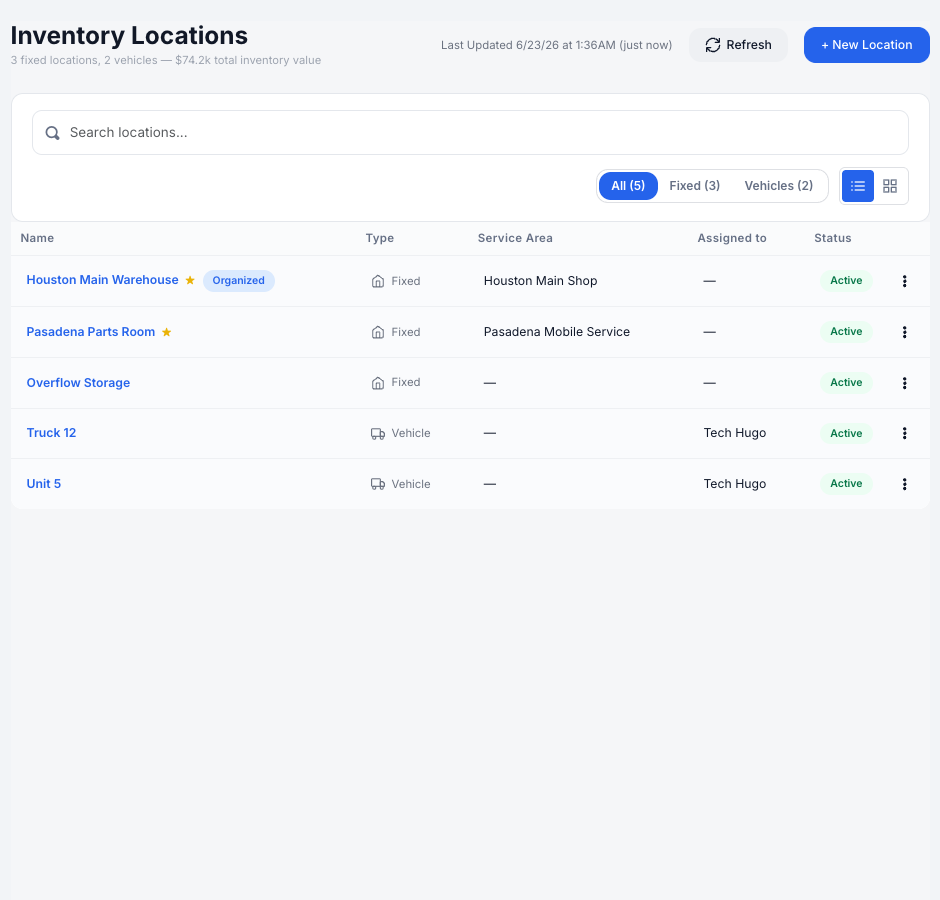
Inventory Locations — fixed buildings and service trucks in one list. A star/Organized badge means the location has a bin layout.
Click + New Location.
The New Inventory Location window opens.
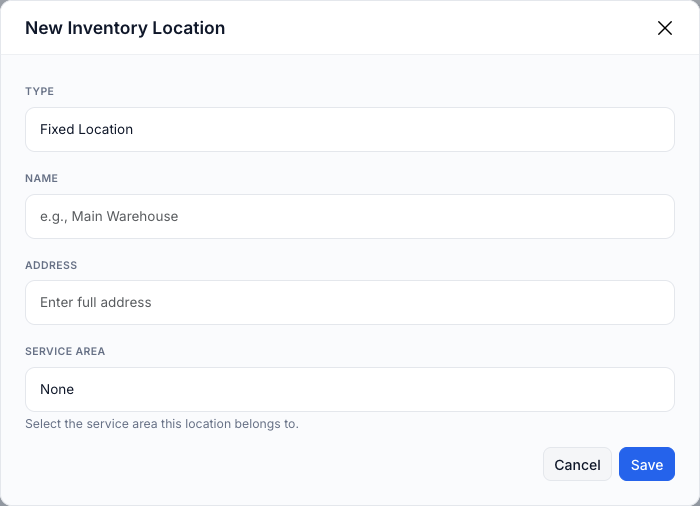
Creating a Fixed location: Type, Name, Address, and the Service Area it belongs to.
Pick the Type and name it.
Choose Fixed Location for a warehouse or parts room, or Vehicle for a service truck. Give it a clear Name (e.g. Houston Main Warehouse or Truck 12).
Fill in the type-specific details.
For a Fixed location, add the Address and choose the Service Area it serves — that ties its stock to the right region. For a Vehicle location, assign it to the technician/truck that carries the parts.
Addresses are geocoded on save. When you save a Fixed location's address, MetaFleet records its map coordinates so it can be ranked by distance — that's what powers nearest-warehouse suggestions when you source a part for a job.
Click Save.
The location appears in the list, ready to receive stock.
Next steps after creating a location. Add parts to it in Receive, Issue & Adjust Stock, and lay out shelves, racks, and bins in Organize a Location with Bins (Fixed locations show an Organized badge once you do).
Troubleshooting
| Symptom | Likely cause | Fix |
|---|---|---|
| The Service Area dropdown is empty | No service areas are set up yet | Create them under Platform Settings → Service Locations first, then edit the location. |
| A vehicle location has no stock | Newly created locations start empty | Receive stock into it (see Receive, Issue & Adjust Stock). |
| I can't find a location | It may be filtered out by type | Switch to the All tab or use search. |
FAQs
What's the difference between a Fixed and a Vehicle location?
Fixed locations are buildings (warehouses, parts rooms). Vehicle locations are service trucks that carry stock to jobs — they're assigned to a technician rather than an address.
Why attach a Service Area to a location?
It ties the location's stock to a region, so the right parts are counted for the right area.
What does the "Organized" badge mean?
The location has a bin layout (shelves/racks/bins) so stock can be placed precisely. See Organize a Location with Bins.