---
title: Set Up Asset Types, Unit Numbers and Vehicle Groups
description: Turn asset types on or off, set a default type, auto-fill unit numbers, and create vehicle groups for a customer on MetaFleet.
---
[Skip to content](https://support.metafleet.ai/set-up-asset-types-unit-numbers-and-vehicle-groups#main-content)
English
Show submenu for translations

Open main navigation
Close main navigation
- English
Show submenu for translations
- [Contact us](mailto:support@metafleet.ai)
[Contact us](mailto:support@metafleet.ai)
How can we help you?
- There are no suggestions because the search field is empty.
1. [MetaFleet Answer Hub](https://support.metafleet.ai/?hsLang=en)
2. [Companies & Contacts](https://support.metafleet.ai/companies-contacts?hsLang=en)
3. [Vehicles](https://support.metafleet.ai/companies-contacts?hsLang=en#vehicles)
# Set Up Asset Types, Unit Numbers and Vehicle Groups
## Choose which kinds of vehicles your shop services, decide how unit numbers get filled in, and group a customer's vehicles.
**For:** Admins and fleet coordinators · **Time:** ~5 minutes · **Permission:** a view-only user can open the Vehicle Types tab but can't save changes
### Quick summary
1. Open **Settings › Service Catalog › Vehicle Types**.
2. Turn on the asset types your shop services and pick a **Default type**.
3. Turn on **Auto-generate unit numbers** if you want new vehicles pre-numbered, then click **Save**.
4. Create vehicle groups per customer under **Company Details › Vehicle Management › Groups of Vehicles**.
### Before you start
- You need permission to change settings. If you don't see **Service Catalog**, or **Save** stays unavailable, ask an admin.
- Vehicle groups belong to one customer, so the customer must already exist under **Company Details › Companies**.
### Choose your asset types
1. Go to **Settings › Service Catalog** and click the **Vehicle Types** tab.
2. On the **Asset types** card, switch on each type your shop works on: **Truck**, **Trailer**, **Tractor**, **Heavy Equipment**, **Other** and **Dolly**.
3. Switch off the types you don't service. They disappear from the type picker when someone adds a vehicle.
4. Open the **Default type** list and pick the type most of your vehicles use. The list offers only the types that are switched on, and switching off the current default resets it to **No default**. New vehicles start with the default selected. Leave it on **No default** if you'd rather choose each time.
5. Click **Save**.
To check the result, click **Preview on vehicle form** on the card. It opens the Create Vehicle form.
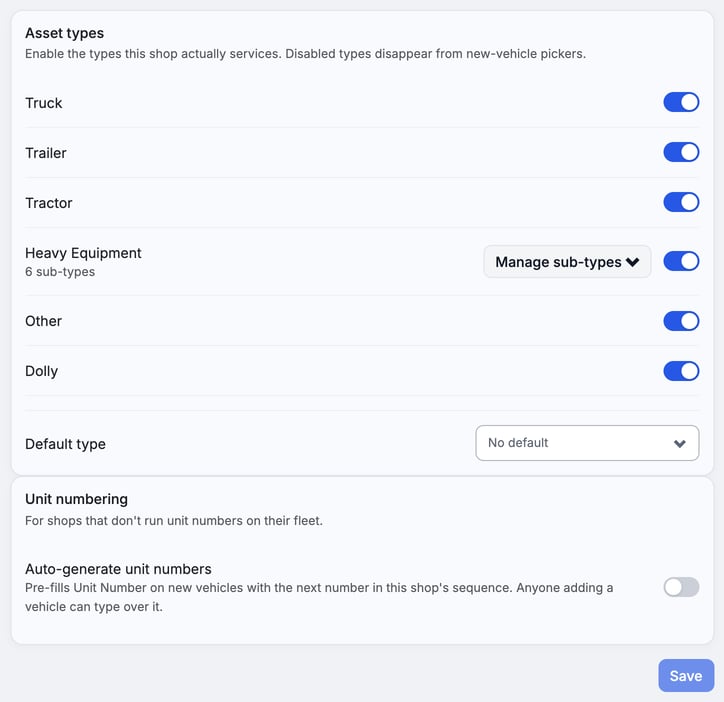
> Vehicles you already have keep their type when you switch it off. The type just stops appearing on new vehicles. A change applies the next time someone adds or edits a vehicle.
> You can't switch off every type. Keep at least one on, or **Save** stays unavailable.
### Manage Heavy Equipment sub-types
When **Heavy Equipment** is on, a **Manage sub-types** button appears next to it. Sub-types show up as an optional list on the vehicle form once someone picks Heavy Equipment.
1. Click **Manage sub-types**.
2. Type a name in **Add a sub-type…** and click **Add**, or use the pencil to rename one, or the trash can to remove one.
3. Click **Save** at the bottom of the page. Sub-type changes are not applied until you save.
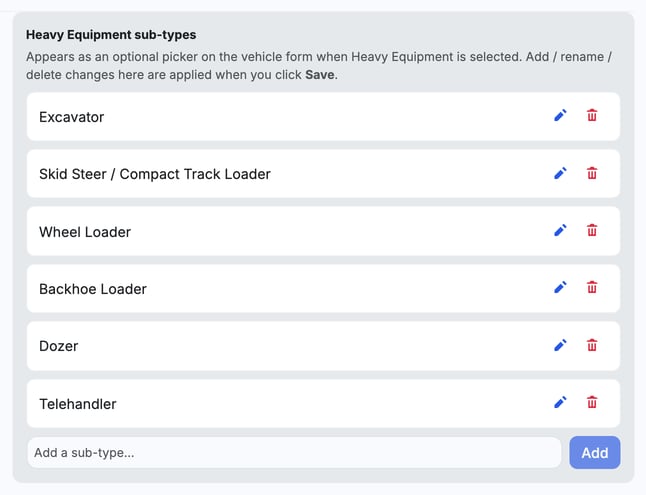
If vehicles already use a sub-type, removing it archives it instead. Open **Archived (N)** and click **Restore** to bring it back. A sub-type no vehicle uses is deleted.
### Decide how unit numbers are filled in
The **Unit numbering** card, below the asset types, has one switch: **Auto-generate unit numbers**.
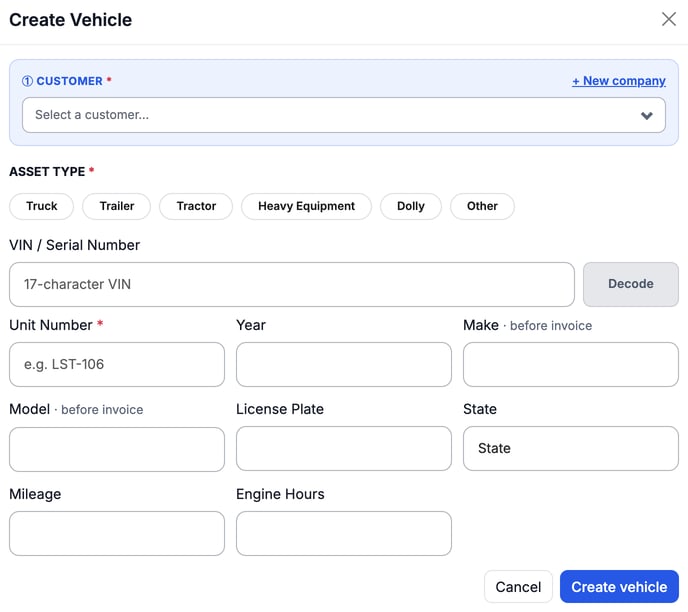
- **Off:** whoever adds a vehicle types the **Unit Number**. The field is required on the vehicle form.
- **On:** **Unit Number** is pre-filled with the next number in your shop's sequence, in the format **V-000123**. The count runs across the whole shop. Anyone adding a vehicle can type over it.
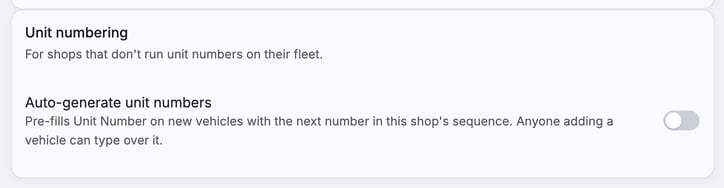
Click **Save** after you change the switch. The card's own subtitle describes shops that don't use unit numbers; the switch is what decides the behavior.
Here is where the unit number is entered when you add a vehicle with **+ Create vehicle** on **Company Details › Vehicle Management**:
To fill in make, model and year from a VIN, see [Auto-Fill Vehicle Details from the VIN](https://support.metafleet.ai/auto-fill-vehicle-details-from-the-vin?hsLang=en).
### Create a vehicle group
A vehicle group is a named set of one customer's vehicles. You can pick a whole group when you schedule a preventive maintenance (PM) appointment, and you can enroll the group in a PM program as you create it.
1. Go to **Company Details › Vehicle Management** and click **Groups of Vehicles**.
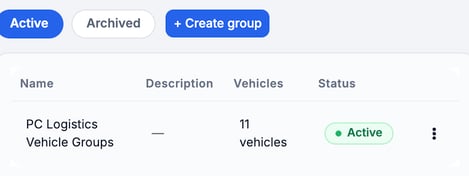
2. Under **CUSTOMER**, pick the customer. Their existing groups are listed, with **Active** and **Archived** filters.
3. Click **+ Create group**.
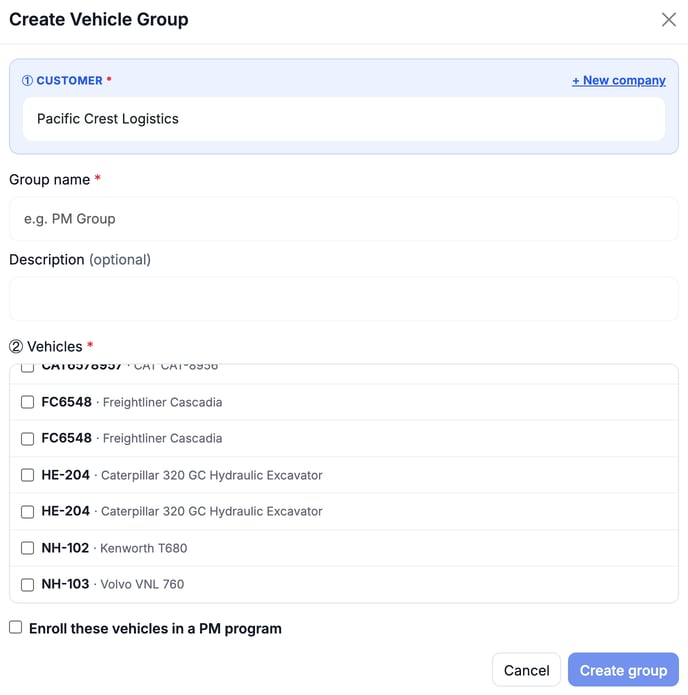
4. Enter a **Group name**. Add a **Description** if you like.
5. Under **Vehicles**, tick each vehicle to include, or tick **Select all**.
6. To enroll them in a PM program now, tick **Enroll these vehicles in a PM program** and choose the program. See [Enrolling Vehicles in a PM Program](https://support.metafleet.ai/enrolling-vehicles-in-a-pm-program?hsLang=en).
7. Click **Create group**. If you enrolled the vehicles, the button reads **Create group & enroll**.
> Only vehicles that are active for that customer appear in the list. To bring back an archived vehicle first, see [Manage Vehicles: Archive and Restore](https://support.metafleet.ai/manage-vehicles-archive-restore?hsLang=en).
### Troubleshooting
| Symptom | Likely cause | Fix |
| --- | --- | --- |
| A type is missing when adding a vehicle | The asset type is switched off | Switch it on under **Vehicle Types** and click **Save**. |
| I can't click **Save** | Nothing has changed, or every type is switched off | Make a change, and keep at least one type on. |
| Unit Number is empty on a new vehicle | **Auto-generate unit numbers** is off | Type the number, or switch on auto-generate. |
| The group list says "This customer has no active vehicles." | The customer has no active vehicles | Add a vehicle for that customer, then create the group. |
### FAQs
**Does switching off a type delete vehicles of that type?**
No. Existing vehicles keep the type. It only stops appearing on new ones.
**Can I change an auto-generated unit number?**
Yes. The number is a pre-fill. Type over it before you create the vehicle.
**Can I edit or archive a group later?**
Yes. Use the ⋮ menu on the group's row on the **Groups of Vehicles** tab.
**Can a group include vehicles from two customers?**
No. You pick one customer first, and the list shows only that customer's vehicles.
### Related articles
- [Manage Vehicles: Archive and Restore](https://support.metafleet.ai/manage-vehicles-archive-restore?hsLang=en)
- [Auto-Fill Vehicle Details from the VIN](https://support.metafleet.ai/auto-fill-vehicle-details-from-the-vin?hsLang=en)
- [Enrolling Vehicles in a PM Program](https://support.metafleet.ai/enrolling-vehicles-in-a-pm-program?hsLang=en)
- [Start Here](https://support.metafleet.ai/start-here?hsLang=en)
- [Companies & Contacts](https://support.metafleet.ai/companies-contacts?hsLang=en#main-content)
- [Create/Edit Companies](https://support.metafleet.ai/companies-contacts?hsLang=en#create-edit-companies)
- [Contacts](https://support.metafleet.ai/companies-contacts?hsLang=en#contacts)
- [Vehicles](https://support.metafleet.ai/companies-contacts?hsLang=en#vehicles)
- [Work Intake (Requests & Service Orders)](https://support.metafleet.ai/work-intake-requests-service-orders?hsLang=en#main-content)
- [Creating Service Orders](https://support.metafleet.ai/work-intake-requests-service-orders?hsLang=en#creating-service-orders)
- [Customer & Partner Requests](https://support.metafleet.ai/work-intake-requests-service-orders?hsLang=en#customer-partner-requests)
- [Reference](https://support.metafleet.ai/work-intake-requests-service-orders?hsLang=en#reference)
- [Customer Portal](https://support.metafleet.ai/work-intake-requests-service-orders?hsLang=en#customer-portal)
- [Estimates & Approvals](https://support.metafleet.ai/estimates-approvals?hsLang=en#main-content)
- [Approval Gates](https://support.metafleet.ai/estimates-approvals?hsLang=en#approval-gates)
- [Estimates](https://support.metafleet.ai/estimates-approvals?hsLang=en#estimates)
- [Invoices](https://support.metafleet.ai/estimates-approvals?hsLang=en#invoices)
- [Billing](https://support.metafleet.ai/estimates-approvals?hsLang=en#billing)
- [Parts, Inventory & Vendors](https://support.metafleet.ai/parts-inventory-vendors?hsLang=en#main-content)
- [Add Parts & Kits](https://support.metafleet.ai/parts-inventory-vendors?hsLang=en#add-parts-kits)
- [Stock & Counts](https://support.metafleet.ai/parts-inventory-vendors?hsLang=en#stock-counts)
- [Locations & Bins](https://support.metafleet.ai/parts-inventory-vendors?hsLang=en#locations-bins)
- [Purchase Orders](https://support.metafleet.ai/parts-inventory-vendors?hsLang=en#purchase-orders)
- [Parts Catalog](https://support.metafleet.ai/parts-inventory-vendors?hsLang=en#parts-catalog)
- [Vendors & Manufacturers](https://support.metafleet.ai/parts-inventory-vendors?hsLang=en#vendors-manufacturers)
- [Pricing](https://support.metafleet.ai/parts-inventory-vendors?hsLang=en#pricing)
- [Service Vehicles](https://support.metafleet.ai/parts-inventory-vendors?hsLang=en#service-vehicles)
- [Sourcing & Hand-Off](https://support.metafleet.ai/parts-inventory-vendors?hsLang=en#sourcing-hand-off)
- [Part Numbers](https://support.metafleet.ai/parts-inventory-vendors?hsLang=en#part-numbers)
- [Notifications](https://support.metafleet.ai/parts-inventory-vendors?hsLang=en#notifications)
- [Reports](https://support.metafleet.ai/parts-inventory-vendors?hsLang=en#reports)
- [Invoicing & Payments](https://support.metafleet.ai/invoicing-payments?hsLang=en)
- [Dispatch & Scheduling](https://support.metafleet.ai/dispatch-scheduling?hsLang=en#main-content)
- [Preventative Maintenance](https://support.metafleet.ai/dispatch-scheduling?hsLang=en#preventative-maintenance)
- [Technician Assignment](https://support.metafleet.ai/dispatch-scheduling?hsLang=en#technician-assignment)
- [Scheduling & Calendar](https://support.metafleet.ai/dispatch-scheduling?hsLang=en#scheduling-calendar)
- [Technician Schedule](https://support.metafleet.ai/dispatch-scheduling?hsLang=en#technician-schedule)
- [Technicians & Mobile App](https://support.metafleet.ai/technicians-mobile-app?hsLang=en#main-content)
- [Time Tracking](https://support.metafleet.ai/technicians-mobile-app?hsLang=en#time-tracking)
- [Tech Workflow](https://support.metafleet.ai/technicians-mobile-app?hsLang=en#tech-workflow)
- [Evidence & Photos](https://support.metafleet.ai/technicians-mobile-app?hsLang=en#evidence-photos)
- [AI Assistant](https://support.metafleet.ai/technicians-mobile-app?hsLang=en#ai-assistant)
- [Alerts, Alarms & Notifications](https://support.metafleet.ai/alerts-alarms-notifications?hsLang=en#main-content)
- [Email/SMS/App Settings](https://support.metafleet.ai/alerts-alarms-notifications?hsLang=en#email-sms-app-settings)
- [Reporting & Dashboards](https://support.metafleet.ai/reporting-dashboards?hsLang=en)
- [Admin & Settings](https://support.metafleet.ai/admin-settings?hsLang=en#main-content)
- [Rates & Fees](https://support.metafleet.ai/admin-settings?hsLang=en#rates-fees)
- [Branding](https://support.metafleet.ai/admin-settings?hsLang=en#branding)
- [Roles, Permissions & Users](https://support.metafleet.ai/admin-settings?hsLang=en#roles-permissions-users)
- [Service Areas](https://support.metafleet.ai/admin-settings?hsLang=en#service-areas)
- [Workflows](https://support.metafleet.ai/admin-settings?hsLang=en#workflows)
- [Taxes](https://support.metafleet.ai/admin-settings?hsLang=en#taxes)
- [Integrations](https://support.metafleet.ai/admin-settings?hsLang=en#integrations)
- [Integrations](https://support.metafleet.ai/integrations?hsLang=en#main-content)
- [Phone Setup](https://support.metafleet.ai/integrations?hsLang=en#phone-setup)
- [AI Assistant Access](https://support.metafleet.ai/integrations?hsLang=en#ai-assistant-access)
- [QuickBooks](https://support.metafleet.ai/integrations?hsLang=en#quickbooks)
- [Getting Around](https://support.metafleet.ai/getting-around?hsLang=en#main-content)
- [Search & Command Bar](https://support.metafleet.ai/getting-around?hsLang=en#search-command-bar)
[](http://www.metafleet.ai)
[mailto:support@metafleet.ai](mailto:support@metafleet.ai)
Copyright © 2025, MetaFleet, Inc