---
title: Search Anything and Run Commands (⌘K)
description: Press ⌘K or Ctrl+K to search orders, fleets, vehicles, parts and POs, or type > to run commands like New Service Order and Schedule Appointment.
---
[Skip to content](https://support.metafleet.ai/search-anything-and-run-commands-omnibar#main-content)
English
Show submenu for translations

Open main navigation
Close main navigation
- English
Show submenu for translations
- [Contact us](mailto:support@metafleet.ai)
[Contact us](mailto:support@metafleet.ai)
How can we help you?
- There are no suggestions because the search field is empty.
1. [MetaFleet Answer Hub](https://support.metafleet.ai/?hsLang=en)
2. [Getting Around](https://support.metafleet.ai/getting-around?hsLang=en)
3. [Search & Command Bar](https://support.metafleet.ai/getting-around?hsLang=en#search-command-bar)
# Search Anything and Run Commands (⌘K)
## Use the search box in the top bar to jump to an order, fleet, vehicle, part or PO, or to run a command such as New Service Order, without opening a menu.
**For:** Everyone who uses the web app · **Permission:** None to open it; some results and commands may depend on your role · **Time:** ~2 minutes
### Quick summary
1. Press **⌘K** (Mac) or **Ctrl+K** (Windows), or click the search box in the top bar.
2. Type an order code, a fleet name, a unit, a part or a PO number.
3. Use **↑** and **↓** to pick a result, then press **↵** to open it.
4. To run a command instead, start with **\>**, for example **\> new**.
### Before you start
- The search box sits in the top bar on every page of the web app.
- Some commands and result types may not appear, depending on your role. If one you expect is missing, ask an admin about your permissions.
### Open the search box
Any of these opens it:
- Press **⌘K** on a Mac or **Ctrl+K** on Windows. This works from anywhere, even while you're typing in another field.
- Press **/** when your cursor is not in a text field.
- Click the search box in the top bar.

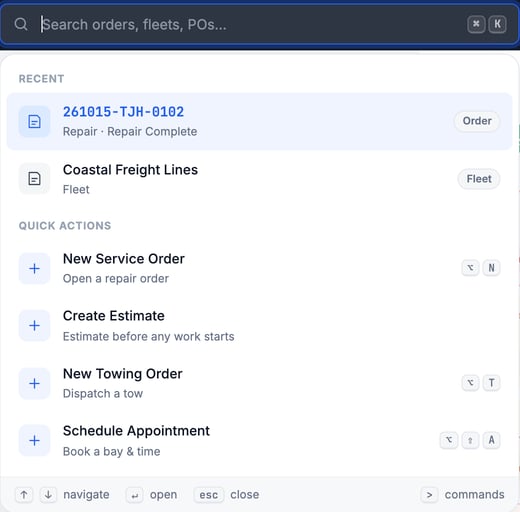
Before you type, the list shows your **Recent** records and your **Quick actions**.
### Search for a record
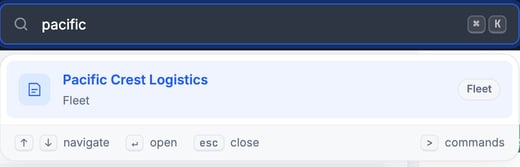
Type at least part of a name or code. Results update as you type and appear in one list, best match first. A tag on the right of each row tells you what it is:
| Tag | What it opens |
| --- | --- |
| **Order** | A service order. Searching an invoice number finds its order too. |
| **Appt** | An appointment |
| **Fleet** | A customer company |
| **Unit** | A vehicle |
| **Part** | A part |
| **PO** | A purchase order |
| **Partner** | A partner request |
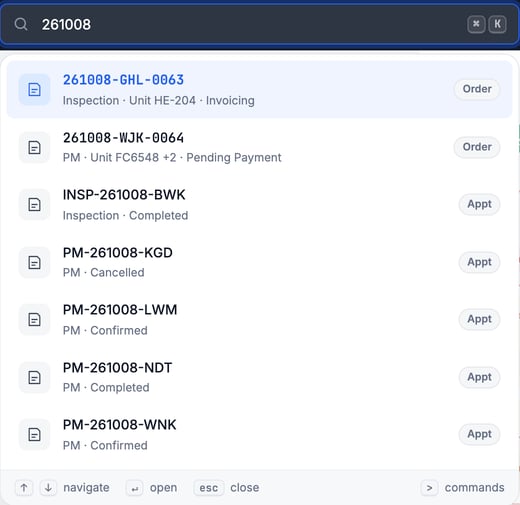
An order code finds the order and its related appointments:
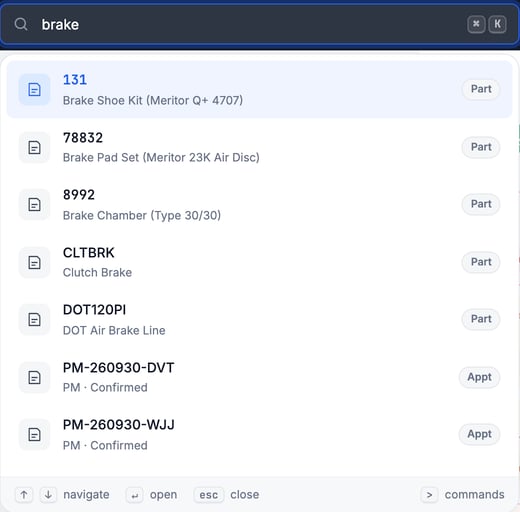
Parts match on part number and description:
### Open a result with the keyboard
1. **Move:** press **↑** or **↓**. The highlighted row is the one that opens.
2. **Open:** press **↵**. You can also click a row.
3. **Close:** press **esc**, or click anywhere outside the box.
The hints at the bottom of the box repeat these keys.
### Run a command
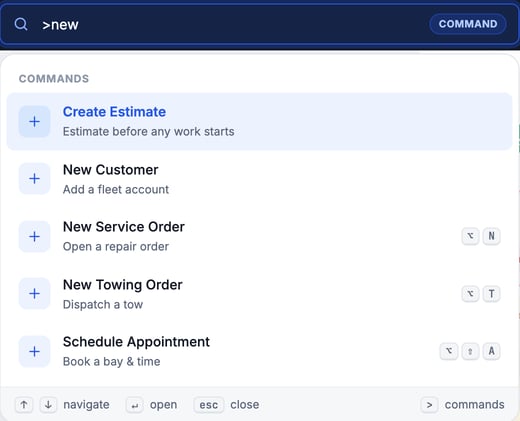
Type **\>** as the first character. The box switches to **Command** mode and lists commands only. Keep typing to narrow the list, then press **↵** to run the highlighted one.
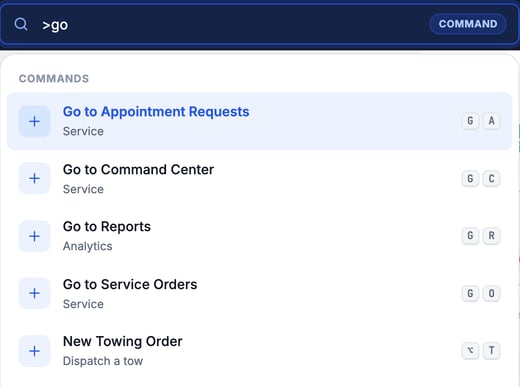
Commands that start with "Go to" take you to a page. The list scrolls, so type more letters to narrow it:
### Commands and shortcuts
Shortcuts work when your cursor is not in a text field. On Windows, **⌥** is **Alt**.
| Command | What it does | Shortcut |
| --- | --- | --- |
| **New Service Order** | Opens a repair order | ⌥ N |
| **Create Estimate** | Starts an estimate before any work starts | None |
| **New Towing Order** | Dispatches a tow (shown only if towing is on for your company) | ⌥ T |
| **Schedule Appointment** | Books a bay and time | ⌥ ⇧ A |
| **New Customer** | Adds a fleet account | None |
| **Join FleetNet Request** | Opens the partner request queue | None |
| **Go to Command Center** | Opens the Command Center | G, then C |
| **Go to Service Orders** | Opens the service orders list | G, then O |
| **Go to Appointment Requests** | Opens appointment requests | G, then A |
| **Go to Reports** | Opens reports | G, then R |
For "G, then C", press **G**, release it, then press **C** right after.
Commands open a page. See [Create a Service Order](https://support.metafleet.ai/create-a-service-order?hsLang=en) and [Create and Send an Estimate Without a Service Order](https://support.metafleet.ai/create-an-estimate-without-a-service-order?hsLang=en) for what to do next.
### Troubleshooting
| Symptom | Likely cause | Fix |
| --- | --- | --- |
| "Nothing matches" appears | The text doesn't match any record you can see | Try a shorter piece of the code or name, or check the spelling. You can also try **\> new order**. |
| "No command matches" appears | The command isn't spelled that way, or it isn't available to your role | Try a shorter word such as **new**, **schedule** or **go**. |
| A command or record type you expect is missing | Your role doesn't include it, or towing is off for your company (New Towing Order only) | Ask an admin to check your permissions. |
| An Option or Alt shortcut does nothing | Your cursor is in a text field | Click outside the field, then press the shortcut again. Option and Alt shortcuts and G chords don't run while you type in a field. |
| A "G, then" shortcut does nothing | The second key didn't follow quickly enough | Press **G**, then the second key right away. |
### FAQs
**Is it ⌘K or Ctrl+K?**
Use ⌘K on a Mac and Ctrl+K on Windows. The hint on the box shows the one for your computer.
**Why are my results not grouped?**
Once you type a search, results appear in one list, best match first. The **Recent**, **Quick actions** and **Commands** headings show only before you type and in command mode.
**Can I search for a person?**
No. The box finds orders, appointments, fleets, vehicles, parts, POs and partner requests.
### Related articles
- [Create a Service Order](https://support.metafleet.ai/create-a-service-order?hsLang=en)
- [Create and Send an Estimate Without a Service Order](https://support.metafleet.ai/create-an-estimate-without-a-service-order?hsLang=en)
- [Book a PM, Inspection or Repair Appointment](https://support.metafleet.ai/scheduling-a-pm-appointment?hsLang=en)
- [Manage a Service Order](https://support.metafleet.ai/manage-a-service-order?hsLang=en)
- [Start Here](https://support.metafleet.ai/start-here?hsLang=en)
- [Companies & Contacts](https://support.metafleet.ai/companies-contacts?hsLang=en#main-content)
- [Create/Edit Companies](https://support.metafleet.ai/companies-contacts?hsLang=en#create-edit-companies)
- [Contacts](https://support.metafleet.ai/companies-contacts?hsLang=en#contacts)
- [Vehicles](https://support.metafleet.ai/companies-contacts?hsLang=en#vehicles)
- [Work Intake (Requests & Service Orders)](https://support.metafleet.ai/work-intake-requests-service-orders?hsLang=en#main-content)
- [Creating Service Orders](https://support.metafleet.ai/work-intake-requests-service-orders?hsLang=en#creating-service-orders)
- [Customer & Partner Requests](https://support.metafleet.ai/work-intake-requests-service-orders?hsLang=en#customer-partner-requests)
- [Reference](https://support.metafleet.ai/work-intake-requests-service-orders?hsLang=en#reference)
- [Customer Portal](https://support.metafleet.ai/work-intake-requests-service-orders?hsLang=en#customer-portal)
- [Estimates & Approvals](https://support.metafleet.ai/estimates-approvals?hsLang=en#main-content)
- [Approval Gates](https://support.metafleet.ai/estimates-approvals?hsLang=en#approval-gates)
- [Estimates](https://support.metafleet.ai/estimates-approvals?hsLang=en#estimates)
- [Invoices](https://support.metafleet.ai/estimates-approvals?hsLang=en#invoices)
- [Billing](https://support.metafleet.ai/estimates-approvals?hsLang=en#billing)
- [Parts, Inventory & Vendors](https://support.metafleet.ai/parts-inventory-vendors?hsLang=en#main-content)
- [Add Parts & Kits](https://support.metafleet.ai/parts-inventory-vendors?hsLang=en#add-parts-kits)
- [Stock & Counts](https://support.metafleet.ai/parts-inventory-vendors?hsLang=en#stock-counts)
- [Locations & Bins](https://support.metafleet.ai/parts-inventory-vendors?hsLang=en#locations-bins)
- [Purchase Orders](https://support.metafleet.ai/parts-inventory-vendors?hsLang=en#purchase-orders)
- [Parts Catalog](https://support.metafleet.ai/parts-inventory-vendors?hsLang=en#parts-catalog)
- [Vendors & Manufacturers](https://support.metafleet.ai/parts-inventory-vendors?hsLang=en#vendors-manufacturers)
- [Pricing](https://support.metafleet.ai/parts-inventory-vendors?hsLang=en#pricing)
- [Service Vehicles](https://support.metafleet.ai/parts-inventory-vendors?hsLang=en#service-vehicles)
- [Sourcing & Hand-Off](https://support.metafleet.ai/parts-inventory-vendors?hsLang=en#sourcing-hand-off)
- [Part Numbers](https://support.metafleet.ai/parts-inventory-vendors?hsLang=en#part-numbers)
- [Notifications](https://support.metafleet.ai/parts-inventory-vendors?hsLang=en#notifications)
- [Reports](https://support.metafleet.ai/parts-inventory-vendors?hsLang=en#reports)
- [Invoicing & Payments](https://support.metafleet.ai/invoicing-payments?hsLang=en)
- [Dispatch & Scheduling](https://support.metafleet.ai/dispatch-scheduling?hsLang=en#main-content)
- [Preventative Maintenance](https://support.metafleet.ai/dispatch-scheduling?hsLang=en#preventative-maintenance)
- [Technician Assignment](https://support.metafleet.ai/dispatch-scheduling?hsLang=en#technician-assignment)
- [Scheduling & Calendar](https://support.metafleet.ai/dispatch-scheduling?hsLang=en#scheduling-calendar)
- [Technician Schedule](https://support.metafleet.ai/dispatch-scheduling?hsLang=en#technician-schedule)
- [Technicians & Mobile App](https://support.metafleet.ai/technicians-mobile-app?hsLang=en#main-content)
- [Time Tracking](https://support.metafleet.ai/technicians-mobile-app?hsLang=en#time-tracking)
- [Tech Workflow](https://support.metafleet.ai/technicians-mobile-app?hsLang=en#tech-workflow)
- [Evidence & Photos](https://support.metafleet.ai/technicians-mobile-app?hsLang=en#evidence-photos)
- [AI Assistant](https://support.metafleet.ai/technicians-mobile-app?hsLang=en#ai-assistant)
- [Alerts, Alarms & Notifications](https://support.metafleet.ai/alerts-alarms-notifications?hsLang=en#main-content)
- [Email/SMS/App Settings](https://support.metafleet.ai/alerts-alarms-notifications?hsLang=en#email-sms-app-settings)
- [Reporting & Dashboards](https://support.metafleet.ai/reporting-dashboards?hsLang=en)
- [Admin & Settings](https://support.metafleet.ai/admin-settings?hsLang=en#main-content)
- [Rates & Fees](https://support.metafleet.ai/admin-settings?hsLang=en#rates-fees)
- [Branding](https://support.metafleet.ai/admin-settings?hsLang=en#branding)
- [Roles, Permissions & Users](https://support.metafleet.ai/admin-settings?hsLang=en#roles-permissions-users)
- [Service Areas](https://support.metafleet.ai/admin-settings?hsLang=en#service-areas)
- [Workflows](https://support.metafleet.ai/admin-settings?hsLang=en#workflows)
- [Taxes](https://support.metafleet.ai/admin-settings?hsLang=en#taxes)
- [Integrations](https://support.metafleet.ai/admin-settings?hsLang=en#integrations)
- [Integrations](https://support.metafleet.ai/integrations?hsLang=en#main-content)
- [Phone Setup](https://support.metafleet.ai/integrations?hsLang=en#phone-setup)
- [AI Assistant Access](https://support.metafleet.ai/integrations?hsLang=en#ai-assistant-access)
- [QuickBooks](https://support.metafleet.ai/integrations?hsLang=en#quickbooks)
- [Getting Around](https://support.metafleet.ai/getting-around?hsLang=en#main-content)
- [Search & Command Bar](https://support.metafleet.ai/getting-around?hsLang=en#search-command-bar)
[](http://www.metafleet.ai)
[mailto:support@metafleet.ai](mailto:support@metafleet.ai)
Copyright © 2025, MetaFleet, Inc