---
title: File Sales Tax With the Sales Tax Export
description: Run the Sales Tax Export, download the CSV, and learn which invoices it includes, how it files them by state and how the tax splits by jurisdiction.
---
[Skip to content](https://support.metafleet.ai/sales-tax-export-report#main-content)
English
Show submenu for translations

Open main navigation
Close main navigation
- English
Show submenu for translations
- [Contact us](mailto:support@metafleet.ai)
[Contact us](mailto:support@metafleet.ai)
How can we help you?
- There are no suggestions because the search field is empty.
1. [MetaFleet Answer Hub](https://support.metafleet.ai/?hsLang=en)
2. [Reporting & Dashboards](https://support.metafleet.ai/reporting-dashboards?hsLang=en)
# File Sales Tax With the Sales Tax Export
## Run the Sales Tax Export for a filing period, download the CSV, and read how it groups invoices by state and by tax.
**For:** Owners, managers and bookkeepers · **Permission:** Request Reports to run it, View Reports to download it · **Time:** ~5 minutes
### Quick summary
1. Open **Reports** and set the filing period, state and locations.
2. Pick **Sales Tax Export** and click **Generate Report**.
3. Open the **History** tab and click **Download** when the status is **Ready**.
4. Open the CSV and file from the state subtotals and the **TAX BY JURISDICTION** block.
### Before you start
- You need the Request Reports permission to generate the report. The **History** tab, where you download it, needs the View Reports permission.
- Decide the filing period. The report uses the date the invoice was billed, not the date of the job (see below).
### Step 1: Set the filters
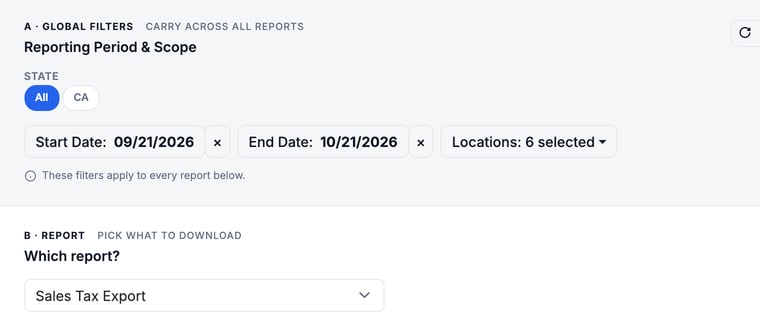
Open **Reports** from the left menu. The **Generate** tab starts with the global filters in section A. They carry across every report. Then pick **Sales Tax Export** from the **Which report?** list in section B.
1. **Start Date** and **End Date:** the first and last day of the filing period. The End Date day is included.
2. **State:** leave **All**, or pick a state to file one return at a time.
3. **Locations:** pick the service locations to include.
> **A state filter hides Unknown State.** Orders that can't be filed under a state sit in an **Unknown State** section. If you pick a state, that section drops out of the file, and so do the `COUNTRY` sections for international locations. Run the report with **All** at least once to check it's empty.
### Step 2: Generate the report
With **Sales Tax Export** picked, click **Generate Report** in section C.

Reports run in the background. The page tells you to check the **History** tab when it's ready.
### Step 3: Download the CSV
Open the **History** tab. When your report's status is **Ready**, click **Download** in its row. The file is a CSV, so it opens in Excel, Google Sheets or your accounting tool.

### What's in the report
The report lists one row per invoice. Rows are grouped into sections, and each section ends with a subtotal. A **GRAND TOTAL** row sits at the bottom.
### Which invoices it includes
- **By billed date.** An invoice counts in the period when it was billed, not when the job was done. A PM or inspection visit counts by the day its visit invoice was sent.
- **Cancelled orders are left out,** whenever they were billed. Cancelled PM and inspection visits are left out too.
- **PM and inspection visit invoices are included.**
- **Credits and refunds get their own rows.** A line credit, a write-off for a billing error, or a refund that lowers the bill shows as a separate row in the month it was given or paid out. The row reverses the amounts and the tax. A refund of money the customer never owed isn't listed.
- **Late fees and interest** are rows in the month they were charged, with their own tax.
- **A bad-debt write-off keeps the tax.** It gets no row of its own, so the invoice's tax stays in the month it was billed.
### The 15 columns
| Column | What it shows |
| --- | --- |
| Invoice #, Invoice Date, Status, Service Order #, Customer | Which invoice the row is, whose it is, and its date. Invoice Date is the date the invoice was billed. For a PM or inspection visit, it is the day the visit invoice was sent. |
| Parts, Labor, Surcharges, Fees | The charges on the invoice. They add up to the Subtotal. |
| Subtotal | The charges before any discount. |
| Discount | What was taken off the Subtotal. |
| Taxable Sales, Non-Taxable Sales | How the sale splits between taxed and untaxed amounts. |
| Tax | The tax charged. |
| Total | Subtotal − Discount + Tax. |
### How orders are filed into sections
1. **By the job address's state.** Each state gets a `=== STATE ===` section, for example `=== STATE === CA`, with a subtotal row such as `CA SUBTOTAL`.
2. **No state on the address:** the order files under the state of the US service location that charged its tax.
3. **Neither:** the order files under `=== STATE === Unknown State`. Fix the order's address so it files correctly next time.
4. **International locations** get their own `=== COUNTRY ===` section.
5. **A job outside every location's service area** is taxed by the nearest location and files under that location's state. It sits in an `=== OUTSIDE SERVICEABLE AREA ===` section, for example `=== OUTSIDE SERVICEABLE AREA === CA (taxed at this location's state)`.
### The Tax by Jurisdiction block
Below the grand total, the `=== TAX BY JURISDICTION ===` block splits each section's tax by the taxes behind it, such as state, county and city. Use it for returns that ask for each jurisdiction separately. Its columns are **Section**, **Tax Name**, **Rate**, **Taxable Sales** and **Tax Amount**.
Per section, the lines add up to that section's **Tax**. A line named **Not itemised (sent before tax snapshots, or a credit)** holds tax that can't be split by tax. Examples are an invoice sent before MetaFleet saved tax details, and a credit. If QuickBooks works out your tax, the invoice's Tax is QuickBooks' figure, and the part MetaFleet's own rates don't explain shows on this line too.
### Troubleshooting
| Symptom | Likely cause | Fix |
| --- | --- | --- |
| An **Unknown State** section appears | The order has no state on its address and no US location charged its tax | Open the order, correct the job address, then run the report again. |
| A job done in another state is in a separate section | It's outside every location's service area | Read the **OUTSIDE SERVICEABLE AREA** section. The tax was charged at the location named in its header. |
| Taxable Sales and Non-Taxable Sales are blank on a row | The order changed after the invoice was sent, so the split no longer matches what was billed | Check that invoice. Its tax still counts in the Tax column and in the **Not itemised** line. |
| An invoice you expect is missing | Its billed date is outside your dates, the order is cancelled, or the Locations or State filter excludes it | Check the billed date, then widen the filters. |
| Numbers differ from QuickBooks | MetaFleet worked out the tax with its own rates, or an invoice was edited after sending. If QuickBooks works out your tax, the totals match and only the jurisdiction split lands on the **Not itemised** line. | See [How Sales Tax and Exemptions Work with QuickBooks](https://support.metafleet.ai/quickbooks-sales-tax-reference?hsLang=en). |
| I can't see **Generate** or **History** | You have only one of the two report permissions | Ask an admin for the Request Reports permission (to generate) or View Reports (to download). |
### FAQs
**Which date does the report use?**
The date the invoice was billed. (For a PM or inspection visit, the day its visit invoice was sent.) A job finished on Mar 30 and billed on Apr 2 lands in April.
**Does the file open in Excel?**
Yes. It's a CSV.
**Where do refunds and credits show?**
As their own rows, in the month they were given or paid out, not in the month of the original invoice.
**Can I run it for one state?**
Yes. Pick the state in the global filters before you click **Generate Report**.
### Related articles
- [Run Reports](https://support.metafleet.ai/run-reports?hsLang=en)
- [Set Up Taxes by Jurisdiction](https://support.metafleet.ai/set-up-taxes-by-jurisdiction?hsLang=en)
- [How Sales Tax and Exemptions Work with QuickBooks](https://support.metafleet.ai/quickbooks-sales-tax-reference?hsLang=en)
- [How Tax Is Worked Out on an Invoice](https://support.metafleet.ai/how-tax-is-worked-out-on-an-invoice?hsLang=en)
- [Start Here](https://support.metafleet.ai/start-here?hsLang=en)
- [Companies & Contacts](https://support.metafleet.ai/companies-contacts?hsLang=en#main-content)
- [Create/Edit Companies](https://support.metafleet.ai/companies-contacts?hsLang=en#create-edit-companies)
- [Contacts](https://support.metafleet.ai/companies-contacts?hsLang=en#contacts)
- [Vehicles](https://support.metafleet.ai/companies-contacts?hsLang=en#vehicles)
- [Work Intake (Requests & Service Orders)](https://support.metafleet.ai/work-intake-requests-service-orders?hsLang=en#main-content)
- [Creating Service Orders](https://support.metafleet.ai/work-intake-requests-service-orders?hsLang=en#creating-service-orders)
- [Customer & Partner Requests](https://support.metafleet.ai/work-intake-requests-service-orders?hsLang=en#customer-partner-requests)
- [Reference](https://support.metafleet.ai/work-intake-requests-service-orders?hsLang=en#reference)
- [Customer Portal](https://support.metafleet.ai/work-intake-requests-service-orders?hsLang=en#customer-portal)
- [Estimates & Approvals](https://support.metafleet.ai/estimates-approvals?hsLang=en#main-content)
- [Approval Gates](https://support.metafleet.ai/estimates-approvals?hsLang=en#approval-gates)
- [Estimates](https://support.metafleet.ai/estimates-approvals?hsLang=en#estimates)
- [Invoices](https://support.metafleet.ai/estimates-approvals?hsLang=en#invoices)
- [Billing](https://support.metafleet.ai/estimates-approvals?hsLang=en#billing)
- [Parts, Inventory & Vendors](https://support.metafleet.ai/parts-inventory-vendors?hsLang=en#main-content)
- [Add Parts & Kits](https://support.metafleet.ai/parts-inventory-vendors?hsLang=en#add-parts-kits)
- [Stock & Counts](https://support.metafleet.ai/parts-inventory-vendors?hsLang=en#stock-counts)
- [Locations & Bins](https://support.metafleet.ai/parts-inventory-vendors?hsLang=en#locations-bins)
- [Purchase Orders](https://support.metafleet.ai/parts-inventory-vendors?hsLang=en#purchase-orders)
- [Parts Catalog](https://support.metafleet.ai/parts-inventory-vendors?hsLang=en#parts-catalog)
- [Vendors & Manufacturers](https://support.metafleet.ai/parts-inventory-vendors?hsLang=en#vendors-manufacturers)
- [Pricing](https://support.metafleet.ai/parts-inventory-vendors?hsLang=en#pricing)
- [Service Vehicles](https://support.metafleet.ai/parts-inventory-vendors?hsLang=en#service-vehicles)
- [Sourcing & Hand-Off](https://support.metafleet.ai/parts-inventory-vendors?hsLang=en#sourcing-hand-off)
- [Part Numbers](https://support.metafleet.ai/parts-inventory-vendors?hsLang=en#part-numbers)
- [Notifications](https://support.metafleet.ai/parts-inventory-vendors?hsLang=en#notifications)
- [Reports](https://support.metafleet.ai/parts-inventory-vendors?hsLang=en#reports)
- [Invoicing & Payments](https://support.metafleet.ai/invoicing-payments?hsLang=en)
- [Dispatch & Scheduling](https://support.metafleet.ai/dispatch-scheduling?hsLang=en#main-content)
- [Preventative Maintenance](https://support.metafleet.ai/dispatch-scheduling?hsLang=en#preventative-maintenance)
- [Technician Assignment](https://support.metafleet.ai/dispatch-scheduling?hsLang=en#technician-assignment)
- [Scheduling & Calendar](https://support.metafleet.ai/dispatch-scheduling?hsLang=en#scheduling-calendar)
- [Technician Schedule](https://support.metafleet.ai/dispatch-scheduling?hsLang=en#technician-schedule)
- [Technicians & Mobile App](https://support.metafleet.ai/technicians-mobile-app?hsLang=en#main-content)
- [Time Tracking](https://support.metafleet.ai/technicians-mobile-app?hsLang=en#time-tracking)
- [Tech Workflow](https://support.metafleet.ai/technicians-mobile-app?hsLang=en#tech-workflow)
- [Evidence & Photos](https://support.metafleet.ai/technicians-mobile-app?hsLang=en#evidence-photos)
- [AI Assistant](https://support.metafleet.ai/technicians-mobile-app?hsLang=en#ai-assistant)
- [Alerts, Alarms & Notifications](https://support.metafleet.ai/alerts-alarms-notifications?hsLang=en#main-content)
- [Email/SMS/App Settings](https://support.metafleet.ai/alerts-alarms-notifications?hsLang=en#email-sms-app-settings)
- [Reporting & Dashboards](https://support.metafleet.ai/reporting-dashboards?hsLang=en)
- [Admin & Settings](https://support.metafleet.ai/admin-settings?hsLang=en#main-content)
- [Rates & Fees](https://support.metafleet.ai/admin-settings?hsLang=en#rates-fees)
- [Branding](https://support.metafleet.ai/admin-settings?hsLang=en#branding)
- [Roles, Permissions & Users](https://support.metafleet.ai/admin-settings?hsLang=en#roles-permissions-users)
- [Service Areas](https://support.metafleet.ai/admin-settings?hsLang=en#service-areas)
- [Workflows](https://support.metafleet.ai/admin-settings?hsLang=en#workflows)
- [Taxes](https://support.metafleet.ai/admin-settings?hsLang=en#taxes)
- [Integrations](https://support.metafleet.ai/admin-settings?hsLang=en#integrations)
- [Integrations](https://support.metafleet.ai/integrations?hsLang=en#main-content)
- [Phone Setup](https://support.metafleet.ai/integrations?hsLang=en#phone-setup)
- [AI Assistant Access](https://support.metafleet.ai/integrations?hsLang=en#ai-assistant-access)
- [QuickBooks](https://support.metafleet.ai/integrations?hsLang=en#quickbooks)
- [Getting Around](https://support.metafleet.ai/getting-around?hsLang=en#main-content)
- [Search & Command Bar](https://support.metafleet.ai/getting-around?hsLang=en#search-command-bar)
[](http://www.metafleet.ai)
[mailto:support@metafleet.ai](mailto:support@metafleet.ai)
Copyright © 2025, MetaFleet, Inc