---
title: Run the Weekly Technician Schedule
description: Review the weekly technician grid, change one day, check overtime, answer time-off and shift-swap requests, and handle techs still on the clock.
---
[Skip to content](https://support.metafleet.ai/run-the-weekly-technician-schedule#main-content)
English
Show submenu for translations

Open main navigation
Close main navigation
- English
Show submenu for translations
- [Contact us](mailto:support@metafleet.ai)
[Contact us](mailto:support@metafleet.ai)
How can we help you?
- There are no suggestions because the search field is empty.
1. [MetaFleet Answer Hub](https://support.metafleet.ai/?hsLang=en)
2. [Dispatch & Scheduling](https://support.metafleet.ai/dispatch-scheduling?hsLang=en)
3. [Technician Schedule](https://support.metafleet.ai/dispatch-scheduling?hsLang=en#technician-schedule)
# Run the Weekly Technician Schedule
## Use the Technician Schedule page to see every technician's week, change a single day, and answer time-off and shift-swap requests.
**For:** Dispatchers and admins · **Permission:** Manage technician schedules · **Time:** ~5 minutes
### Quick summary
1. Open **Technician Schedule** in the left menu.
2. Check the week, the overtime column and any warnings at the top.
3. Change one day by dragging a shift or a Mark off pill onto it.
4. Answer the requests listed above the grid.
### Before you start
- You need the **Manage technician schedules** permission. Without it, the **Technician Schedule** menu item doesn't show.
- Shifts come from your catalog. Add them first in [Set Up Technician Shifts](https://support.metafleet.ai/technician-shifts-and-scheduling?hsLang=en).
- The weekly pattern for each technician is set in [Give a Technician a Recurring Schedule](https://support.metafleet.ai/give-a-technician-a-recurring-schedule?hsLang=en). This page only changes single days.
### Read the week
Click **Technician Schedule** in the left menu, under **Service**. The grid has one row per technician and one column per day.
- Use **‹** and **›** to move one week back or forward. Click **Today** to return to the current week.
- Each cell shows the shift name and hours. A technician with a multi-week rotation shows their own week under their name, such as "Week 2 of 3".
- Under each name, the line shows the PTO days a year and the sick-day cap. A technician with no pattern shows **No recurring pattern**.
- Technicians are listed 10 to a page. Use **Previous**, **Next** and **Per page** (10, 25 or 50) below the grid.
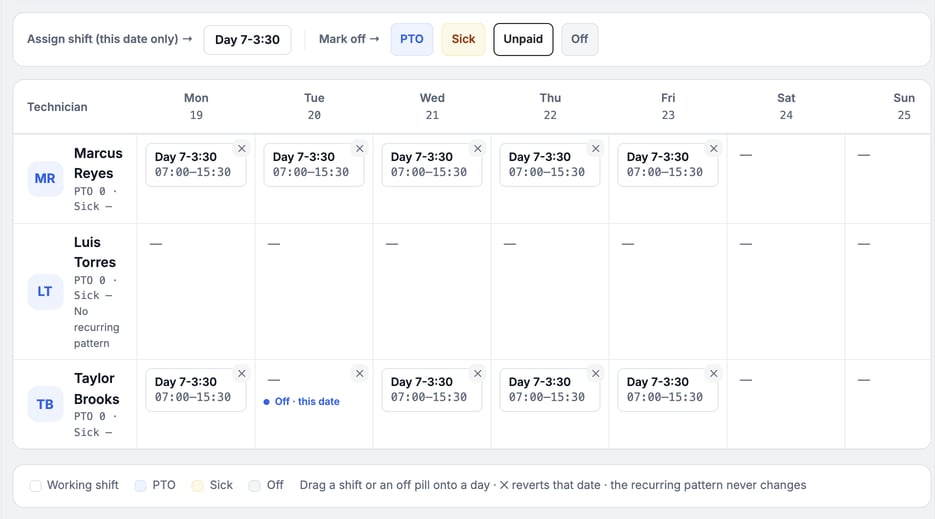
The legend under the grid explains the colors: **Working shift**, **PTO**, **Sick** and **Off**.
### Change one day
The bar above the grid has your active shifts after **Assign shift (this date only)** and four pills after **Mark off**: **PTO**, **Sick**, **Unpaid** and **Off**.
1. **Assign a shift.** Drag a shift name onto a technician's day.
2. **Mark a day off.** Drag **PTO**, **Sick**, **Unpaid** or **Off** onto the day.
3. **Move a shift.** Drag a shift from one cell to another. The new day gets the shift and the first day is cleared.
4. **Undo a change.** Click the **✕** in the cell, or click the time-off pill in the cell. A changed day goes back to the recurring pattern.
> **Every drop saves right away.** There is no Save button. A changed day is labeled **Override · this date** or **Off · this date**. The technician's recurring pattern never changes.
Clicking **✕** on a normal pattern day marks that one date off. Clicking it on a changed day puts the pattern back. If a drag shows an error, the day may have custom hours. Set that day from the technician's own schedule instead.
### Check overtime
The last column, **OT · this week**, shows the overtime hours planned for the week, such as **OT 2h**. A week with none shows **0h**; click it to see "No overtime this week." The service location whose rules apply is listed under the number.
1. Click the overtime badge for a technician.
2. Read the table. It lists each overtime line with its **Day**, **Type** and **Hours**.
3. Click **Close**.
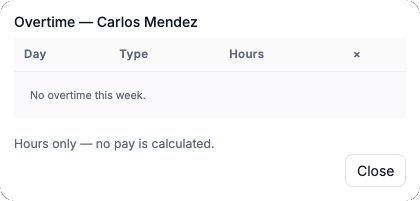
MetaFleet counts hours only. It does not calculate pay. Set the rules in [Set Up Technician Shifts](https://support.metafleet.ai/technician-shifts-and-scheduling?hsLang=en).
### Answer requests
Open requests sit in cards above the grid. Technicians send them from the app. See [Request Time Off and Swap Shifts](https://support.metafleet.ai/request-time-off-and-swap-shifts?hsLang=en) for their side.
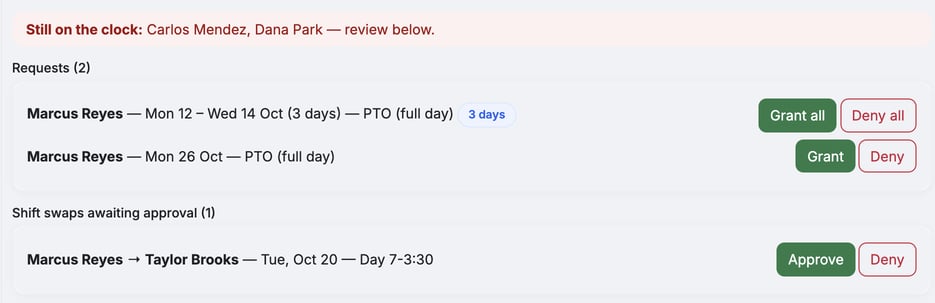
**Time off.** The **Requests** card lists each request with the technician, the dates and the type, such as "PTO (full day)".
- Click **Grant** to approve it, or **Deny** to turn it down. The technician is notified either way.
- A request for several days shows a "3 days" tag and the buttons read **Grant all** and **Deny all**. One click decides every day in the request.
- A granted day shows on the grid as a time-off pill. A denied request changes nothing on the grid.
**Shift swaps.** The **Shift swaps awaiting approval** card lists a swap only after another technician has taken the shift. It reads "Marcus Reyes → Taylor Brooks — Tue, Oct 20 — Day 7-3:30".
- Click **Approve**. The first technician is off that date and the second technician takes the shift. Both are notified.
- Click **Deny**. Nothing changes on the grid and the technicians are told.
> **If Approve fails.** If the first technician no longer has a shift that day, you see "The offering technician no longer has a shift that day — the swap can't be approved." This happens when you or an approved time-off request already changed that day. Click **Deny** and ask the technicians to start again.
### Handle "Still on the clock"
On the current week, a red banner at the top, **Still on the clock**, names technicians who are clocked in with no active job. A dot next to a technician's name marks them too: red for still clocked in, amber for on the clock with a job running.
1. Click the dot next to the technician's name.
2. Choose **Send clock-out reminder** to ask them to clock out.
3. Or choose **Clock out now** to clock them out yourself.
4. To fix a wrong time, click **Adjust a clock entry…**. Fill in **Original entry start**, **Corrected start**, **Corrected end** and an optional **Note**, then click **Save correction**. Click **Back** to leave without saving.
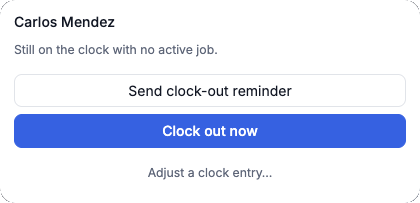
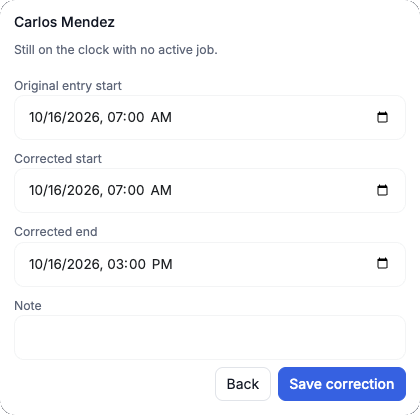
> **Adjust a clock entry…** only shows for users who can edit technician time. Most dispatchers see the first two buttons only.
See [Clock In, Clock Out and Track Job Time](https://support.metafleet.ai/clock-in-out-and-time-tracking?hsLang=en) for what the technician sees.
### Add or change shifts
Click **Manage shifts** at the top right of the page to open the technician shifts page.
### Troubleshooting
| Symptom | Likely cause | Fix |
| --- | --- | --- |
| No **Technician Schedule** in the menu | Your role lacks **Manage technician schedules** | Ask an admin to add the permission. |
| The **Assign shift** bar says "No active shifts" | The catalog is empty or every shift is deactivated | Add or reactivate a shift in [Set Up Technician Shifts](https://support.metafleet.ai/technician-shifts-and-scheduling?hsLang=en). |
| A technician's row shows **No recurring pattern** | No weekly schedule is saved for them | Set one in [Give a Technician a Recurring Schedule](https://support.metafleet.ai/give-a-technician-a-recurring-schedule?hsLang=en). |
| A swap isn't in the swap list | The second technician hasn't taken the shift yet | Ask them to take it in the app. |
| A dragged day shows an error | The day has custom hours, or the save failed | Set the day from the technician's own schedule, or try again. |
### FAQs
**Does dragging a shift change the technician's weekly pattern?**
No. It changes that one date. The pattern stays the same.
**Is there a Save button?**
No. Each drag, ✕ click, time-off Grant or Deny, and swap Approve or Deny saves when you do it.
**What's the difference between Off and PTO?**
**Off** clears the day. **PTO**, **Sick** and **Unpaid** record a typed absence.
**Does MetaFleet calculate overtime pay?**
No. It shows overtime hours only.
### Related articles
- [Set Up Technician Shifts](https://support.metafleet.ai/technician-shifts-and-scheduling?hsLang=en)
- [Give a Technician a Recurring Schedule](https://support.metafleet.ai/give-a-technician-a-recurring-schedule?hsLang=en)
- [Request Time Off and Swap Shifts](https://support.metafleet.ai/request-time-off-and-swap-shifts?hsLang=en)
- [Manually Assign a Technician](https://support.metafleet.ai/manually-assign-a-technician?hsLang=en)
- [Start Here](https://support.metafleet.ai/start-here?hsLang=en)
- [Companies & Contacts](https://support.metafleet.ai/companies-contacts?hsLang=en#main-content)
- [Create/Edit Companies](https://support.metafleet.ai/companies-contacts?hsLang=en#create-edit-companies)
- [Contacts](https://support.metafleet.ai/companies-contacts?hsLang=en#contacts)
- [Vehicles](https://support.metafleet.ai/companies-contacts?hsLang=en#vehicles)
- [Work Intake (Requests & Service Orders)](https://support.metafleet.ai/work-intake-requests-service-orders?hsLang=en#main-content)
- [Creating Service Orders](https://support.metafleet.ai/work-intake-requests-service-orders?hsLang=en#creating-service-orders)
- [Customer & Partner Requests](https://support.metafleet.ai/work-intake-requests-service-orders?hsLang=en#customer-partner-requests)
- [Reference](https://support.metafleet.ai/work-intake-requests-service-orders?hsLang=en#reference)
- [Customer Portal](https://support.metafleet.ai/work-intake-requests-service-orders?hsLang=en#customer-portal)
- [Estimates & Approvals](https://support.metafleet.ai/estimates-approvals?hsLang=en#main-content)
- [Approval Gates](https://support.metafleet.ai/estimates-approvals?hsLang=en#approval-gates)
- [Estimates](https://support.metafleet.ai/estimates-approvals?hsLang=en#estimates)
- [Invoices](https://support.metafleet.ai/estimates-approvals?hsLang=en#invoices)
- [Billing](https://support.metafleet.ai/estimates-approvals?hsLang=en#billing)
- [Parts, Inventory & Vendors](https://support.metafleet.ai/parts-inventory-vendors?hsLang=en#main-content)
- [Add Parts & Kits](https://support.metafleet.ai/parts-inventory-vendors?hsLang=en#add-parts-kits)
- [Stock & Counts](https://support.metafleet.ai/parts-inventory-vendors?hsLang=en#stock-counts)
- [Locations & Bins](https://support.metafleet.ai/parts-inventory-vendors?hsLang=en#locations-bins)
- [Purchase Orders](https://support.metafleet.ai/parts-inventory-vendors?hsLang=en#purchase-orders)
- [Parts Catalog](https://support.metafleet.ai/parts-inventory-vendors?hsLang=en#parts-catalog)
- [Vendors & Manufacturers](https://support.metafleet.ai/parts-inventory-vendors?hsLang=en#vendors-manufacturers)
- [Pricing](https://support.metafleet.ai/parts-inventory-vendors?hsLang=en#pricing)
- [Service Vehicles](https://support.metafleet.ai/parts-inventory-vendors?hsLang=en#service-vehicles)
- [Sourcing & Hand-Off](https://support.metafleet.ai/parts-inventory-vendors?hsLang=en#sourcing-hand-off)
- [Part Numbers](https://support.metafleet.ai/parts-inventory-vendors?hsLang=en#part-numbers)
- [Notifications](https://support.metafleet.ai/parts-inventory-vendors?hsLang=en#notifications)
- [Reports](https://support.metafleet.ai/parts-inventory-vendors?hsLang=en#reports)
- [Invoicing & Payments](https://support.metafleet.ai/invoicing-payments?hsLang=en)
- [Dispatch & Scheduling](https://support.metafleet.ai/dispatch-scheduling?hsLang=en#main-content)
- [Preventative Maintenance](https://support.metafleet.ai/dispatch-scheduling?hsLang=en#preventative-maintenance)
- [Technician Assignment](https://support.metafleet.ai/dispatch-scheduling?hsLang=en#technician-assignment)
- [Scheduling & Calendar](https://support.metafleet.ai/dispatch-scheduling?hsLang=en#scheduling-calendar)
- [Technician Schedule](https://support.metafleet.ai/dispatch-scheduling?hsLang=en#technician-schedule)
- [Technicians & Mobile App](https://support.metafleet.ai/technicians-mobile-app?hsLang=en#main-content)
- [Time Tracking](https://support.metafleet.ai/technicians-mobile-app?hsLang=en#time-tracking)
- [Tech Workflow](https://support.metafleet.ai/technicians-mobile-app?hsLang=en#tech-workflow)
- [Evidence & Photos](https://support.metafleet.ai/technicians-mobile-app?hsLang=en#evidence-photos)
- [AI Assistant](https://support.metafleet.ai/technicians-mobile-app?hsLang=en#ai-assistant)
- [Alerts, Alarms & Notifications](https://support.metafleet.ai/alerts-alarms-notifications?hsLang=en#main-content)
- [Email/SMS/App Settings](https://support.metafleet.ai/alerts-alarms-notifications?hsLang=en#email-sms-app-settings)
- [Reporting & Dashboards](https://support.metafleet.ai/reporting-dashboards?hsLang=en)
- [Admin & Settings](https://support.metafleet.ai/admin-settings?hsLang=en#main-content)
- [Rates & Fees](https://support.metafleet.ai/admin-settings?hsLang=en#rates-fees)
- [Branding](https://support.metafleet.ai/admin-settings?hsLang=en#branding)
- [Roles, Permissions & Users](https://support.metafleet.ai/admin-settings?hsLang=en#roles-permissions-users)
- [Service Areas](https://support.metafleet.ai/admin-settings?hsLang=en#service-areas)
- [Workflows](https://support.metafleet.ai/admin-settings?hsLang=en#workflows)
- [Taxes](https://support.metafleet.ai/admin-settings?hsLang=en#taxes)
- [Integrations](https://support.metafleet.ai/admin-settings?hsLang=en#integrations)
- [Integrations](https://support.metafleet.ai/integrations?hsLang=en#main-content)
- [Phone Setup](https://support.metafleet.ai/integrations?hsLang=en#phone-setup)
- [AI Assistant Access](https://support.metafleet.ai/integrations?hsLang=en#ai-assistant-access)
- [QuickBooks](https://support.metafleet.ai/integrations?hsLang=en#quickbooks)
- [Getting Around](https://support.metafleet.ai/getting-around?hsLang=en#main-content)
- [Search & Command Bar](https://support.metafleet.ai/getting-around?hsLang=en#search-command-bar)
[](http://www.metafleet.ai)
[mailto:support@metafleet.ai](mailto:support@metafleet.ai)
Copyright © 2025, MetaFleet, Inc