
For: Owners, managers and dispatchers · Permission: Request Reports to generate, View Reports to see History and download · Time: ~5 minutes
Quick summary
- Click Reports in the sidebar.
- Set the dates, state and locations.
- Pick a report under Which report? and click Generate Report.
- Download it from History.
Before you start
- The Reports page opens with either permission. Generate needs Request Reports. History and Download need View Reports.
- Technician time is in Invoiced Hours Detail and Clocked Hours Detail. For how hours get recorded, see Clock In, Clock Out and Track Job Time.
- Parts Consumption is also in the Which report? list. See Parts Consumption by Location (Report).
Generate a report
- Click Reports in the sidebar.
- Under Reporting Period & Scope, set STATE, Start Date, End Date and Locations. These filters apply to every report on the page. Reset to last 30 days puts the dates back to the default.
- Under Which report?, pick a report.
- Set the filters under Shape the output. They change with the report you picked.
- Click Generate Report.
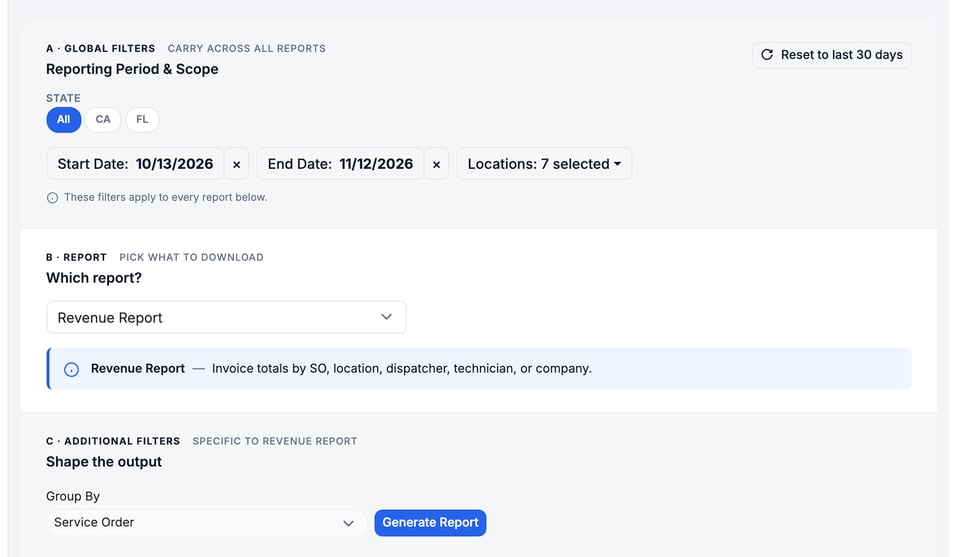
Reports run in the background. Open the History tab when you're ready to download.
Choose the right report
| Report | What it gives you | Filters under Shape the output |
|---|---|---|
| Revenue Report | Invoice totals by service order, location, dispatcher, technician or company. Net Revenue is Revenue minus Discounts After Invoice, Line Credits, Refunds and Written Off, on every row and in TOTALS (grouped by Revenue Type, only TOTALS shows it). | Group By (Service Order, Location, Dispatcher, Technician, Company, Revenue Type (Labor / Parts / Fees) or Service Type (Repair / Towing / PM / Inspection)) |
| Invoiced Hours Detail | Billed hours per service order, weighted by clocked time. An order counts once its invoice is sent, in the period it was sent. An order with no sent invoice still shows, on the day it was created, marked Not Invoiced, unless it has no hours and Include zero-hour SOs is off. PM and inspection orders show their VST- invoice number. | Technicians; Include zero-hour SOs |
| Clocked Hours Detail | Clock-in and clock-out windows per service order. Uses the clock date, not the invoice date. TOTALS count each order's invoice once, even when two technicians worked it. | Technicians; Round to nearest (1, 5, 15 or 30 min); Include open clock entries |
| AR Aging Report | Outstanding balances by aging bucket. The End Date is the as-of date, counted on your calendar day. Payments count on the day the money arrived, including a PM or inspection payment taken in a backdated batch. PM and inspection invoices age from the day they were sent. | Customers; Show paid-but-unallocated; Payment Status; Invoice Billed Status |
| Daily Payments Report | One row per payment, with its own date, the method actually used and a Payment Ref # column. $0 payments are not listed. An overpaid part of a payment gets its own row, such as Check (to credit) or Check (to be refunded). A payment lands on the day the money arrived, including a backdated one. A voided batch shows as a negative row. | Payment Method (each payment is tested by its own method) |
| Sales Tax Export | One row per invoice, grouped by state, with taxable sales, non-taxable sales and tax, plus a Tax by Jurisdiction section for state, county and city returns. See File Sales Tax With the Sales Tax Export. | None |
| Parts Consumption by Location | Parts used per warehouse or service van. | Inventory locations; Asset sub-types |
Find and download past reports
- Click the History tab.
- Use the chips All, Ready, Processing, Queued and Failed to filter by status. Type in Search by report name to find a run.
- Click Download on a row marked Ready.
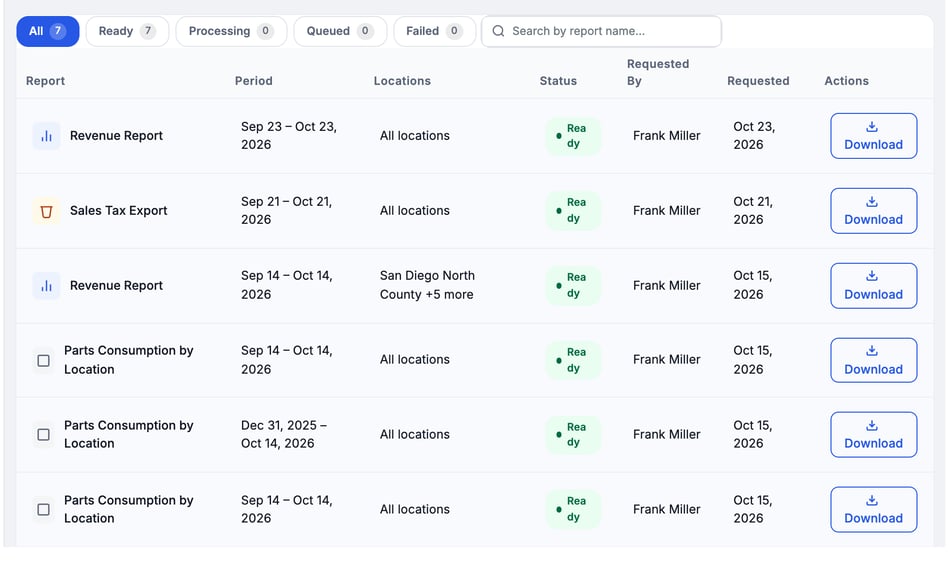
Each row shows the report, its period, locations, status, who requested it and when. The file is a CSV. Its name carries the report and dates, for example Revenue_2026-09-15_to_2026-10-15.csv. The first line of the file repeats the report name and period, and a TOTALS row closes the data.
Troubleshooting
| Symptom | Likely cause | Fix |
|---|---|---|
| I don't see Reports, or I see no History tab | Your role lacks Request Reports (Generate) or View Reports (History) | Ask an admin to add the permission. |
| The report shows $0.00 or no rows | Nothing matches the dates and locations you picked | Widen the dates, check STATE and Locations, then click Generate Report again. A range such as January 1 to today is a good test. |
| A generated report isn't in History as Ready | It is still Queued or Processing | Check back later. If a run shows Failed, click Retry on that row. |
| Logged hours differ from invoiced hours | Logged hours come from clock entries. Invoiced hours come from billed time | Compare Clocked Hours Detail with Invoiced Hours Detail for the same dates. |
FAQs
Do the filters carry across tabs?
The date range and locations on the Reports page carry across its tabs and apply to every report you pick there.
Where is the Parts Consumption report?
Pick it under Which report? on the Reports page. See Parts Consumption by Location (Report).