
Anyone responsible for accurate stock — counting a warehouse, parts room, or service truck on a schedule (weekly, monthly, or after a big job).
What you'll learnHow to start a cycle count for a location, enter your physical counts, read the variances the system calculates, and submit to correct on-hand numbers in one pass.
Before you start- You'll need: A stocked inventory location and inventory-management access.
- Good to know: Your count auto-saves as a draft — you can stop partway and resume later without losing entries.
Quick summary
- Open a location and click Start Cycle Count.
- Enter the Actual count for each part — the Variance calculates automatically.
- Click Review & Submit to true up on-hand numbers.
Start the count.
Open the location (Parts & Inventory → Inventory Locations → pick one) and click Start Cycle Count on its Stock tab.
Count and enter the Actual numbers.
For each part, type what you physically counted into the Actual column. The Variance (Actual − Expected) appears instantly and is highlighted when it's off. A progress meter tracks how many of the location's parts you've counted.
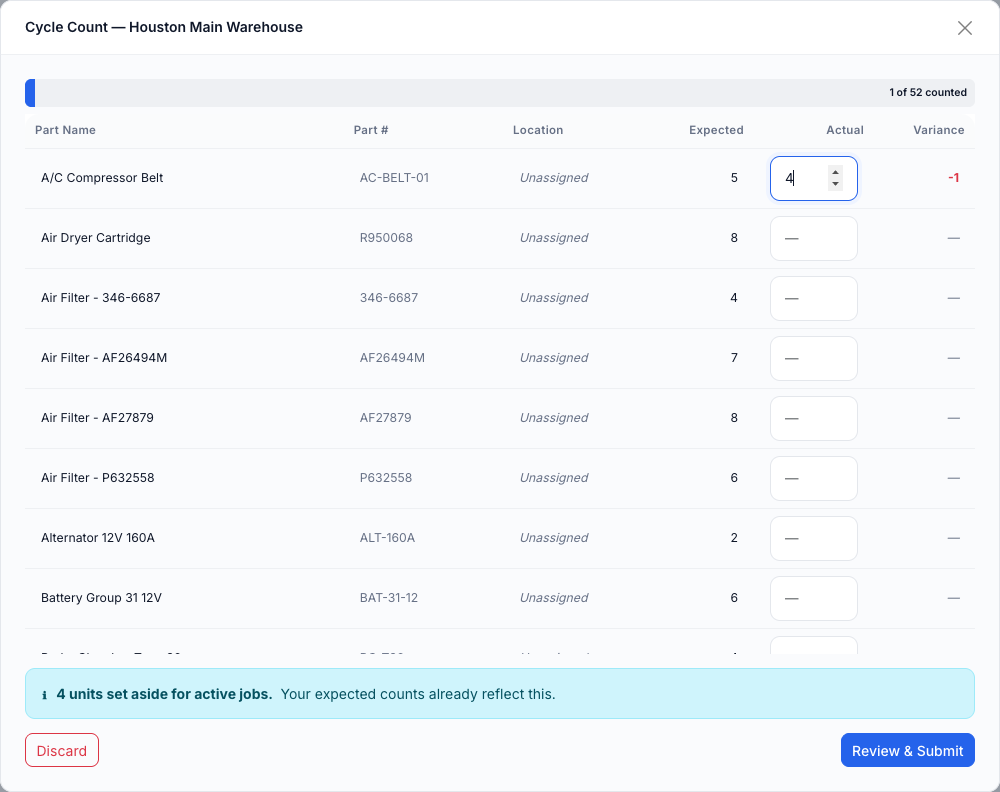
The count sheet. Enter Actual; Variance computes (here −1). The note confirms units allocated to active jobs are already reflected in Expected.
Pause anytime (optional).
Your entries auto-save as a draft. Close it and come back later — your counts will still be there to resume.
Review & submit.
When you're done, click Review & Submit. Confirm the variances, and the system updates each part's on-hand number to match your count. (Click Discard instead to throw the count away without changing anything.)
Parts on open jobs are handled for you. Units allocated to active service orders are already factored into the Expected figure, so you count what's physically present without doing the math yourself.Troubleshooting
| Symptom | Likely cause | Fix |
|---|---|---|
| My count doesn't match Expected | That's the point — it's a variance | Recount to confirm, then submit; the system trues up the on-hand number. |
| I closed the count by accident | Drafts auto-save | Reopen the location and resume — your entries are saved. |
| Expected looks low for a busy part | Some units are allocated to open jobs | That's expected — allocations are already reflected. Count only what's on the shelf. |
| I don't want to keep this count | — | Click Discard; nothing changes. |
Do I have to count every part at once?
No. Count what you can — the draft saves automatically so you can finish later.
What does submitting actually change?
It sets each counted part's on-hand quantity to your Actual number, correcting any drift.
Will this affect parts reserved for jobs?
No — allocations to active jobs are already accounted for in the Expected figure.