
Dispatchers at shops that take work from a partner/aggregator network. These requests are time-sensitive — responding fast wins the job.
What you'll learnWhere partner requests appear, what's in each one, and how to accept or decline within the response window.
Before you start- You'll need: The partner/FleetNet integration enabled for your shop (set up by MetaFleet). Requests then arrive automatically.
- Where it lives: Service → Partner Request.
Quick summary
- Open Service → Partner Request.
- Open the incoming request — note the response countdown.
- Accept with an ETA (and tire availability if asked), or Decline with a reason.
- Accepting creates a service order in your normal pipeline.
Incoming jobs from your partner network list here, newest first, with the partner, the complaint, the service type, the vehicle, and a Service Needed By time.
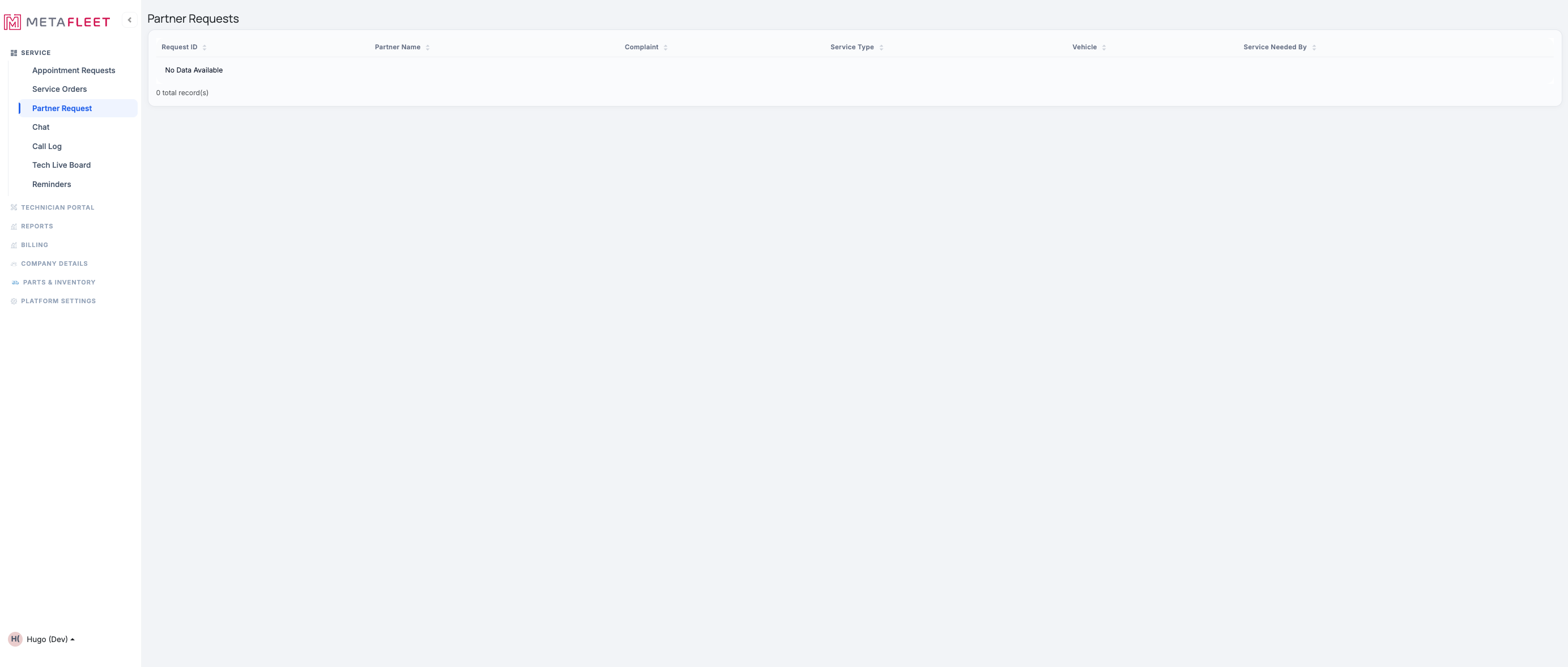
The Partner Requests list. When the integration is live, incoming requests appear here for you to accept or decline. (Shown empty — no pending requests.)
Responding to a requestOpen the request — and watch the clock.
Each request has a short response window with a visible countdown. If it expires before you respond, the partner routes the job elsewhere — so triage these first.
Accept it.
Provide your ETA (and tire-brand availability if the request asks for it). Accepting turns the request into a service order that flows into your normal pipeline — assign a technician and work it like any other job.
…or decline it.
If you can't take the job, decline and pick one of the predefined reasons (e.g. out of area, no availability, can't meet the timeframe). The partner is notified instantly so they can reroute.
Accepted requests become regular service orders. Once accepted, the job lives in Service → Service Orders — assign a tech, diagnose, estimate, and invoice it exactly as usual.Troubleshooting
| Symptom | Likely cause | Fix |
|---|---|---|
| No requests ever appear | The partner integration isn't enabled | Have MetaFleet enable the FleetNet/partner integration for your shop. |
| A request disappeared before I could act | The response window expired | Respond promptly — the countdown is short and the job reroutes when it lapses. |
| I accepted but can't find the job | It's now a service order | Look under Service → Service Orders. |
How long do I have to respond?
A short window shown as a countdown on each request — respond before it expires or the job reroutes.
What happens when I accept?
A service order is created and enters your normal workflow — assign, diagnose, estimate, invoice.
Do I have to give a reason to decline?
Yes — pick one of the predefined reasons so the partner can reroute appropriately.