
For: Fleet customers · Where: Your customer portal · Time: ~2 minutes
Who this is forFleet customers who book and track PM (and DOT inspection) visits for their vehicles through the customer portal.
What you'll learnHow to request a PM appointment, give the shop your preferred times, and track the request through to completion.
Before you start- You'll need: Access to your fleet's customer portal. Sign in with your email — a one-time code is sent to confirm it's you.
- Where it lives: The Appointments section of your portal.
Quick summary
- Go to Appointments and click + Request Appointment.
- Pick the vehicle(s), the service location, and up to 3 preferred dates.
- Submit — the shop confirms one within a business day.
- Track it under Appointments (Pending → Confirmed → Past).
Open the request form.
In Appointments, click + Request Appointment.
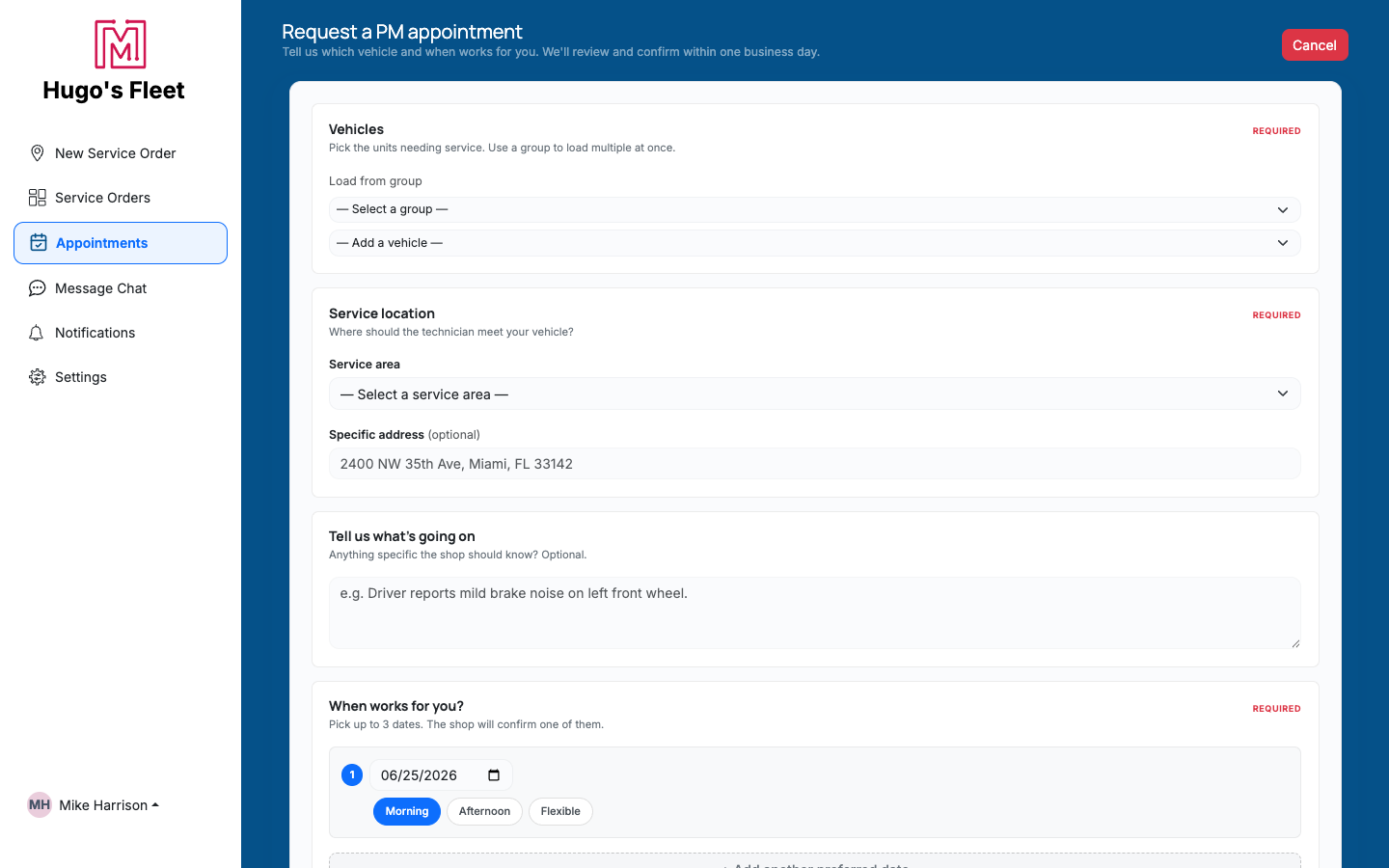
The request form — choose vehicles, where to meet, what's going on, and up to three preferred dates.
Pick the vehicles.
Add the units that need service one at a time, or load a group to add several at once.
Set the location and any notes.
Choose a service area (and an optional specific address) where the technician should meet the vehicle, and tell the shop anything useful in "Tell us what's going on."
Offer up to three dates and submit.
Under When works for you?, pick up to three preferred dates and a Morning / Afternoon / Flexible window for each. Submit — the shop reviews and confirms one, usually within a business day.
Track your appointmentsEverything you've requested lives under Appointments, with tabs for All, Pending, Confirmed, and Past. Each card shows the unit, the status, and the date.
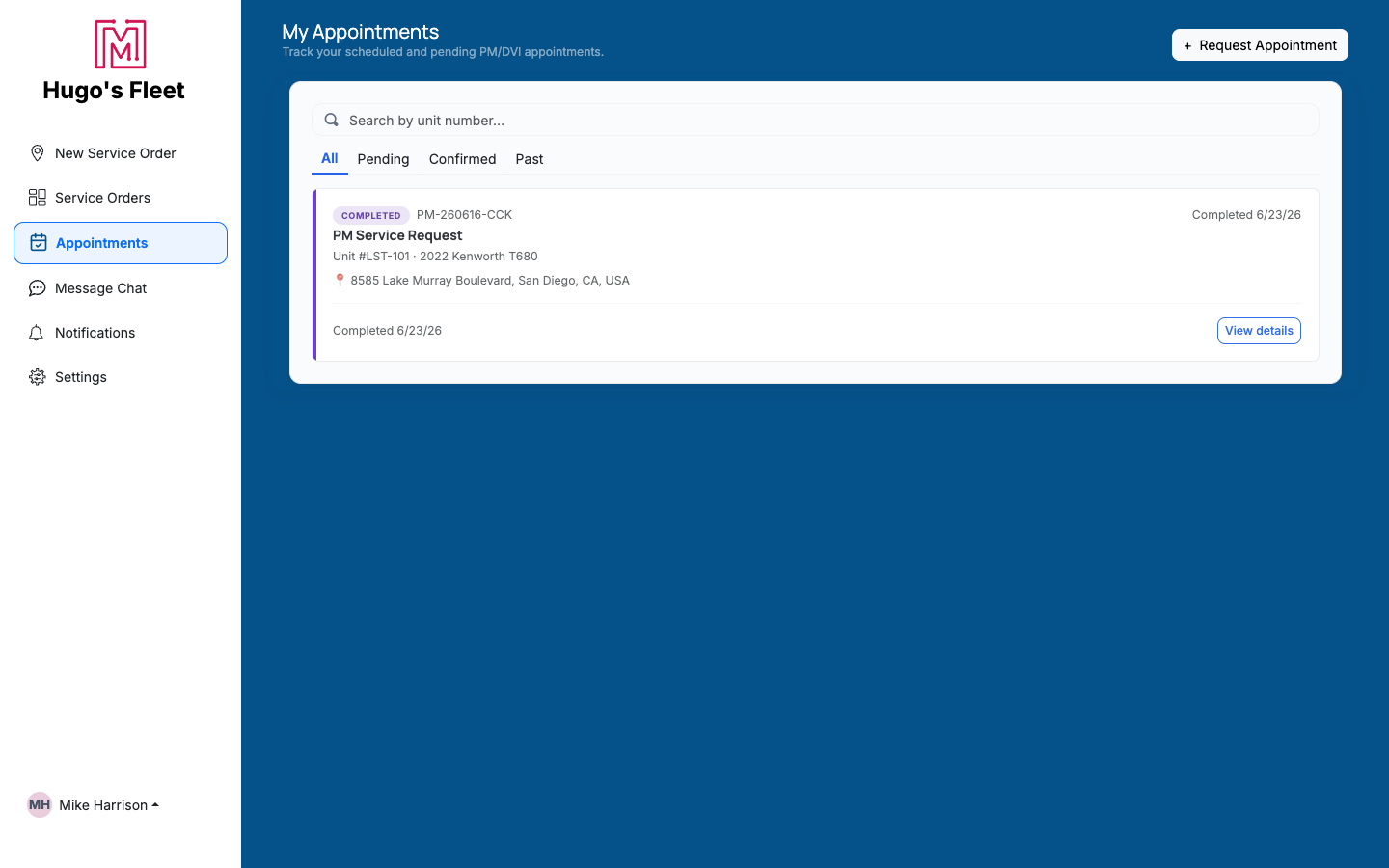
My Appointments — filter by status and open any one for details.
Click View details to see an appointment's status tracker. While a request is still Pending, you can cancel it from there if your plans change.
Stay in the loop. You'll be notified as your request is confirmed and as the PM comes due in future — and you can reach the shop anytime from Message Chat.Troubleshooting
| Symptom | Likely cause | Fix |
|---|---|---|
| I can't submit the request | A required field is empty | Add at least one vehicle, a service location, and a preferred date. |
| My vehicle isn't in the list | It may not be on your account | Contact your shop to add it, then request again. |
| My request still says Pending | The shop hasn't confirmed yet | Confirmation usually comes within a business day; check the Confirmed tab. |
| I need to cancel | Plans changed | Open the appointment's details — Pending requests can be cancelled there. |
Can I request service for several vehicles at once?
Yes — add them individually or load a vehicle group.
Will I get the exact date I pick?
You offer up to three preferred dates; the shop confirms the one that works and lets you know.
How do I know when it's confirmed?
The appointment moves to the Confirmed tab and you're notified.