---
title: Refund, Credit or Write Off an Invoice
description: Choose between Refund, Credit a line and Write off on an invoice, and see what each one does to the bill and the order.
---
[Skip to content](https://support.metafleet.ai/refunds-credits-and-write-offs-in-quickbooks#main-content)
English
Show submenu for translations

Open main navigation
Close main navigation
- English
Show submenu for translations
- [Contact us](mailto:support@metafleet.ai)
[Contact us](mailto:support@metafleet.ai)
How can we help you?
- There are no suggestions because the search field is empty.
1. [MetaFleet Answer Hub](https://support.metafleet.ai/?hsLang=en)
2. [Invoicing & Payments](https://support.metafleet.ai/invoicing-payments?hsLang=en)
# Refund, Credit or Write Off an Invoice
## Pick the right way to give money back or let a balance go, from the order's Billing tab or the Billing Hub.
**For:** Owners, office managers and bookkeepers · **Permission:** Approve invoice, plus Manage Billing (order page) or Manage Billing Hub (Billing Hub) · **Time:** ~4 minutes
### Quick summary
1. Open the invoice's order, or find its row in the Billing Hub.
2. Pick the action that matches what happened: **Refund**, **Credit a line** or **Write off**.
3. Fill in the amount and reason, and read the **What happens** panel.
4. Confirm.
### Before you start
- You need the Approve invoice permission, plus Manage Billing on the order page or Manage Billing Hub in the Billing Hub. Without them, the three actions don't appear.
- **Refund** shows whenever a payment can be given back, whatever the order's state. **Credit a line** and **Write off** show while money is owed.
- Using QuickBooks? Each dialog also shows a **QuickBooks** line. See **If you use QuickBooks** below.
### Which action to use
| What happened | Use | What it does |
| --- | --- | --- |
| The customer paid and you are giving money back | **Refund** | Gives the money back to the customer |
| The customer still owes, and one or more lines should cost less | **Credit a line** | Brings the bill down by the credit |
| The customer still owes, and you are letting the balance go | **Write off** | Sets the balance to zero, or lowers it |
You find all three in two places: the buttons on the order's **Billing** tab, and the row menu in the Billing Hub. A button or menu item that can't act is grayed out. The row menu says why, for example "Nothing is owed." or "No money was received."
### Refund money the customer paid
1. Click **Refund**.
2. Under **Refund from**, pick the payment to give back. The drawer shows **Can refund**, the most you can give back, and what each payment has left.
3. Enter the **Amount**. It can't be more than the payment has left. For a reason that brings the bill down, it also can't be more than what is left of the bill. When the bill has less left than the payment, the hint under **Amount** reads, for example, "Up to $100.00, what is left of the bill."
4. Under **Reason**, pick a reason.
5. Add a **Note** if you want one.
6. Read the **After this refund** panel, then click the confirm button, which names the amount.
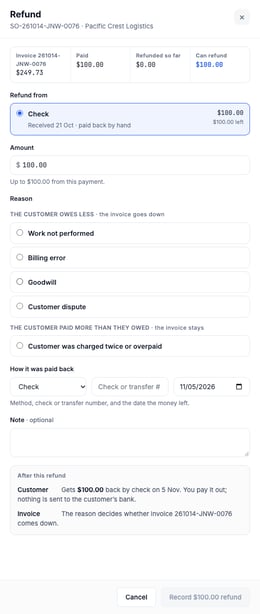
The drawer groups the reasons under **The customer owes less** (the invoice goes down) and **The customer paid more than they owed** (the invoice stays). Every reason except **Customer was charged twice or overpaid** brings the invoice total down. **Customer was charged twice or overpaid** leaves the invoice as it is, because the money was never counted against it.
If you go over what is left of the bill, a red message under **Amount** says how to split it, for example: "This bill has only $100.00 left to take off. Make this refund $100.00, then refund the other $20.00 as “Customer was charged twice or overpaid”." The refund button stays off until the amount fits. The **After this refund** panel says how far the invoice can come down. A bill with nothing left says so and tells you to refund the whole amount as **Customer was charged twice or overpaid**. An older bill that earlier refunds took below zero says so, with the real figure. If you refund more as **Customer was charged twice or overpaid** than MetaFleet shows as paid beyond the bill, the drawer asks **Refund this anyway?** first. Earlier refunds count against that figure.
A refund that brings the bill down shows everywhere the bill does: the invoice, its email, the **Billing** tab and the Billing Hub. When it takes the bill to $0.00, the **Billing** tab says **Refunded in full: nothing is owed** and the order reads **Closed, refunded**.
If you refund a payment as **Customer was charged twice or overpaid** and MetaFleet has no other payment for the invoice, the **Billing** tab says the amount **is owed again**. Record the payment when it comes in, or write it off.
A card or ACH payment goes back through Stripe. The drawer says **Nothing to fill in**. It reaches the customer in 5–10 business days.
On a Closed repair or tow order, the refund can turn into a second step:
1. **When it asks:** only when the refund leaves no money on the order and you start it from the order's own **Billing** tab. A part refund asks nothing, and neither does a refund from the Billing Hub.
2. **The question:** **Mark this order as cancelled?** It starts on **No, keep it closed** for **Goodwill** and on **Yes, cancel it** for the other reasons. Change the answer if you need to.
3. **What cancelling does:** a Closed order that is cancelled sends no technician alert and no customer message.
4. **Who sees it:** you need permission to cancel orders.
A payment you took another way, such as a check, asks **How it was paid back**, the **Check or transfer #** and the date the money left. The confirm button then reads **Record**, the amount and **refund**.
### Credit a line
1. Click **Credit a line**.
2. Turn on each line you want to credit.
3. Enter the amount to credit on each switched-on line. Each amount has to be more than $0.00. On an invoice with a discount, the most you can credit on a line is what it billed after the discount, plus its tax. If you go over, the drawer says, for example, "Shop supplies has $48.00 left to credit."
4. Add a **Note** if you want one.
5. Check the **Credit** total, which includes the tax on those lines, then click the confirm button, which names the amount.
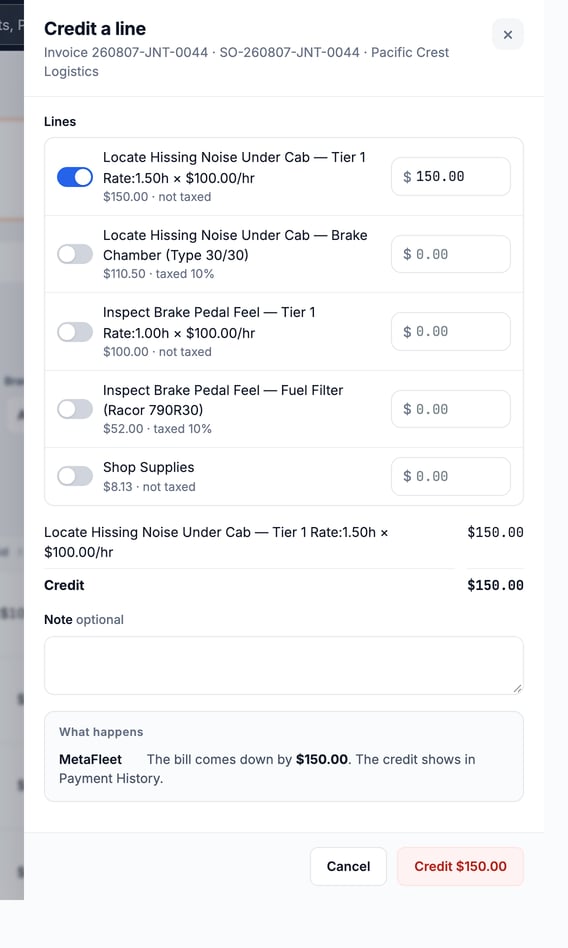
The bill comes down by the credit total. The credit shows in **Payment History**, and the invoice's tax falls with it. A line that is already credited in full is grayed out, and a part-credited line shows how much is left. An invoice marked no charge has nothing to credit.
### Write off a balance
1. Click **Write off**. The window is titled **Write off invoice** with the invoice number.
2. Check **Amount to write off**. It starts as the whole balance. Lower it to write off part. The rest stays due.
3. Pick a **Reason**.
4. Add a **Note** if you want one.
5. Read the **What happens** panel, then click the confirm button, which names the amount.
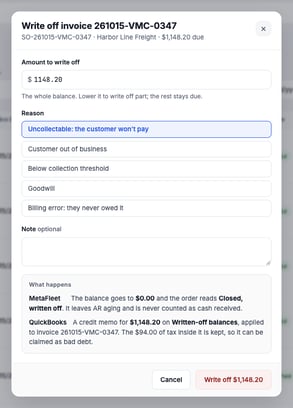
*Shown with QuickBooks connected. Without it, the QuickBooks line is missing.*
The reasons are **Uncollectable: the customer won't pay**, **Customer out of business**, **Below collection threshold**, **Goodwill** and **Billing error: they never owed it**.
Sent the wrong invoice? Whether to re-issue it or write it off as a billing error is covered in [Send an Invoice and Check It in QuickBooks](https://support.metafleet.ai/send-an-invoice-to-quickbooks?hsLang=en).
A full write-off sets the balance to $0.00, and the order reads **Closed, written off**. It leaves AR aging and is never counted as cash received. A part write-off leaves the order open with the rest still due. After a line credit, a write-off covers only what each line still owes. On a repair or tow order, a write-off sends the customer no **Payment confirmation** email or payment text. The same goes for a line credit or a full refund that closes the order.
### Use the Billing Hub row menu
Each row on the Billing Hub's **Service Orders** list has a menu with **Credit a line**, **Write off** and **Refund**. They open the same dialogs as the order's **Billing** tab.
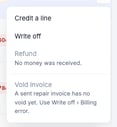
On a sent visit invoice the menu also has **Void invoice**. It voids the visit invoice (and in QuickBooks too, if you use it). It needs Approve invoice and Manage Billing Hub, like the other three actions. Click it, type the reason under **Why are you voiding it?**, then click **Void invoice** again to confirm. **Keep invoice** closes the window and changes nothing. Once the visit invoice has taken a payment, **Void invoice** is grayed out and the menu tells you to refund or write off instead. On a sent repair invoice that still owes, **Void invoice** is listed but grayed out and points you to **Write off** › **Billing error**.
On the order itself, **Cancel Service Order** shows on a Closed order only when it can be cancelled: it was fully refunded, closed with no charge, or written off with nothing paid.
### If you use QuickBooks
When QuickBooks is connected, each dialog shows an extra **QuickBooks** line in the **What happens** panel, and the matching document goes to QuickBooks when you save. No QuickBooks tab? Contact MetaFleet support to turn QuickBooks on for your account.
- **Refund:** a refund receipt. **Customer was charged twice or overpaid** sends nothing, because QuickBooks never received that money. If a card payment isn't in QuickBooks yet, the refund receipt goes once the payment arrives.
- **Credit a line:** a credit memo through the item each line was invoiced on. MetaFleet applies it to the invoice.
- **Write off:** every reason except **Billing error: they never owed it** posts one credit memo to **Written-off balances**, applied to the invoice. The tax inside it is kept, so it can be claimed as bad debt. Ask your accountant how to treat it. **Billing error: they never owed it** sends a credit memo that reverses each original line through its own item and tax, and nothing posts to **Written-off balances**. Its tax comes out of that month’s Sales Tax Export report, because the sale was never owed.
Under each refund, credit and write-off, a QuickBooks line shows the document and its number. If QuickBooks refuses it, the line says so and gives a reason. Fix the cause and the document goes on the next retry. See [Fix What Needs Attention in QuickBooks](https://support.metafleet.ai/fix-quickbooks-sync-problems?hsLang=en).
> If QuickBooks holds nothing open on the invoice when a credit memo arrives, QuickBooks keeps the memo as the customer's credit. The order shows **left as customer credit**. Nothing is wrong.
For how each document posts to your accounts, see [Payments, Refunds, Credits and Late Fees in QuickBooks](https://support.metafleet.ai/quickbooks-payments-reference?hsLang=en). To choose the accounts, ask your accountant, then open **Settings › Integrations**, the **QuickBooks** tab, then its **Settings** tab and find **Posting accounts**.
### Troubleshooting
| Symptom | Likely cause | Fix |
| --- | --- | --- |
| I don't see Refund, Write off or Credit a line | Your user lacks Approve invoice, Manage Billing or Manage Billing Hub | Ask an admin to add the permission. |
| Write off or Credit a line says "A payment for this invoice is already in progress." | A card payment, or a card hold being applied, is still processing on the order | Wait for the payment to finish, then try again. |
| Refund is grayed out | No money was received on the invoice | Nothing to refund. Use **Credit a line** or **Write off** if a balance is owed. |
| Write off or Credit a line is grayed out | Nothing is owed, or it is already written off | If the customer paid too much, use **Refund** instead. |
| The refund leaves the invoice total as it is | You picked **Customer was charged twice or overpaid** | Nothing to fix. The money was never counted against the invoice. |
| The amount is rejected | It is more than the payment has left, more than the balance owed, or, for a reason that brings the bill down, more than is left of the bill | Lower the amount to the maximum the message shows. |
| The Billing tab says an amount "is owed again" after a refund | You refunded the only payment as **Customer was charged twice or overpaid** | Record the payment when it comes in, or write it off. |
### FAQs
**Can I undo a refund, credit or write-off?**
No button reverses one. Contact MetaFleet support first. If you use QuickBooks, leave the QuickBooks side alone too.
**Does a write-off count as a payment?**
No. It is never counted as cash received.
### Related articles
- [Payments, Refunds, Credits and Late Fees in QuickBooks](https://support.metafleet.ai/quickbooks-payments-reference?hsLang=en)
- [Send an Invoice and Check It in QuickBooks](https://support.metafleet.ai/send-an-invoice-to-quickbooks?hsLang=en)
- [Fix What Needs Attention in QuickBooks](https://support.metafleet.ai/fix-quickbooks-sync-problems?hsLang=en)
- [Choose Where Your Money Posts in QuickBooks](https://support.metafleet.ai/choose-quickbooks-posting-accounts?hsLang=en)
- [Start Here](https://support.metafleet.ai/start-here?hsLang=en)
- [Companies & Contacts](https://support.metafleet.ai/companies-contacts?hsLang=en#main-content)
- [Create/Edit Companies](https://support.metafleet.ai/companies-contacts?hsLang=en#create-edit-companies)
- [Contacts](https://support.metafleet.ai/companies-contacts?hsLang=en#contacts)
- [Vehicles](https://support.metafleet.ai/companies-contacts?hsLang=en#vehicles)
- [Work Intake (Requests & Service Orders)](https://support.metafleet.ai/work-intake-requests-service-orders?hsLang=en#main-content)
- [Creating Service Orders](https://support.metafleet.ai/work-intake-requests-service-orders?hsLang=en#creating-service-orders)
- [Customer & Partner Requests](https://support.metafleet.ai/work-intake-requests-service-orders?hsLang=en#customer-partner-requests)
- [Reference](https://support.metafleet.ai/work-intake-requests-service-orders?hsLang=en#reference)
- [Customer Portal](https://support.metafleet.ai/work-intake-requests-service-orders?hsLang=en#customer-portal)
- [Estimates & Approvals](https://support.metafleet.ai/estimates-approvals?hsLang=en#main-content)
- [Approval Gates](https://support.metafleet.ai/estimates-approvals?hsLang=en#approval-gates)
- [Estimates](https://support.metafleet.ai/estimates-approvals?hsLang=en#estimates)
- [Invoices](https://support.metafleet.ai/estimates-approvals?hsLang=en#invoices)
- [Billing](https://support.metafleet.ai/estimates-approvals?hsLang=en#billing)
- [Parts, Inventory & Vendors](https://support.metafleet.ai/parts-inventory-vendors?hsLang=en#main-content)
- [Add Parts & Kits](https://support.metafleet.ai/parts-inventory-vendors?hsLang=en#add-parts-kits)
- [Stock & Counts](https://support.metafleet.ai/parts-inventory-vendors?hsLang=en#stock-counts)
- [Locations & Bins](https://support.metafleet.ai/parts-inventory-vendors?hsLang=en#locations-bins)
- [Purchase Orders](https://support.metafleet.ai/parts-inventory-vendors?hsLang=en#purchase-orders)
- [Parts Catalog](https://support.metafleet.ai/parts-inventory-vendors?hsLang=en#parts-catalog)
- [Vendors & Manufacturers](https://support.metafleet.ai/parts-inventory-vendors?hsLang=en#vendors-manufacturers)
- [Pricing](https://support.metafleet.ai/parts-inventory-vendors?hsLang=en#pricing)
- [Service Vehicles](https://support.metafleet.ai/parts-inventory-vendors?hsLang=en#service-vehicles)
- [Sourcing & Hand-Off](https://support.metafleet.ai/parts-inventory-vendors?hsLang=en#sourcing-hand-off)
- [Part Numbers](https://support.metafleet.ai/parts-inventory-vendors?hsLang=en#part-numbers)
- [Notifications](https://support.metafleet.ai/parts-inventory-vendors?hsLang=en#notifications)
- [Reports](https://support.metafleet.ai/parts-inventory-vendors?hsLang=en#reports)
- [Invoicing & Payments](https://support.metafleet.ai/invoicing-payments?hsLang=en)
- [Dispatch & Scheduling](https://support.metafleet.ai/dispatch-scheduling?hsLang=en#main-content)
- [Preventative Maintenance](https://support.metafleet.ai/dispatch-scheduling?hsLang=en#preventative-maintenance)
- [Technician Assignment](https://support.metafleet.ai/dispatch-scheduling?hsLang=en#technician-assignment)
- [Scheduling & Calendar](https://support.metafleet.ai/dispatch-scheduling?hsLang=en#scheduling-calendar)
- [Technician Schedule](https://support.metafleet.ai/dispatch-scheduling?hsLang=en#technician-schedule)
- [Technicians & Mobile App](https://support.metafleet.ai/technicians-mobile-app?hsLang=en#main-content)
- [Time Tracking](https://support.metafleet.ai/technicians-mobile-app?hsLang=en#time-tracking)
- [Tech Workflow](https://support.metafleet.ai/technicians-mobile-app?hsLang=en#tech-workflow)
- [Evidence & Photos](https://support.metafleet.ai/technicians-mobile-app?hsLang=en#evidence-photos)
- [AI Assistant](https://support.metafleet.ai/technicians-mobile-app?hsLang=en#ai-assistant)
- [Alerts, Alarms & Notifications](https://support.metafleet.ai/alerts-alarms-notifications?hsLang=en#main-content)
- [Email/SMS/App Settings](https://support.metafleet.ai/alerts-alarms-notifications?hsLang=en#email-sms-app-settings)
- [Reporting & Dashboards](https://support.metafleet.ai/reporting-dashboards?hsLang=en)
- [Admin & Settings](https://support.metafleet.ai/admin-settings?hsLang=en#main-content)
- [Rates & Fees](https://support.metafleet.ai/admin-settings?hsLang=en#rates-fees)
- [Branding](https://support.metafleet.ai/admin-settings?hsLang=en#branding)
- [Roles, Permissions & Users](https://support.metafleet.ai/admin-settings?hsLang=en#roles-permissions-users)
- [Service Areas](https://support.metafleet.ai/admin-settings?hsLang=en#service-areas)
- [Workflows](https://support.metafleet.ai/admin-settings?hsLang=en#workflows)
- [Taxes](https://support.metafleet.ai/admin-settings?hsLang=en#taxes)
- [Integrations](https://support.metafleet.ai/admin-settings?hsLang=en#integrations)
- [Integrations](https://support.metafleet.ai/integrations?hsLang=en#main-content)
- [Phone Setup](https://support.metafleet.ai/integrations?hsLang=en#phone-setup)
- [AI Assistant Access](https://support.metafleet.ai/integrations?hsLang=en#ai-assistant-access)
- [QuickBooks](https://support.metafleet.ai/integrations?hsLang=en#quickbooks)
- [Getting Around](https://support.metafleet.ai/getting-around?hsLang=en#main-content)
- [Search & Command Bar](https://support.metafleet.ai/getting-around?hsLang=en#search-command-bar)
[](http://www.metafleet.ai)
[mailto:support@metafleet.ai](mailto:support@metafleet.ai)
Copyright © 2025, MetaFleet, Inc