
For: Dispatchers & Service Managers · Permission: Manage appointments · Time: ~2 minutes
Who this is forWhoever checks vehicles in — turning a confirmed appointment into work that's underway.
What you'll learnHow to mark a vehicle arrived, capture its mileage, and create the PM service order that the technician then works.
Before you start- You'll need: A confirmed PM appointment and the vehicle's current odometer reading.
- Mileage matters: The mileage you enter must meet a minimum (the vehicle's last-known reading), so the service record and next-due stay accurate.
Quick summary
- Open the appointment and toggle the vehicle arrived.
- Enter the vehicle's current mileage (it must meet the minimum).
- Click Vehicle arrived → Create PM SO.
Open the appointment and mark arrival.
From the Service Workspace, open the appointment. In the Vehicles section, toggle the vehicle to arrived and enter its current mileage. The mileage field enforces a floor (e.g. "must be at least 185,000") so you can't record a reading lower than the vehicle's last.
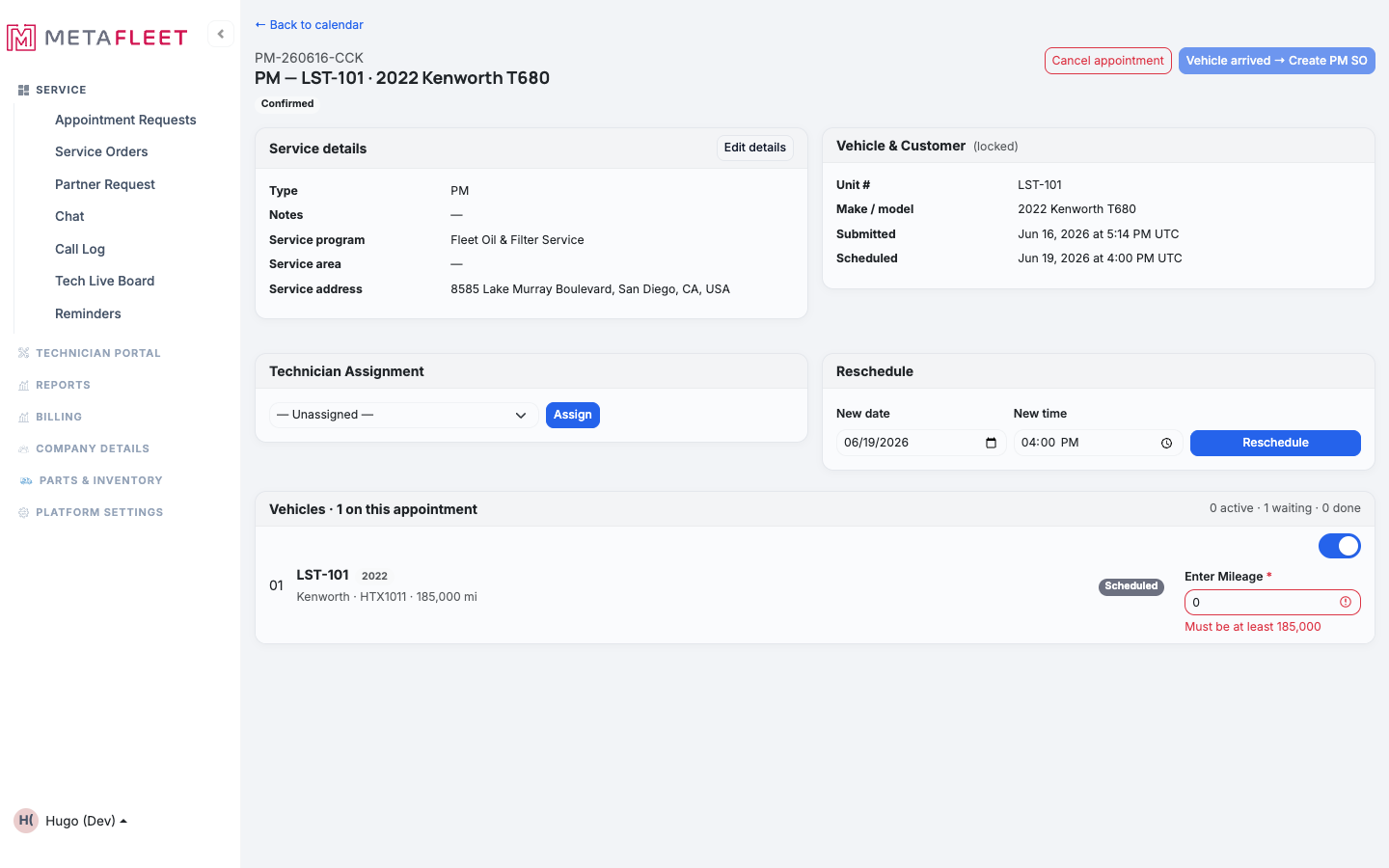
Mark the vehicle arrived and enter its current mileage — the field enforces a minimum.
Create the PM service order.
Once every toggled vehicle has a valid mileage, Vehicle arrived → Create PM SO turns on. Click it to convert the appointment into a live PM service order.
Work it on the PM Board.
You land on the PM service page, now In Progress. Each vehicle is In service, its program's service tasks are listed and ready to check off, and there's room for parts, photos, and wrap-up readings.
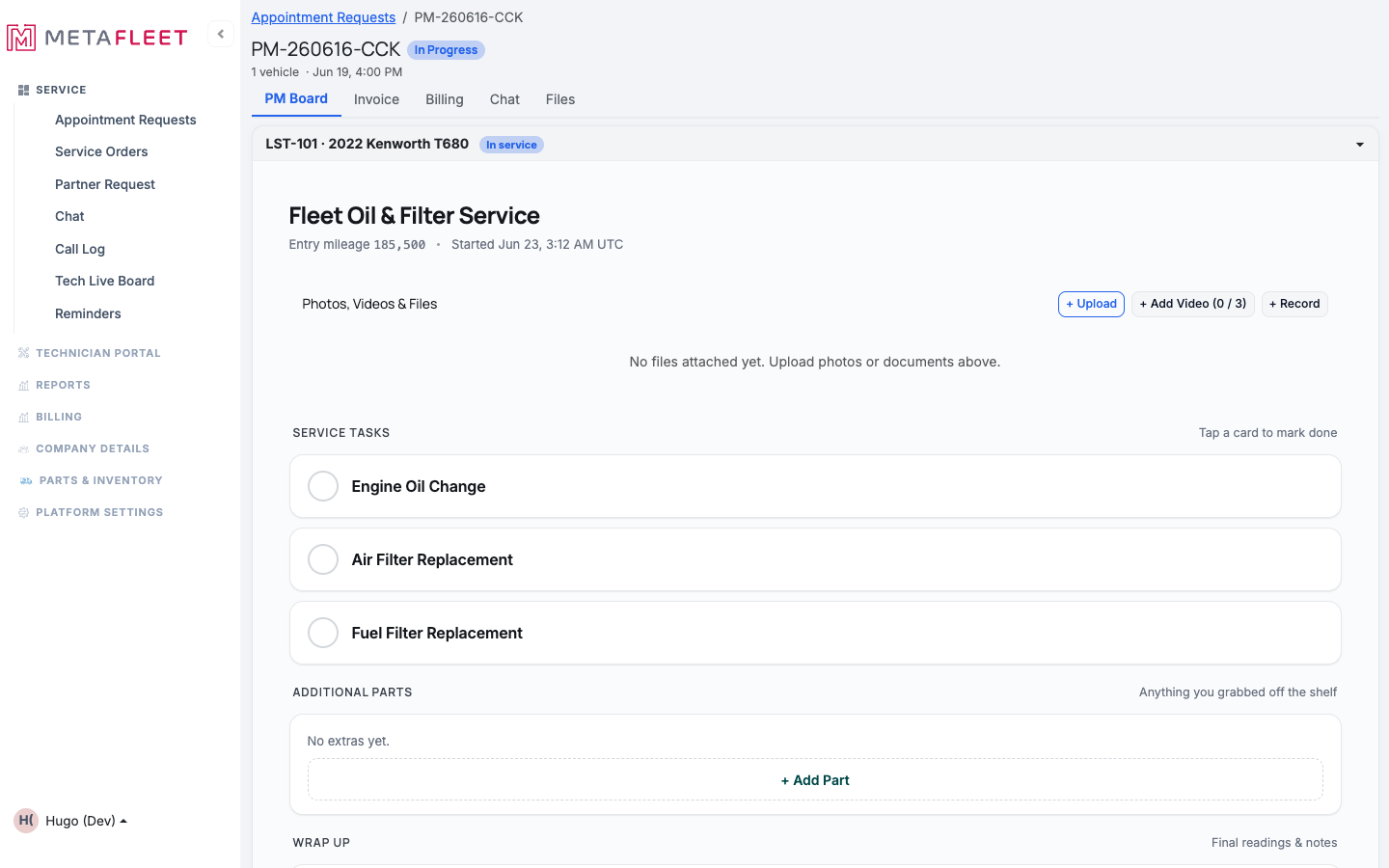
The PM Board — the program's tasks become checkable cards; add parts, attach photos, and record final readings as you go.
Multiple vehicles? Toggle each one arrived and enter its mileage; the PM SO covers them all, with a board per vehicle. From here the technician completes the work — see Complete PM Work.Troubleshooting
| Symptom | Likely cause | Fix |
|---|---|---|
| "Create PM SO" stays disabled | A toggled vehicle is missing a valid mileage | Enter a mileage that meets the minimum for every vehicle marked arrived. |
| The mileage won't accept my number | It's below the vehicle's last reading | Confirm the odometer; the reading can't go backward. |
| Only some vehicles arrived | That's fine | Toggle just the ones present; you can add the rest later. |
What does "Create PM SO" actually do?
It converts the appointment into a PM service order that's In Progress, with the program's tasks ready to work.
Why is mileage required to start?
It records the service mileage and keeps the next-due calculation accurate.
Where do I go to do the work?
The PM Board on the service page — check off tasks, add parts, and wrap up (see Complete PM Work).