
Anyone who keeps stock accurate — receiving deliveries, pulling parts, and reconciling counts at a warehouse, parts room, or service truck.
What you'll learnHow to use a location's Stock tab to receive incoming parts, issue parts out, adjust a count, and set the min/max thresholds that drive each part's stock-health status.
Before you start- You'll need: At least one inventory location (see Set Up Inventory Locations) and inventory-management access.
- Where it lives: Every action is on a location's Stock tab: Parts & Inventory → Inventory Locations → open a location.
Quick summary
Reading the Stock tabOpen a location and you land on its Stock tab — every part it holds, with live counts and a health bar.
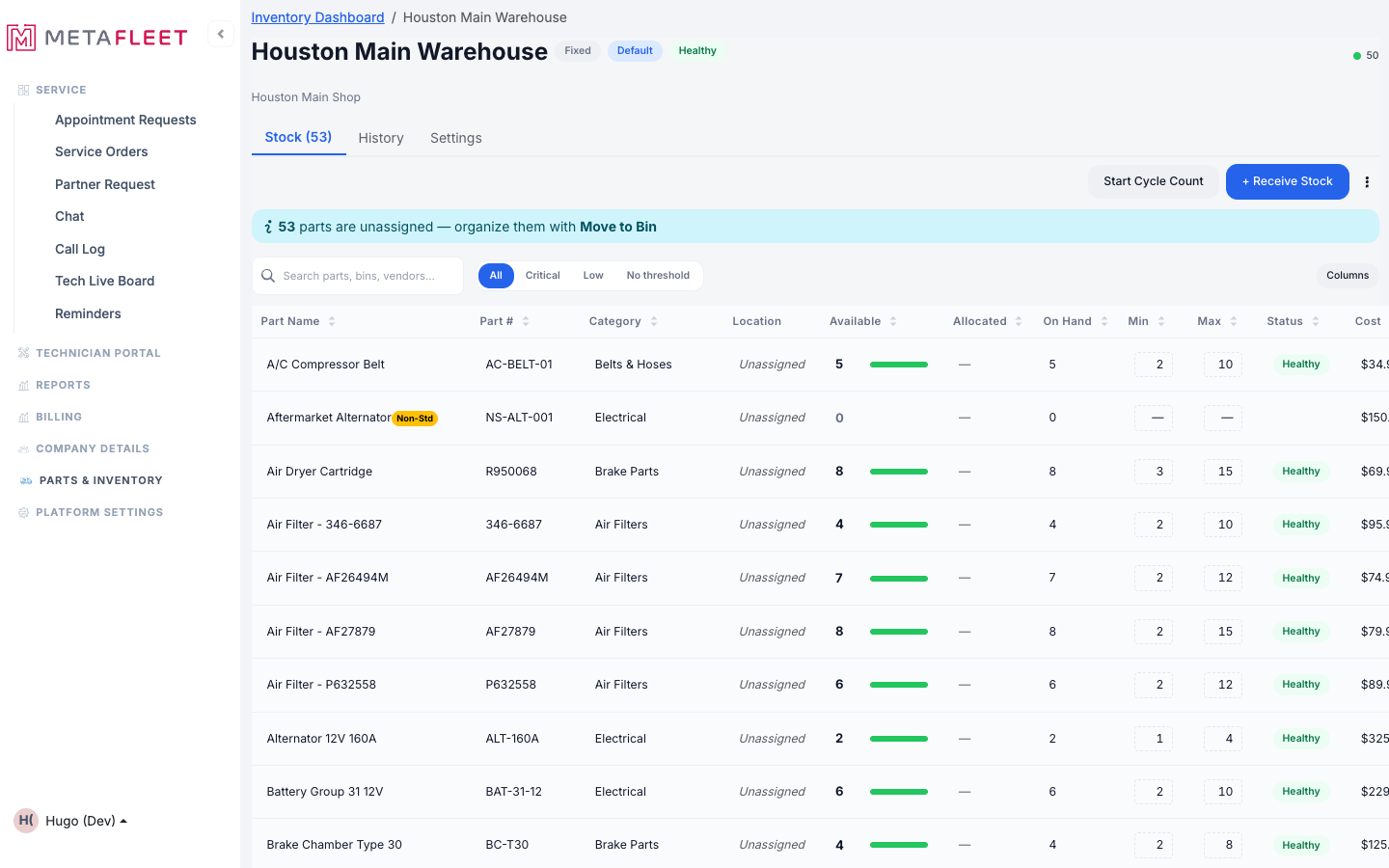
The Stock tab. Available = free to use, Allocated = reserved for jobs, On Hand = physically present. Min/Max drive the Status (Healthy / Low / Critical).
Receive stock (parts arrived)Click + Receive Stock.
Choose where it lands — a specific bin if the location has them, or Location-level (no bin) — then search for the part.
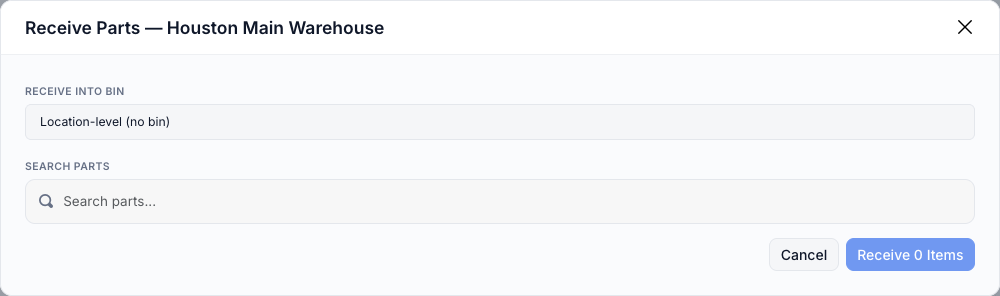
Receiving parts: pick the bin (or location-level), search the part, and set quantities.
Add parts and quantities, then confirm.
Search and add each part with the quantity received. The button updates to Receive N Items — click it. On Hand and Available go up immediately.
Issue, adjust & set thresholdsEverything else lives under More inventory actions (the ⋯ button next to Receive Stock).
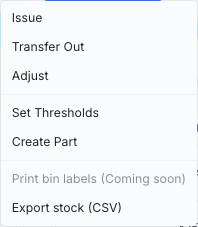
The actions menu — Issue, Transfer Out, Adjust, Set Thresholds, and more.
- Issue — record parts leaving stock outside of a job (shop use, warranty, scrap). On Hand goes down.
- Adjust — set the true on-hand number after a physical recount; use this to fix discrepancies.
- Set Thresholds — set a Min and Max per part. When Available drops near Min, the part flags Low, then Critical — so reorders aren't a surprise.
- Transfer Out — move stock to another location (see Inventory Transactions & Transfers).
Don't use Issue for repairs. Parts used on a service order or PM are deducted automatically when the work completes — that's what Allocated tracks. Use Issue only for stock that leaves outside a job. See Understanding Available / Allocated / Consumed.Troubleshooting
| Symptom | Likely cause | Fix |
|---|---|---|
| A part isn't in the Receive search | It isn't in your catalog yet | Use Create Part from the actions menu, or add it first (see Add New Parts). |
| Available is lower than On Hand | Some stock is Allocated to open jobs | That's expected — Available = On Hand − Allocated. |
| A part won't flag as Low | No Min/Max threshold set | Set thresholds via More actions → Set Thresholds. |
| I received into the wrong place | Wrong bin or location selected | Use Adjust to correct the count, or Transfer to the right spot. |
What's the difference between Issue and Adjust?
Issue records a known outflow (you used 2). Adjust sets the count to a known truth (the shelf actually has 7) after a recount.
Do I have to receive into a bin?
Only if the location is organized into bins. Otherwise choose Location-level (no bin).
How does a part become "Low" or "Critical"?
By its Min/Max thresholds. Set them per part with Set Thresholds.