---
title: Receive Parts and Bill Purchase Orders With QuickBooks
description: Receive parts against a purchase order, choose how each line is billed, and create a vendor bill that lands in QuickBooks Online.
---
[Skip to content](https://support.metafleet.ai/purchase-orders-and-bills-in-quickbooks#main-content)
English
Show submenu for translations

Open main navigation
Close main navigation
- English
Show submenu for translations
- [Contact us](mailto:support@metafleet.ai)
[Contact us](mailto:support@metafleet.ai)
How can we help you?
- There are no suggestions because the search field is empty.
1. [MetaFleet Answer Hub](https://support.metafleet.ai/?hsLang=en)
2. [Integrations](https://support.metafleet.ai/integrations?hsLang=en)
3. [QuickBooks](https://support.metafleet.ai/integrations?hsLang=en#quickbooks)
# Receive Parts and Bill Purchase Orders With QuickBooks
## Place a purchase order, receive the parts, and bill the vendor so each step reaches QuickBooks the right way.
**For:** Purchasing staff, managers and bookkeepers · **Permission:** Manage Parts · **Time:** ~5 minutes per purchase order
### Quick summary
1. Click **Place Order** on the purchase order. It goes to QuickBooks as a purchase order in the background.
2. Click **Receive Items** and pick a billing choice for each line.
3. If the vendor will bill you, click **Create Vendor Bill** when the invoice arrives.
4. Pay the bill in QuickBooks. Click **Sync now** and MetaFleet marks the units paid.
### Before you start
- QuickBooks is connected and the **Purchase Orders** and **Bills & Expenses** switches on the **What should sync?** step are on. See [Choose What Syncs with QuickBooks](https://support.metafleet.ai/choose-what-syncs-with-quickbooks?hsLang=en).
- The vendor on the purchase order matches a vendor in QuickBooks. Vendors match by exact name, or you match them by hand. See [How Vendors, Bills and Purchase Orders Map to QuickBooks](https://support.metafleet.ai/quickbooks-vendors-bills-reference?hsLang=en).
- Posting accounts are set, including **Freight on purchases** and **Sales tax charged by vendors**. See [Choose Where Your Money Posts in QuickBooks](https://support.metafleet.ai/choose-quickbooks-posting-accounts?hsLang=en). Ask your accountant which account to use.
### Place the purchase order
Open the purchase order in **Purchase Orders** and click **Place Order**. This locks the draft so you can receive against it. MetaFleet does not send the order to your vendor. You confirm you already placed it.
MetaFleet sends the order to QuickBooks as a purchase order, with your PO number, in the background as soon as you place it. Until it lands, the **QuickBooks** column shows it on its way. An order that is still not there the next day reads **Not in QuickBooks · Goes on the next sync**, and the nightly sync or **Sync now** picks it up. Draft and canceled orders are not sent. If an order was already in QuickBooks when it was canceled, MetaFleet closes it there. An order whose vendor has no QuickBooks match is skipped until the vendor syncs. A QuickBooks purchase order does not post any money.
If QuickBooks is connected and a line has no cost, **Place Order** opens **Some lines have no cost**: “This line will go to QuickBooks at $0.00”. Click **Add costs** to open **Edit PO** and fill them in, or **Place anyway**.
The **QuickBooks** column on the purchase order list shows where each order stands. The column appears only when QuickBooks is connected.
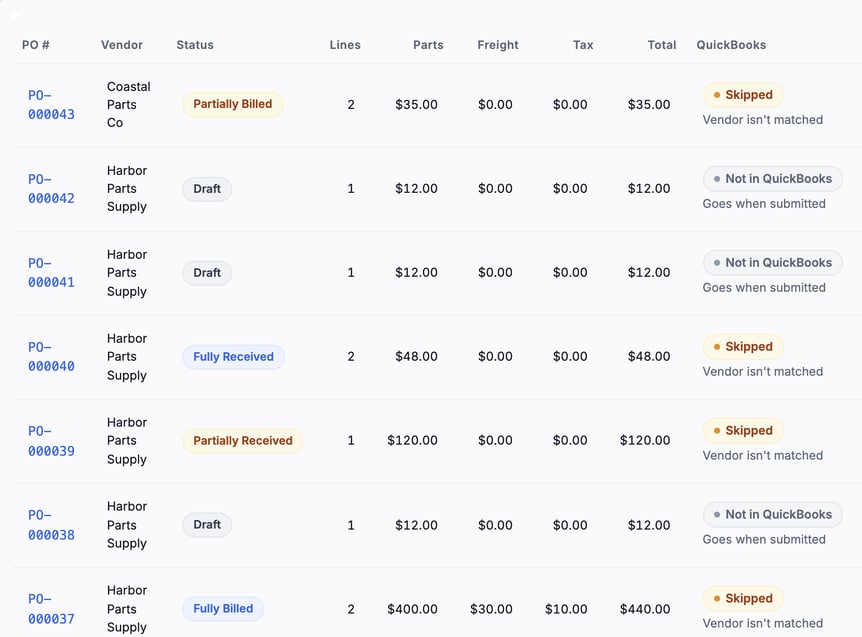
A draft reads **Not in QuickBooks** and says it goes when submitted. A skipped order says why, for example **Vendor isn't matched**. A placed order that nothing is carrying reads **Not in QuickBooks · Goes on the next sync**. Once it is there, the column reads **In step** with the QuickBooks purchase order number. After billing it adds the bill and whether it is open or paid.
If you already sent the order to the vendor yourself, anyone working in QuickBooks can click **Send** on the QuickBooks purchase order and the vendor gets a second copy. Each pushed order names MetaFleet in its memo so your bookkeeper can tell it apart. MetaFleet does not block that Send. See [How Vendors, Bills and Purchase Orders Map to QuickBooks](https://support.metafleet.ai/quickbooks-vendors-bills-reference?hsLang=en) for the warning and what each choice sends.
### Receive the parts
1. Open the purchase order and click **Receive Items**.
2. Enter the quantity that arrived for each line.
3. Under **Billing**, pick one choice for each line that asks for one (see the table below). You must pick one before you can receive.
4. If any line is **We already paid**, pick a **Payment method** for the receipt.
5. Confirm the receipt.
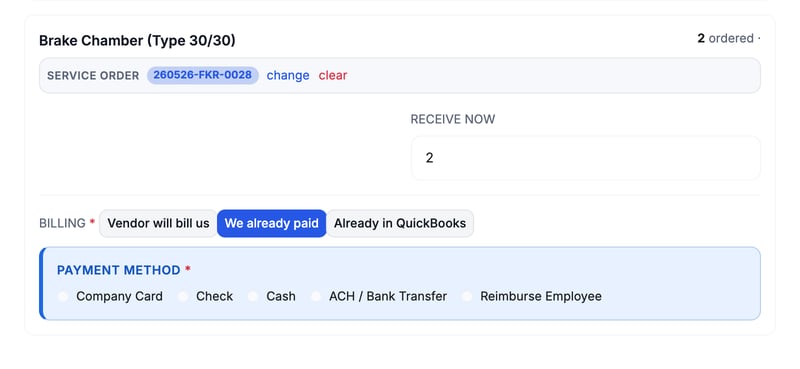
The billing choice applies to the whole line, even if the parts go to more than one destination.
| Billing choice | Use it when | What MetaFleet sends to QuickBooks |
| --- | --- | --- |
| **Vendor will bill us** | The vendor sends an invoice later. | Nothing yet. The units wait for you to click **Create Vendor Bill**. |
| **We already paid** | You paid at the counter, so there is nothing left to bill. | An expense in QuickBooks, right away. It carries this receipt's share of the order's freight and vendor tax as their own lines. |
| **Already in QuickBooks** | The purchase is already recorded in QuickBooks, for example from a bank feed. | No bill and no expense. The nightly sync adjusts the part's stock in QuickBooks. |
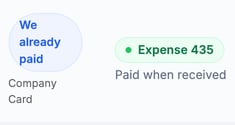
When a receipt leaves nothing on order and nothing to bill (every line is **We already paid** or **Already in QuickBooks**), MetaFleet closes the purchase order in QuickBooks too. A receipt that leaves units to bill never closes it.
A vendor marked **On account** on the Vendors page is auto-billed: its lines show **Auto-billed** and need no choice. To pick something else for one line, click **Change this receipt**, confirm the override, then pick a choice. Other vendors may show their usual choice under the buttons with a **Use this** link.
### Pick one payment method per receipt
When a line is **We already paid**, choose how you paid: **Company Card**, **Check**, **Cash**, **ACH / Bank Transfer** or **Reimburse Employee**. The receipt gets one method for every line marked **We already paid**.
Paid for some lines another way? Receive those lines next, as their own receipt. Each receipt becomes its own expense in QuickBooks, and its memo names the purchase order and receipt number.
**Company Card** posts to the Company card account on the posting accounts page. Every other method posts to the Paid at the counter account.
### Create the vendor bill
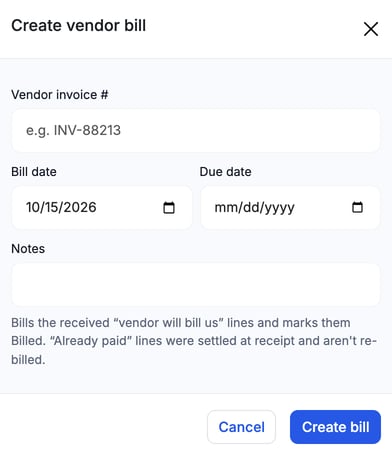
When the vendor's invoice arrives, open the purchase order and click **Create Vendor Bill**. MetaFleet links the bill to the purchase order in QuickBooks when it can. Once the whole order is billed, the nightly sync or **Sync now** closes the purchase order in QuickBooks. It stays open while a bill is still to be created or is still on its way to QuickBooks.
1. Enter the **Vendor invoice #**. QuickBooks keeps it on the bill.
2. Set the **Bill date** and the **Due date**.
3. Add **Notes** if you want them.
4. Click **Create bill**.
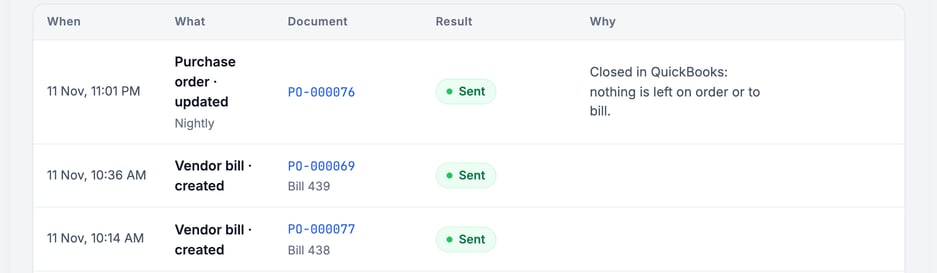
If QuickBooks refuses the bill, the message reads **QuickBooks refused this bill because it's dated Oct 3, 2026, before the start date of an inventory item on it. MetaFleet won't send this bill again on its own: sent as it is, QuickBooks would refuse it the same way. In QuickBooks, set that item's start date on or before Oct 3, 2026, then Retry.** Fix the date in QuickBooks, then click **Retry** on the bill under **Settings › Integrations**, **QuickBooks** tab, **Review**. The Activity row then reads **Sent since** and leaves the **Failed** tab.
Have the vendor's invoice as a file? Click **Bill from invoice** instead. If a line's amount differs from the order, pick **Bill at invoice price** (chosen to start with) or **Bill at PO price**. The bill and QuickBooks get the price you pick. The purchase order line stays the same.
The bill covers the received units on **Vendor will bill us** lines that have no bill yet. Lines marked **We already paid** are not billed again.
What the bill contains in QuickBooks, including freight, vendor tax and item links, is in [How Vendors, Bills and Purchase Orders Map to QuickBooks](https://support.metafleet.ai/quickbooks-vendors-bills-reference?hsLang=en).
> **Bill part of an order.** MetaFleet bills by quantity. Receive part of an order, bill what arrived, then bill the rest after the next receipt. The purchase order reads **Partially Billed** until every unit is billed.
### See when the bill is paid
Pay the bill in QuickBooks. On the next **Sync now** (**Settings › Integrations**, **QuickBooks** tab), MetaFleet reads the bill's balance and marks the paid units on the purchase order. The **QuickBooks** column then shows the bill as paid with the date. You can also click **Mark bill paid** on the purchase order and confirm. This marks every open bill on the order as paid.
### Void a bill
Click **Void bill** on the purchase order and confirm. MetaFleet voids the linked bill in QuickBooks, and the billed lines go back to received and unbilled.
### Troubleshooting
| Symptom | Likely cause | Fix |
| --- | --- | --- |
| The purchase order is not in QuickBooks. | It is still a draft or is canceled, the order was just placed and hasn't landed yet, or the vendor has no match in QuickBooks. | Click **Place Order** on a draft. If it still isn't there, wait for the nightly sync or go to **Settings › Integrations**, open the **QuickBooks** tab and click **Sync now**. Match the vendor if the list says **Vendor isn't matched**. See [Fix What Needs Attention in QuickBooks](https://support.metafleet.ai/fix-quickbooks-sync-problems?hsLang=en). |
| You can't click **Receive Items**. | The order is still a draft, or every unit is already received. | Click **Place Order** on a draft. Place Order stays blocked while a line has no part. A banner above the lines reads **1 line has no part.** Pick the part in **Edit PO**, then place the order. |
| **Create Vendor Bill** is missing. | No received units are waiting on **Vendor will bill us**. | Receive the parts first. Lines marked **We already paid** or **Already in QuickBooks** never show here. |
| Receive asks for a payment method. | A line is **We already paid** and no **Payment method** is picked. | Pick one method, or receive the lines you paid another way as their own receipt. |
| A line on Receive Items says **Match a part first**. | The line has no part in your parts list (a scanned or typed name). | Match the part, then receive it. The other lines receive without it. |
| The bill is paid in QuickBooks but not in MetaFleet. | Payment status is read back on **Sync now**. | Click **Sync now**, or click **Mark bill paid**. |
### FAQs
**Does MetaFleet email the purchase order to my vendor?**
No. **Place Order** only locks the draft. The order goes to QuickBooks on its own in the background.
**Which choice avoids a double entry when my bank feed already has the purchase?**
**Already in QuickBooks**. MetaFleet posts no bill or expense.
### Related articles
- [Manage Purchase Orders](https://support.metafleet.ai/manage-purchase-orders?hsLang=en)
- [How Vendors, Bills and Purchase Orders Map to QuickBooks](https://support.metafleet.ai/quickbooks-vendors-bills-reference?hsLang=en)
- [How Stock Adjustments and Inventory Value Reach QuickBooks](https://support.metafleet.ai/quickbooks-stock-reference?hsLang=en)
- [Fix What Needs Attention in QuickBooks](https://support.metafleet.ai/fix-quickbooks-sync-problems?hsLang=en)
- [Start Here](https://support.metafleet.ai/start-here?hsLang=en)
- [Companies & Contacts](https://support.metafleet.ai/companies-contacts?hsLang=en#main-content)
- [Create/Edit Companies](https://support.metafleet.ai/companies-contacts?hsLang=en#create-edit-companies)
- [Contacts](https://support.metafleet.ai/companies-contacts?hsLang=en#contacts)
- [Vehicles](https://support.metafleet.ai/companies-contacts?hsLang=en#vehicles)
- [Work Intake (Requests & Service Orders)](https://support.metafleet.ai/work-intake-requests-service-orders?hsLang=en#main-content)
- [Creating Service Orders](https://support.metafleet.ai/work-intake-requests-service-orders?hsLang=en#creating-service-orders)
- [Customer & Partner Requests](https://support.metafleet.ai/work-intake-requests-service-orders?hsLang=en#customer-partner-requests)
- [Reference](https://support.metafleet.ai/work-intake-requests-service-orders?hsLang=en#reference)
- [Customer Portal](https://support.metafleet.ai/work-intake-requests-service-orders?hsLang=en#customer-portal)
- [Estimates & Approvals](https://support.metafleet.ai/estimates-approvals?hsLang=en#main-content)
- [Approval Gates](https://support.metafleet.ai/estimates-approvals?hsLang=en#approval-gates)
- [Estimates](https://support.metafleet.ai/estimates-approvals?hsLang=en#estimates)
- [Invoices](https://support.metafleet.ai/estimates-approvals?hsLang=en#invoices)
- [Billing](https://support.metafleet.ai/estimates-approvals?hsLang=en#billing)
- [Parts, Inventory & Vendors](https://support.metafleet.ai/parts-inventory-vendors?hsLang=en#main-content)
- [Add Parts & Kits](https://support.metafleet.ai/parts-inventory-vendors?hsLang=en#add-parts-kits)
- [Stock & Counts](https://support.metafleet.ai/parts-inventory-vendors?hsLang=en#stock-counts)
- [Locations & Bins](https://support.metafleet.ai/parts-inventory-vendors?hsLang=en#locations-bins)
- [Purchase Orders](https://support.metafleet.ai/parts-inventory-vendors?hsLang=en#purchase-orders)
- [Parts Catalog](https://support.metafleet.ai/parts-inventory-vendors?hsLang=en#parts-catalog)
- [Vendors & Manufacturers](https://support.metafleet.ai/parts-inventory-vendors?hsLang=en#vendors-manufacturers)
- [Pricing](https://support.metafleet.ai/parts-inventory-vendors?hsLang=en#pricing)
- [Service Vehicles](https://support.metafleet.ai/parts-inventory-vendors?hsLang=en#service-vehicles)
- [Sourcing & Hand-Off](https://support.metafleet.ai/parts-inventory-vendors?hsLang=en#sourcing-hand-off)
- [Part Numbers](https://support.metafleet.ai/parts-inventory-vendors?hsLang=en#part-numbers)
- [Notifications](https://support.metafleet.ai/parts-inventory-vendors?hsLang=en#notifications)
- [Reports](https://support.metafleet.ai/parts-inventory-vendors?hsLang=en#reports)
- [Invoicing & Payments](https://support.metafleet.ai/invoicing-payments?hsLang=en)
- [Dispatch & Scheduling](https://support.metafleet.ai/dispatch-scheduling?hsLang=en#main-content)
- [Preventative Maintenance](https://support.metafleet.ai/dispatch-scheduling?hsLang=en#preventative-maintenance)
- [Technician Assignment](https://support.metafleet.ai/dispatch-scheduling?hsLang=en#technician-assignment)
- [Scheduling & Calendar](https://support.metafleet.ai/dispatch-scheduling?hsLang=en#scheduling-calendar)
- [Technician Schedule](https://support.metafleet.ai/dispatch-scheduling?hsLang=en#technician-schedule)
- [Technicians & Mobile App](https://support.metafleet.ai/technicians-mobile-app?hsLang=en#main-content)
- [Time Tracking](https://support.metafleet.ai/technicians-mobile-app?hsLang=en#time-tracking)
- [Tech Workflow](https://support.metafleet.ai/technicians-mobile-app?hsLang=en#tech-workflow)
- [Evidence & Photos](https://support.metafleet.ai/technicians-mobile-app?hsLang=en#evidence-photos)
- [AI Assistant](https://support.metafleet.ai/technicians-mobile-app?hsLang=en#ai-assistant)
- [Alerts, Alarms & Notifications](https://support.metafleet.ai/alerts-alarms-notifications?hsLang=en#main-content)
- [Email/SMS/App Settings](https://support.metafleet.ai/alerts-alarms-notifications?hsLang=en#email-sms-app-settings)
- [Reporting & Dashboards](https://support.metafleet.ai/reporting-dashboards?hsLang=en)
- [Admin & Settings](https://support.metafleet.ai/admin-settings?hsLang=en#main-content)
- [Rates & Fees](https://support.metafleet.ai/admin-settings?hsLang=en#rates-fees)
- [Branding](https://support.metafleet.ai/admin-settings?hsLang=en#branding)
- [Roles, Permissions & Users](https://support.metafleet.ai/admin-settings?hsLang=en#roles-permissions-users)
- [Service Areas](https://support.metafleet.ai/admin-settings?hsLang=en#service-areas)
- [Workflows](https://support.metafleet.ai/admin-settings?hsLang=en#workflows)
- [Taxes](https://support.metafleet.ai/admin-settings?hsLang=en#taxes)
- [Integrations](https://support.metafleet.ai/admin-settings?hsLang=en#integrations)
- [Integrations](https://support.metafleet.ai/integrations?hsLang=en#main-content)
- [Phone Setup](https://support.metafleet.ai/integrations?hsLang=en#phone-setup)
- [AI Assistant Access](https://support.metafleet.ai/integrations?hsLang=en#ai-assistant-access)
- [QuickBooks](https://support.metafleet.ai/integrations?hsLang=en#quickbooks)
- [Getting Around](https://support.metafleet.ai/getting-around?hsLang=en#main-content)
- [Search & Command Bar](https://support.metafleet.ai/getting-around?hsLang=en#search-command-bar)
[](http://www.metafleet.ai)
[mailto:support@metafleet.ai](mailto:support@metafleet.ai)
Copyright © 2025, MetaFleet, Inc
```json
{
"@context" : "https://schema.org",
"@type" : "VideoObject",
"caption" : {
"@type" : "MediaObject",
"contentUrl" : "https://support.metafleet.ai/media-transcripts/413580854004/en.vtt",
"inLanguage" : "en",
"name" : "en Captions"
},
"contentUrl" : "https://242389063.fs1.hubspotusercontent-na2.net/hubfs/242389063/video_assets/413580854004/inherited/web_optimized.mp4",
"dateModified" : "2026-10-21T02:44:27.256Z",
"duration" : "PT53S",
"height" : 1080,
"name" : "how-to-purchase-orders-and-bills-in-quickbooks",
"thumbnailUrl" : "https://242389063.fs1.hubspotusercontent-na2.net/hubfs/242389063/knowledge-base/howto-videos/how-to-purchase-orders-and-bills-in-quickbooks.mp4/medium.jpg",
"uploadDate" : "2026-10-21T02:44:22.243Z",
"width" : 1920
}
```