
For: Admins & Service Managers · Permission: Manage invoices · Time: ~3 minutes
Who this is forWhoever bills the customer after a preventative-maintenance visit.
What you'll learnHow the PM invoice is generated, how it's organized by vehicle, and how to review, price, and send it.
Before you start- You'll need: A PM service order with the work completed (see Complete PM Work). The invoice generates once every vehicle's service is done.
- Where it lives: The Invoice tab on the PM service page.
Quick summary
- Complete the PM on all vehicles — the invoice drafts automatically.
- Open the Invoice tab, select a labor rate, and adjust parts/lines.
- Review the totals and send it.
Finish the work and the PM invoice appears, ready to edit. It's one document for the visit, grouped by vehicle, with the customer's Bill To details and your brand on top.
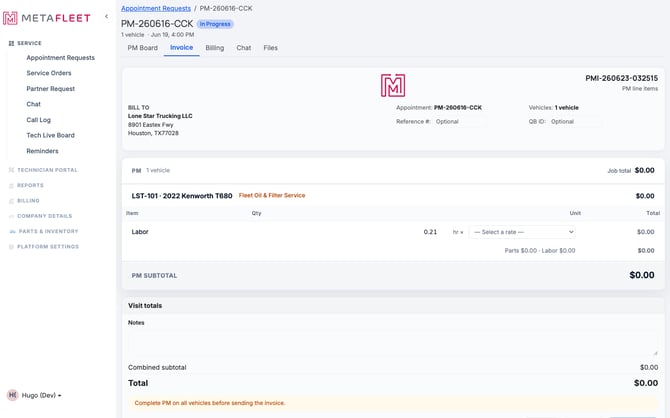
The PM invoice — per-vehicle line items, a Labor line drawn from task durations, a rate selector, and a Reference # / QuickBooks ID.
Step-by-stepOpen the Invoice tab.
On the PM service page, click Invoice. (If you see "Complete service on all vehicles to generate an invoice," finish the work first — see Complete PM Work.)
Set the labor rate and review lines.
Each vehicle shows its program with a Labor line — the hours come from the tasks' durations. Pick a rate from the selector to price the labor. Parts the PM used appear as their own lines; adjust quantities or add parts as needed.
Add references (optional).
Enter a Reference # or QuickBooks ID if you track them, and any notes under Visit totals.
Review totals and send.
Check the per-vehicle subtotals and the combined total, then send the invoice. Once sent, it moves to the Billing tab for payment.
Sending is gated on completion. You'll see "Complete PM on all vehicles before sending the invoice" until every vehicle's service is done — so a customer is never billed for unfinished work.Troubleshooting
| Symptom | Likely cause | Fix |
|---|---|---|
| "No invoice yet" | Service isn't complete on all vehicles | Finish each vehicle's PM (see Complete PM Work); the invoice then drafts. |
| Labor total is $0.00 | No rate selected | Pick a rate from the Labor line's selector. |
| Can't send the invoice | A vehicle's PM isn't complete | Complete all vehicles; the send action then unlocks. |
| Parts missing from the invoice | They weren't recorded on the PM Board | Add them on the PM Board, or add lines directly on the invoice. |
Where do the labor hours come from?
From the service tasks' estimated durations on the program. Adjust the rate to price them.
Is there one invoice per vehicle?
One invoice per visit, with line items grouped by vehicle.
What happens after I send it?
It moves to the Billing tab, where you record payment.