
For: Dispatchers & Admins · Permission: Manage appointments · Time: ~3 minute read
Who this is forAnyone keeping the fleet on schedule and customers informed about upcoming or overdue maintenance.
What you'll learnHow to use the Service Reminders board, how due status is calculated, and how customers get reminder emails for booked appointments.
Quick summary
- Go to Service → Reminders to see every enrolled vehicle's next PM, with an Overdue / Due Soon / OK status.
- Status is driven by whichever comes first — the program's date interval or its mileage / hours interval.
- Click Schedule on a row to book the work. Booking is what arms the customer's reminder emails.
- Once a PM is booked, MetaFleet emails the customer a "coming up" heads-up at each lead-time stage — on by default, with a one-click unsubscribe.
Go to Service → Reminders for a running list of every enrolled vehicle's next PM, by program. Filter by Overdue, Due Soon, or OK, and book the work straight from a row.
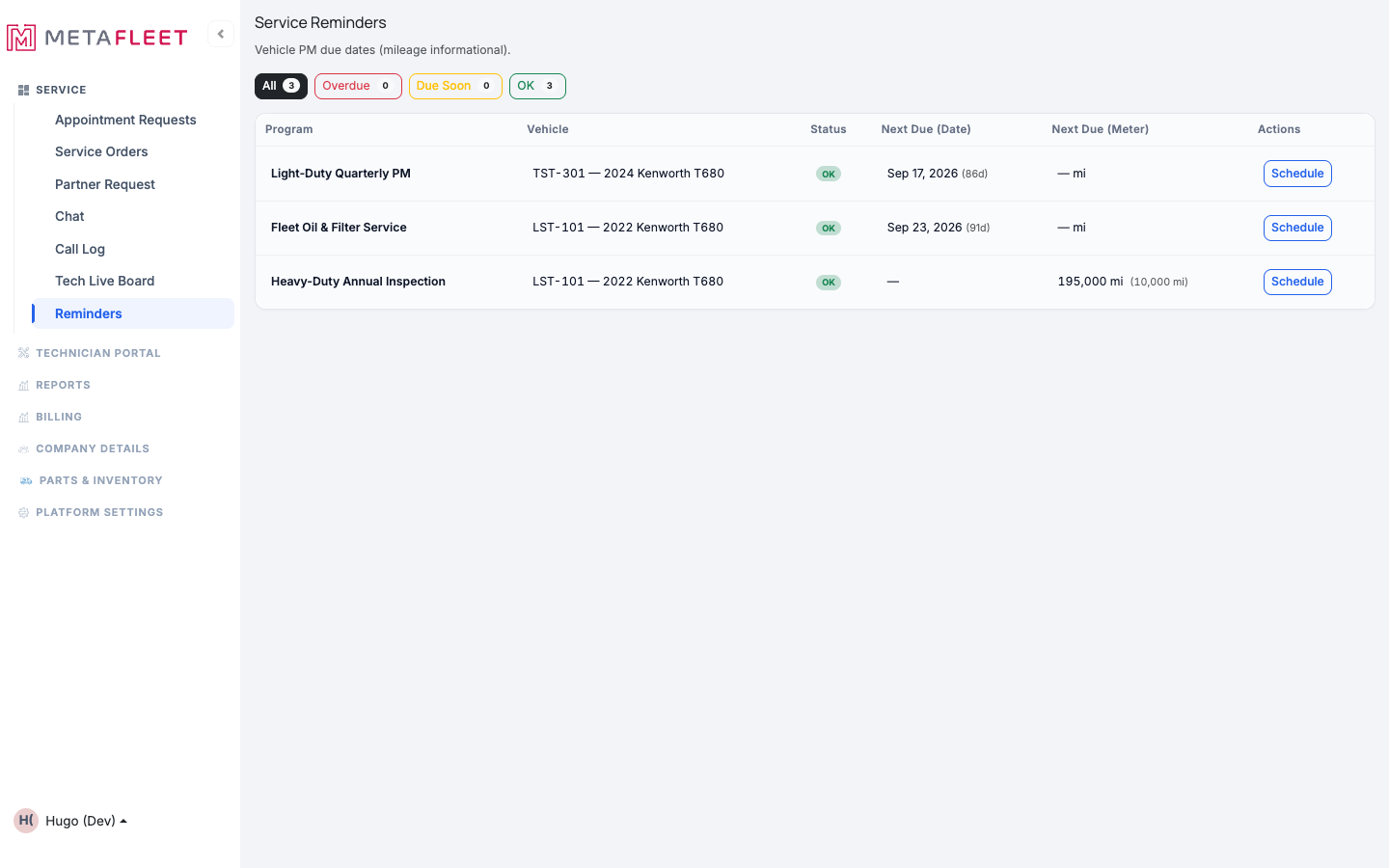
Service Reminders — each enrolled vehicle's next due date and meter, with a status pill and a one-click Schedule.
How due status is calculated- Next Due (Date): Projected from the program's time interval and the vehicle's history.
- Next Due (Meter): The mileage at which the next service falls due, based on the program's mileage interval.
- Status: OK, Due Soon, or Overdue — whichever of date or mileage comes first drives it.
You don't have to watch the board. Once a PM is booked on the calendar, MetaFleet emails the fleet's Owner, Manager, and Operations contacts ahead of the appointment — a "your PM is coming up" heads-up that counts down to the booked date. Each lead-time stage sends once.
Reminders are about booked appointments — not unbooked ones. A vehicle that's due but has nothing on the calendar no longer triggers a "please schedule" email to the customer. The vehicle still shows as Due Soon or Overdue on the Reminders board for your team — only the customer email waits for a confirmed booking. So if a customer should get a reminder, book the appointment first.
Reminder emails are on by default for every shop. Because nothing sends until someone enrolls a vehicle and books a confirmed appointment, turning them on can't flood anyone. Each email also carries a one-click unsubscribe, and emails are de-duplicated so a contact isn't pinged twice for the same stage. A contact who unsubscribes (or has opted out of email updates) won't receive them.
The Cadence & Reminders pageEach program has a Cadence & Reminders page where you set how often the PM comes due and when the reminder emails go out. It holds:
- Calendar schedule — the time interval that drives due status.
- Mileage / Engine hours / None — an optional second trigger based on how the vehicle is used. Status uses whichever of date or usage comes first.
- Reminder lead-times — the heads-up, reminder, and final-notice tiers that count down to the booked appointment.
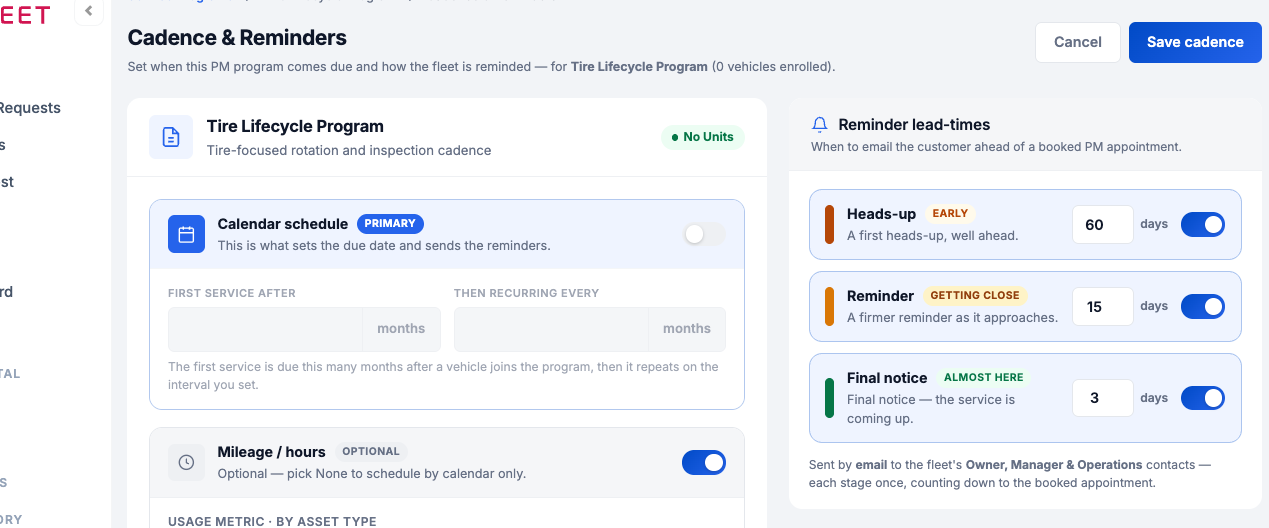
Cadence & Reminders — the calendar schedule, optional usage trigger, and the lead-time tiers that count down to a booked PM.
Schedule from a reminderClick Schedule on any reminder to jump straight into creating the appointment for that vehicle and program (see Scheduling a PM Appointment). Booking is also what arms the customer's reminder emails.
See it elsewhere too. The same due status appears on the Vehicles list (PM Status column) and on each vehicle's detail page — so "what's coming due" is visible wherever you're working.Troubleshooting
| Symptom | Likely cause | Fix |
|---|---|---|
| A vehicle isn't on the board | It isn't enrolled in a program | Enroll it (see Enrolling Vehicles in a PM Program). |
| Due date looks off | Stale mileage | Update the vehicle's odometer; the projection recalculates. |
| A vehicle is due but the customer got no email | Nothing is booked yet | That's expected — reminder emails only fire for booked appointments. Book the PM and the heads-up emails start counting down. |
| A customer didn't get a reminder for a booked PM | They've unsubscribed or opted out of email updates | Check the contact's email-update preference; an earlier one-click unsubscribe turns these off. |
| Status shows OK but I expected Due Soon | Both date and meter are still out | Status uses whichever threshold is closer; neither has been reached yet. |
When does a customer get a reminder email?
Only after a PM is booked on the calendar. The email counts down to that appointment ("your PM is coming up"). A vehicle that's due but unbooked no longer triggers a "please schedule" email — book it first.
Are reminder emails on by default?
Yes — they're on for every shop. Nothing sends until someone enrolls a vehicle and books a confirmed appointment, so default-on can't flood anyone.
Do reminders go out automatically?
Yes — once a PM is booked, the lead-time emails go out on their own; you don't send them by hand.
Date or mileage — which triggers "due"?
Whichever comes first, per the program's intervals. This drives the status on the Reminders board.
Can customers opt out of reminder emails?
Yes — every reminder email has a one-click unsubscribe, and a contact's email-update preference also controls whether they receive them. Unsubscribing silences these reminders and other marketing emails for that contact.