
For: Owners, managers and parts staff · Permission: Manage parts · Time: ~5 minutes
Quick summary
- Read each part's state in the Lifecycle column of the Parts catalog.
- Promote each NON-STD part to a standard catalog part from its row menu.
- Change a part's lifecycle from the part's own page, using the Lifecycle pill.
- Delete a part to take it out of the active catalog. Past records keep it.
Before you start
- Open the Parts catalog. In the left menu, open Parts & Inventory and click Parts.
- Know which parts are waiting for review. The banner at the top of the page gives the count.
The lifecycle states
Six cards sit at the top of the Parts catalog. The first five are lifecycle groups: Active, Superseded, Discontinued, Special-Order and Non-Standard. Each card shows the count for that group. Click a card to filter the list to those parts. The sixth card, No alternate numbers, is a cross-reference worklist and isn't covered here.

The summary cards. Click any card to filter the catalog to that group.
- Active: In the catalog and free to use on any job. New parts start here.
- Special-Order: Carried, but lead-time required. It has to be ordered in rather than pulled from stock.
- Superseded: Replaced by another part. Kept for history. A replacement part is required.
- Discontinued: No longer available. Hidden from the active catalog but kept on past estimates and invoices.
- Non-Standard: Not a lifecycle state of its own. It marks a part that a technician added during a job and that isn't in the catalog yet. These parts still carry a lifecycle state, usually Active, and promoting them doesn't change it.
Promote non-standard parts
When a technician adds a part that isn't in the catalog during a job, the part is saved as non-standard so the work isn't blocked. It waits for you to review it. The banner on the Parts page tells you how many are waiting.
Find the non-standard parts
Click the Non-Standard card, or click Review non-standard on the banner. The list filters to those parts, and each one carries a NON-STD tag in its name.
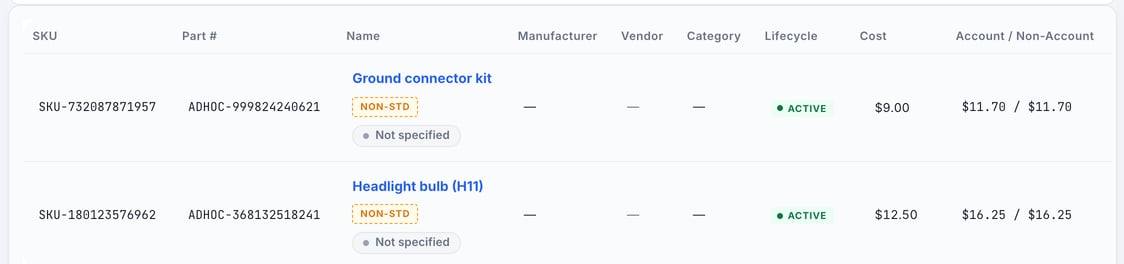
Non-standard parts carry a NON-STD tag. Their Lifecycle column still reads Active.
Promote each part
Open the part's ⋯ menu and choose Promote to Standard. The part is no longer marked non-standard. Then check its manufacturer, vendor and pricing.
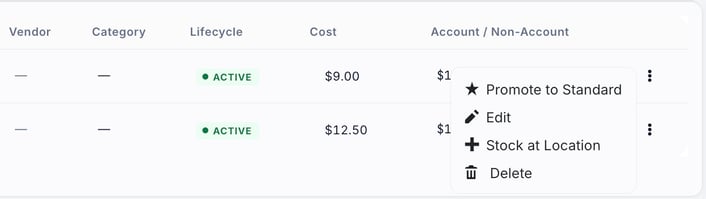
The row menu of a non-standard part. Promote to Standard appears only on these rows.
Change a part's lifecycle
Open the part from the catalog. Under Identity, click the Lifecycle pill. A Change lifecycle panel opens with the four states. Pick one, then click Apply.
- Superseded: A Replacement part field appears. Pick the part that replaces it. You can't save Superseded without a replacement.
- Discontinued: If the part is on an open service order, a warning appears. Click Apply anyway to discontinue the part regardless.
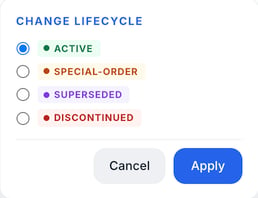
The Change lifecycle panel on the part page.
Delete a part
Open the part's ⋯ menu and choose Delete. A confirmation dialog asks "Are you sure you want to delete this Part?" Click OK to confirm or Cancel to back out. If stock for the part sits in one or more locations, the dialog says how many. Deleting archives the part. It leaves the active list, and past estimates and invoices keep it.
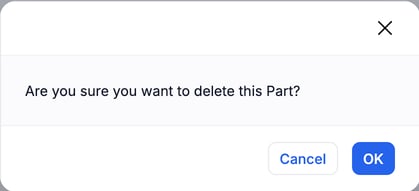
The delete confirmation.
Read the lifecycle at a glance. The Lifecycle column shows a colored pill on every row. Active is green, Special-Order is amber, Superseded is purple and Discontinued is red.
Troubleshooting
| Symptom | Likely cause | Fix |
|---|---|---|
| A part shows NON-STD | It was created during a work order | Promote it to standard from the row's ⋯ menu, then check its details. |
| A discontinued part still shows on an old invoice | History is kept on purpose | That's expected. Discontinuing only hides the part from new work. |
| The discontinue warning appears | The part is on an open service order | Finish or change that order first, or click Apply anyway if you want to discontinue it now. |
| Delete says the part is in locations | Stock is still recorded at one or more locations | Move or adjust that stock first. Confirm the delete only if you mean it. |
FAQs
What's the difference between Superseded and Discontinued?
Superseded means a newer part replaces it, and you name that part. Discontinued means it's no longer available. Both stay in the records for history.
Why do non-standard parts exist?
So a technician is never blocked mid-job by a part that isn't in the catalog yet. You promote them later.
Does discontinuing or deleting remove the part?
No. It's archived. The record and its history stay, and the part is hidden from new work.