
Anyone keeping the catalog clean — so techs and writers only reach for parts that are actually current and stockable.
What you'll learnThe five lifecycle states, how to read them at a glance, how to promote parts created during a job, and how to retire parts you no longer carry.
The five statesThe summary cards at the top of the Parts catalog double as a legend and a filter — each shows the count for that state with a one-line meaning. Click a card to filter the list to just those parts.
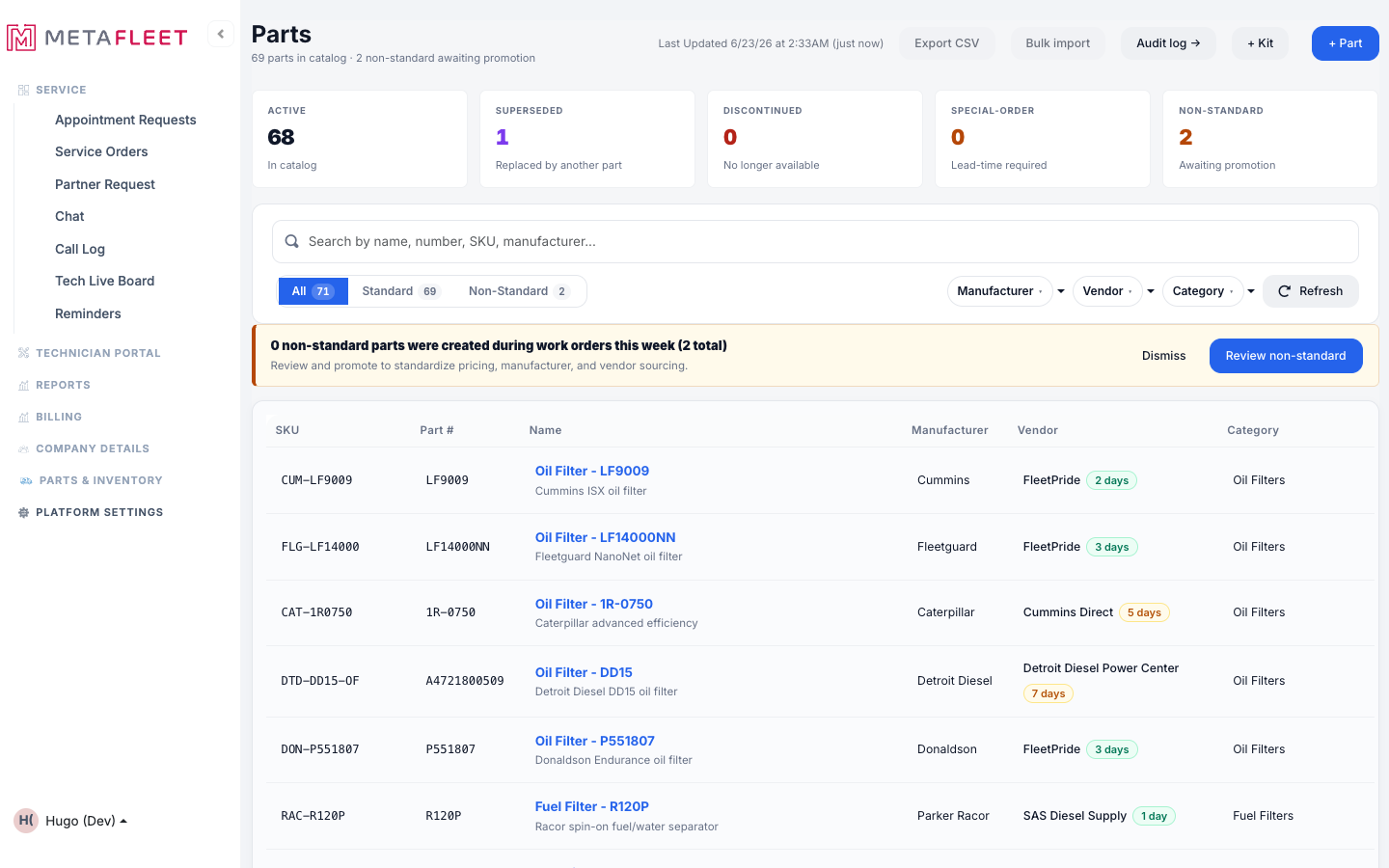
The lifecycle summary — click any card to filter the catalog to that state.
- Active: In the catalog and free to use on any job — the normal state.
- Special-Order: Carried, but lead-time required — it has to be ordered in rather than pulled from stock.
- Superseded: Replaced by another part. Kept for history, but a newer part takes its place.
- Discontinued: No longer available. Hidden from the active catalog but preserved on past records.
- Non-Standard: Created on the fly during a work order and awaiting promotion — not yet a polished catalog entry.
When a tech adds a part that isn't in the catalog during a job, it's saved as Non-Standard so the work isn't blocked — then it waits for you to clean it up. The banner on the Parts page and the Non-Standard tab gather them in one place.
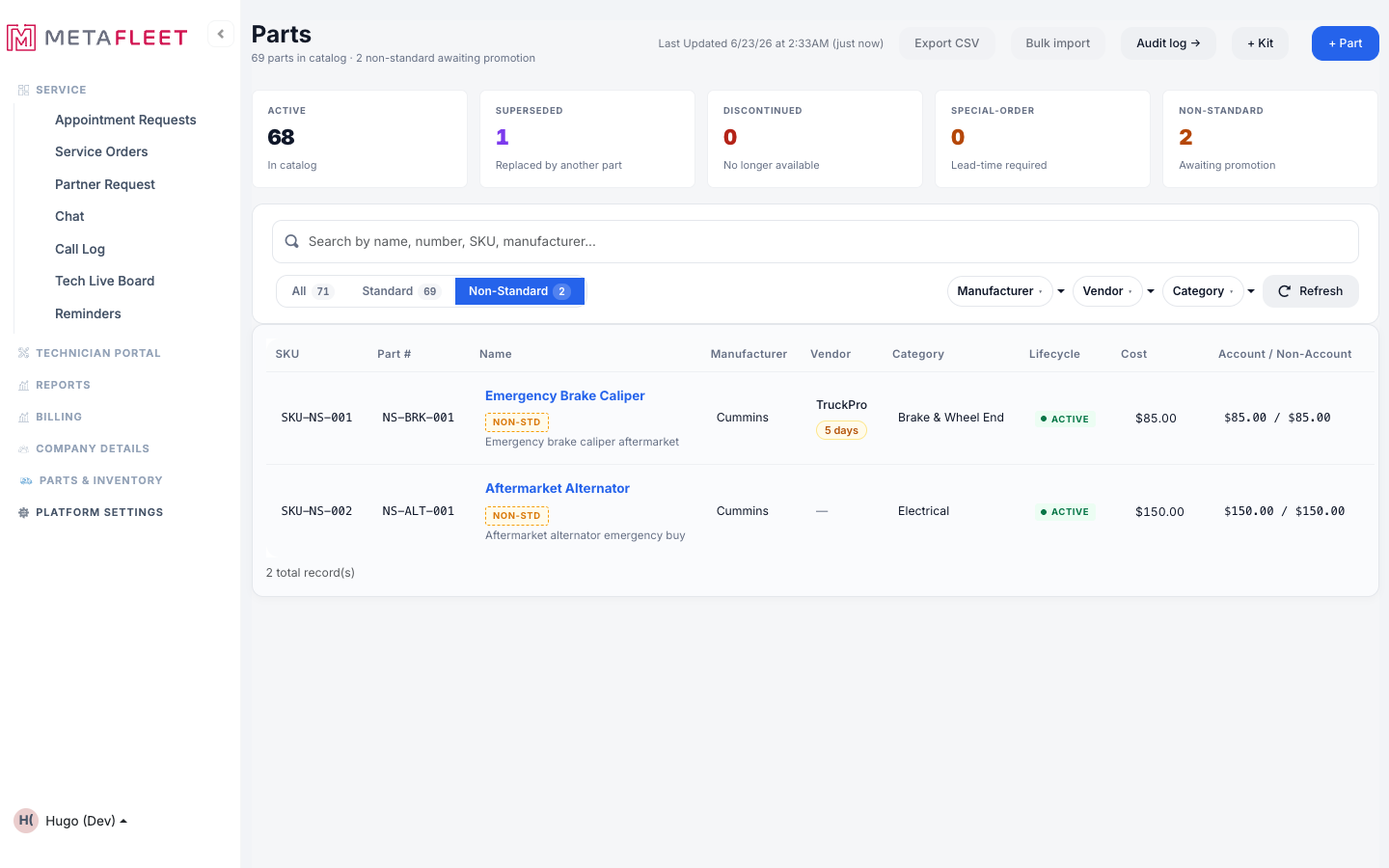
Non-Standard parts, flagged with a Non-Std tag. Review each and promote it to a standard catalog part.
Open the non-standard list.
Click the Non-Standard stat card (or Review non-standard on the banner) to filter to them.
Promote each one.
From the part's row ⋯ menu, choose Promote to Standard. Tidy up its manufacturer, vendor, and pricing as you do — that standardizes it into the catalog.
Retire a part (Discontinued)To stop a part appearing for new work, Delete it from the catalog (or the row ⋯ menu). This archives the part and marks it Discontinued — it disappears from the active list but stays on past estimates and invoices, so history is never lost. If the part is on an open service order, you'll be warned first.
Read lifecycle at a glance. The catalog's Lifecycle column shows a colored pill on every row, so you can spot a Superseded or Special-Order part without opening it.Troubleshooting
| Symptom | Likely cause | Fix |
|---|---|---|
| A part shows "Non-Std" | It was created during a work order | Promote it to standard from the row menu and fill in its details. |
| A discontinued part still shows on an old invoice | History is preserved on purpose | That's expected — discontinuing only hides it from new work. |
| I can't discontinue a part | It's on an open service order | Resolve the open order first; you'll see a warning until then. |
What's the difference between Superseded and Discontinued?
Superseded means a newer part replaces it; Discontinued means it's simply no longer available. Both are kept for history.
Why do non-standard parts exist?
So a tech is never blocked mid-job by a part that isn't catalogued yet. You promote them later.
Does discontinuing delete the part?
No — it archives it. The record and its history remain; it's just hidden from new work.