
Who this is for
Dispatchers who want to choose the technician for a job directly, instead of waiting for the automatic offer — or who need to assign someone the auto-offer wouldn't reach (off-shift or out of area).
What you'll learn
How to open the Assign Technician window, read the candidate list, search across service areas, and confirm an assignment.
Before you start
- You'll need: An order with a vehicle location and a service area set — the list uses both to rank candidates and measure distance.
- Good to know: The manual list is broader than the auto-offer: it includes off-shift techs and lets you reach into other areas.
Quick summary
- On the order, click Assign technician (or Edit/Add on the Technicians card).
- Pick a tech from the ranked list, or search by name.
- Need someone from another area? Add them from Other service areas.
- Click Confirm — the tech is assigned right away.
Step-by-step
Open the Assign Technician window.
On the service order, click Assign technician. (If a tech is already on the job, use Edit/Add on the Technicians card instead.)
Read the ranked candidate list.
Techs in the order's service area appear ranked best-fit first, each with their current shift, service area, distance, ETA, and status. A tech already on this order is marked Assigned ✓ and can't be picked again.
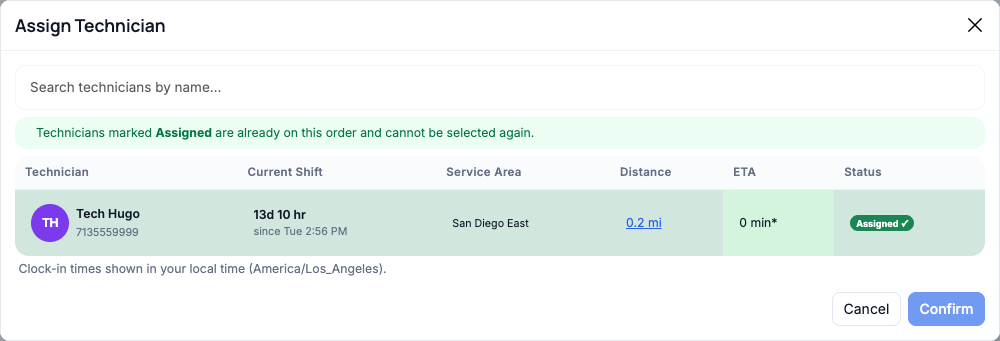
The ranked candidate list for the job. Click a row to select that tech.
Search, or reach into another area.
Type a name to filter. If the right tech works a different service area, an Other service areas — click to add section appears below; out-of-area techs are flagged so the choice is deliberate. Click Add to list to bring one into the order.
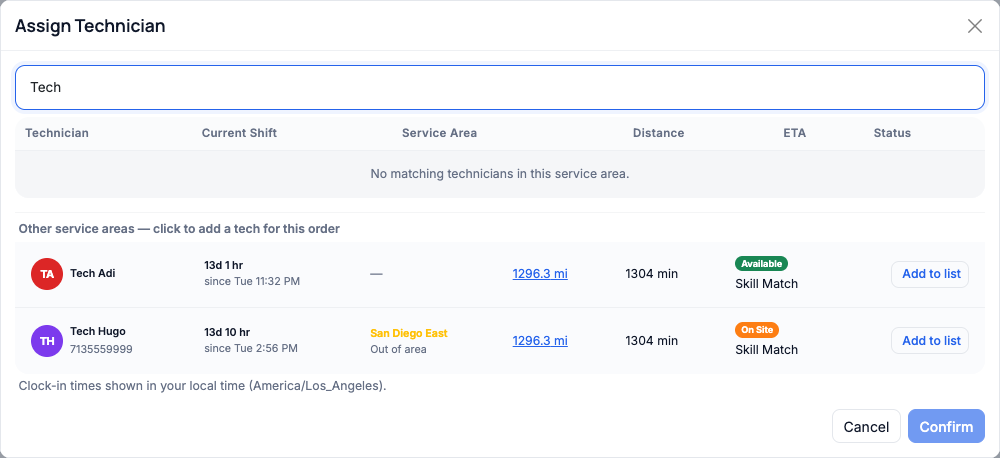
Searching surfaces techs from other areas — including off-shift ones — that the automatic offer would skip.
Confirm the assignment.
With a tech selected, click Confirm — the tech is added to the order and notified right away. There's no extra "are you sure?" step anymore: selecting a tech and clicking Confirm assigns them in one go.
Manual vs. automatic. The automatic offer only reaches clocked-in techs inside the order's area. The manual window is wider on purpose — so you can assign an off-shift or out-of-area tech when the situation calls for it.
Reading the candidate columns
| Column | What it tells you |
|---|---|
| Current Shift | Whether the tech is clocked in, and for how long. Off-shift techs are dimmed. |
| Service Area | The tech's home area. An Out of area flag means they're outside this order's area. |
| Distance / ETA | How far the tech is from the vehicle and the estimated time to arrive. |
| Status | Availability — Available, On Site, En Route — plus a Skill Match badge when they cover the job's services, and Assigned ✓ if already on this order. |
Troubleshooting
| Symptom | Likely cause | Fix |
|---|---|---|
| "No matching technicians in this service area" | No techs are based in the order's area | Search by name and use Add to list under Other service areas. |
| The list won't load | The order has no vehicle location or service area | Set the unit location and service area on the order first. |
| I can't select a tech | They're already Assigned ✓ | They're already on the order — no action needed. |
| Confirm is greyed out | No tech is selected yet | Click a candidate row (or Add to list) to select one. |
FAQs
Can I assign more than one tech?
Yes — reopen Edit/Add on the Technicians card to add another. Techs already on the order show as Assigned ✓.
Can I assign a tech who isn't clocked in?
Yes. The manual window includes off-shift techs (dimmed). The automatic offer does not.
Does an out-of-area tech get penalized in the ranking?
Out-of-area techs aren't auto-offered and don't appear in the main ranked list, but you can add them deliberately via Other service areas.
Will the tech be notified?
Yes — they get an alert and a push notification once assigned.