
For: Dispatchers & Managers
Where: Vehicle Management (left nav) · Time: ~2 minutes
Who this is for:
Dispatchers and admins who keep the customer fleet tidy — adding new trucks, correcting a VIN or unit number, and retiring vehicles a customer no longer runs.
What you'll learn:
Where the Vehicle Management module lives, how to create and edit a vehicle, and how the canonical Active / Archived lifecycle works — archive a vehicle to retire it, filter to see archived units, and restore one when it comes back.
Before you start- Where it lives: Open Vehicle Management from the left nav. It replaces the old Vehicles and Vehicle Groups tabs that used to live inside Company Details.
- Two tabs: Vehicles and Groups of Vehicles. This article covers the Vehicles tab and the archive lifecycle.
- Archive ≠ delete: Archiving hides a vehicle from everyday lists, search, and pickers, but keeps the record and all its history. You can restore it anytime.
Quick summary
- Open Vehicle Management → Vehicles tab.
- + Create vehicle to add one; open a vehicle to Edit its details.
- To retire a truck, select it and choose Archive, then confirm.
- Switch the filter to Archived to see retired units; select a vehicle and choose Restore to bring one back.
The Vehicles list
The Vehicles tab lists every active vehicle across all your customers. At the top you'll find an Active / Archived filter and a Status column showing each unit's state. The split button in the header — + Create vehicle — adds a vehicle; its dropdown also offers Create a group of vehicles.
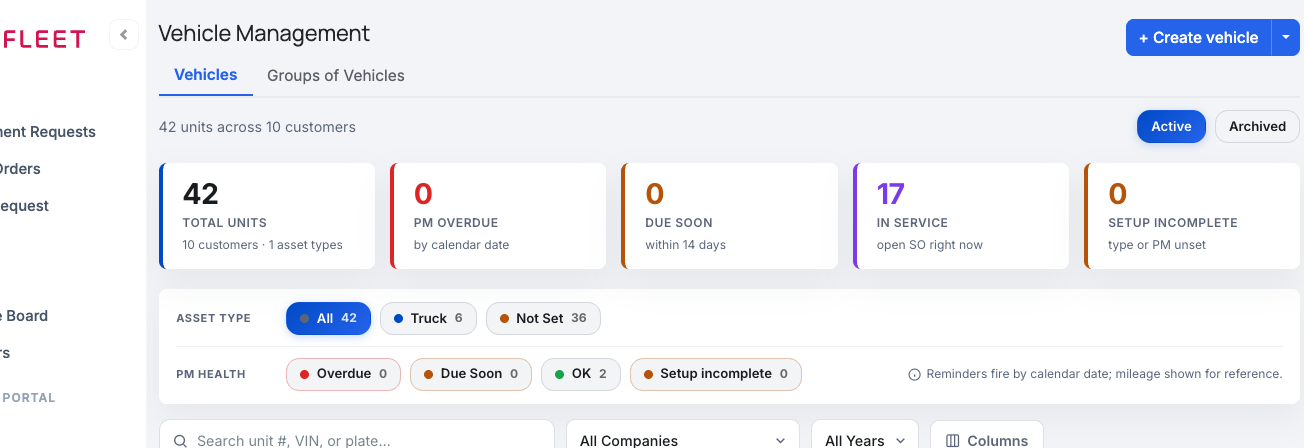
The Vehicles tab. The Active/Archived filter sits above the list, which shows each unit's number, asset type, make/model, year, VIN, plate, and status.
One pattern across the platform. The status chip is display-only — it never flips on click. To archive or restore, switch the filter, select the vehicle, and choose the action, so you can't archive a vehicle by accident. Companies, Manufacturers, and Vendors use the same select-and-act pattern.Create a vehicle
Click + Create vehicle.
From the Vehicles tab header, click + Create vehicle. The Create Vehicle window opens.
Pick the customer.
Because the module spans every customer, you choose the customer first. If they're not on file yet, use + New company right in the picker to add them without leaving the window.
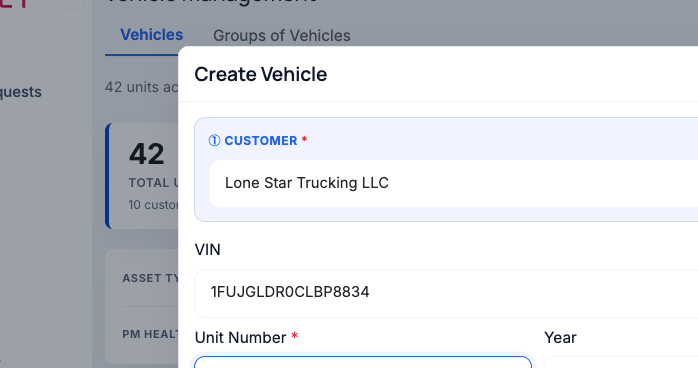
Create Vehicle: pick the customer, then fill in the unit. VIN is optional — leave it blank if you don't have it.
Fill in the vehicle.
If VIN lookup is turned on for your shop, entering the VIN can auto-fill the year, make, model, and engine for you (see What the VIN Lookup Fills In) — otherwise type the details yourself. Set the Unit # and pick an Asset Type (the type pills), and add the plate/state, mileage, or engine hours if you have them.
Save it.
Click Create vehicle. The new unit appears in the list under the customer you picked.
No VIN? No problem. The VIN is optional. You can create or edit a vehicle with the VIN left blank and fill it in later — a blank VIN no longer blocks the save.
That VIN is already on an archived unit. If the customer once had a vehicle with the same VIN and it's now archived, the window offers to restore it instead of creating a duplicate — choose Restore vehicle, or Back to keep entering a new one.Edit a vehicle
To correct a unit number, VIN, plate, or any other detail, open the vehicle from its row and choose Edit. The same fields open; make your changes and save. As with Create, the VIN can be left blank.
Archive a vehicle (retire it)When a customer sells or retires a truck, archive it instead of deleting it — the record, its service orders, and its history all stay intact.
Select the vehicle.
On the Active list, find the vehicle and select it, then choose Archive.
Confirm.
A confirmation appears. Confirm with Archive. The vehicle drops off the active list right away.
Once archived, the vehicle is hidden from everyday places so nobody picks it by mistake — it won't show in vehicle search, in the new-appointment or new service-order pickers, in group selection, in the customer's own portal, or in PM reminders and the "Setup incomplete" worklist. Its history is untouched, and any service order it's already on keeps working.
See archived vehicles & restore oneSwitch the filter to Archived.
At the top of the Vehicles list, click Archived. The list now shows only retired units, each with a grey Archived status chip.
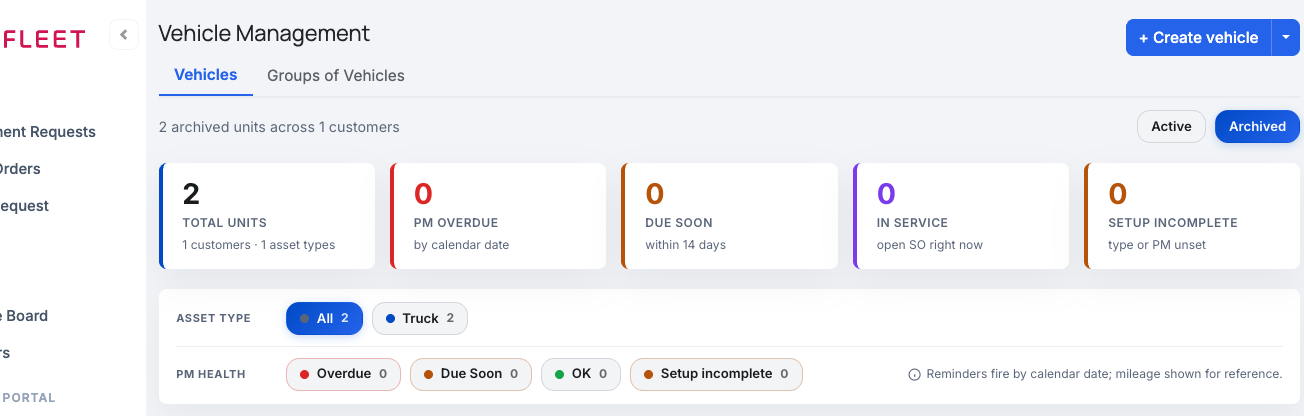
The Archived view. Selecting a vehicle reveals a Restore action to bring it back to active.
Restore the one you need.
Select the vehicle and choose Restore. It returns to the Active list and reappears everywhere it was hidden.
Coming from a company page? A company's Details tab now has a View vehicles & groups → link that opens Vehicle Management already filtered to that customer.Troubleshooting
| Symptom | Likely cause | Fix |
|---|---|---|
| I can't find the Vehicles tab on the company page | Vehicles and groups moved out of Company Details | Open Vehicle Management from the left nav, or use the View vehicles & groups → link on the company's Details tab. |
| A vehicle isn't in the list | It may be archived, or filtered out | Switch the filter to Archived. If it's there, select it and choose Restore. |
| Create vehicle did nothing | A required field — usually the customer, unit #, or asset type | Pick a customer and fill the required fields. The VIN is optional and can be left blank. |
| It says the VIN is already on file | An archived unit has the same VIN | Choose Restore vehicle to revive it, or Back to enter a different vehicle. |
| Clicking the status chip does nothing | The chip is display-only by design | Select the vehicle and choose Archive or Restore — that's how the lifecycle changes. |
| An archived truck still shows inside a group | It was a group member before it was archived | That's expected — existing members aren't silently dropped; they're flagged inactive so an edit can keep or remove them on purpose. |
Does archiving delete the vehicle?
No. Archiving is a soft retire — the vehicle, its service orders, and its history are all preserved. It's just hidden from everyday lists and pickers. You can restore it anytime.
Can I create a vehicle without a VIN?
Yes. The VIN is optional. Create or edit the vehicle with it blank and add it later — a blank VIN no longer blocks the save.
What happens to a service order if I archive the vehicle on it?
Nothing breaks. The order keeps the vehicle it was created with and stays fully usable; the vehicle just won't appear when picking a vehicle for a new order.
How do I bring an archived vehicle back?
Switch the Vehicles filter to Archived, select the vehicle, and choose Restore. It returns to the active list and to every place it was hidden.
Why can't I flip a vehicle to Active by clicking the chip?
The status chip is for display only, so a stray click can't change anything. To change the lifecycle, select the vehicle and choose Archive or Restore.
Where did the old Vehicles tab on the company page go?
It moved into the new Vehicle Management module. The company's Details tab now links there with View vehicles & groups →, pre-filtered to that customer.