
Who this is for
Anyone keeping tabs on parts orders — finding them, receiving stock, and handing them off to billing.
What you'll learn
How to read and filter the purchase-order list, what each status means, and what you do on a PO's detail page.
Quick summary
- Open Parts & Inventory → Purchase Orders to see every PO, newest first.
- Search by PO number, vendor, or part; filter by status; or tick From receipts.
- Read each PO's color-coded status pill to see where it stands at a glance.
- Open a PO to receive parts (full or partial), then create the vendor bill.
The Purchase Orders list
Open Parts & Inventory → Purchase Orders for every PO, newest first. Each row shows the vendor, status, line count, total, the service orders it's linked to, and when it was created. Search by PO number, vendor, or part; filter by status; or tick From receipts to see only tech-receipt POs. Export CSV pulls the list for accounting.
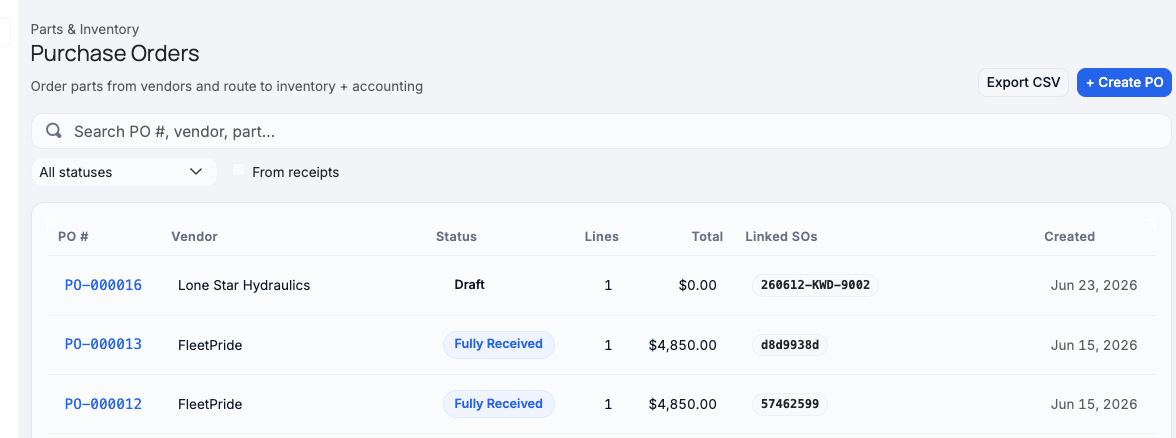
Every purchase order in one list — search, filter by status, or export.
What the statuses mean
Each PO carries a color-coded status pill so you can read where it stands at a glance — in the list, on the detail page, and on any job part tied to it. Here's what each one means.
| Status | Meaning |
|---|---|
| Draft | Started but not submitted — still editable. |
| Submitted | Finalized and placed; waiting on parts to arrive. |
| Partially Received | Some lines received, others still outstanding. |
| Fully Received | Everything's in. |
| Billed | A vendor bill has been created for it. |
| Paid | The vendor bill is paid. |
| Canceled | The order was voided (its part tags are cleared). |
The PO detail page
Click any PO to open it. Up top you'll see its status and a money summary — Total Cost, Received (with a % complete), Billed, and Paid. Below, each line shows what was ordered, how much has been received, and its own Receive action. The vendor, a Vendor Invoice # field (record the number printed on the vendor's invoice — separate from the Armada PO number), and any internal notes sit on the right.
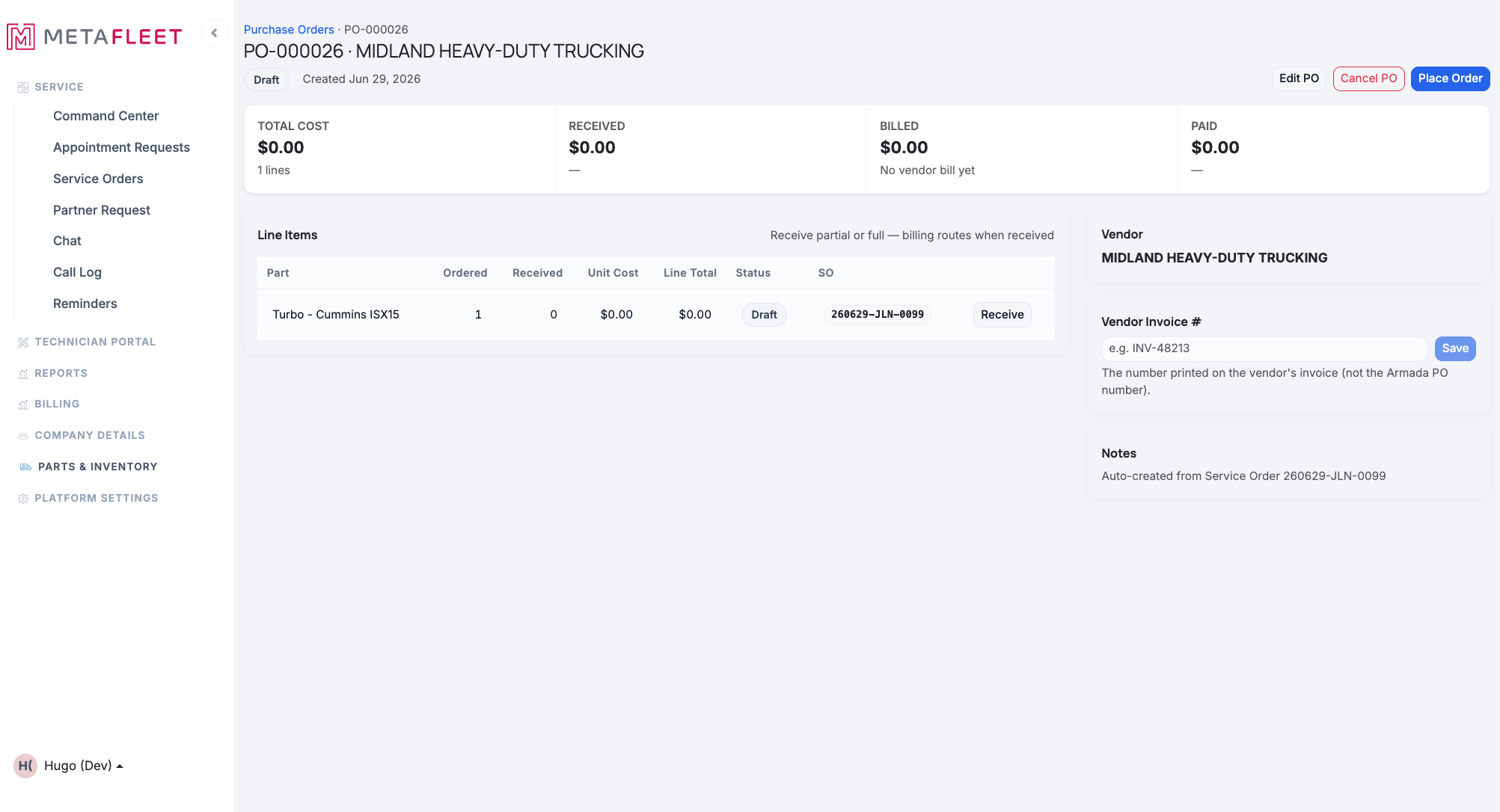
A PO's detail — the money summary up top, line items with per-line receiving below.
Working a PO
Receive the parts.
As stock arrives, use Receive Items (or a line's Receive) to log full or partial quantities. Received parts route into inventory, and the PO's progress updates. Each line tracks Ordered vs. Received.
Create the vendor bill.
When you're ready to record what you owe, use Create Vendor Bill — billing routes as parts are received, and the PO moves to Billed, then Paid.
Edit or cancel a draft.
A Draft PO is still editable — open it to change lines or vendor, then Place Order to submit it. POs started from a job (the work-item Create PO or Order from vendor action) land here as a Draft already linked to that service order, ready for you to review. Canceling a PO clears the "On order" tags it placed on any job's parts.
Receiving needs a real part. A line must be matched to a catalog part before you can receive it — this keeps stock and accounting accurate (especially for receipt-sourced POs, where lines start unmatched).
Troubleshooting
| Symptom | Likely cause | Fix |
|---|---|---|
| Receive is blocked on a line | The line isn't matched to a catalog part | Open the PO and match the line to a part, then receive. |
| A PO is stuck at Submitted | Parts haven't been received yet | Receive the lines as stock arrives — it moves to Partially/Fully Received. |
| Can't edit a PO | It's already submitted | Only Drafts are editable; cancel and recreate if a submitted PO is wrong. |
| Can't find a PO | Filtered view | Clear the status filter / "From receipts" toggle, or search by PO #, vendor, or part. |
FAQs
Can I receive part of an order?
Yes — receive any quantity per line; the PO shows Partially Received until everything's in.
How do I see only receipt-based POs?
Tick From receipts on the list.
What happens to job parts if I cancel a PO?
The "On order · PO" tags it placed on those parts are cleared automatically.
Can I export for accounting?
Yes — use Export CSV on the list.