
Whoever runs a job after it's created — moving it from assignment through diagnosis, repair, and billing.
What you'll learnHow the service order page is laid out, what each tab does, and how you drive a job through its lifecycle from here.
The tabs- Details: The hub — company, contact, vehicle, location, the assigned technician, service writer, and order settings.
- Repair Board: The work itself — work items, the diagnosis/repair progress tracker, and the approve/complete controls.
- Estimate: Build, price, and send the estimate; handle approvals (see Build & Send an Estimate).
- Invoice: Finalize and send the invoice once work is done.
- Billing: Record payment after the invoice is sent.
- Chat & Files: Message the customer and store photos/documents for the job.
Details is where you set everything about the job that isn't the work itself: confirm the company and contact, the vehicle and its on-site location, assign or change the technician, set the service writer, a reference number, estimated duration and arrival, and the payment method. You can also cancel the order from here.
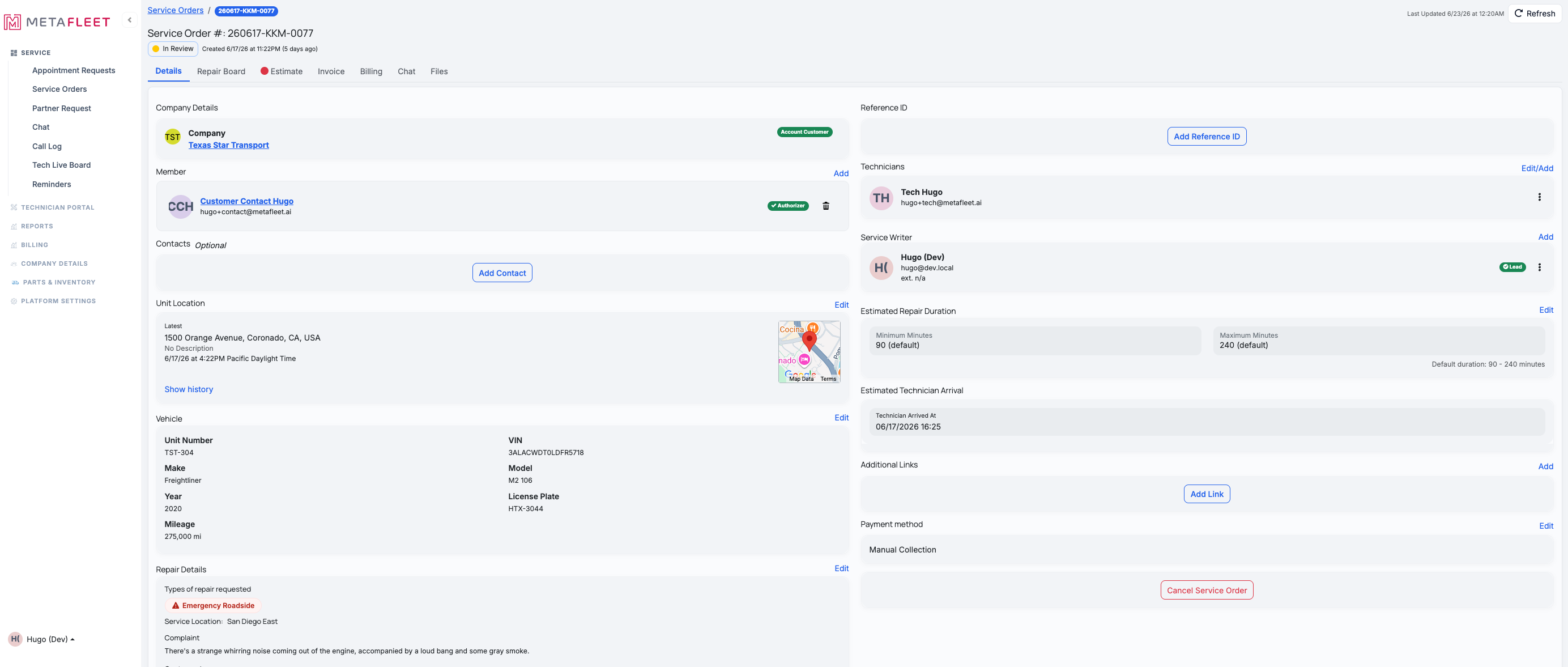
The Details tab — the order's command center. Assign the technician and set the order's particulars here.
The Repair Board — the workThe Repair Board shows the job's progress tracker across its stages and the individual work items. As diagnosis and repairs move along, you'll review and approve work, and use Mark Work Complete when the repairs are finished and ready for review/release.
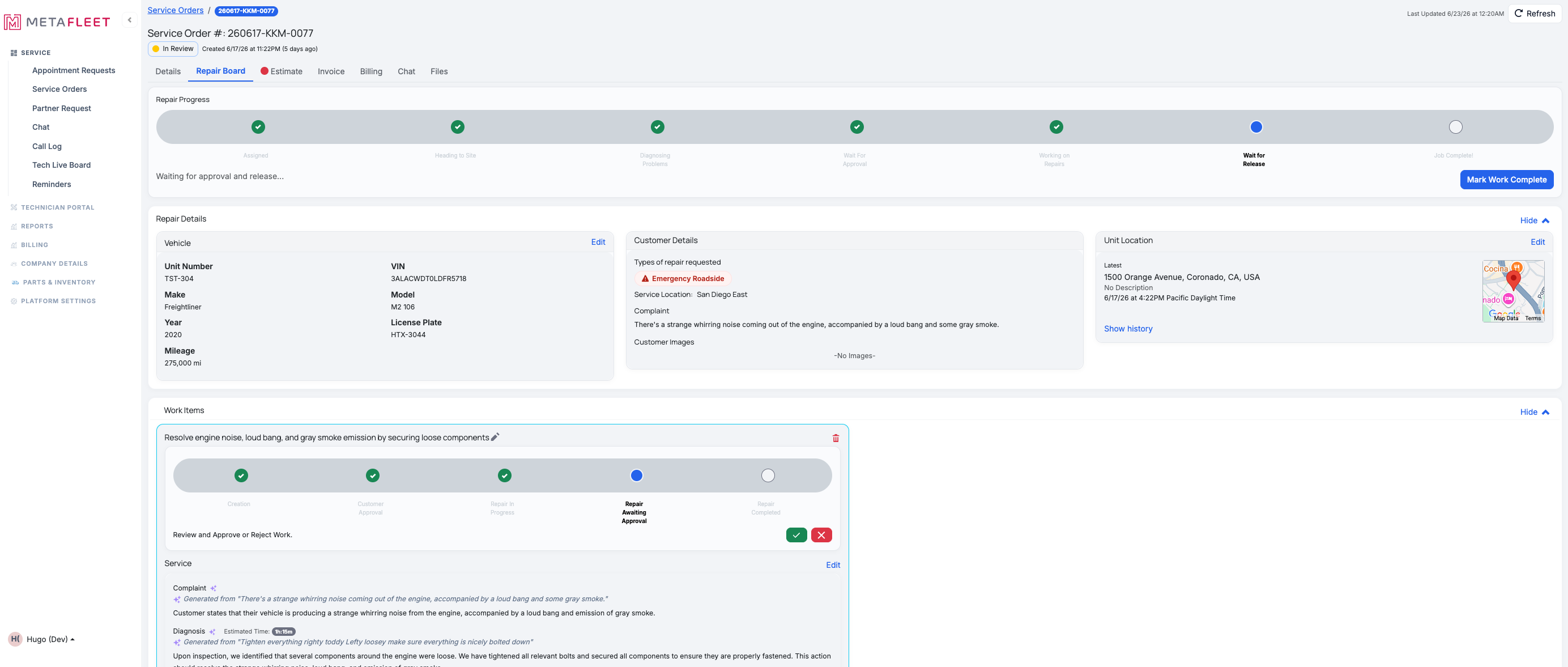
The Repair Board — overall progress up top, then each work item with its own status and approval controls.
Driving the lifecycle from hereEach stage of the service order lifecycle has a home on this page:
- Assign / change the technician — Details tab (see Assign a Technician).
- Diagnosis & repairs — Repair Board.
- Estimate & approvals — Estimate tab (see Build & Send an Estimate and Understanding the Approval Gates).
- Invoice & payment — Invoice then Billing.
Status follows your actions. As you assign, diagnose, estimate, repair, and invoice, the order's status moves through the lifecycle automatically — and pauses at any approval gate you've turned on.Troubleshooting
| Symptom | Likely cause | Fix |
|---|---|---|
| The order won't advance past Diagnosis Complete | An estimate approval gate is on | Check the Estimate tab — it's waiting on a manager or the customer. |
| I can't edit the vehicle/customer | Some fields lock after creation | Edit what's editable on Details; for the rest, manage the vehicle/company record. |
| No technician on the job | It's still Unassigned | Assign one from the Details tab (see Assign a Technician). |
Where do I assign or change the technician?
On the Details tab, in the Technicians section.
Where's the estimate and invoice?
On their own tabs — Estimate and Invoice — across the top of the order.
How do I cancel an order?
Use Cancel Service Order at the bottom of the Details tab.