
Owners, managers, and billing staff who want to charge a late fee or simple monthly interest when a customer's invoice goes past due. This is a web-admin tool — it isn't on the technician mobile app.
What you'll learnHow to turn late fees on and set your rates, how to fine-tune them for a single customer or brand, and how to review and apply fees to overdue invoices. It's a deliberate, manual flow — you stay in control of every charge.
Before you start- To configure: Permission to manage account settings. The first time you turn fees on, you'll tick a one-time confirmation.
- To apply fees: The invoice-approval permission. These are two separate permissions, so you can let someone set the policy without letting them charge.
- How the policy resolves: Three tiers, most specific wins: a per-customer override, then a per-brand policy, then your tenant default.
Quick summary
- In Settings › Billing › Late fees, turn it on and set your rates.
- Tick the one-time confirmation, then Save.
- Optionally override rates per customer (Customer › Details) or per brand.
- When fees are ready, open Overdue fees on the Billing Hub.
- Tick invoices and click Apply fees to N invoices — the customer is notified and the fee is added to the invoice.
Turn on late fees and set your rates.
Go to Settings › Billing and open the Late fees card. Turn on Charge late fees on past-due invoices, then fill in any combination of the levers — leave a field blank for none. A flat fee with no percentage or interest is perfectly fine.
Tick the one-time confirmation, then Save.
The first time you turn this on, a confirmation checkbox appears and Save stays disabled until you tick it. By checking it you're confirming your customer agreements authorize these fees, that the legality of the rates is your responsibility, and that MetaFleet provides the tool only — not legal or financial advice. This is a one-time step; once accepted, MetaFleet won't ask again. Once saved, this policy is the default for every customer.
Optional — override the rates for a customer or brand.
Your default applies to everyone, but you can adjust any field for a single customer — say, a longer grace period for a key account, or no late fee at all. Go to Customer › Details and open the Late fees card. Each field shows where its value comes from: a custom marker means you've overridden it for this customer; an inherited marker means it still follows your default. Leave a field blank to inherit; set a value to override just that field; use the undo control next to a field to revert it back. Mix and match freely.

Per-customer overrides — inherit or customize each field, with undo.
Open the Overdue fees card on the Billing Hub.
When invoices go past due and fees are ready, an Overdue fees card appears on your Billing Hub — for example, "$141.20 in late fees ready across 2 overdue invoices." The card only shows up when there are fees ready, and only to users who can apply them. Click Review & apply to open the Overdue fee review page.
Review the fees and tick the invoices to charge.
On the Overdue fee review page each overdue invoice is listed with its computed fee broken out — flat, fee, and interest — so you can see exactly how it adds up. Tick the invoices you want to charge. A bar at the bottom shows Total to charge — up to $X, with a reminder that "We re-check each balance when you apply; you'll never be charged more than this." Filter by company, brand, status, or "as of" date to narrow the list.
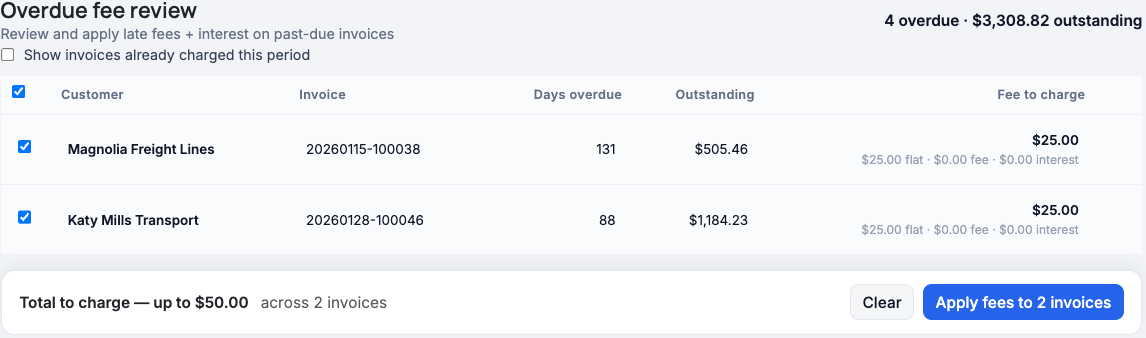
The Overdue fee review page — pick invoices and see the running total.
Apply the fees.
Click Apply fees to N invoices. A confirmation titled Apply late fees shows you'll charge up to $X in total and notes that each fee is re-computed at the moment you apply it — so the actual charge can come out lower, but never higher, than the amount shown. Confirm with Apply fees. MetaFleet then adds the fee to the invoice total, records it on the invoice for your records, and notifies the customer with an in-app alert (plus an email if they're opted in to email updates). The list updates to show the fees you just applied.
Nothing is charged automatically. Fees are computed for you, but they're only ever applied when an admin reviews them and confirms. You decide when to review and which invoices to charge.What gets charged and what doesn't
- COD customers are never charged — cash-on-delivery customers don't get late fees, even on a past-due invoice.
- Paid invoices and anything still in the grace period are skipped — they won't appear as ready to charge.
- No double-charging in the same period — once an invoice is charged, it shows a Charged this period badge and is locked from being charged again that period. Use the Show invoices already charged this period toggle to see them.
- Deactivated brands are blocked — an invoice on a deactivated brand is flagged and can't be charged.
| Symptom | Likely cause | Fix |
|---|---|---|
| I don't see the Late fees card in Settings | You don't have the manage-account-settings permission | Ask an admin to grant it, or have an admin configure the policy. |
| Save is greyed out the first time | The one-time confirmation isn't ticked yet | Tick the confirmation checkbox; Save enables once it's checked. |
| No Overdue fees card on the Billing Hub | No fees are ready, or you lack the invoice-approval permission | The card only appears when there are applyable fees and you can apply them. Check overdue invoices, or ask for the permission. |
| A customer never gets charged | They're a COD customer, or fees are overridden off for them | COD customers are always excluded. Check the customer's Late fees card on their Details page. |
| An invoice shows "Charged this period" | It was already charged in the current period | That's expected — it's locked until the next period to prevent double-charging. |
| "Balance changed — review again" on a row | The balance moved (e.g. a payment landed) after you selected it | Use the review-again control to re-read the fresh amount, then confirm against the new number. |
| The applied charge was lower than the confirmation | Fees are re-computed at the moment you apply | That's by design — the confirmation is an "up to" ceiling; the actual charge is never higher. |
Does the interest compound?
No. MetaFleet uses simple monthly interest on the unpaid principal — interest is not charged on previously added interest.
Are COD customers ever charged a late fee?
No. Cash-on-delivery customers are always excluded, even when an invoice is past due.
Can a customer be charged twice for the same invoice?
No. Once an invoice is charged, it's locked for that period and marked "Charged this period," so it can't be re-charged.
Do customers get notified when a fee is applied?
Yes. Applying a fee sends the customer an in-app alert, plus an email if they've opted in to email updates. The fee also appears as a line on the invoice, and a short notice can print on your invoices and estimates.
Can I undo a fee after I apply it?
Applying a fee is a deliberate, confirmed action, so review your selections before you apply — there's no one-click undo on this screen. To correct a charge after the fact, handle it through your normal invoice adjustment process.
Who can set the policy versus apply fees?
Two separate permissions. Configuring the policy needs the manage-account-settings permission; applying fees needs the invoice-approval permission. If you don't see the settings or the Review & apply button, ask an admin to grant the right one.
Is this on the mobile app?
No — late fees are web-admin only. There's nothing for technicians to do here.