
Who this is for
Anyone moving stock between locations or auditing where parts went — restocking trucks, returning unused parts, or tracing a count change.
What you'll learn
How to run the three kinds of transfer, and how to read a location's transaction history so every receipt, issue, allocation, and transfer is accounted for.
Before you start
- You'll need: Inventory-management access and at least two locations (a shop and a vehicle, or two shops).
- Two surfaces: Transfers (Parts & Inventory → Transfers) move stock. History (a location's History tab) shows every movement.
Part 1 — Transfer stock between locations
Go to Parts & Inventory → Transfers. Pick the kind of move you're making.
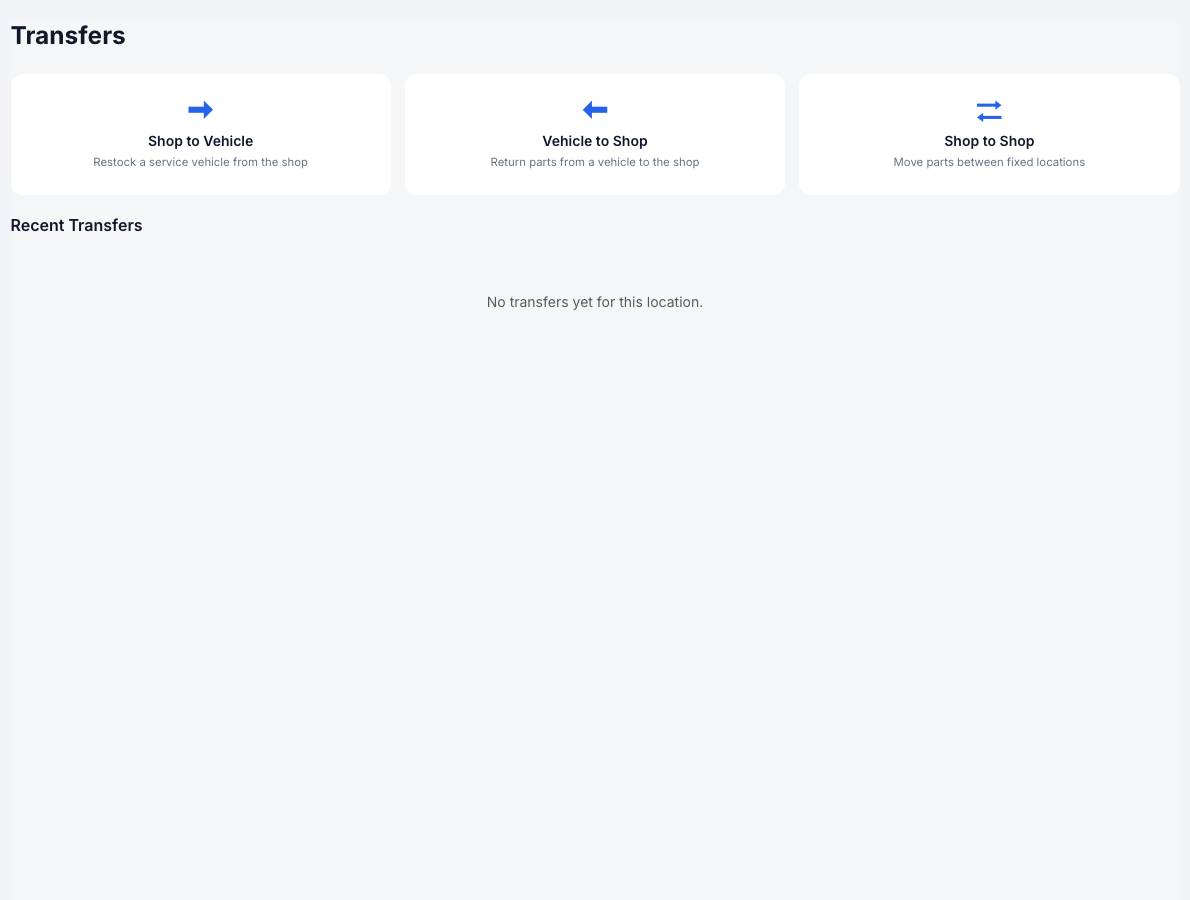
Three transfer types — restock a truck, return parts to the shop, or move between fixed locations.
Choose the transfer type.
Shop to Vehicle restocks a service truck, Vehicle to Shop returns parts, and Shop to Shop moves between fixed locations.
Pick the source and destination.
Select where the parts are coming from and going to — for example, the destination vehicle.
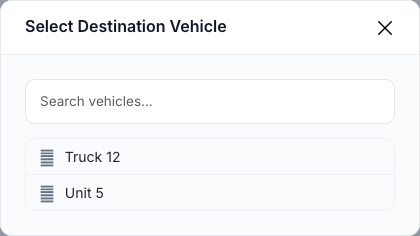
Each transfer walks you through picking the locations involved.
Add the parts and quantities, then confirm.
Choose the parts to move and how many of each. On confirm, stock leaves the source and lands at the destination — and both show the move in their history. Completed moves appear under Recent Transfers.
Part 2 — Read a location's transaction history
Open any location and switch to its History tab for a complete, filterable record of every stock change.
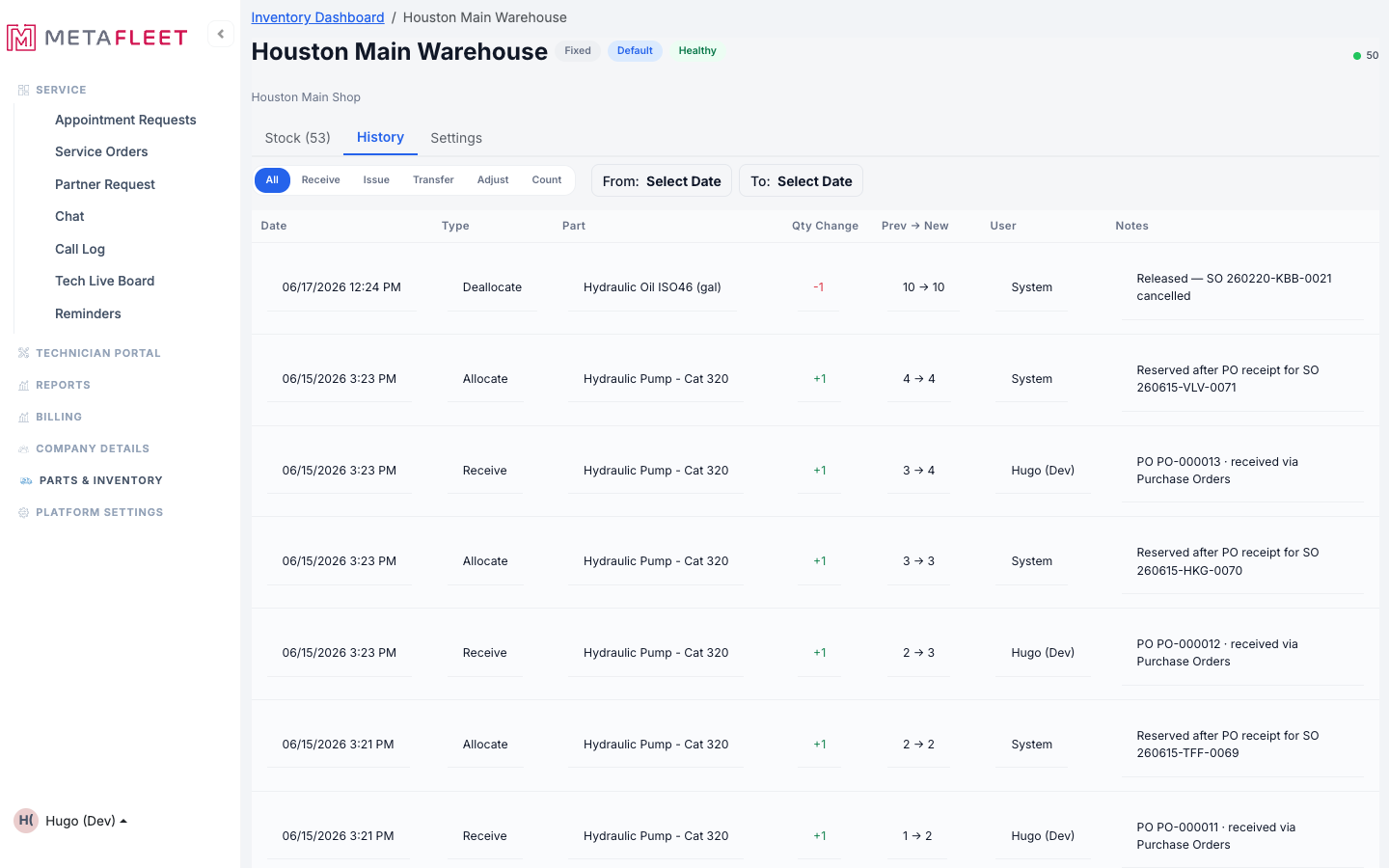
The transaction log — each row shows the type, the quantity change, the before → after count, who did it, and a note (often the PO or service order).
Filter by type — Receive, Issue, Transfer, Adjust, Count — or by date range to trace exactly when and why a count moved. The Notes column links each change back to its source, like a purchase order receipt or a service-order reservation. When a part is handed off to a technician, the system also records that relocation onto the tech's truck here, so the trail stays complete from shelf to job (see Source & Hand Off Parts to a Technician).
Troubleshooting
| Symptom | Likely cause | Fix |
|---|---|---|
| "No transfers yet for this location" | None have been made yet | That's normal for a new location — run a transfer and it'll appear. |
| A transfer can't find the part | The source location doesn't stock it | Receive the part into the source first, then transfer. |
| A count changed and I don't know why | It came from a job, PO, or transfer | Open the location's History tab and read the Notes on that row. |
FAQs
What's the difference between a transfer and an adjust?
A transfer moves stock from one location to another (totals unchanged). An adjust changes a single location's count (see Receive, Issue & Adjust Stock).
Does a transfer show up in both locations' history?
Yes — it's logged as out of the source and into the destination.
Can I see who made a change?
Yes — the History tab records the user (or "System" for automatic moves) on every row.