
Who this is for
Technicians documenting what's wrong with the vehicle and what it needs, right from the job.
What you'll learn
How to add findings to a service order, what goes in each one, and how the app helps clean up your notes.
Add a finding
Open the job and find Add more findings. You've got two ways in — Talk it through (voice) or Type it. Each finding you add stacks up under Your findings.
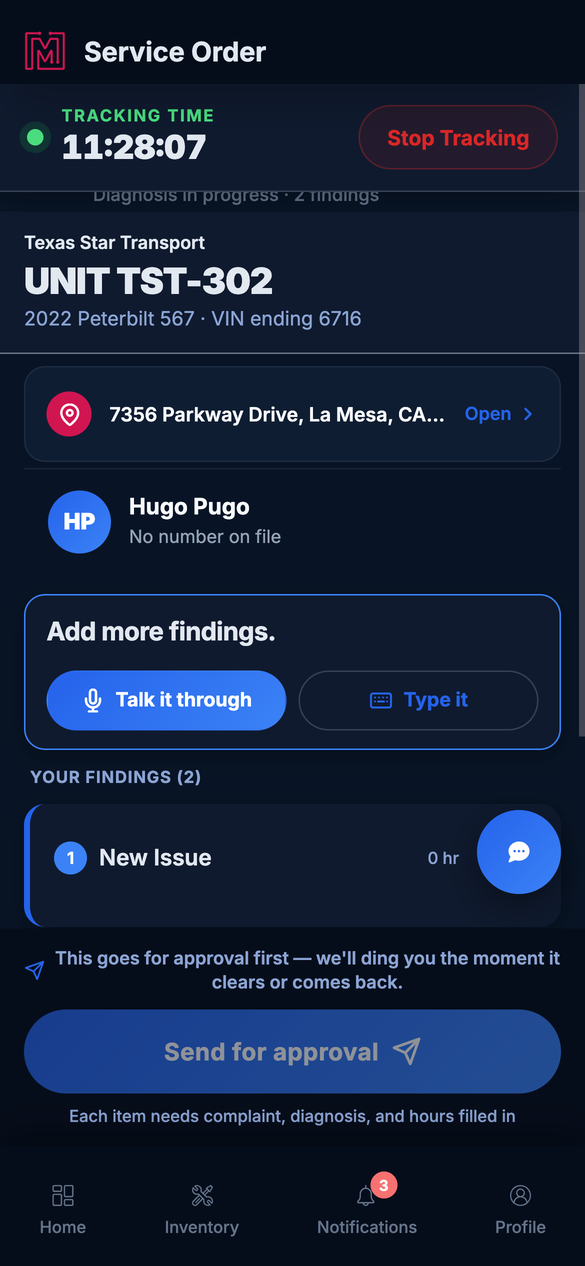
Add findings by voice or by typing — they collect under Your findings.
Voice is coming soon. Talk it through is on the way; for now, tapping it drops you into typing. Use Type it to enter a finding today.
The status light tells you when it's ready. As you work, a small status indicator on the job reads amber while the diagnosis still needs something — a finding missing its complaint, diagnosis, or effort hours — and turns green once everything's complete and ready to send for approval. A quick glance tells you the job's good to go.
Fill in the finding
Tap Type it and a finding sheet opens for this unit and service order. Fill in what you can — short and plain is fine, the shop tidies it up later.
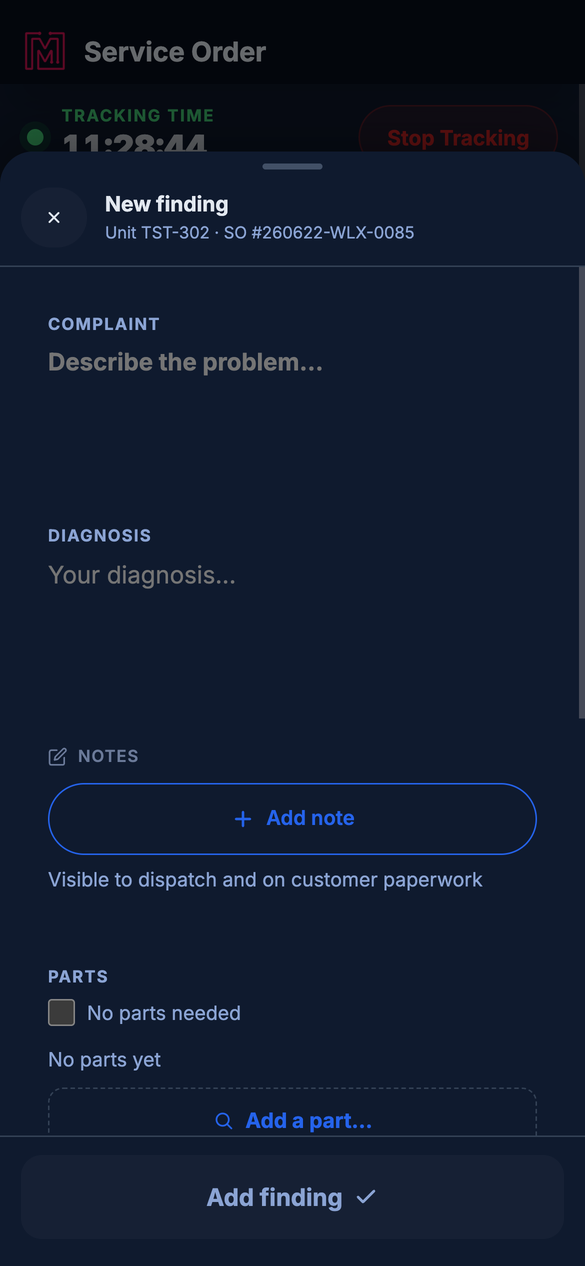
One finding: the complaint, your diagnosis, notes, and any parts.
Complaint
What's wrong, in the customer's terms — "grey smoke from the passenger side," "won't hold air."
Diagnosis
What you found and what it needs. Shorthand is fine.
Notes (optional)
Add note for anything extra. Notes are visible to dispatch and can appear on customer paperwork.
Parts & effort
Add any parts (or tick No parts needed), and set the hours for the work. Then tap Add finding.
The app cleans up your wording. MetaFleet's AI turns your shorthand into a clear complaint and diagnosis for the estimate and customer paperwork — so you can keep your notes quick. Findings that the app starts for you from the original job description now arrive with a short, plain title already in place — so you'll see something like Inspect Brakes Pulling Left instead of a generic New Issue card. You can still edit it, and the office can fine-tune the wording before anything goes out.
Send it on
When each finding has a complaint, a diagnosis, and hours, the job is ready. Tap Send for approval — it goes to the office and you'll get pinged the moment it clears or comes back. (See Submit Repairs for the repair stage.)
Troubleshooting
| Symptom | Likely cause | Fix |
|---|---|---|
| "Talk it through" just opens typing | Voice is still coming soon | Use Type it for now — it captures the same finding. |
| Send for approval is greyed out | A finding is missing complaint, diagnosis, or hours | Open each finding and fill all three. |
| I added a finding by mistake | Wrong unit or duplicate | Use Remove finding on that card. |
FAQs
Do I have to write it up perfectly?
No — keep it quick. The app cleans up the wording, and the office can adjust before it reaches the customer.
Can I add more than one finding?
Yes — add as many as the job needs; each becomes its own line on the estimate.
Who sees my notes?
Dispatch sees them, and they can appear on customer paperwork — so keep them professional.
Can I add parts here?
Yes — add parts on the finding, or tick No parts needed.
Where does the finding's title come from?
When the app starts a finding for you from the original job description, it writes a short title for that card right away — so you see a real heading instead of a blank New Issue card. You don't have to name it, you can edit it, and the office can adjust it before anything reaches the customer.