
For: Admins & Service Managers · Permission: Manage vehicles / PM · Time: ~2 minutes
Who this is forAnyone keeping a fleet on schedule. Once a vehicle is enrolled, its next-due date is calculated for you.
What you'll learnHow to enroll a vehicle in one or more PM programs, what the baseline mileage does, and how to watch PM status across the whole fleet.
Before you start- You'll need: At least one PM program (see Building Service Tasks & PM Programs) and access to manage vehicles.
- Where it lives: On each vehicle's detail page, under the PM Programs tab.
Quick summary
- Open the vehicle (Company Details → Vehicles → pick one).
- Go to the PM Programs tab and click + Enroll in program.
- Pick a program (baseline mileage defaults to the vehicle's current mileage) and click Enroll.
Open the vehicle.
Go to Company Details → Vehicles and click the vehicle. On its detail page, the header shows its Next PM Due at a glance.
Open the PM Programs tab and enroll.
Click the PM Programs tab, then + Enroll in program. Pick a program from the list — the baseline mileage is set to the vehicle's current mileage, which the next-due date is calculated from. Click Enroll.
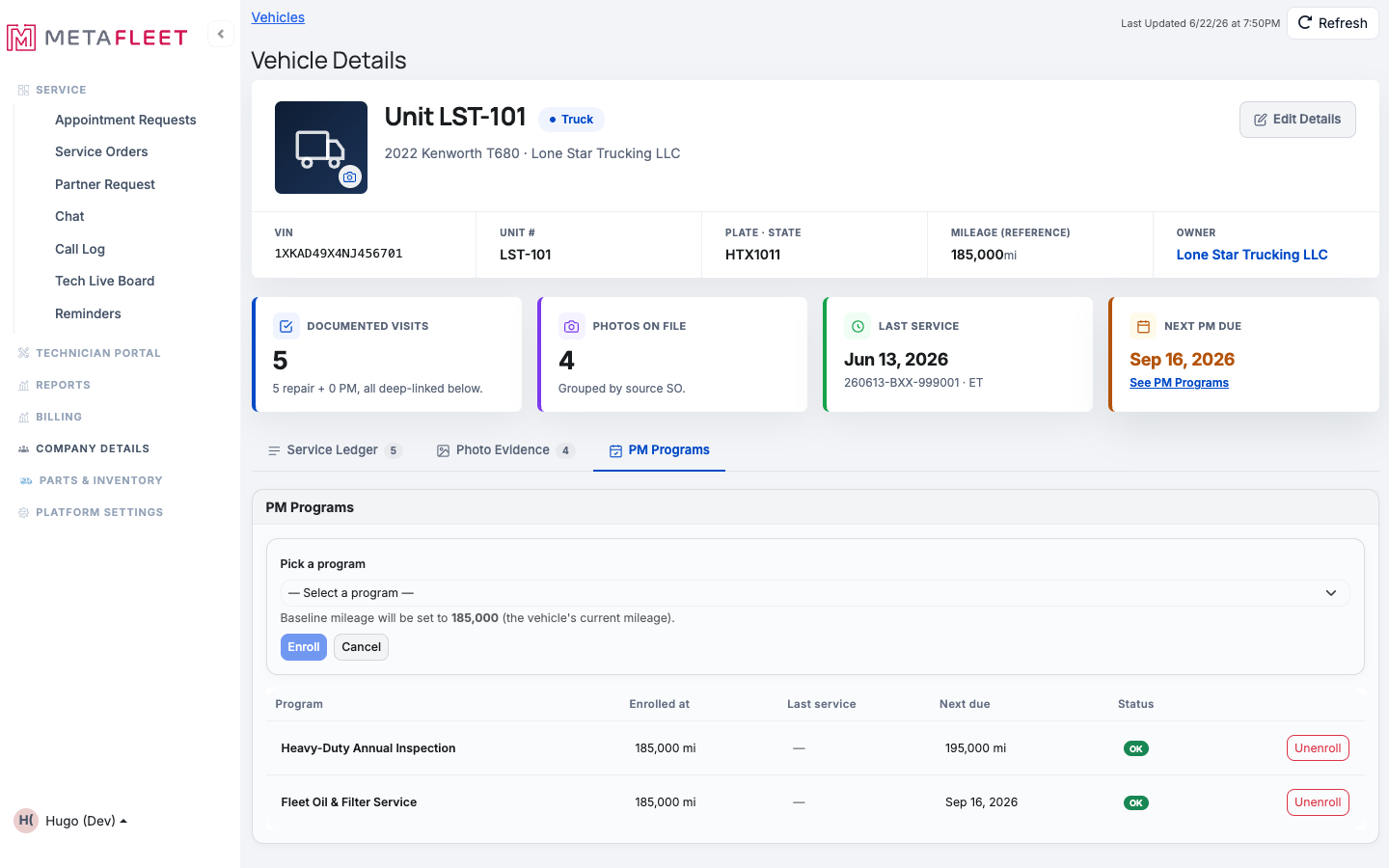
Enrolling: pick a program; the baseline mileage defaults to the vehicle's current reading. Enrolled programs show their next-due and status below.
Enroll in as many programs as you need.
A vehicle can run several programs at once (e.g. an oil-and-filter program plus an annual inspection). Each tracks its own next-due. Use Unenroll to remove one.
Track PM status across the fleetThe Vehicles list rolls up every vehicle's PM state, so you can spot what's coming due without opening each one.
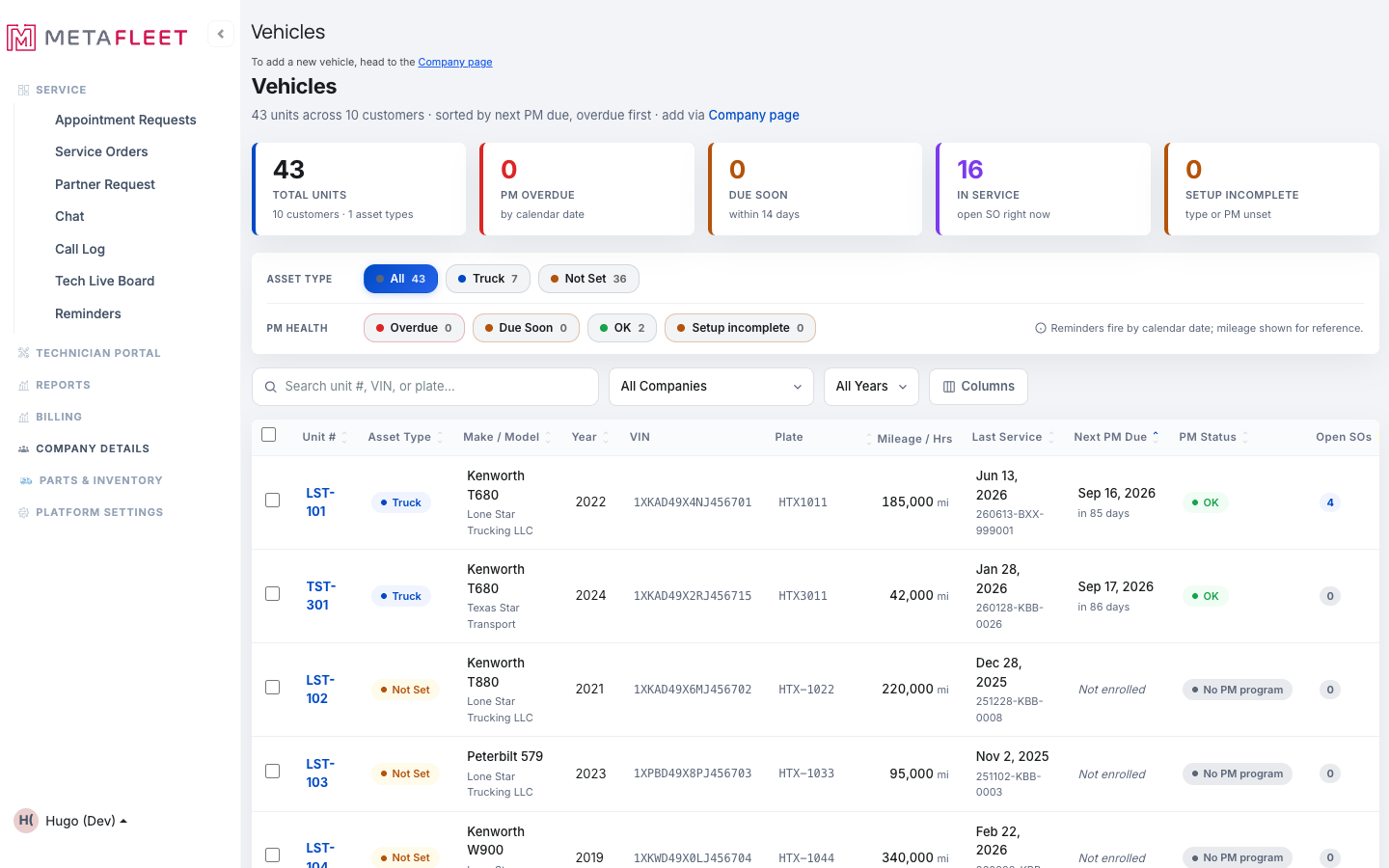
The Vehicles list shows Next PM Due and PM Status per vehicle. Filter by Overdue, Due Soon, OK, Not Set, or Setup incomplete.
Keep mileage current. Next-due dates are driven by the vehicle's mileage against the program interval. The more current the odometer reading, the more accurate the "due in N days" estimate.Troubleshooting
| Symptom | Likely cause | Fix |
|---|---|---|
| PM Status shows "Not Set" | The vehicle isn't enrolled in any program | Enroll it from its PM Programs tab. |
| PM Status shows "Setup incomplete" | Enrolled, but missing a mileage/baseline | Update the vehicle's mileage so next-due can be calculated. |
| No programs to pick from | No PM programs created yet | Build one first (see Building Service Tasks & PM Programs). |
| Next-due looks wrong | Stale odometer reading | Update the vehicle's mileage; the estimate recalculates. |
Can a vehicle be in more than one program?
Yes — enroll it in as many as apply; each tracks its own schedule.
What is baseline mileage?
The odometer reading at enrollment. Next-due is measured forward from it using the program's interval.
How do I stop tracking a program for a vehicle?
Click Unenroll next to that program on the vehicle's PM Programs tab.