
Who this is for
Admins configuring how taxes combine for each shop location.
What you’ll learn
• How to create a Tax Group
• How to tie Categories to a Group
• How Groups drive tax calculation on estimates and invoices
Before you start
• Create your Tax Categories first
• Have your tax regions ready
• Know whether each tax will apply to labor, parts, or misc charges
Quick Summary (TL;DR)
• Create a Tax Group
• Assign your categories to it
• Add all individual taxes
• Enable the group
Step-by-Step
-
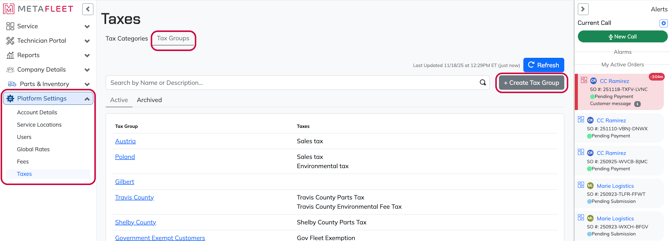
Go to Platform Settings → Taxes → Tax Groups.
-
Click New Tax Group.
-
Enter the group name.
Examples:
• “Taxes – [Service Location]”
• “Sales Tax Group – [State/City]”
-
Add a description.
-
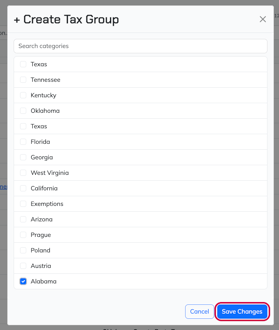
Select the Tax Category this group belongs to.
-
Click Submit.
-
Open the group and add all individual taxes needed for this region. (See article: Add Individual Taxes (Labor, Parts, City, State, County))
Troubleshooting
| Symptom | Cause | Fix | Prevent |
|---|---|---|---|
| Group not appearing in Service Location | No category assigned | Edit group and assign a category | Always assign category on creation |
| Taxes missing | Group created but no taxes added | Add individual taxes inside the group | Build full tax bundle before assigning |
| Duplicate groups | Mistyped names | Archive unused groups | Use consistent naming |
FAQs
Do I need one group per shop?
Yes—each Service Location should have its own group.
Can I put multiple categories in one group?
No. A group references one category, but can contain multiple taxes.
Can I have multiple groups for one location?
Yes, but you assign only one to a Service Location at a time.