
Fleet customers who need to open a service request for one of their vehicles.
What you'll learnHow to start a service order from the portal: set where the vehicle is, pick the vehicle, describe the issue, attach photos, and submit.
Before you start- You'll need: Access to your fleet's customer portal, and where the vehicle is (an address or a map location).
- Good to know: You can add photos of the problem so the technician arrives prepared.
Quick summary
- Click New Service Order and enter the vehicle's location.
- Confirm the spot on the map.
- Pick the vehicle, describe the issue, and attach any photos.
- Continue and submit.
Start a new order and enter the location.
Click New Service Order and type the address where the vehicle is (or where you want the technician to meet it). Pick the matching suggestion.
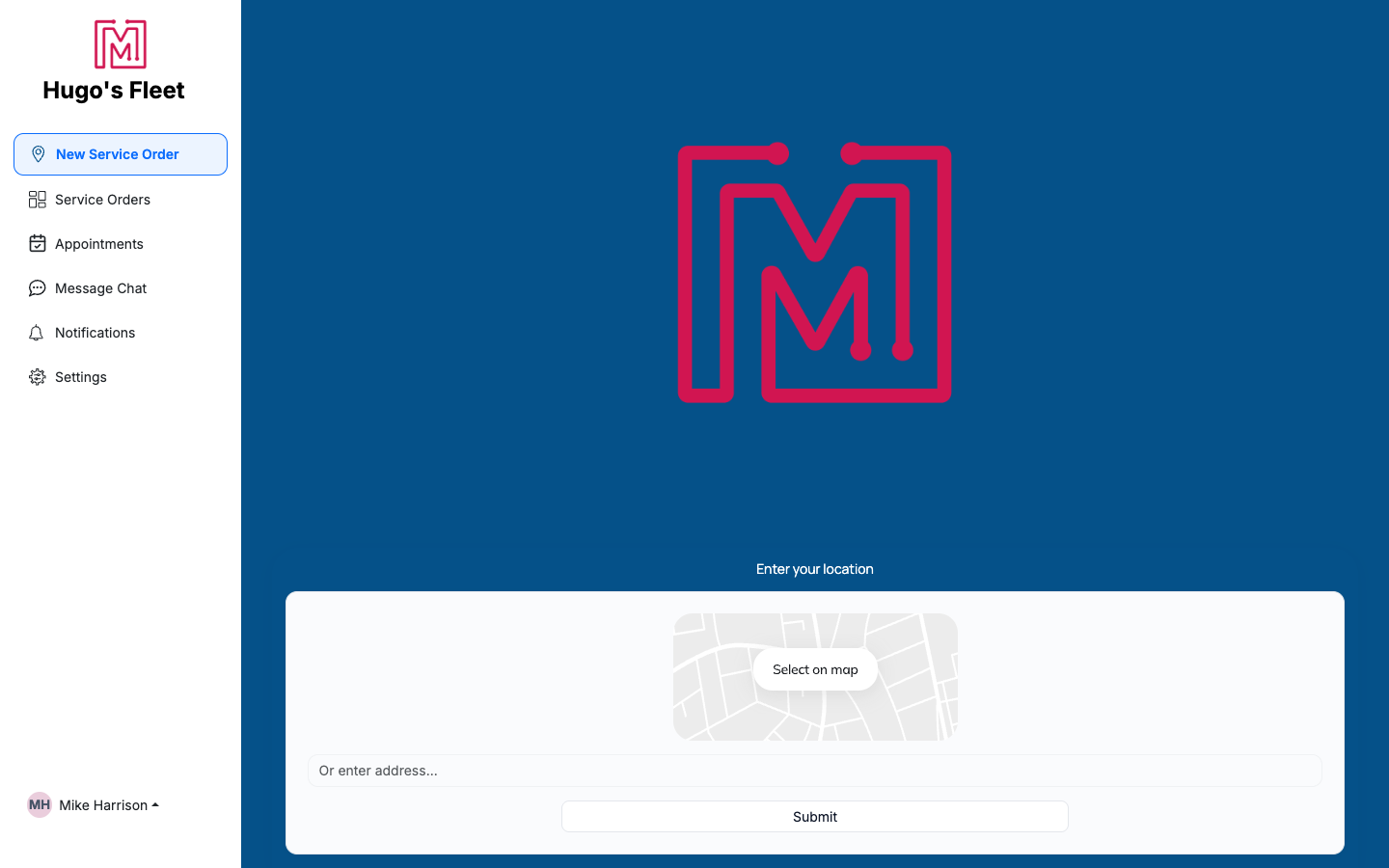
Start by telling the shop where the vehicle is.
Confirm the spot on the map.
Check the pin on the map (drag it if needed), add an optional location description, and click Confirm.
Add the vehicle and describe the issue.
Choose the vehicle (or add a new one), add a PO / reference number if you use them, and write a clear description of the issue (required). Attach photos to help the technician prepare.
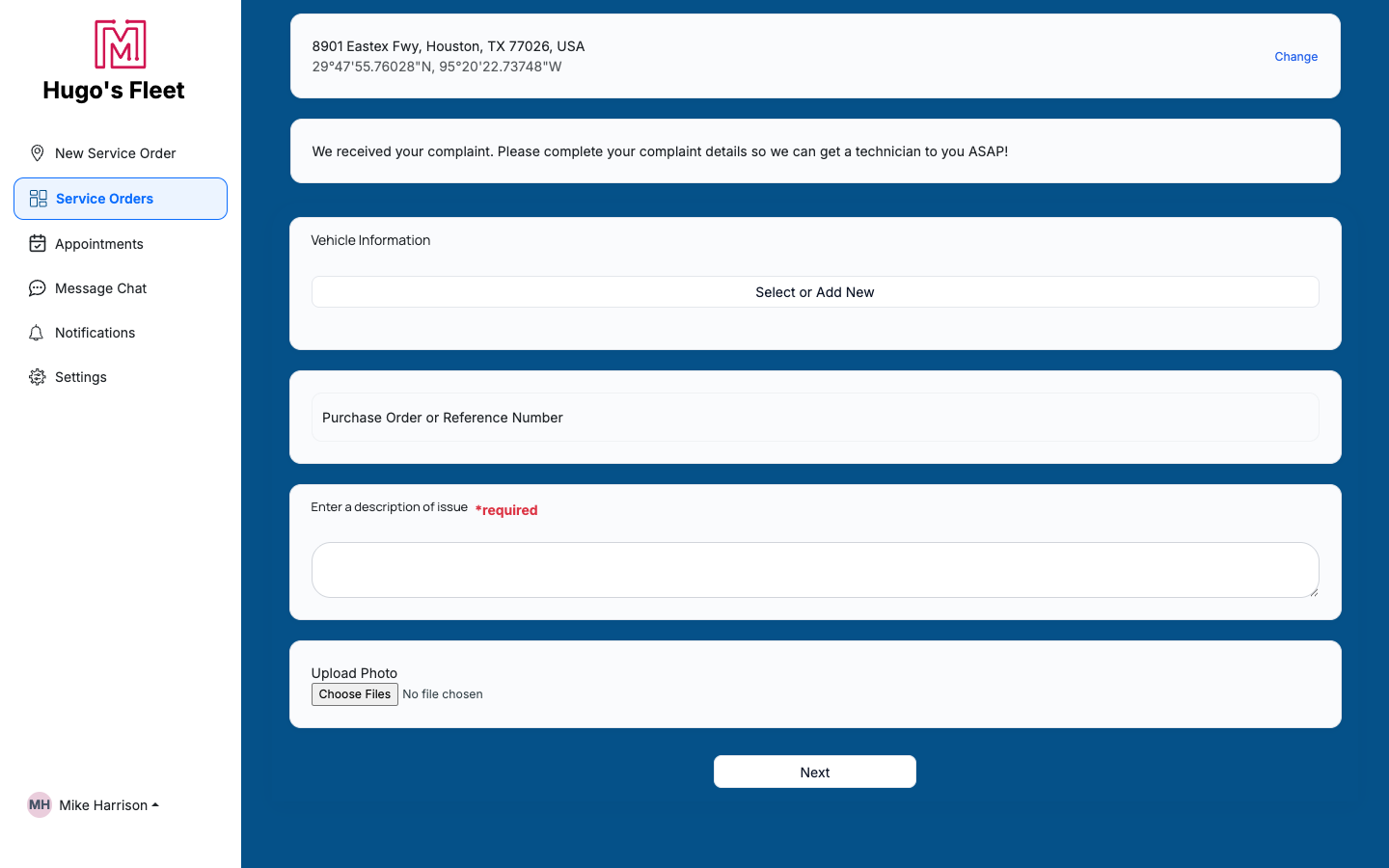
Tell the shop what's wrong — vehicle, a description, and optional photos.
Continue and submit.
Click Next, review the details (and any terms), and submit. Your shop is notified and will assign a technician — track it under Service Orders.
Track it after you submit. Open Service Orders in your portal to follow the job's status, see the estimate when it's ready, and message the shop from Message Chat.Troubleshooting
| Symptom | Likely cause | Fix |
|---|---|---|
| I can't continue past the details step | The description is required | Enter a description of the issue, then click Next. |
| My vehicle isn't listed | It's not on your account | Use Select or Add New to add it, or contact your shop. |
| The map pin is in the wrong place | Geocoding put it nearby | Use Change / drag the pin to the exact spot before confirming. |
Do I need an exact address?
An address or a dropped map pin both work — the technician uses it to find the vehicle.
Can I add photos?
Yes — attach photos of the issue so the tech arrives prepared.
What happens after I submit?
Your shop is notified, assigns a technician, and you can track status and the estimate in your portal. - add the title and keep going