
Who this is for
Admins and Dispatchers who have permission to create Service Orders directly in the MetaFleet platform.
What you’ll learn
• Create a Service Order from scratch (not from the Service Order Request Hub)
• Add company, contact, driver, and location details
• Add or select a vehicle
• Enter a customer complaint that triggers AI cleanup and work item generation
• Assign service area, repair type, and payment method
• Submit the Service Order and assign a technician
• Understand how arrival time estimates are calculated
Before you start
• Must have Admin or Dispatcher permissions
• Ensure the company exists (or know how to create one)
• Have the contact and vehicle details ready
• Know the repair type and service area
• Have a clear customer complaint with enough detail for AI parsing
• Confirm whether the account is on net terms or charge-on-demand
Quick Summary (TL;DR)
-
Go to Service → Service Orders → New Service Order
-
Select a Company
-
Add Contact + Driver details
-
Add Location and adjust pin if needed
-
Add or select a Vehicle
-
Choose a Service Area, Repair Type, and enter a detailed Customer Complaint
-
Pick a Payment Method
-
Submit
-
Assign a Technician
Step-by-Step
-
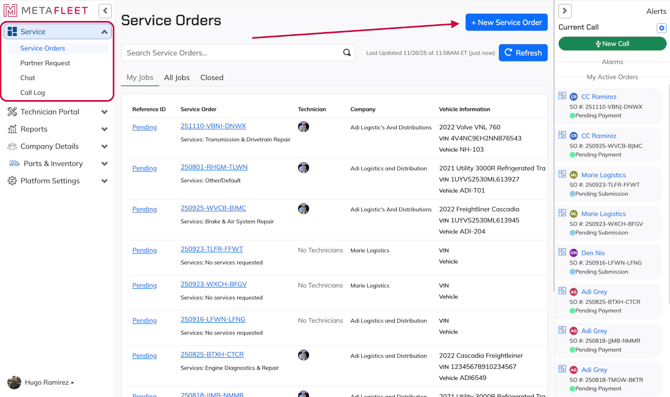
Navigate to Service → Service Orders.
-
At the top right, click New Service Order.
-
Select the Company this job belongs to.
• Use search to find an existing company
• Or click Create New Company if needed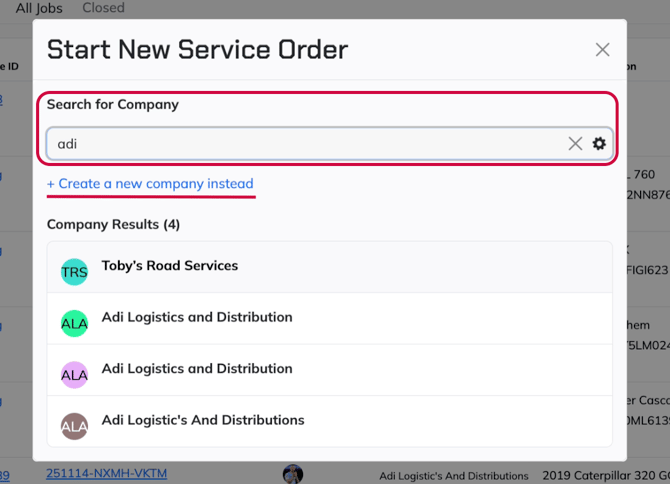
-
Confirm. The system assigns you as the Service Writer automatically.
-
Add a Member / Contact for this job.
• Pick an existing contact, or
• Click Create New Contact
Then validate the details. -
Add Driver Information if applicable.
• Identify the driver
• Optional: mark Contact On Site so technicians know what to expect -
Enter the Service Location.
• Add an address
• Drag the pin if the actual breakdown location differs
• Add notes such as “trailer moved to back lot” or “parked behind bay 3” -
Click Save to lock in location details.
-
Add or select a Vehicle.
• Search existing vehicles
• Or click Add Vehicle and complete required fields -
In Repair Details, select the Service Area for this job.
-
Select the Repair Type (from your Repair Types library).
-
Add a detailed Customer Complaint.
• Write enough detail for AI to understand the issue
• Spelling mistakes are okay—AI cleans it up
• The system will convert this into work items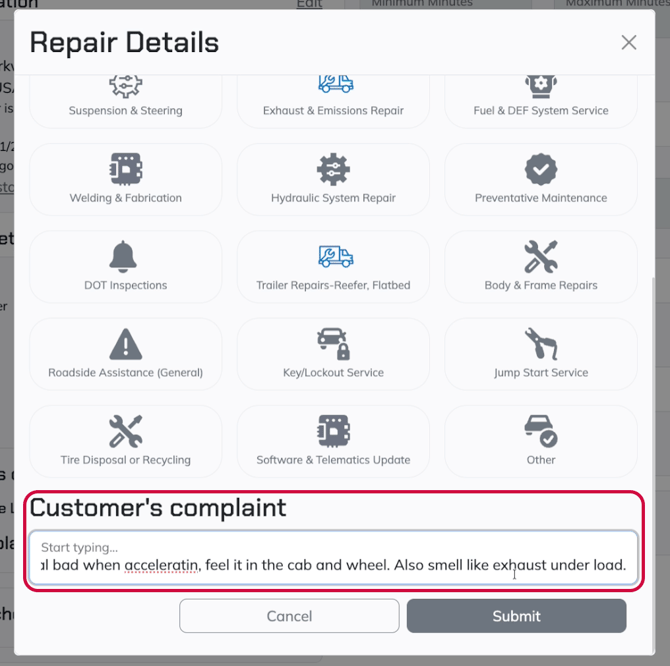
-
Optional: Add a Reference ID (PO number, internal tracking, accounting reference).
• MetaFleet generates its own SO number, and this field is for your use.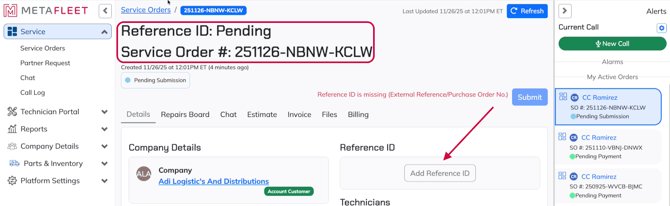
-
Select a Payment Method.
• Company accounts will show Net Terms
• Charge-on-demand accounts will show the Stripe card flow -
Optional: Add Estimated Time to Repair (Min/Max minutes).
Helpful when scheduling and communicating expected timelines. -
Review all fields, then click Submit at the top.
-
MetaFleet sends a New Job Request Alert to nearby available technicians.
• This also appears on the tech’s mobile interface. -
Assign a Technician.
• Click Assign Technician
• Choose from available techs nearby
• Confirm -
After assignment, MetaFleet automatically calculates estimated arrival time based on technician location and breakdown location.
-
Optional: Cancel the job at the bottom with Cancel Service Order if needed.
• Releases the technician
• Stops all workflow on this SO
Troubleshooting
| Symptom | Likely Cause | Fix | Prevent |
|---|---|---|---|
| There aren't any work items after a customer requests service | Complaint may have been too short or vague | Add more detail and re-run work item generation | Write clear symptoms (noise, leak, smell, timing, behavior) |
| Can’t assign a technician | Tech not available or outside service area | Update technician availability or service area | Keep availability updated during the shift |
| Payment method missing | Company billing type set incorrectly | Set Net Terms or Charge on Demand | Confirm billing setup during onboarding |
| Map pin is wrong | Autofill placed the pin incorrectly | Drag the pin to the correct breakdown location | Verify exact location before creating the SO |
| Vehicle doesn’t appear | Vehicle not linked or missing required fields | Add the vehicle manually | Keep the fleet list updated |
FAQs
Can I change the Service Writer after creating the job?
Yes. Edit the SO header and reassign the Service Writer.
Do customers see the admin-created Service Order?
Yes. In the Service Order Request Hub, they can track updates, ETA, and technician activity in real time.
What happens if the technician declines the job?
You’ll receive a notification and can reassign to another available tech.
Can I create a Service Order without a vehicle?
Vehicle details are required for proper diagnosis and history. Add at least basic details before submitting.
What if the customer complaint is unclear?
The AI will try, but unclear complaints usually need manual follow-up. Add detail before submitting.