
Who this is for
Dispatchers and service writers opening repair jobs — by phone, walk-in, or on a customer's behalf.
What you'll learn
How to create a service order from scratch: choose the customer and vehicle, set the location, capture the complaint, and hand it off for assignment.
Before you start
- You'll need: The customer's company in your system (or create it on the fly), and the vehicle and location for the job.
- A readiness tracker guides you: The counter at the top (e.g. 0/5) shows how many required pieces are filled — Create Service Order turns on at 5/5.
Quick summary
- Go to Service → Service Orders and click + New Service Order.
- Search and select the company, then the vehicle.
- Set the unit location (address or map pin).
- Pick a service area and service type, and describe the issue.
- Click Create Service Order.
Step-by-step
Open the form.
From Service → Service Orders, click + New Service Order. The form lays out everything a job needs — Company, Vehicle, Unit Location, and Complaint & Service — with required fields marked.
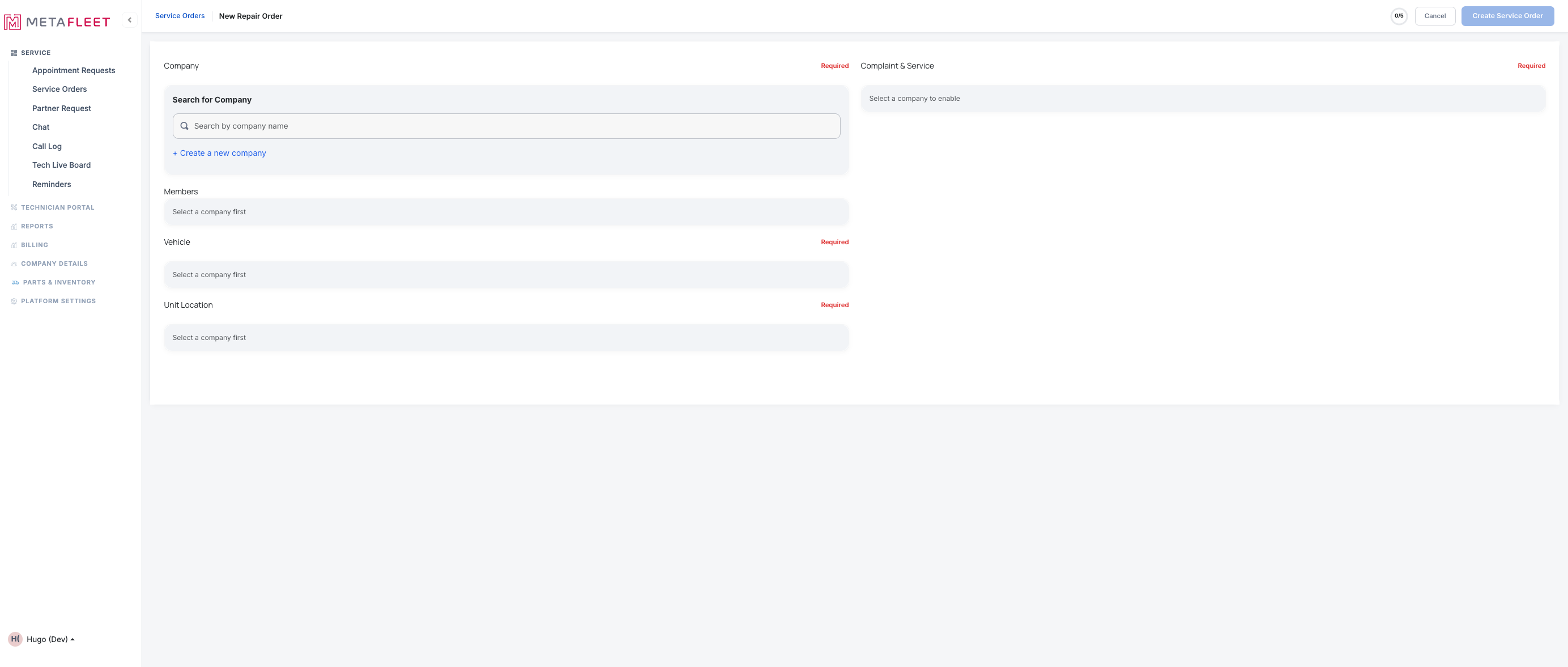
The blank form. The right side stays locked until you pick a company.
Choose the company (and contact).
Search and select the company — or + Create a new company if they're new. Optionally add a contact (driver or fleet contact) under Members.
Pick the vehicle and set the location.
Search the company's vehicle by unit number or VIN. Not on file yet? Click + Create a new vehicle right here to add it without leaving the order — enter the VIN and MetaFleet auto-fills the make, model, year and specs (see Auto-Fill Vehicle Details from the VIN). Under Unit Location, type the address (and pick the geocoded result) or drop a pin on the map so the technician knows where to go.
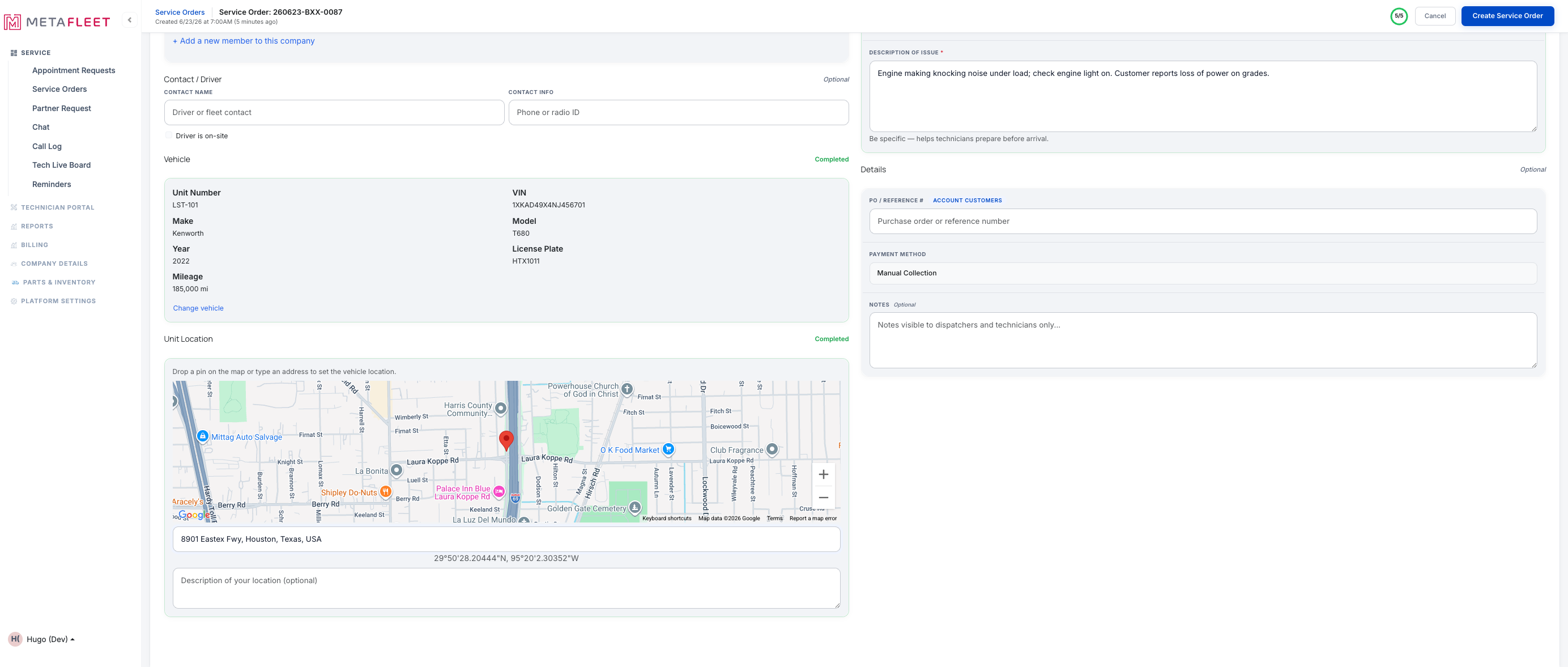
A completed form — vehicle selected, location pinned on the map, and the complaint described.
Tax jurisdiction comes from the location. Once the unit location is geocoded, MetaFleet shows the tax jurisdiction that applies — based on where the work happens. If that area isn't set up for tax yet, you'll see a "Tax not configured" flag; the order still saves, and an admin can finish tax setup under Settings → Taxes (see Set Up Taxes by Jurisdiction).
Describe the work.
Under Complaint & Service, choose the service area, pick a service type, and write a clear description of the issue (this helps the tech prep). Add an optional PO/reference, payment method, or internal notes.
Create it.
When the tracker hits 5/5, click Create Service Order. The order opens at Unassigned, ready for you to assign a technician.
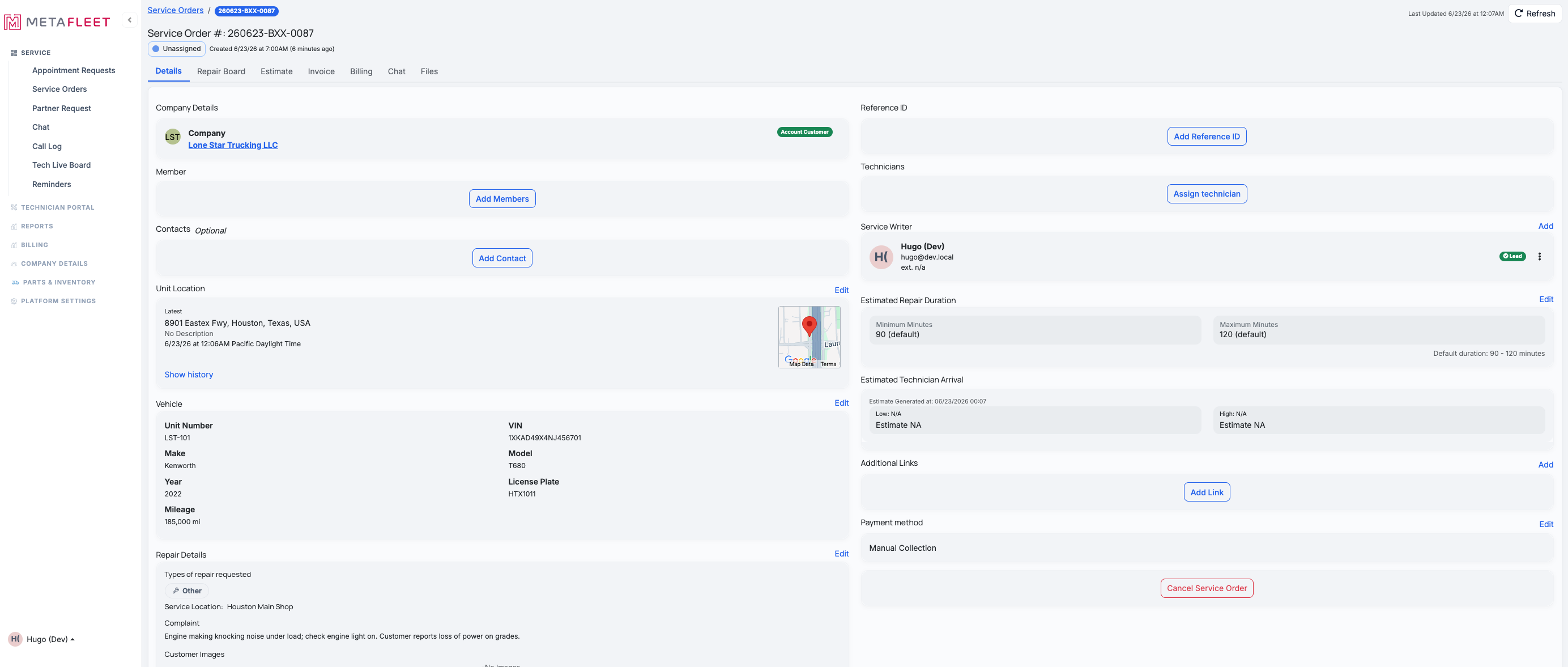
The new service order — every tab in place and Assign technician ready to go.
Other ways orders come in. Customers can open their own from the portal, partner requests arrive via FleetNet, and a dispatcher can turn a chat into an order — see the related articles.
Troubleshooting
| Symptom | Likely cause | Fix |
|---|---|---|
| The right side is greyed out | No company selected | Pick a company first — Members, Vehicle, and Complaint then unlock. |
| Create Service Order stays disabled | A required field is empty | The X/5 tracker shows what's left — company, vehicle, location, service type, and description. |
| The vehicle isn't found | It's not on that company yet | Click + Create a new vehicle right in the picker (decode the VIN to fill it in fast), or add it under Managing Vehicles first. |
| The address won't stick | It wasn't geocoded | Pick a suggestion from the dropdown, or drop the pin directly on the map. |
FAQs
Do I have to add a contact?
No — Members is optional. Company, vehicle, location, service type, and a description are what's required.
What status does a new order start in?
Unassigned — your next step is to assign a technician (see Assign a Technician).
Can I create the company while making the order?
Yes — use + Create a new company in the company search.