
Who this is for
Anyone ordering parts for a job and wanting the order to stay linked to the right service order and work item.
What you'll learn
The two ways to create a PO for a job, and how the link between the PO line and the work item is kept.
Two ways to create a PO
- From the job: On a work item's part, use Create PO (reserve a new PO) or Map PO (link to an existing one). It already knows the part and work item.
- From Purchase Orders: Purchase Orders → + Create PO, add lines, and link each line to a service order.
Option A — start from the work item
Open the work item's part.
On the service order's work item, find the part you need to order.
Create PO or Map PO.
Create PO reserves a new purchase-order number for that part right away; Map PO attaches the part to a PO you've already started. Order from vendor is the quickest path — it picks the part's vendor and creates a single purchase order for it in one click, with a link straight to that PO. Either way, the part is now on order for this exact work item.
The part shows it's on order.
The part displays an "On order · PO-1234 — Vendor" tag, so anyone on the job can see the part is handled and which PO it's on.
Option B — build it in Purchase Orders
Start a new PO.
Go to Purchase Orders and click + Create PO. Drafts save automatically as you go.
Pick the vendor and add parts.
Choose the vendor, then add a line item for each part — quantity and unit cost. Set an optional expected delivery date, and a vendor invoice # if you already have the number printed on the vendor's invoice.
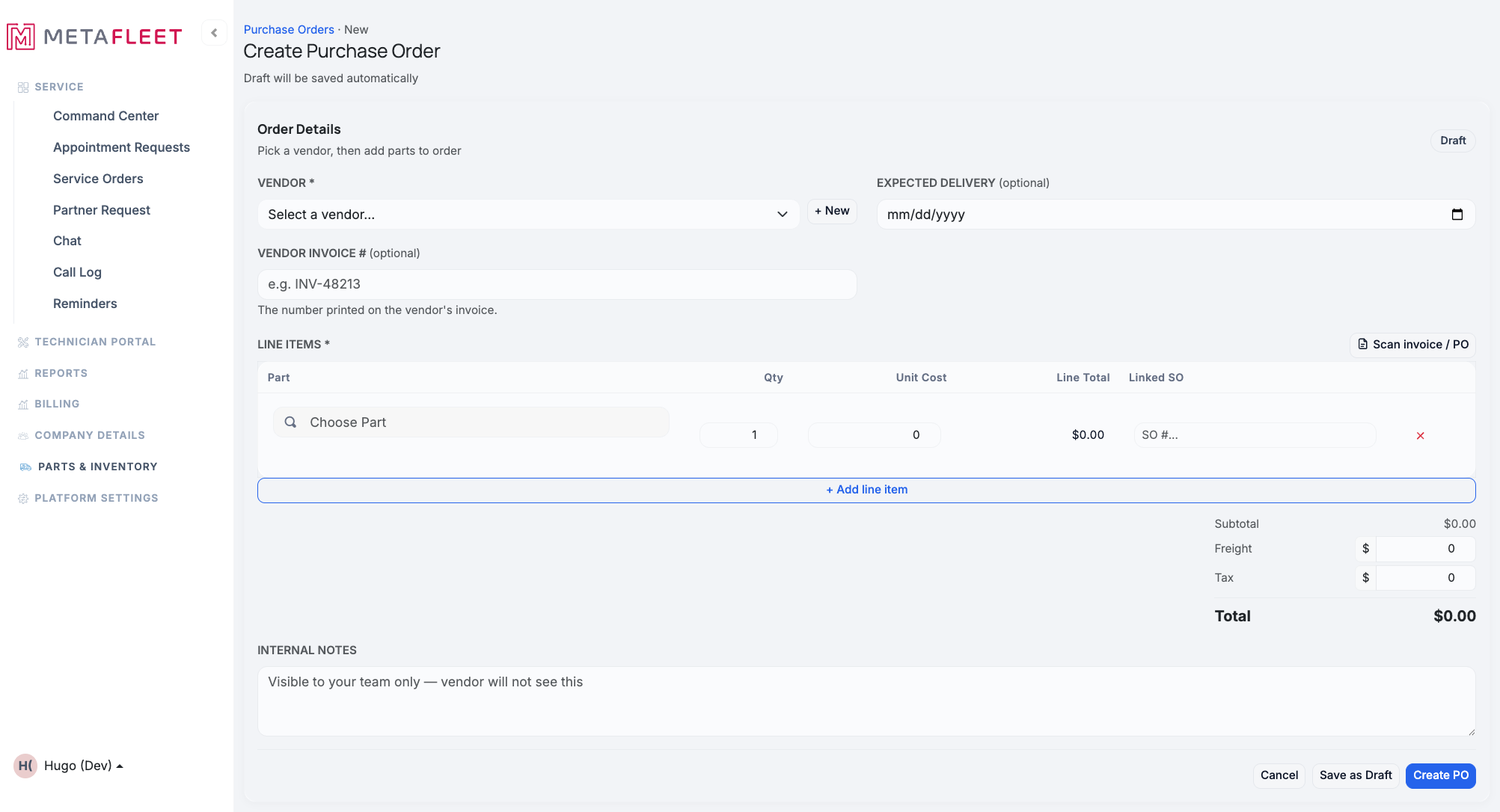
The Create PO page — each line can be linked to a service order.
Link each line to its service order.
In the Linked SO column, enter the service order the part is for. When you submit the PO, that part on the job picks up the same "On order · PO" tag — so both sides match.
Save or create.
Add freight/tax and any internal notes (your team only — the vendor won't see them), then Save as Draft or Create PO.
One PO can cover many jobs. A purchase order has no single service order — the link lives on each line. So one order to a vendor can carry parts for several service orders at once. (Quantities going to a job vs. stock are sorted out when you receive.)
Got a paper PO or invoice? Use Scan invoice / PO on the create page to read it in — or snap a receipt from the job. See Snap a Receipt → Auto-Create a PO.
Troubleshooting
| Symptom | Likely cause | Fix |
|---|---|---|
| Create PO is greyed out | No vendor or no line items yet | Pick a vendor and add at least one part line. |
| The part doesn't show "On order" | The PO is still a draft (not submitted) | The tag lands when the PO is submitted — submit it. |
| The SO link didn't apply | The SO number wasn't recognized | Use the Linked SO field's lookup to pick the exact service order. |
FAQs
What's the difference between Create PO and Map PO?
Create PO starts a brand-new order; Map PO links the part to a PO you already have.
Can one PO have parts for different jobs?
Yes — link each line to its own service order.
Will the vendor see my notes?
No — internal notes are for your team only.
Does creating the PO order the part automatically?
It records the order on your side and tags the part. Sending it to the vendor and receiving stock are the next steps.